Word Agent
Scenario Overview
Word Agent is better suited for handling these three types of content: "long-form text, formal text, and structured text," and is especially applicable to the following business scenarios:
- Drafting proposals and reports: First use the creation capability to generate a draft, then expand, condense, and review it.
- Organizing policies and standards: Organize scattered materials into formal descriptions, process standards, or internal announcements.
- Processing cross-language materials: Quickly understand foreign-language documents, translate them first, then analyze and edit them further.
- Polishing team collaboration documents: Unify tone, format, and typo corrections across the same document.
Word Agent mainly provides 4 types of capabilities:
- Creation: free creation, template-based creation, outline-based creation.
- Translation: quickly translate selected text, translate the entire document and download it, upload a document for translation and download it.
- Optimization: expand, condense, outline, change tone.
- Review: typo correction, grammar correction, punctuation correction.
If you want to draft a document from scratch, it is recommended to start with "Creation"; if you already have a draft, it is recommended to use "Optimization + Review" to improve the final quality.
Prerequisites
Before use, it is recommended to confirm the following conditions:
- The document to be processed is already open in Word.
- You have document editing permissions, and the document is not in read-only or protected mode.
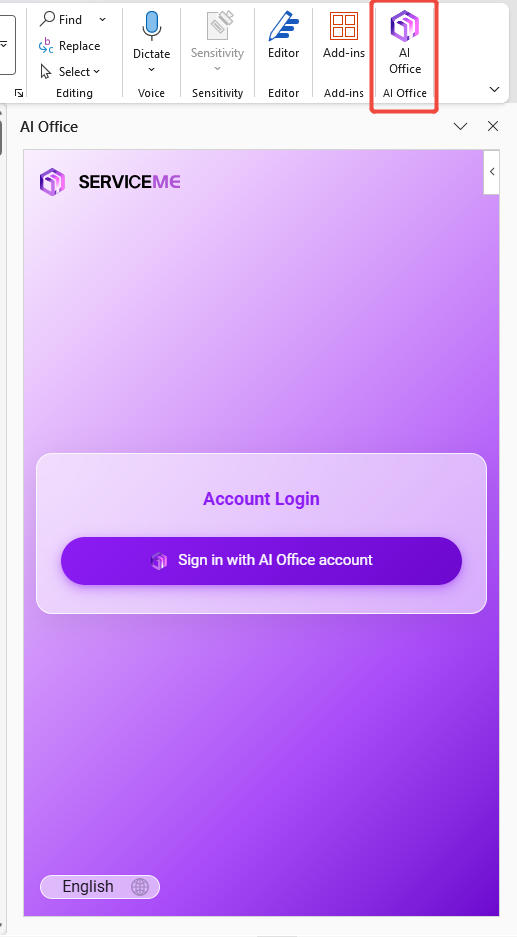
- Office Agent permissions have been enabled and you have successfully logged in.
- If you want to process a selection, first select the target text; if you want to process the entire document, keep nothing selected.
- It is recommended to save the current document once first, so you can compare version differences before and after optimization.
Steps
1. Create or open a document
Applicable when: using Word Agent for the first time, or preparing to process an existing document.
How to operate:
- Open a Word document and click the Office Agent icon in the upper-right corner to open the sidebar.
- Confirm that the current document is editable, and check whether it is in read-only or protected mode.
- Clarify the processing scope for this session: selection processing or full-document processing.
Result description:
- Only after entering an editable state can subsequent actions such as "Creation, Translation, Optimization, and Review" be written back normally.
- If write-back fails, first check permissions, document protection status, or collaborative lock status.
2. Create a document
Applicable when: you only have a topic, goal, or scattered key points, but do not yet have a usable draft.
How to operate:
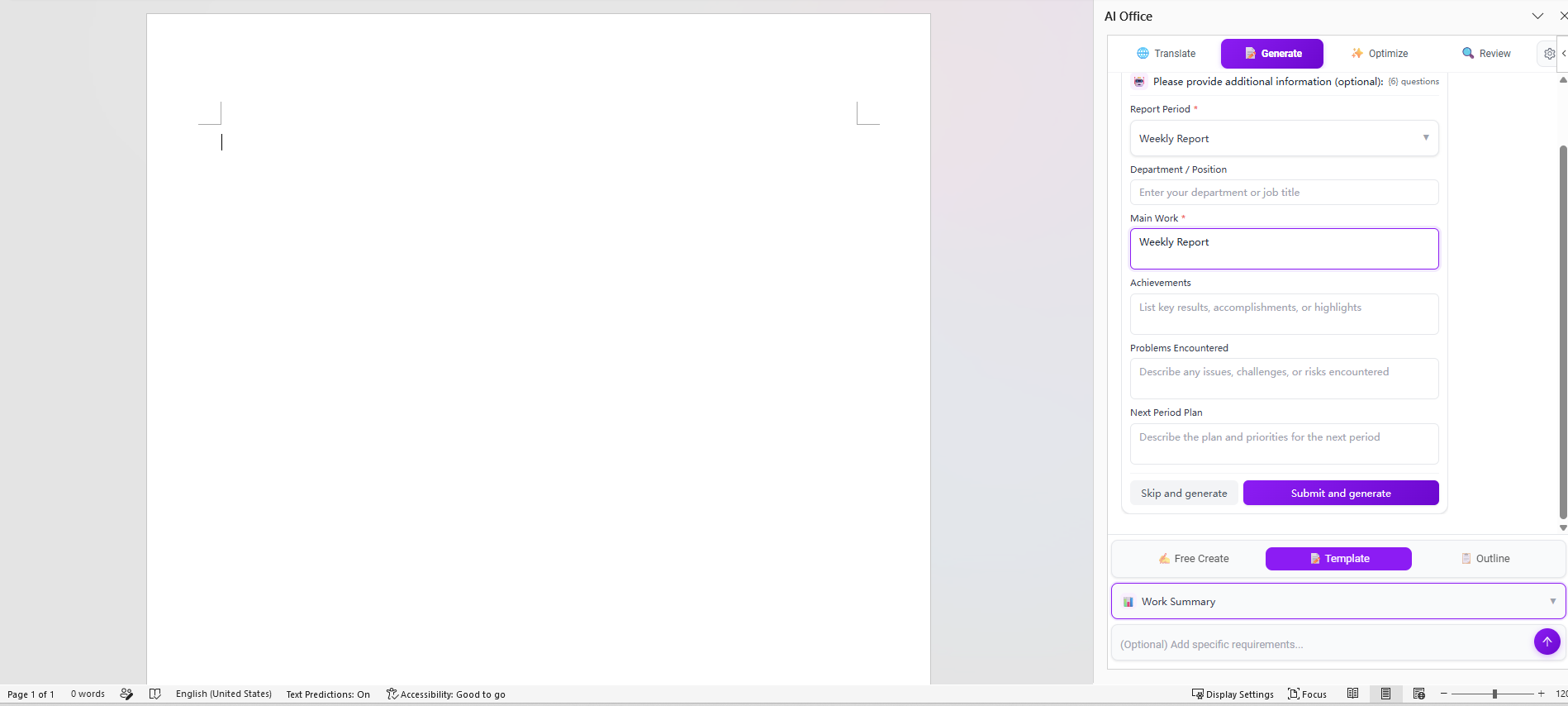
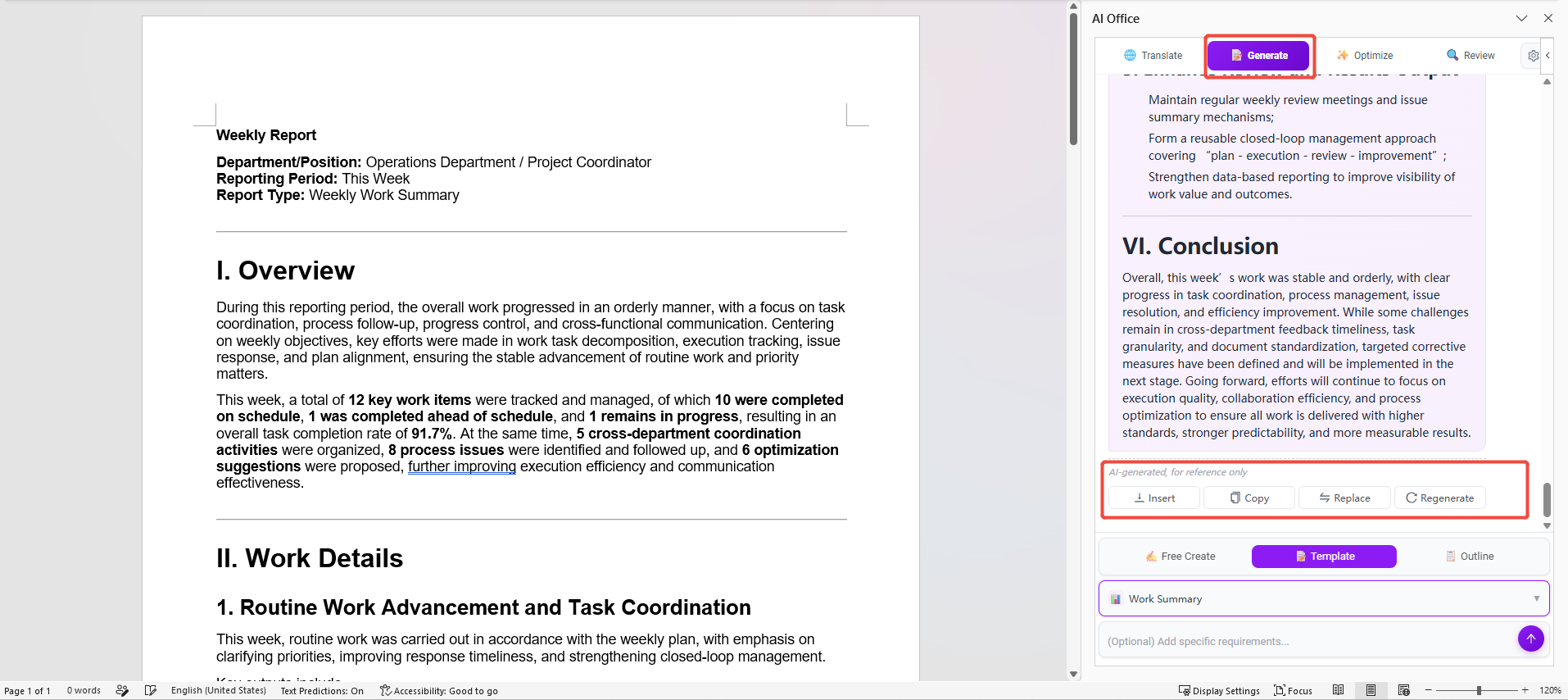
- Click "Creation" and choose a mode: free creation / template-based creation / outline-based creation.
- Set parameters according to the mode:
- Free creation: set writing style, length, and tone of expression.
- Template-based creation: choose a template (required), then supplement the topic and key requirements.
- Outline-based creation: define the structure first, then control the length.
- Fill in background information in the input box (such as audience, purpose, output format, and word count constraints).
- Click send, then after reviewing the result, choose to insert, copy, replace, or regenerate.
Result description:
- More complete context will significantly improve the usability of the first version.
- It is recommended to ensure the structure is correct first, then move to the optimization stage for language polishing.
Typical use cases: initial project report drafts, external explanatory copy, internal notices.
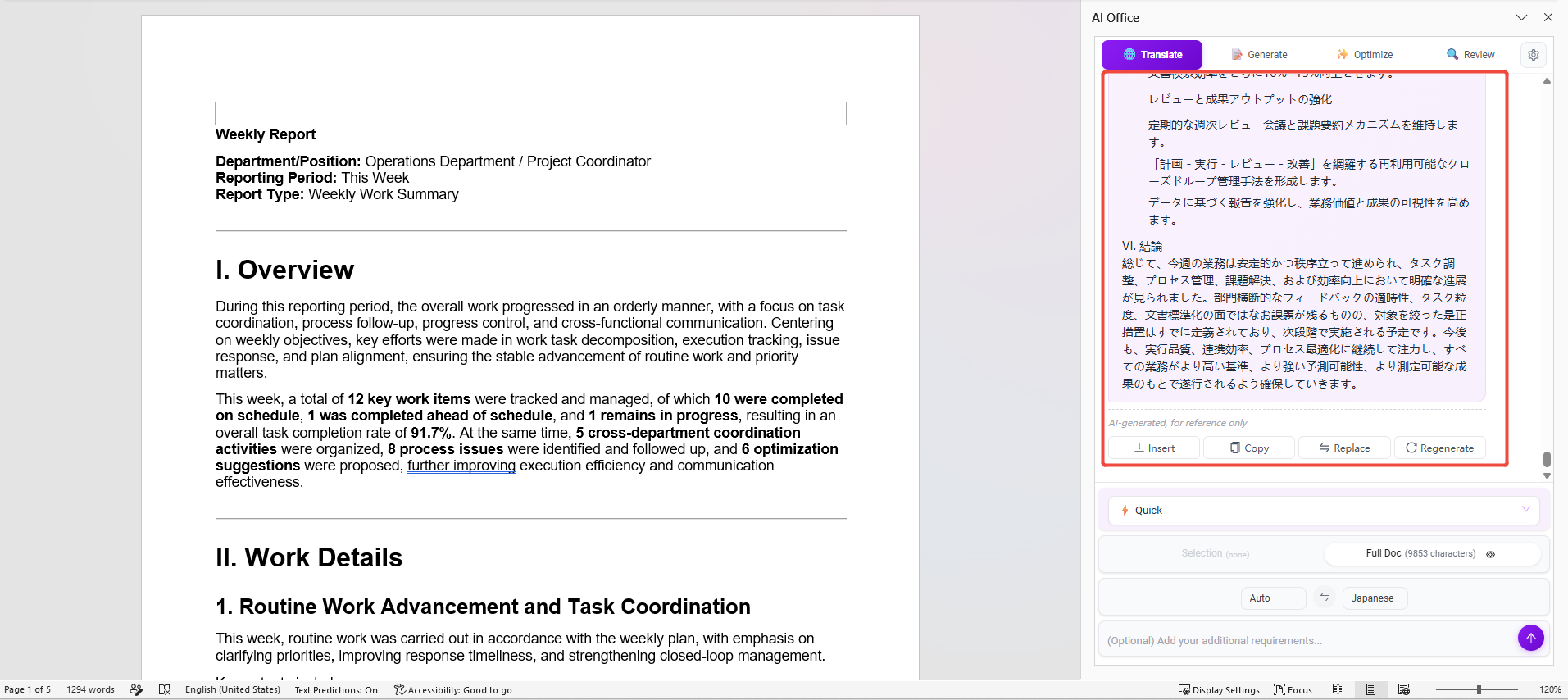
3. Translate a document
Applicable when: you need to quickly understand a foreign-language document, or produce multilingual versions for communication.
How to operate:
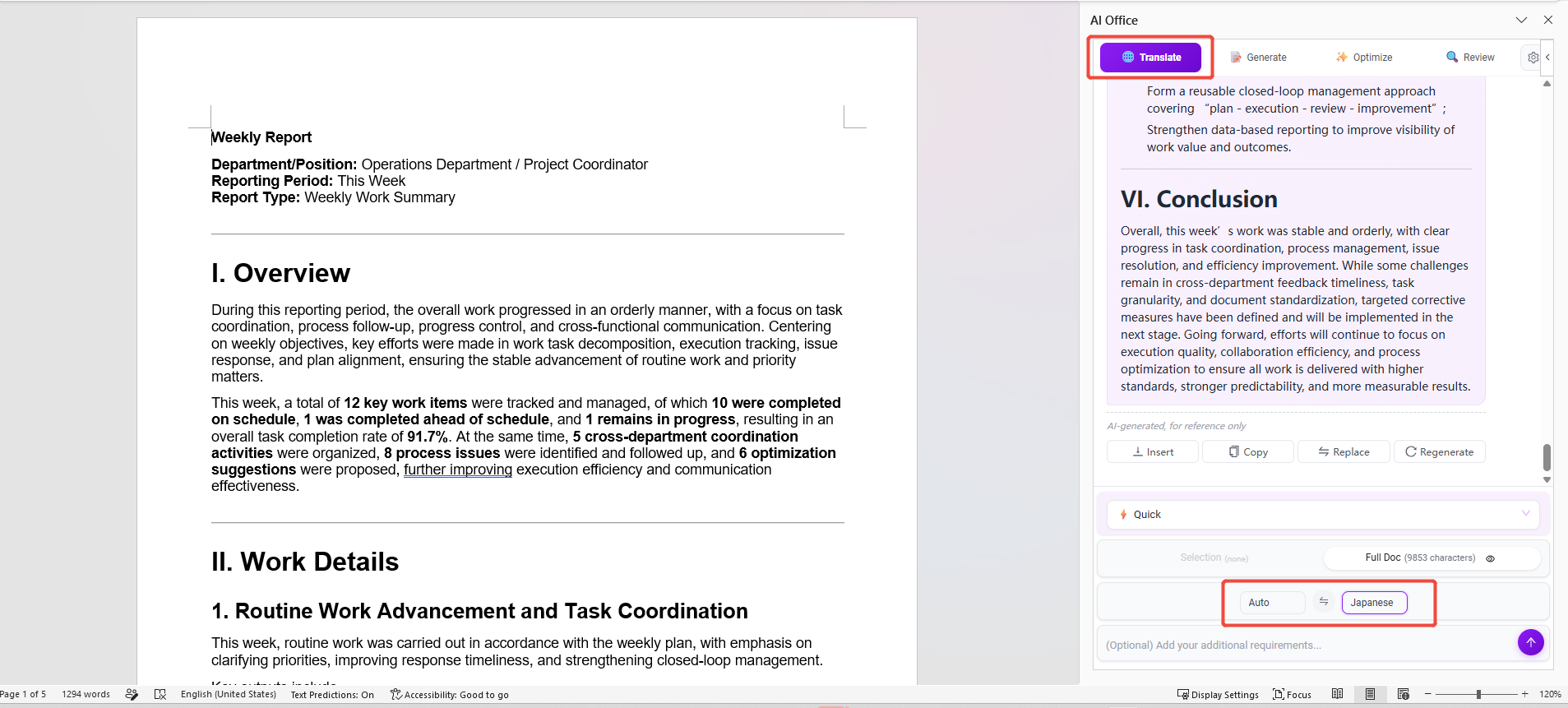
- Select the text to be translated, or keep nothing selected to process the entire document.
- Choose a translation method:
- Quick translation: suitable for fast rewriting and immediate replacement within the current document.
- Translate document and download: suitable for outputting an independent translated file.
- Set the source language and target language.
- Click send or "Translate and download," then insert, replace, or download as needed.
- Focus on reviewing terminology, proper nouns, numeric units, and date formats.
Result description:
- Selection translation is suitable for refining paragraphs, while full-document translation is suitable for building an overall understanding.
- For formal cross-language documents, it is recommended to add one round of manual review to ensure legal or business semantics are accurate.
4. Optimize a document
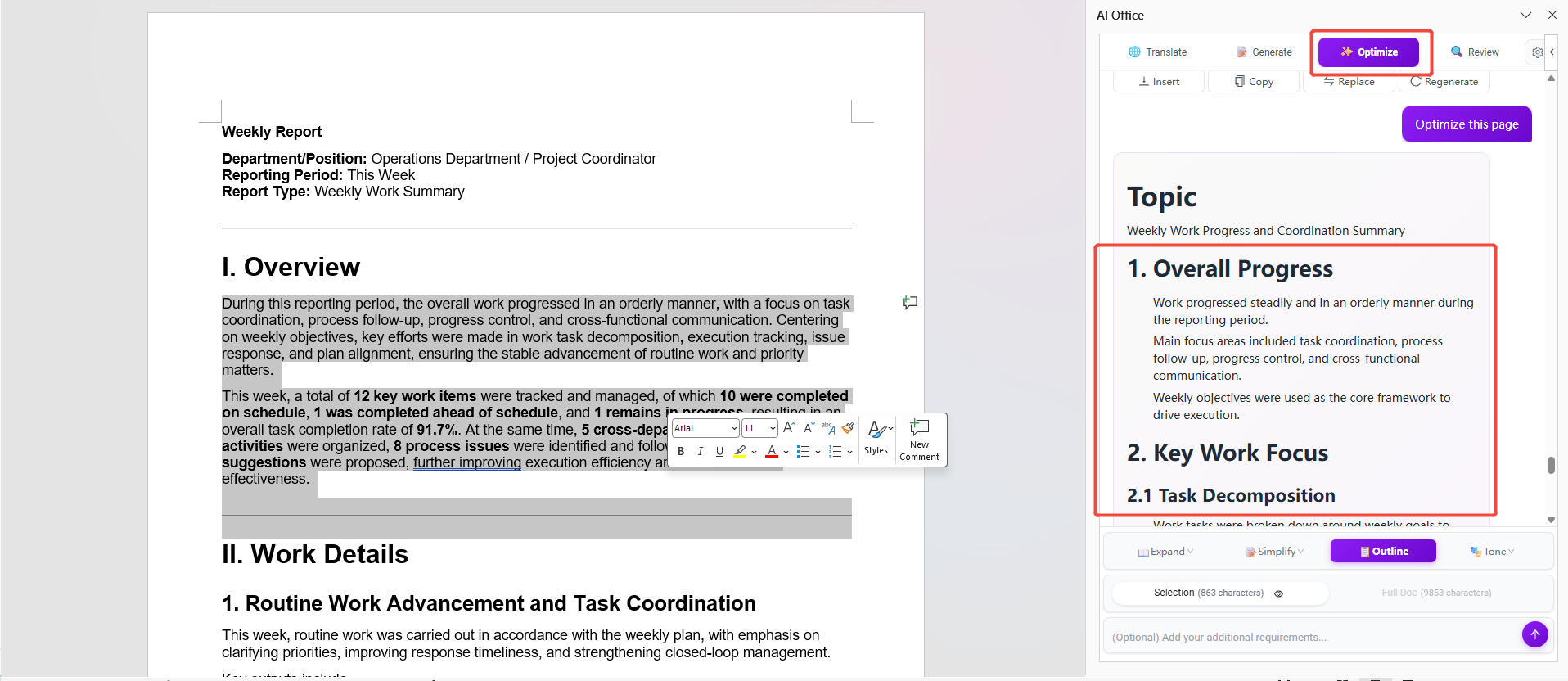
Applicable when: document content already exists, but the length, structure, or tone does not match the target audience.
How to operate:
- Select part of the text, or keep nothing selected to apply to the entire document by default.
- Choose an optimization method: expand, condense, outline, change tone.
- Enter additional requirements (such as adapting for executive reporting, making the tone more formal, retaining original terminology).
- After generation, compare with the original text, then insert, copy, replace, or regenerate.
Optimization suggestions:
- For management-facing materials: prioritize "Condense + Outline" to highlight conclusions and action items.
- For training or explanatory materials: prioritize "Expand + Change tone" to improve comprehensibility.
- For the same document, it is recommended to unify the tone to avoid inconsistent expression styles across sections.
5. Review a document
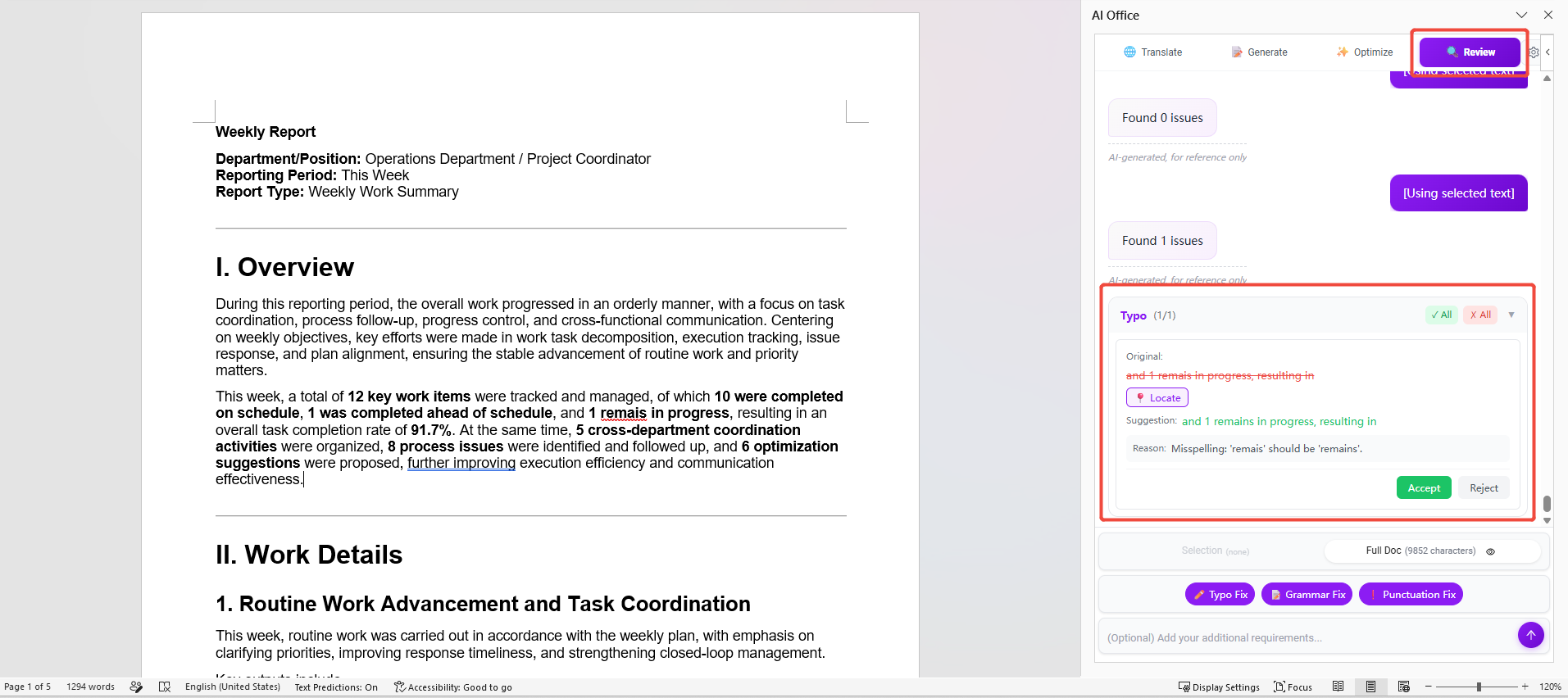
Applicable when: the document has entered the pre-release inspection stage and requires unified quality standards.
How to operate:
- Open the content to be checked (it is recommended to start with the title, abstract, and conclusion paragraphs).
- Choose a review action: typo correction, grammar correction, punctuation correction.
- Review the results and confirm them one by one, adopting changes or keeping the original text as needed.
- Focus on checking terminology consistency, paragraph transitions, and long-sentence readability.
Key inspection points:
- Whether the key conclusions are clear.
- Whether terminology and names are consistent throughout.
- Whether there are repetitive expressions and logical jumps.
- Whether punctuation, numbering, and formatting are consistent.
Recommended Usage Flow
You can use the following common paths according to actual scenarios:
- Drafting a formal document from scratch: create a document -> optimize the document -> review the document.
- Processing a foreign-language document: translate the document -> optimize the document -> review the document.
- Quick revision before finalizing a document: optimize the document -> review the document.
If time is limited, it is recommended to complete at least "Optimization + Review," which can significantly improve delivery quality.
Usage Boundaries
- Selection processing is more suitable for plain text content; the effect on tables, images, or complex objects is limited.
- When processing an entire long document, it is recommended to confirm results section by section first, then organize the full document.
- Translation, expansion, and condensation are auxiliary generated results, and manual review is still required before formal release.
- If the document is in read-only, protected, or permission-restricted status, write-back operations may fail.
Frequently Asked Questions
1. Why is the generated result inconsistent with my expectations?
Usually because the input context is insufficient. It is recommended to supplement the audience, goal, tone, length, and key points that must be retained in the prompt, then regenerate.
2. What should I do if the content changes too much after full-document optimization?
It is recommended to switch to section-by-section processing: first lock in the core paragraphs, then optimize and merge them one by one, which allows better control over meaning drift.
3. What should I do if professional terminology is inaccurate after translation?
You can provide a glossary or constraint terms before translation, and prioritize checking proper nouns, abbreviations, units, and regulatory wording in the results.
4. Do I need to accept all review suggestions?
No. It is recommended to confirm them one by one, especially industry terminology and fixed expressions, to avoid automatic corrections damaging the original business semantics.
Value
- Reduce the cost of drafting long documents from scratch and revising them repeatedly.
- Help teams unify writing style, formatting, and expression standards.
- Improve the efficiency of processing cross-language materials.
- Turn review, translation, and optimization from scattered tools into one continuous workflow.