PowerPoint Agent
Scenario Overview
PowerPoint Agent is mainly used for two types of tasks: “generating presentation materials from scratch” and “quickly optimizing based on existing slides.” It is especially suitable for the following scenarios:
- Weekly/monthly reports/project presentations: Generate an outline first, then fill in content slide by slide.
- External presentation materials: Organize existing content into expressions that are more suitable for storytelling.
- Cross-language material processing: Translate foreign-language PPTs first, then use them for internal understanding or external reuse.
- Slide summarization and review: Summarize, explain, and proofread complex slides to reduce reading effort.
PowerPoint Agent provides 4 core capabilities:
- Translation: Translate all / Translate selection / Translate and download.
- Generation: Generate an outline and create a PPT based on a topic and chapters.
- Optimization: Expand, condense, outline, change tone.
- Review: Summarize, explain, proofread, summarize all.
If you want to quickly create a usable first draft, it is recommended to prioritize “Generation”; if you already have existing content, it is recommended to prioritize “Optimization + Review” to improve expression quality.
Prerequisites
Before use, it is recommended to confirm the following conditions:
- The presentation to be processed is already open in PowerPoint.
- You have slide editing permissions, and the document is not in read-only or locked status.
- Office Agent access has been enabled and you have successfully logged in.
- If you want to process a selection, first select the text box or text content; if you want to process the entire slide, keep nothing selected.
- It is recommended to save the current file once in advance for easier comparison before and after modifications.
Operation Steps (Combined Version)
Below, “Translation, Generation, Optimization, and Review” are integrated into one complete workflow. You can follow the steps in order or jump to a specific step based on actual needs.
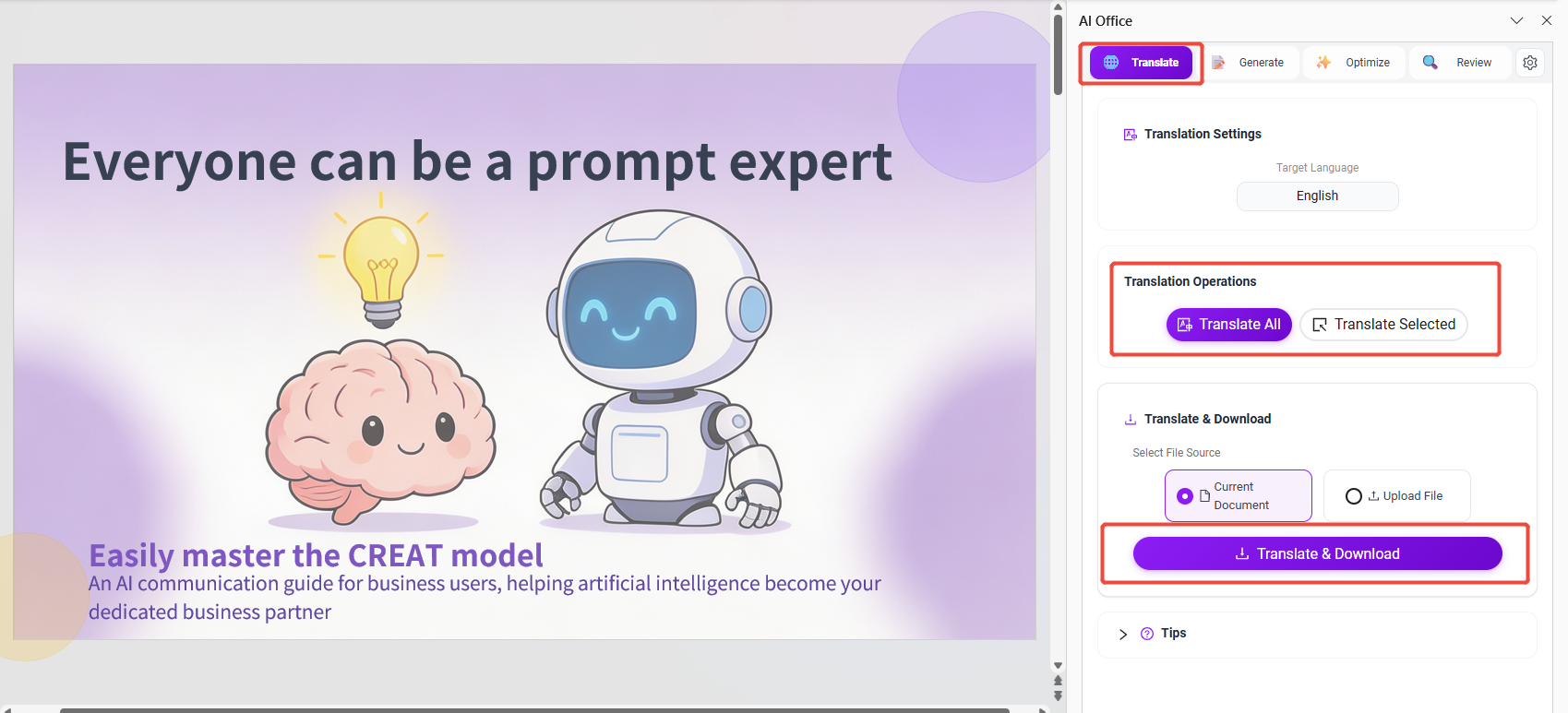
1. Translate PPT
Applicable when: You receive foreign-language materials and need to first complete understanding, review, or localization.
How to operate:
- Set the source language and target language.
- Choose the translation scope:
- Translate all: Translate all text in the entire presentation and replace the original text.
- Translate selection: Translate only the currently selected text box or text fragment.
- Confirm and generate the translation.
- Check proper nouns, numeric units, and terminology consistency, and fine-tune as needed.
Result description:
- If the slide structure is relatively regular, the translation result can usually proceed directly to the next optimization step.
- If the slide contains complex graphics, nested tables, or smart content, it is recommended to review page by page.
2. Translate and Download
Applicable when: You need to keep the original file, or you want to process in batches and output independent translated files.
How to operate:
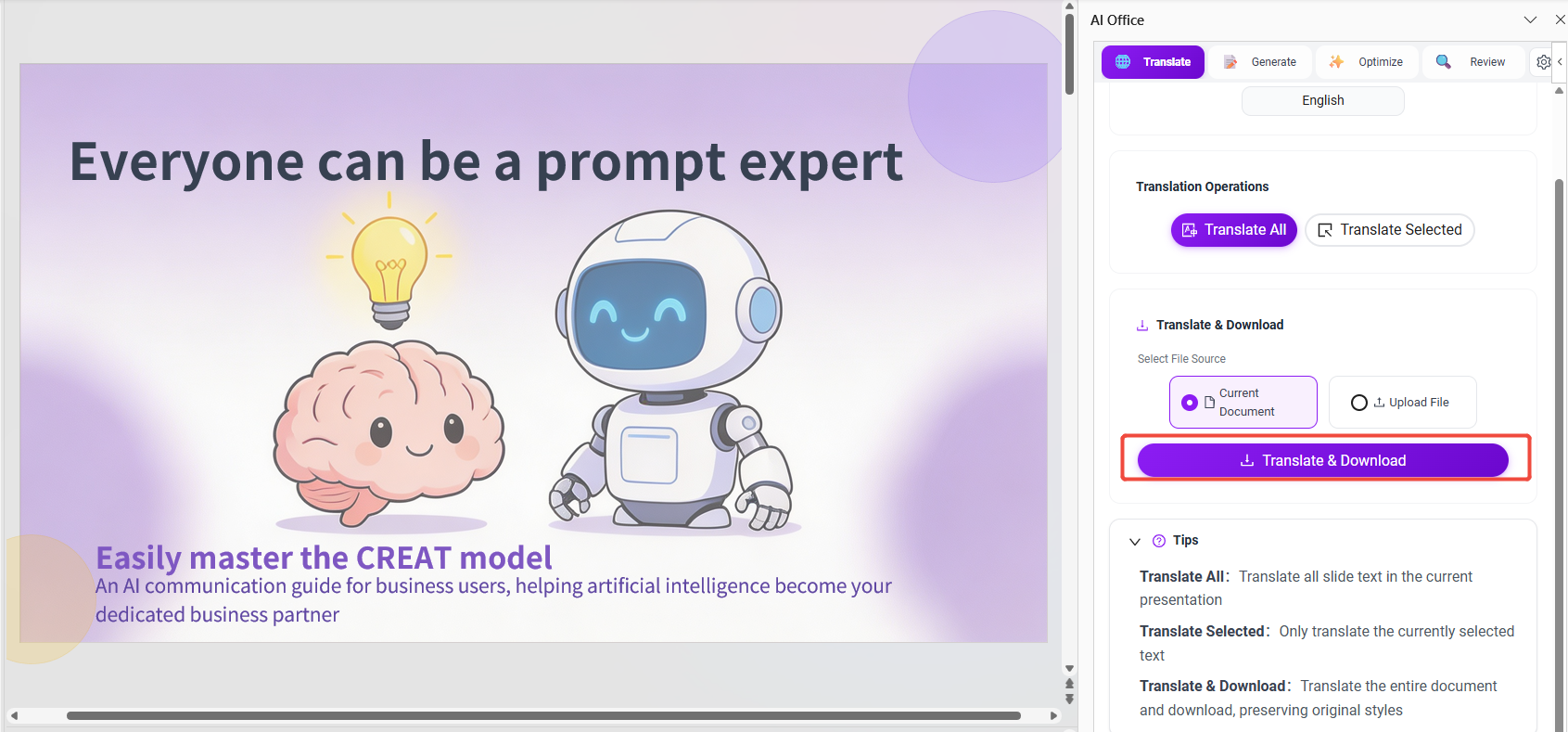
- Select the file source: current document or uploaded document.
- Set the source language and target language.
- Click “Translate and download” and wait for the system to generate the result file.
- After downloading, open it locally and quickly spot-check key slides.
Result description:
- Suitable for cross-team collaboration scenarios, making it easier to manage the “original version” and the “translated version” separately.
- Due to feature limitations, smart content may not be fully translated, so manual completion is recommended.
3. Generate PPT
Applicable when: You only have a topic or objective, but do not yet have complete slide content.
How to operate:
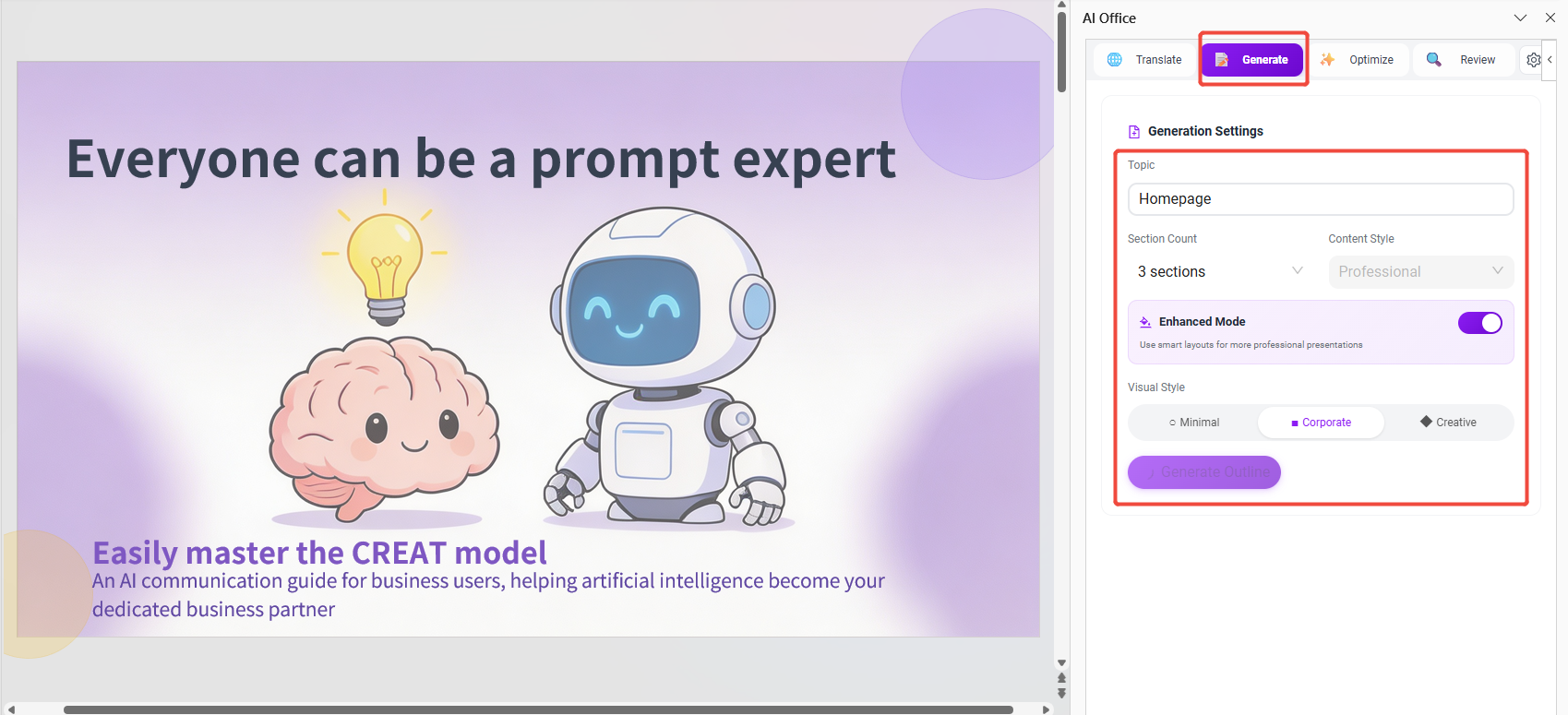
- Enter a topic (for example: quarterly business review, product solution introduction, project milestone report).
- Configure the chapter structure and expression style (such as business-oriented, technical, or management reporting).
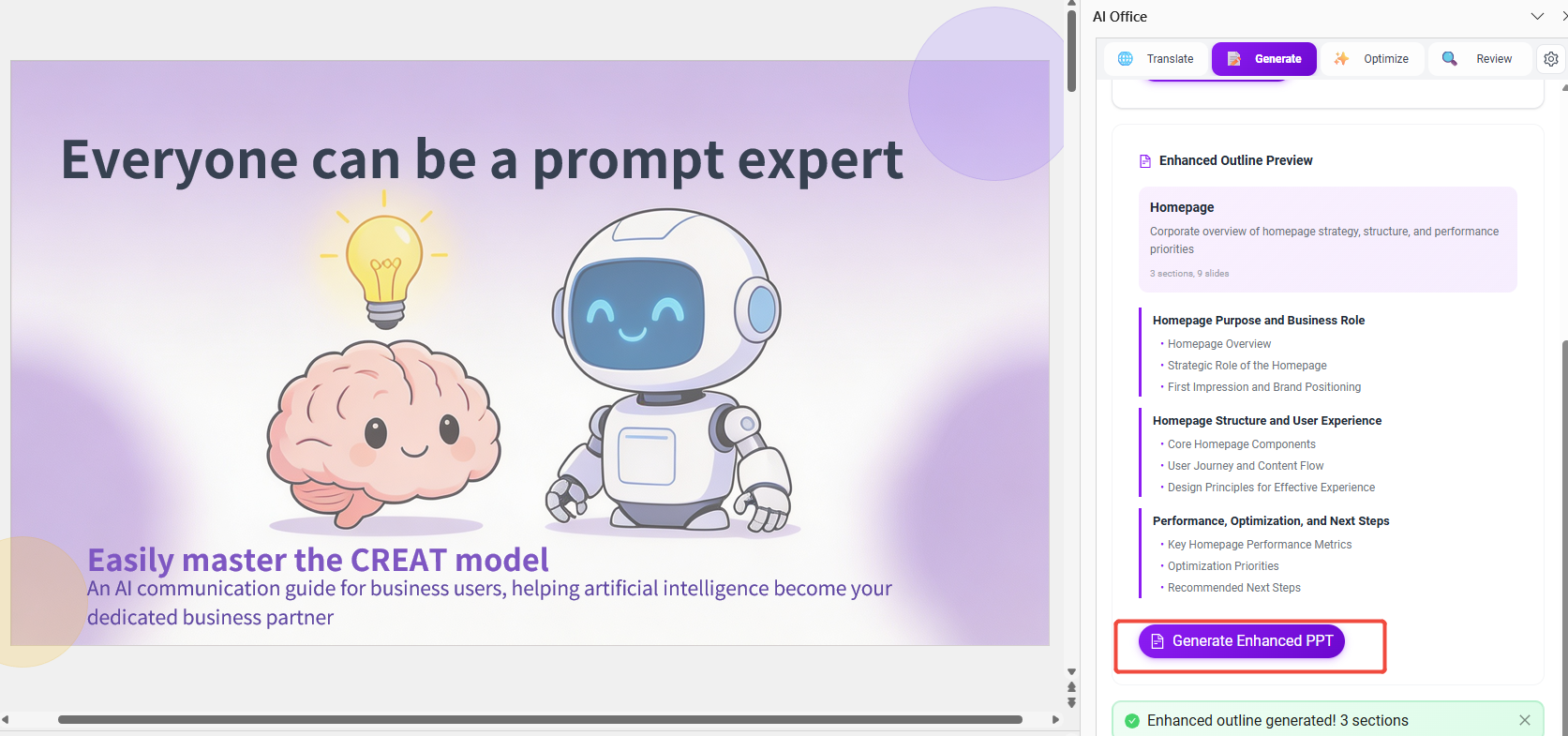
- Click “Generate outline” and first evaluate whether the structure is complete.
- Adjust the outline, then click “Generate enhanced PPT.”
- Check slide by slide whether title hierarchy, key conclusions, and data standards are consistent.
Result description:
- This capability is more suitable for quickly building a first-draft framework.
- Before formal external presentations, it is recommended to supplement real business data and supporting evidence for conclusions.
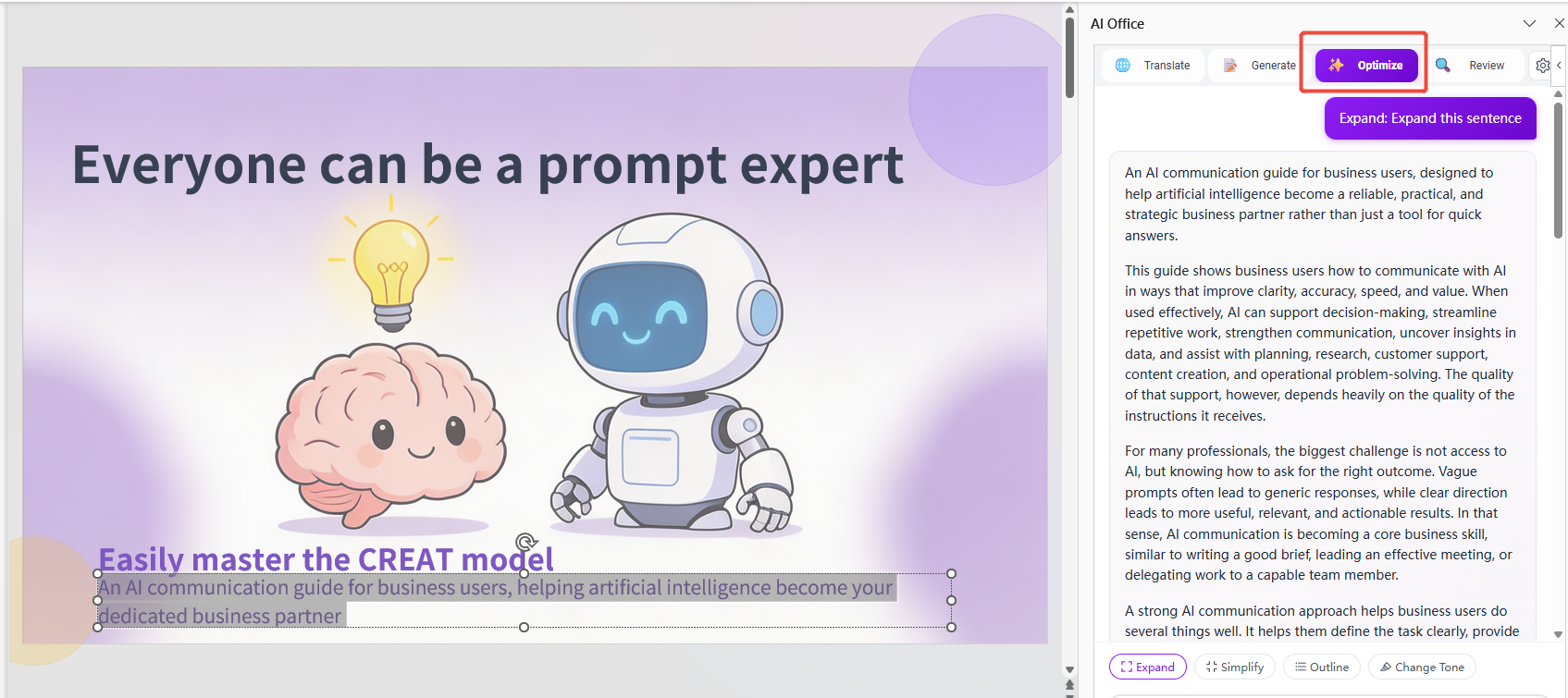
4. Optimize PPT
Applicable when: You already have slide content, but the expression is not clear enough, the length is not appropriate, or the tone is inconsistent.
How to operate:
- Select the processing scope:
- Selected content: Optimize only the current text.
- Nothing selected: Usually processes the current slide or the default scope.
- Choose the optimization method:
- Expand: 1.5x / 2x / 3x.
- Condense: 0.3x / 0.5x / 0.7x.
- Outline: Structure the content into key points.
- Change tone: Formal / Conversational / Professional / Friendly.
- Enter additional requirements (such as audience role, presentation duration, whether to retain terminology).
- After generation, compare with the original text and insert, copy, replace, or regenerate as needed.
Optimization suggestions:
- For management reporting: prioritize “Condense + Outline.”
- For training or presentations: prioritize “Expand + Change tone.”
- It is recommended to keep the tone consistent throughout the same document to avoid fragmented slide styles.
5. Review PPT
Applicable when: After the first draft is completed, a quality check is needed before presenting.
How to operate:
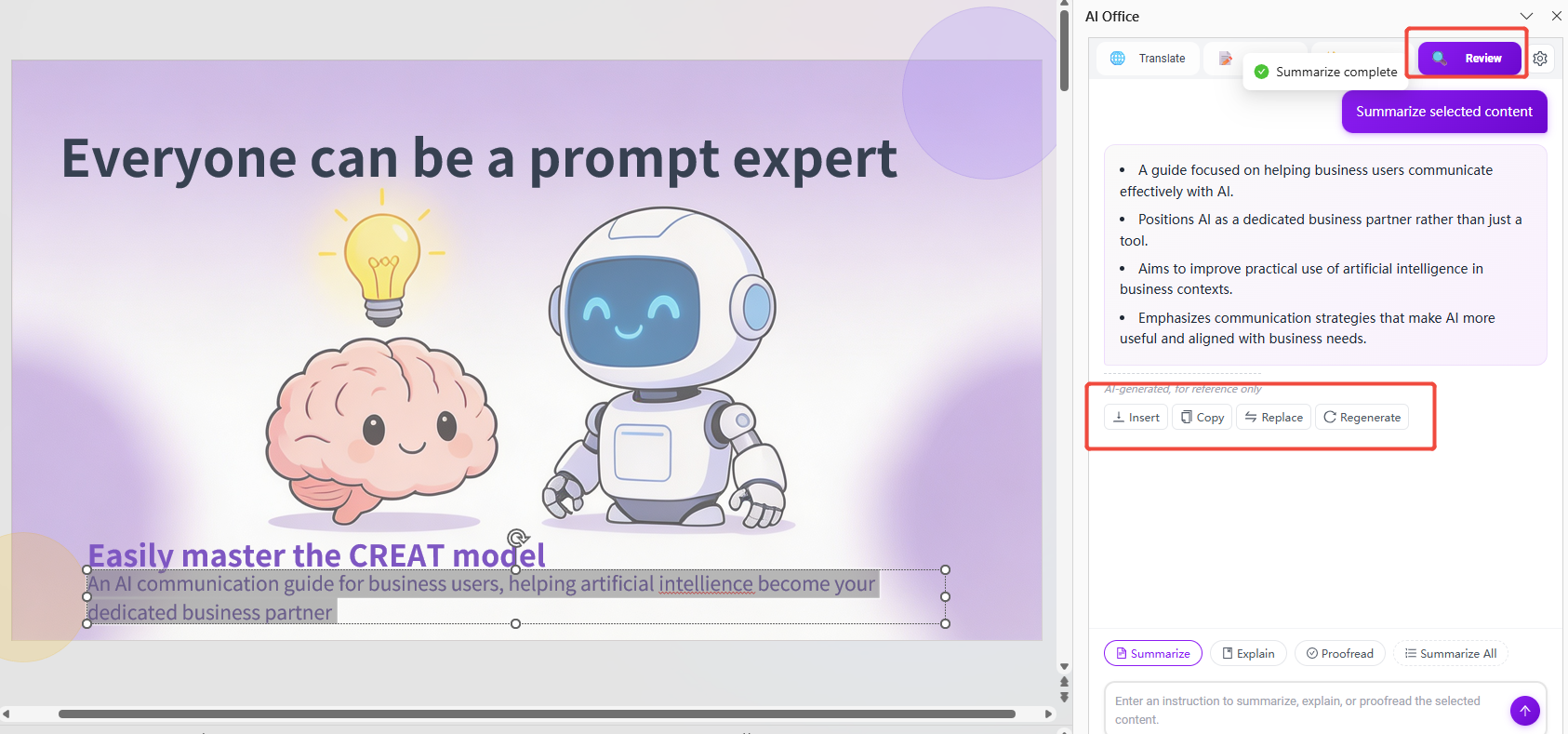
- Select a review action:
- Summarize: Extract the key points of the current content.
- Explain: Explain terminology, logic, or paragraph meaning.
- Proofread: Correct spelling, grammar, punctuation, and style issues.
- Summarize all: Create a unified summary for the entire PPT.
- Review the result and verify whether it matches the business meaning.
- Insert, copy, replace as needed, or continue asking follow-up questions to generate a more suitable version.
Key review points:
- Whether each slide has a clear conclusion.
- Whether terminology is inconsistent across slides.
- Whether there are overly long paragraphs affecting presentation rhythm.
- Whether there are readability issues (overly long sentences, logical jumps, repetitive expressions).
Recommended Usage Workflow
You may refer to the following common paths and choose based on your work scenario:
- Creating a presentation from scratch: Generate PPT -> Optimize PPT -> Review PPT.
- Processing foreign-language materials: Translate PPT / Translate and download -> Optimize PPT -> Review PPT.
- Quick polishing before a presentation: Optimize PPT -> Review PPT.
If time is limited, complete at least the two steps of “Optimization + Review,” which can significantly improve the quality of the final draft.
Usage Boundaries
- Translation quality is affected by limitations in text layout, complex graphics, and smart content.
- For complex slides with tables, graphics, and multi-layer layouts, manual layout checking is still recommended after processing.
- Generated content is more suitable for first drafts and is not recommended as a direct replacement for formal presentation materials.
- If the selected text is too short or the structure is overly complex, the result may be less stable than processing the entire slide.
Frequently Asked Questions
1. Why does the layout look uneven after translation?
Differences in text length between languages can affect text box wrapping and line height. It is recommended to uniformly check titles, bullet points, and image-text alignment after translation, and make necessary manual fine-tuning.
2. What should I do if the generated outline does not match my business structure?
It is recommended to adjust it during the “Generate outline” stage before generating the enhanced PPT. Modifying the structure first and then generating slides is more efficient.
3. What should I do if the optimization result is too long or too short?
You can regenerate it by adjusting the “condense ratio/expand ratio,” and add constraints in the additional requirements such as “limit to N bullet points” or “fit a 3-minute explanation.”
4. Can the review result directly replace the original text?
Yes, but it is recommended to first copy it to the notes area or a temporary slide for comparison, and then replace it in full after confirming there is no semantic deviation.
Value
- Helps users quickly generate a usable presentation framework from a topic.
- Reduces the time cost of slide translation, rewriting, and organization.
- Makes presentation slides more consistent in structure, tone, and expression.
- Improves review efficiency and content reuse before presentations.