Meeting Agent
Scenario Overview
Meeting Agent mainly addresses several common challenges: difficulty following meetings, slow note-taking, and time-consuming post-meeting organization. It is especially suitable for cross-language meetings, multi-person sync meetings, overseas communication, and formal meetings that require reliable records. It not only converts live meeting audio into subtitles in real time, but also connects transcription, translation, and minutes into one complete workflow after the meeting, making in-meeting understanding, post-meeting review, and content sharing much easier.
Supported business scenarios include:
- Cross-language discussions: Quickly read subtitles while foreign colleagues speak to keep up in real time.
- Multi-person meetings: Listen and read key points at the same time to reduce missed information.
- Minutes preparation: Keep a full meeting trace for later review and minutes generation.
- Post-meeting review and distribution: Revisit original content, export subtitles, or share outputs with people who did not attend.
- Instant record output: Pause, stop, and generate minutes during the meeting to reduce after-meeting manual work.
Prerequisites
Before use, verify the following:
- Meeting Agent is installed and launched.
- You are signed in with a platform account or AAD.
- System audio and microphone devices are available to avoid missing input sources.
- The current meeting allows recording or subtitle processing.
- Historical review requires existing recorded meeting data.
Steps
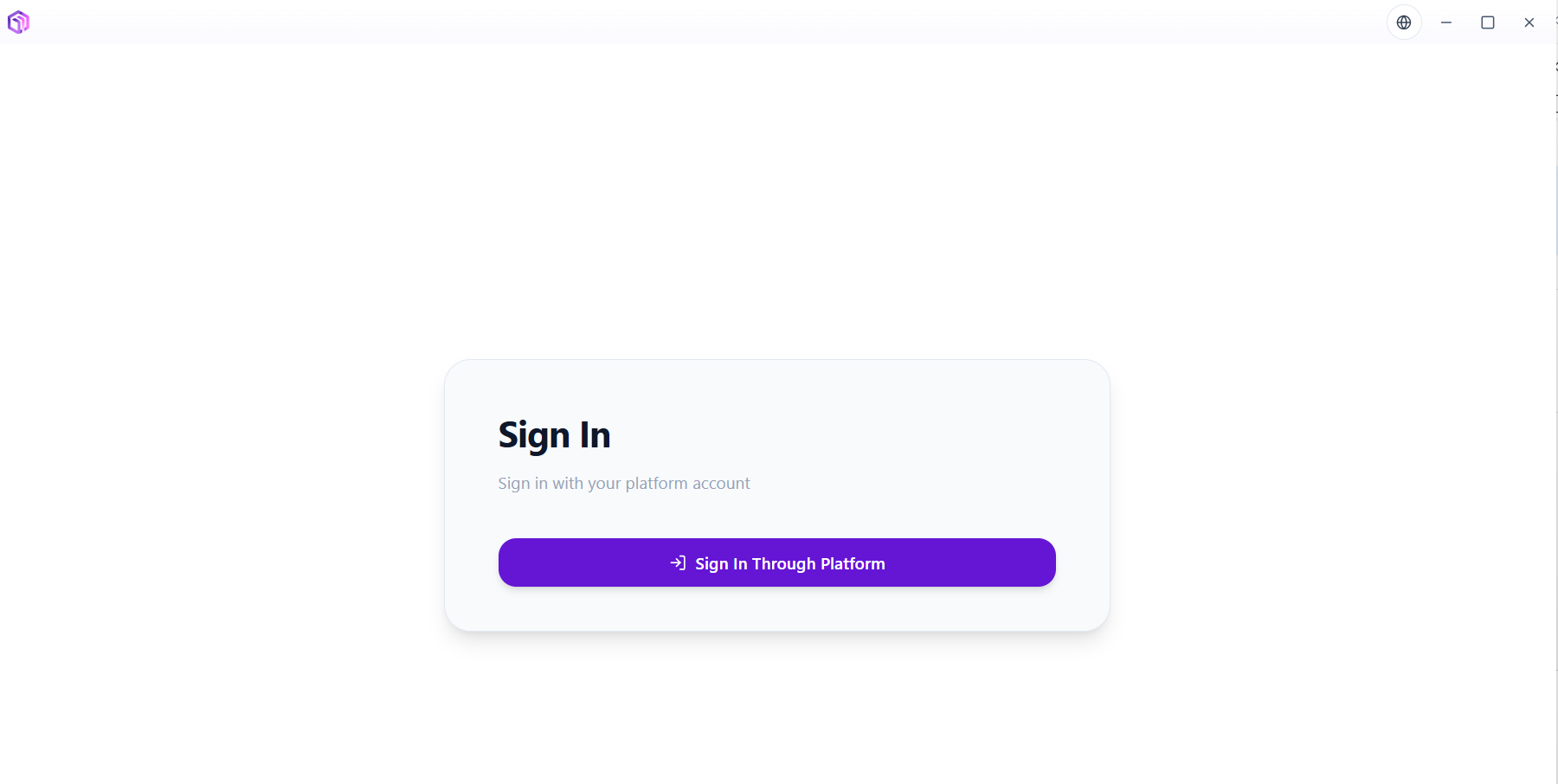
1. Sign in and enter the home page
- Install and open Meeting Agent.
- Click "Sign in with platform account".
- Sign in using a platform account or AAD.
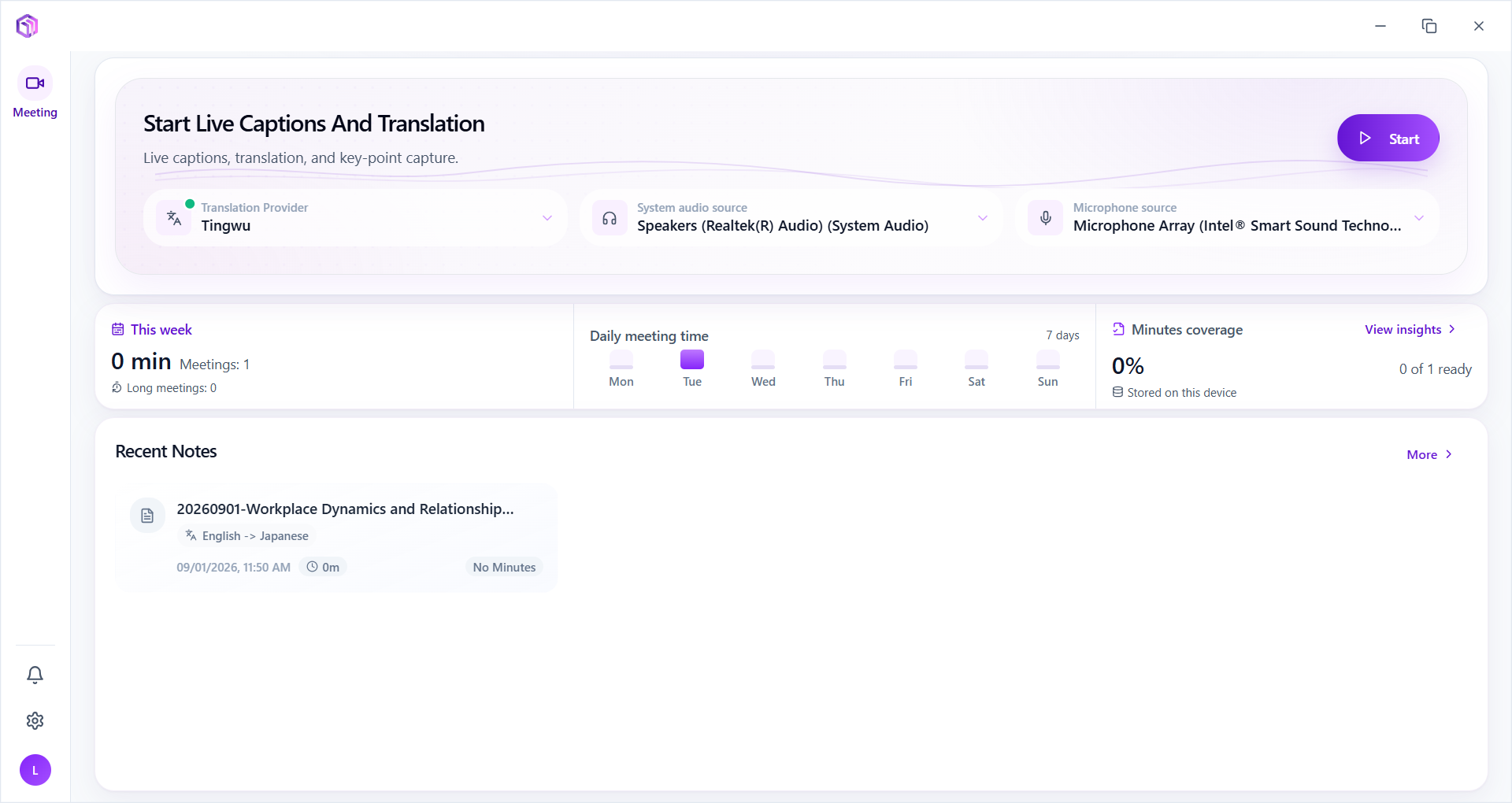
- After sign-in, enter the home page and check the "Start" entry and recent meeting records.


2. Start real-time subtitles and translation
- On the home page, click "Start" to enter the recording screen.
- Select the translation engine, system audio source, and microphone source first, so meeting audio can be captured correctly.
- Configure source language, subtitle target language, page display language, and font size for easier live reading and post-meeting processing.
- Turn on "Real-time Translation" to continuously generate bilingual subtitles while people speak.
- During the meeting, you can pause, resume, stop, or minimize at any time based on the meeting pace.
On the recording page, the top area centralizes timer, translation language, display mode, and control buttons for fast switching. The subtitle area below shows original text and translation side by side, suitable for multi-person and cross-language scenarios.
Recording screen feature reference:
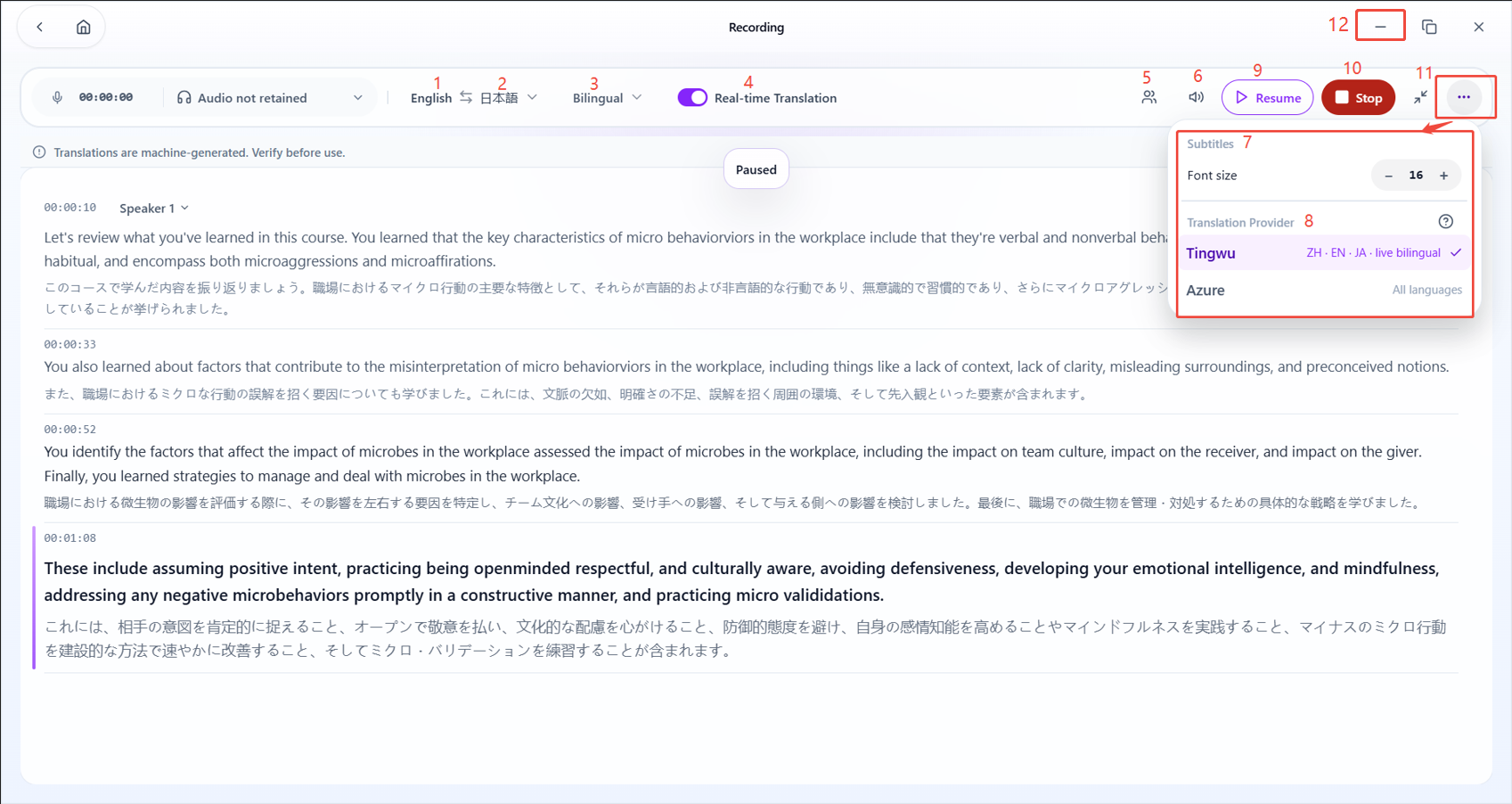
| No. | Feature | Description |
|---|---|---|
| ① | Meeting source language | Auto-detection supported |
| ② | Subtitle target language | Select subtitle translation language from dropdown |
| ③ | Page display mode | Bilingual / Original only / Translation only |
| ④ | Real-time translation switch | When off, only recording is kept without translation (currently limited to Alibaba Tingwu model due to model capability constraints) |
| ⑤ | Participants and speakers | Add participants and bind them with detected speakers (currently limited to Alibaba Tingwu model due to model capability constraints) |
| ⑥ | Audio source | Select system and microphone audio sources |
| ⑦ | Font size | Set subtitle text size |
| ⑧ | Translation engine | Choose engine according to translation requirements |
| ⑨ | Pause | Pause recording |
| ⑩ | Stop | End recording and proceed to minutes generation |
| ⑪ | Floating mini-window | Switch recording screen to a transparent floating window with adjustable opacity |
| ⑫ | Minimize | Minimize to taskbar |
3. Participants and speaker mapping
Participants: Add attendees
Participants are valid only for the current meeting. After adding attendees, you can bind attendees with detected speakers on the "Speaker Mapping" page so that names are automatically attributed in minutes.
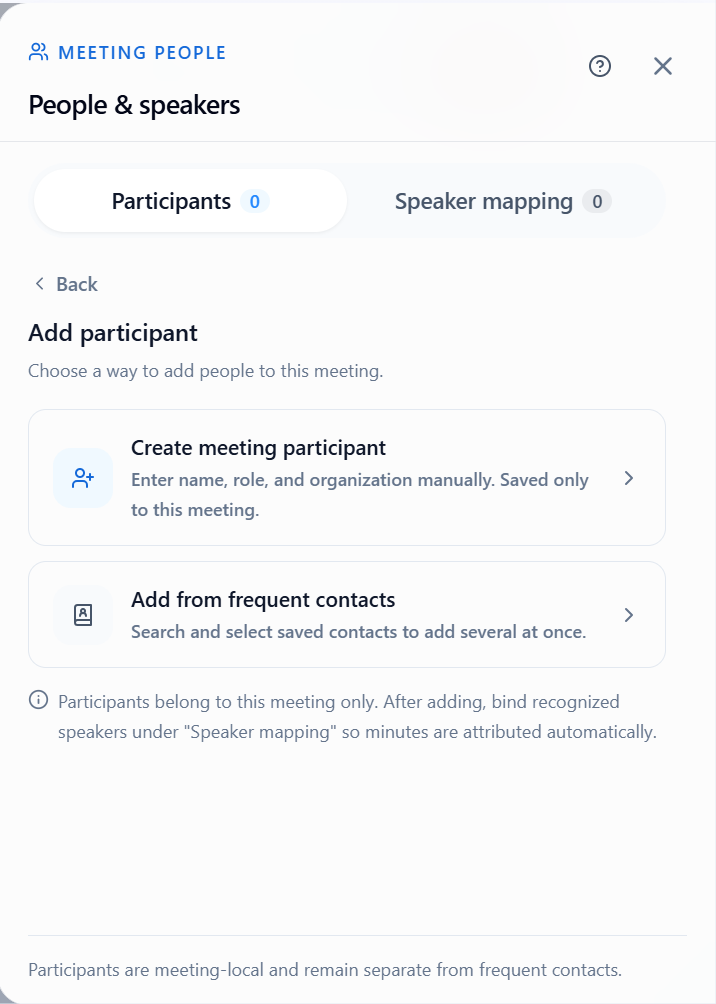
There are two ways to add attendees:
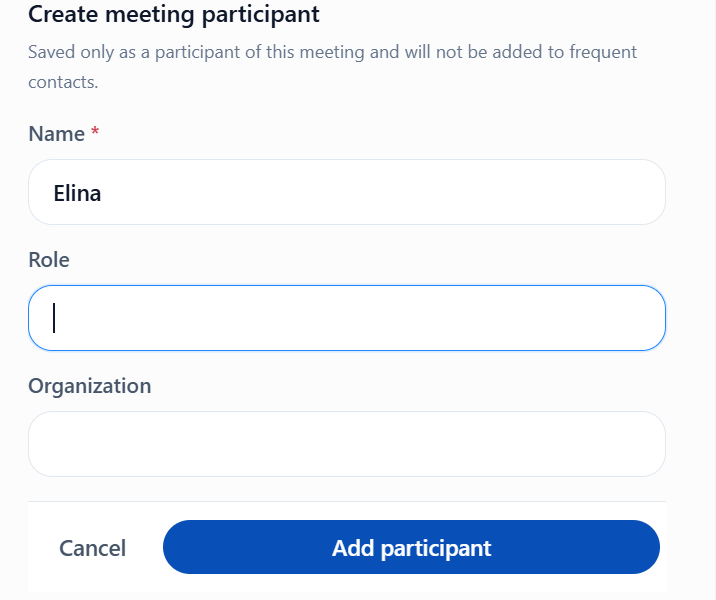
1. Create attendees for this meeting
Manually enter attendee name, title, and organization.
- Saved only for this meeting
- Not added to frequent contacts
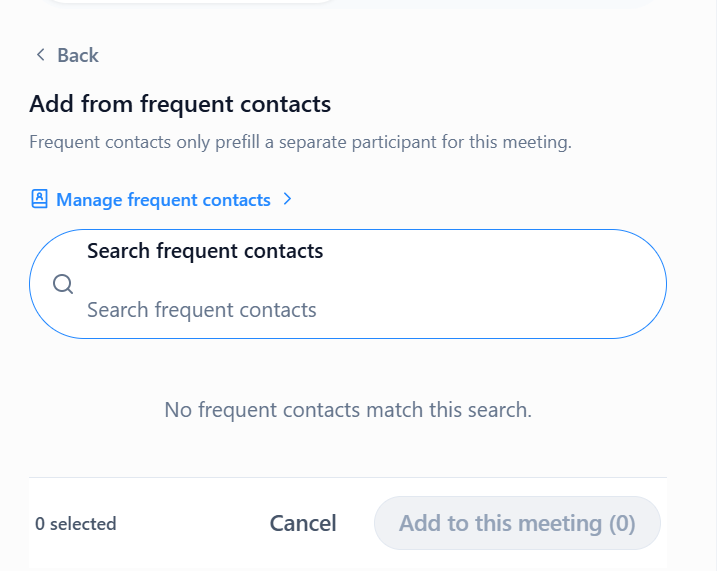
2. Add from frequent contacts
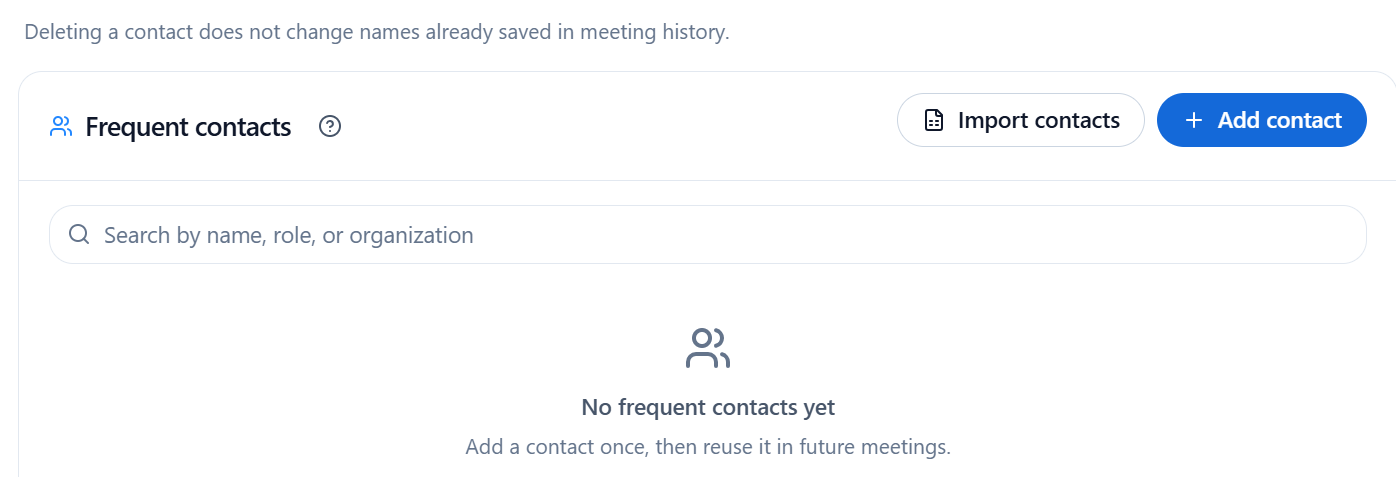
- First-time setup: Open "Manage Frequent Contacts" to bulk import or add contacts one by one and maintain a reusable contact pool.
- Later use: Search and select saved contacts; support multi-select to add multiple people at once.
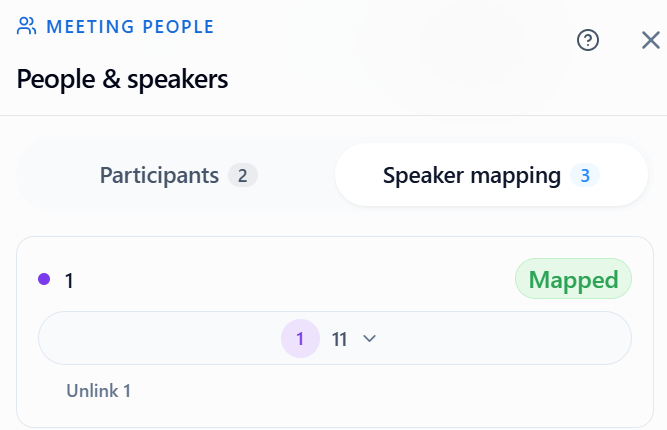
Speaker mapping: Bind attendees with speakers
Bind detected speaker channels with entered attendees. After binding, transcription records will show attendee names for each speaker.
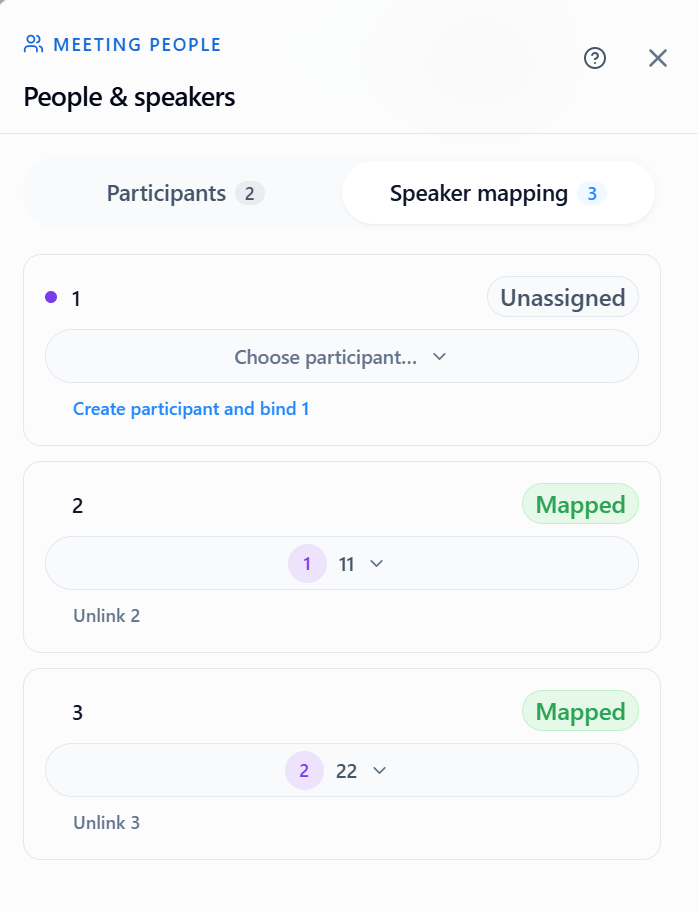
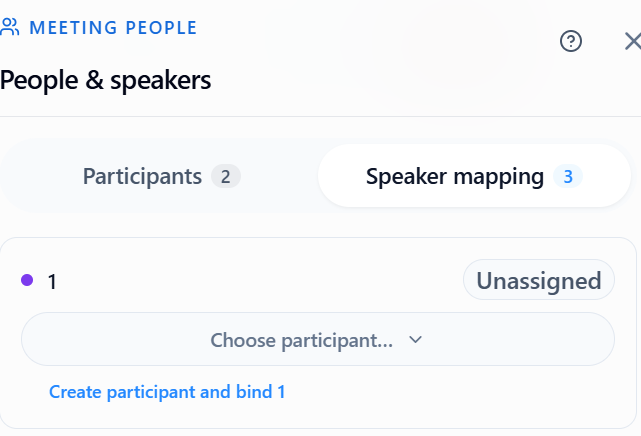
There are two ways to map speakers:
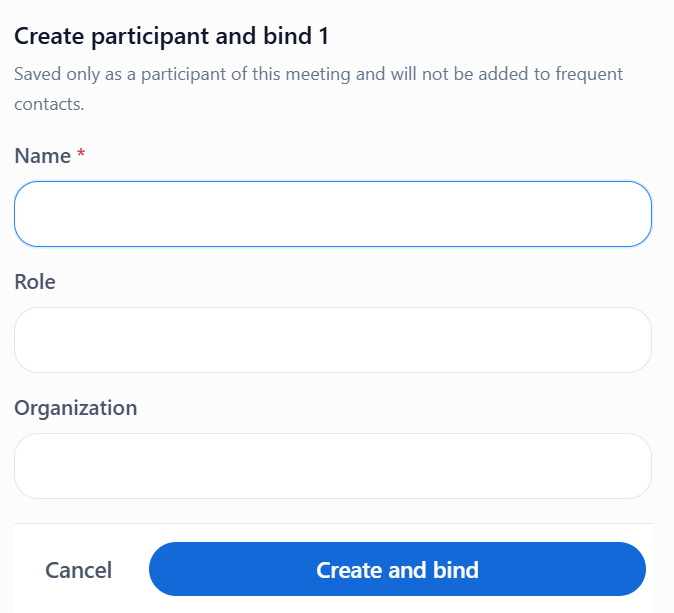
1. Create and bind attendee directly
Manually enter attendee name, title, and organization.
- Attendee data is saved only for this meeting
- Binding is completed automatically after creation
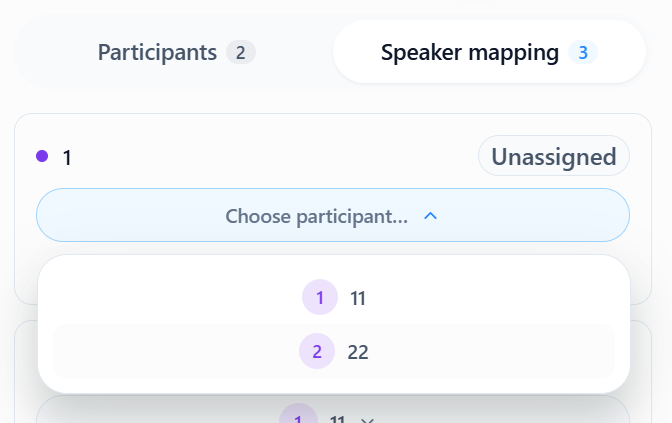
2. Add from existing attendees (recommended)
Select an attendee already added in this meeting and assign to the corresponding speaker channel.
- On success, status changes to "Bound"
- Unbind is supported
4. Generate meeting minutes
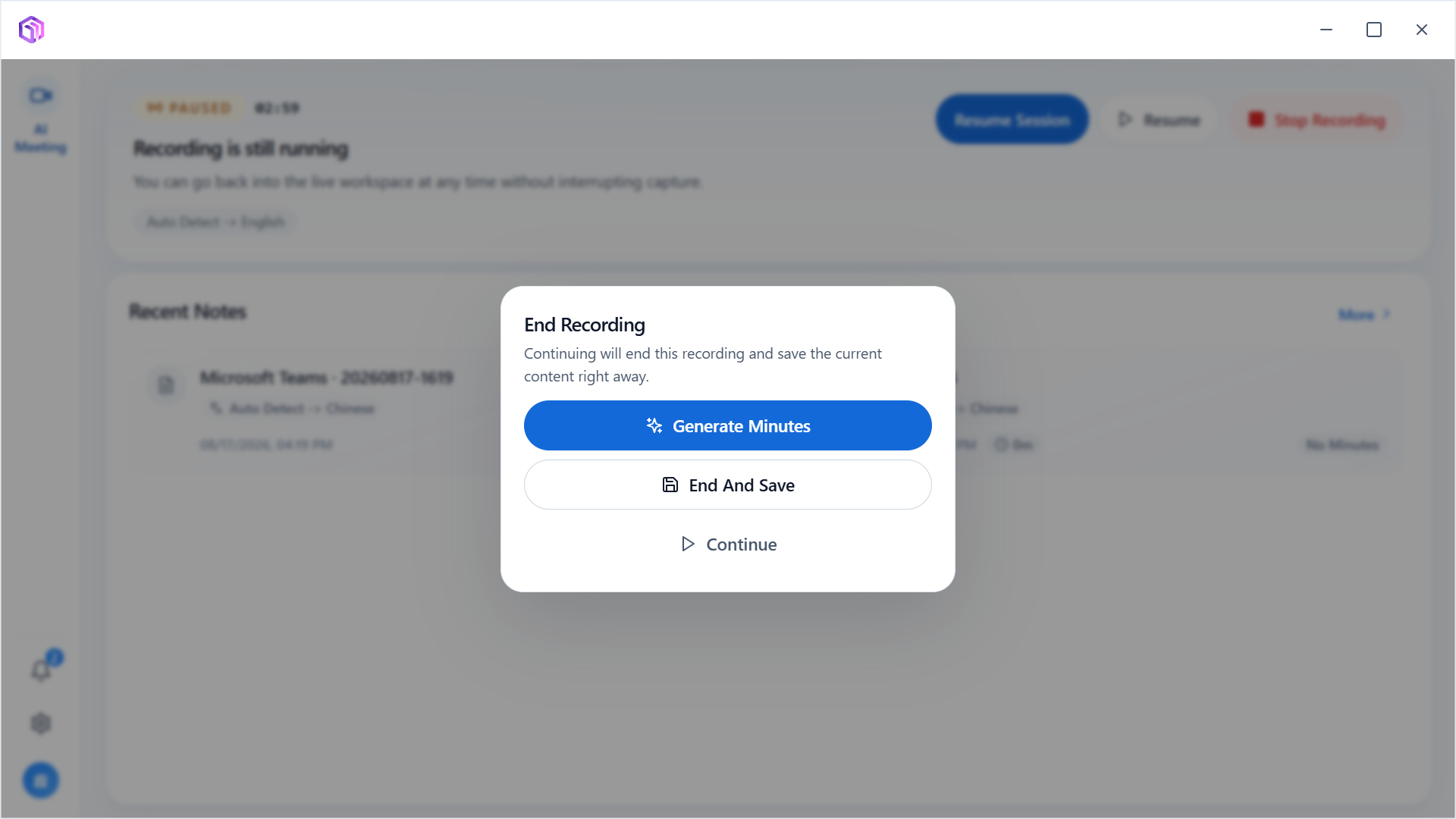
- After recording ends, click Stop and the end-recording dialog appears.
- To keep meeting output, select "Generate Minutes (Recommended)"; if you only need to keep current content, select "End and Save".
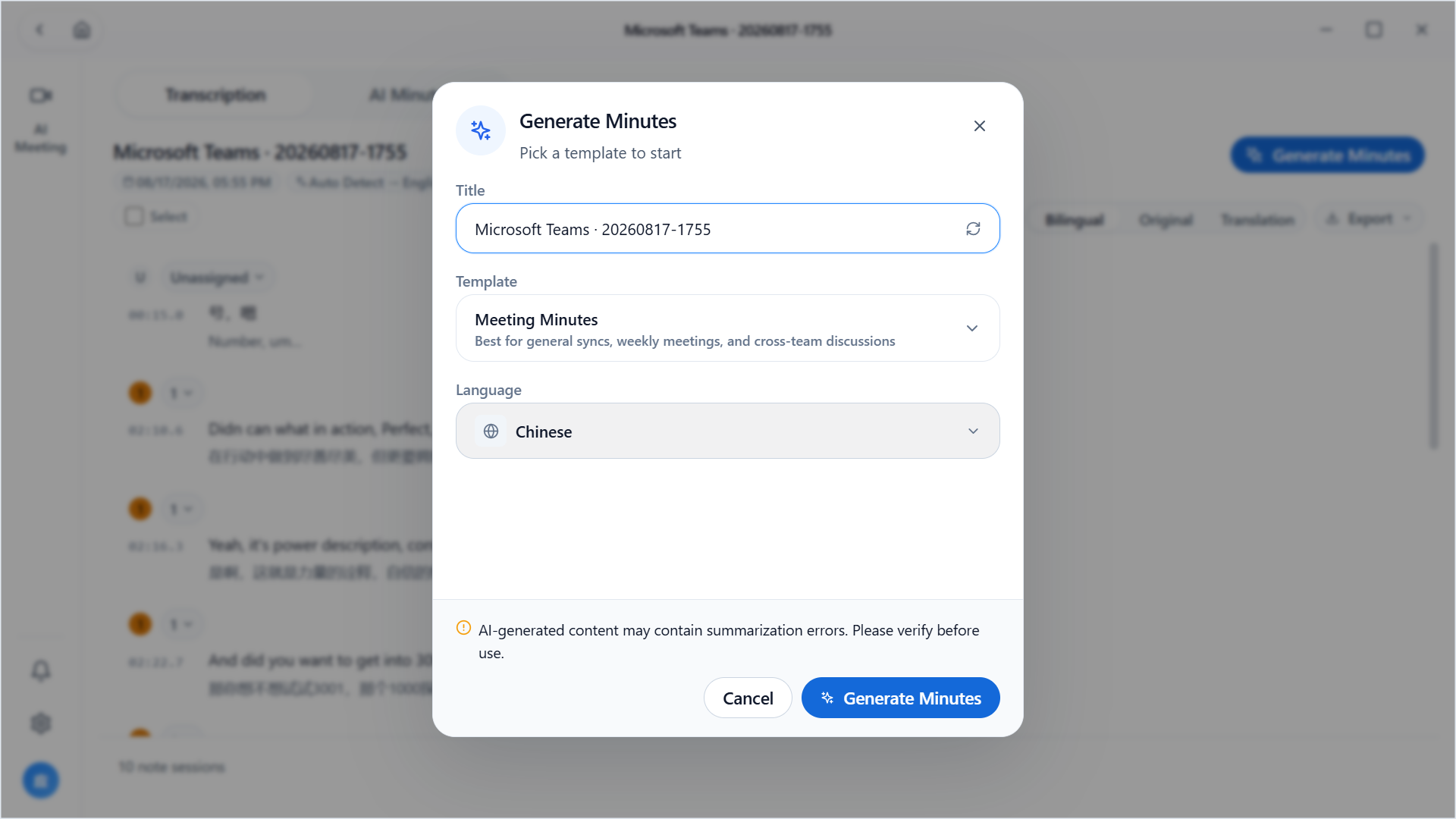
- In the minutes generation dialog, enter title, choose template, and confirm output language.
- Click "Generate" and the system compiles minutes from transcription, with a reminder that AI output should be manually reviewed.
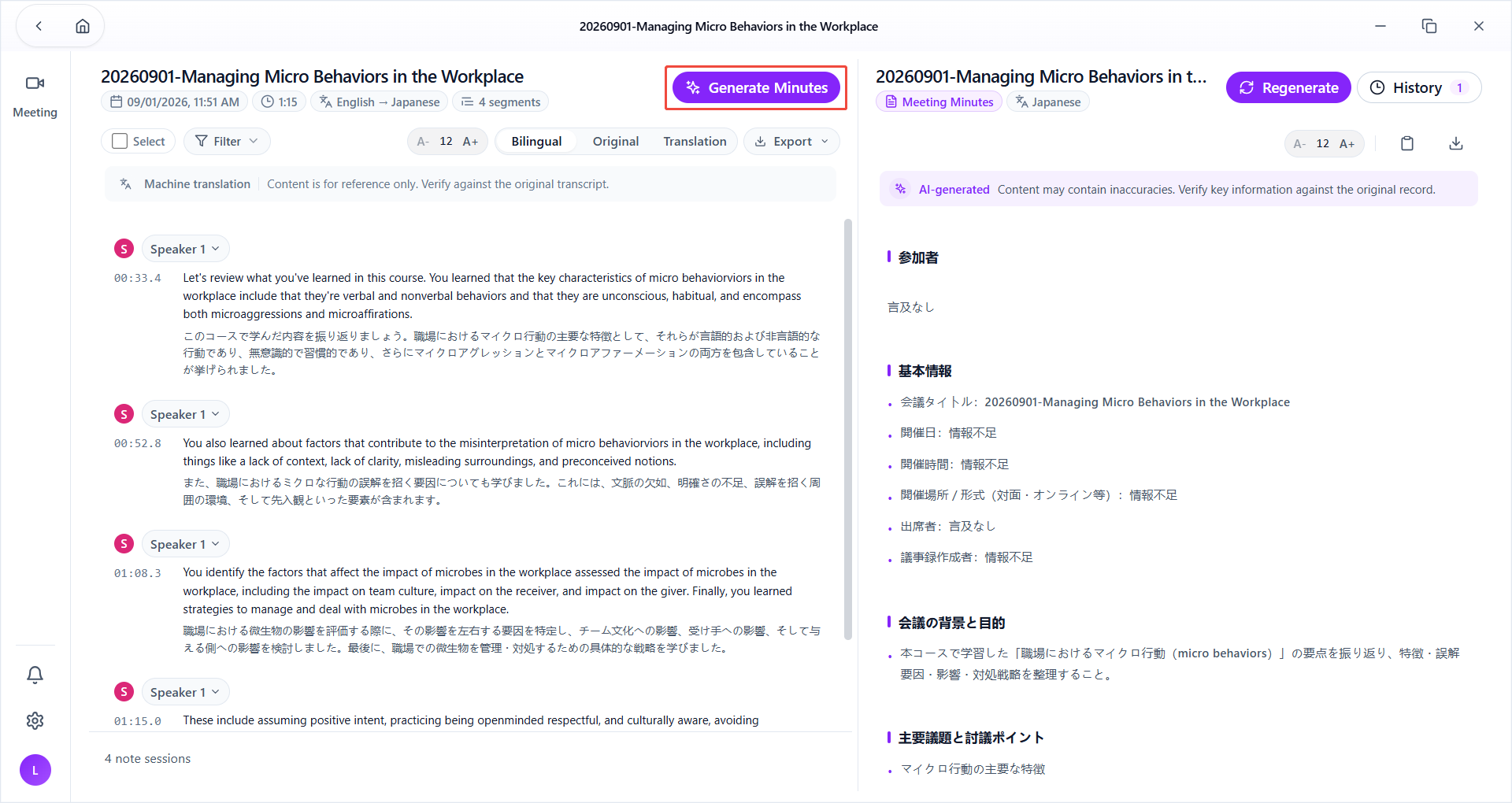
- After generation, continue reading minutes or export/share them as needed.
5. View historical meetings
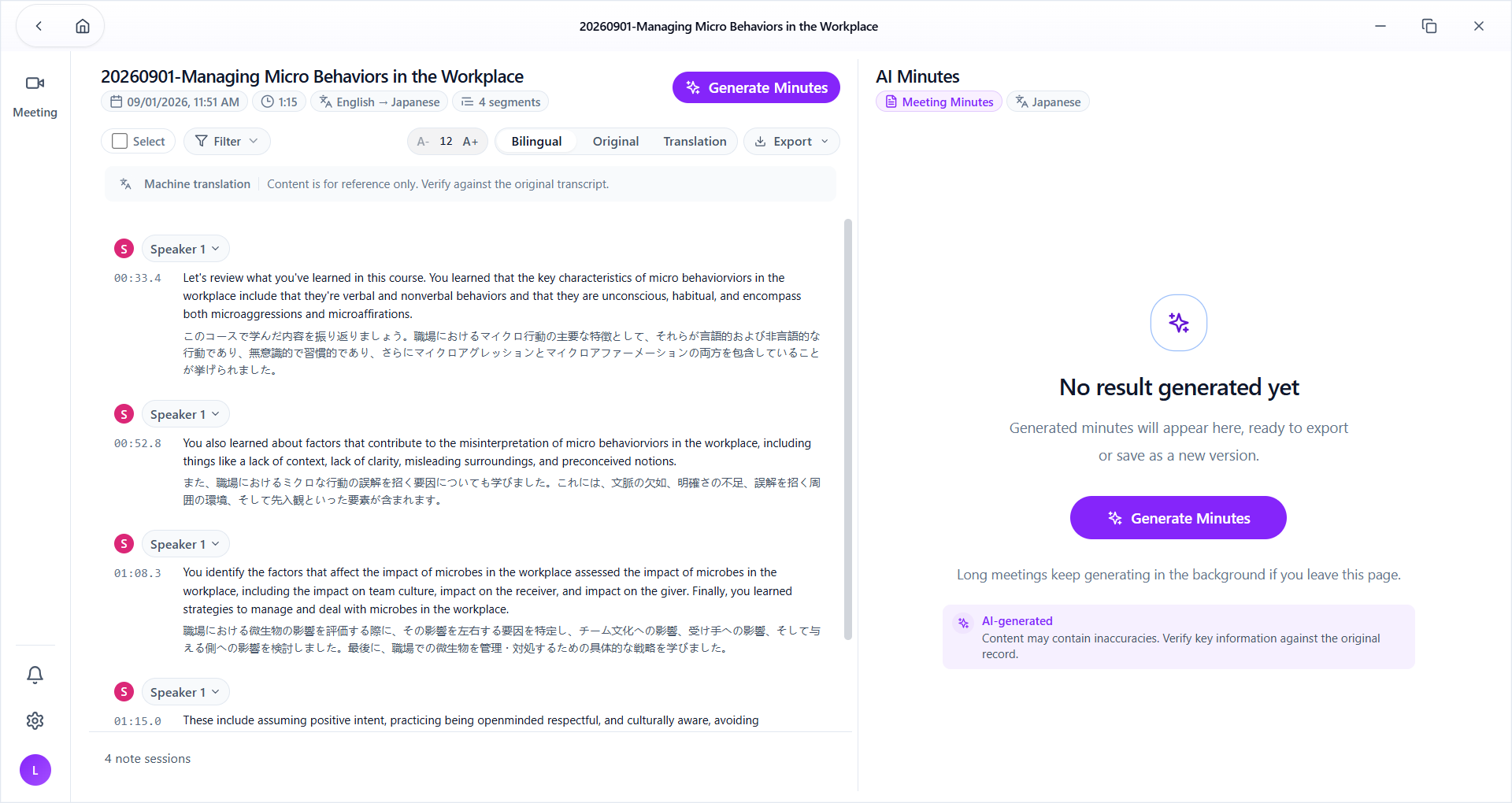
Historical translation
In "Recent Notes" on the home page, click a meeting card to enter details and review historical translation and meeting minutes.
- Font size: adjust subtitle text size.
- Language view: switch display between bilingual / original / translation.
- Export: download subtitles in bilingual, original, or translated form; output format is .txt.
- Generate minutes: jump to the minutes generation dialog to regenerate minutes.
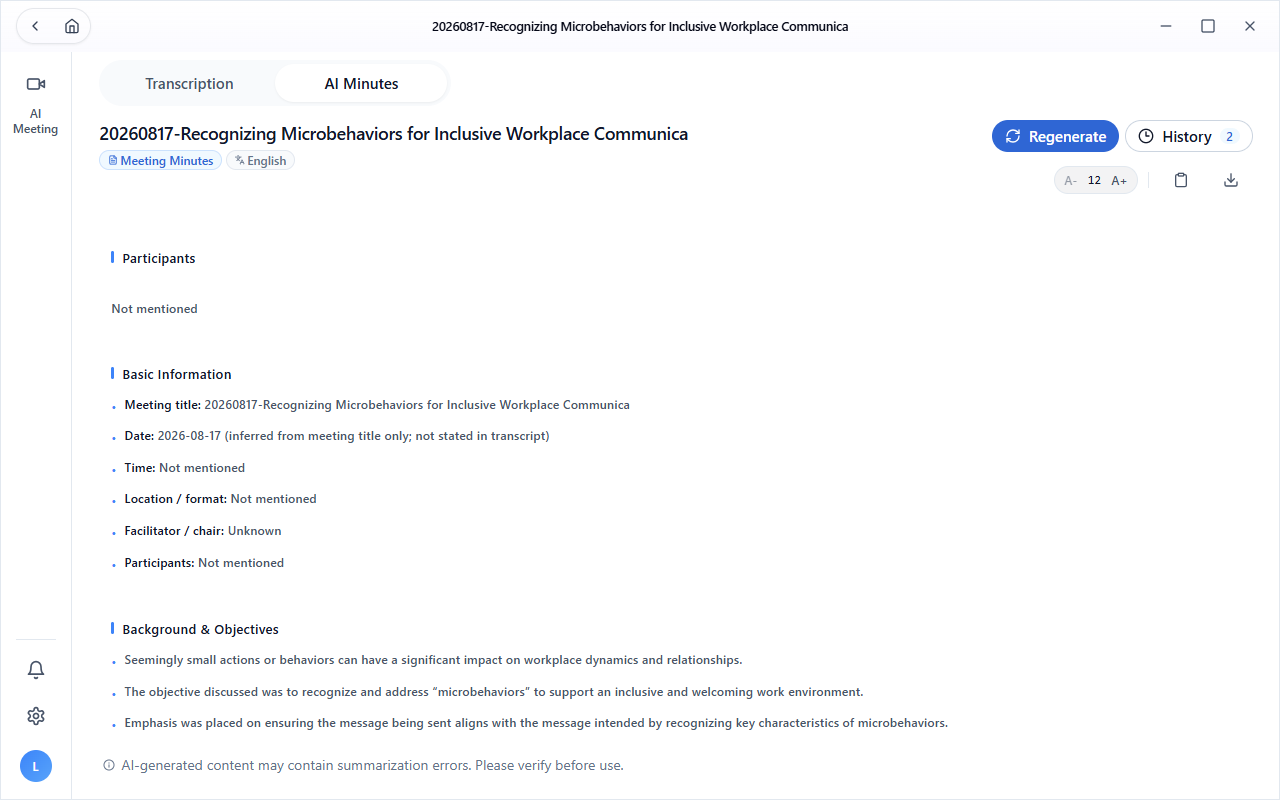
AI Minutes
- Regenerate: regenerate minutes, with options to replace current version or keep current and create a new one.
- History: view all minutes versions generated for this meeting.
- Font size: adjust minutes text size.
- Copy: copy minutes content to clipboard.
- Download: export AI minutes in PDF / Word / Markdown formats.
6. Meeting insights
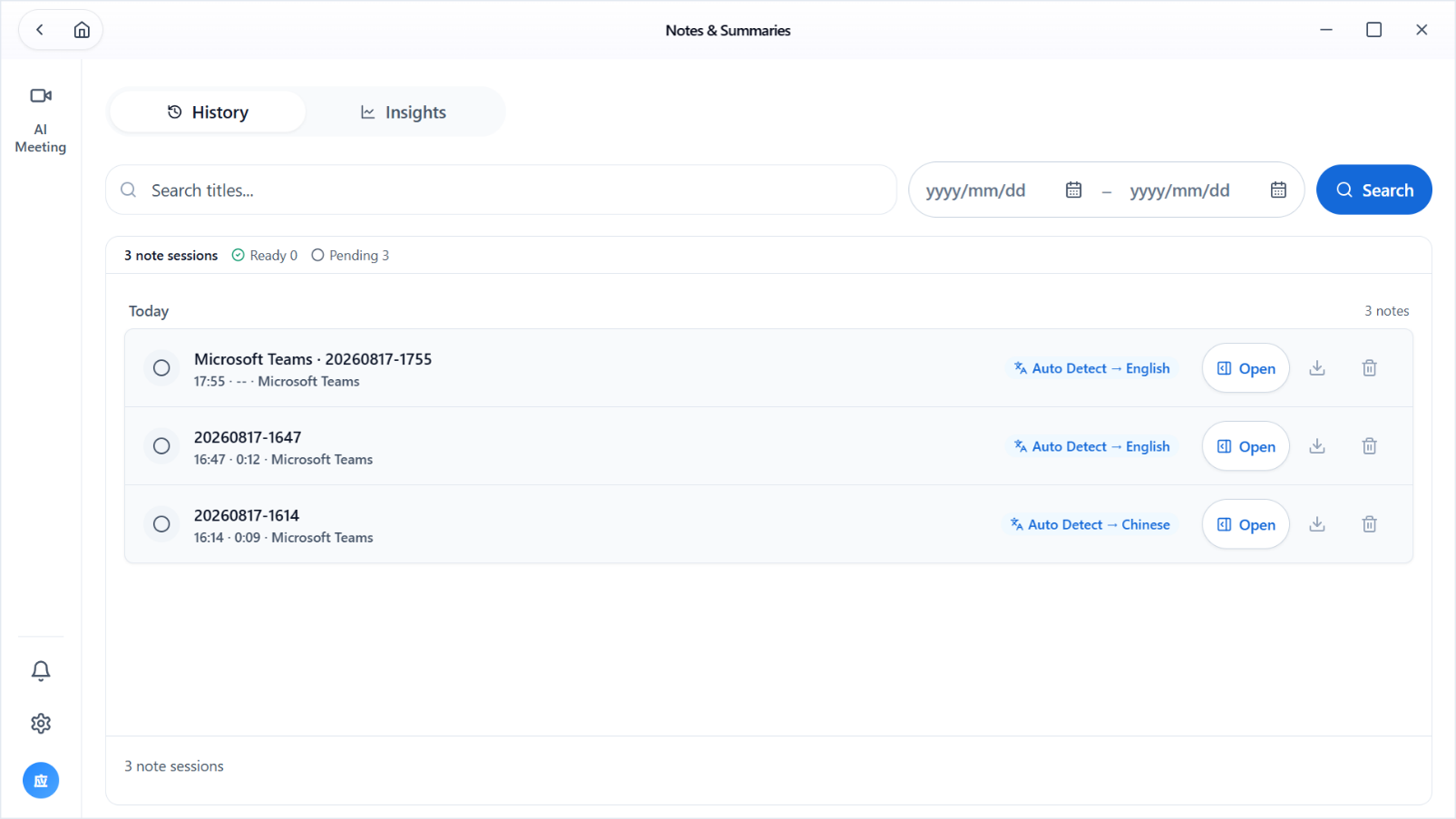
Records
- Show translation language of minutes.
- Open: open a record to view minutes, regenerate minutes, or download transcript.
- Export: export transcript and minutes.
- Delete: delete the meeting record and linked transcription/minutes content.
- Search: find records by title and date range.
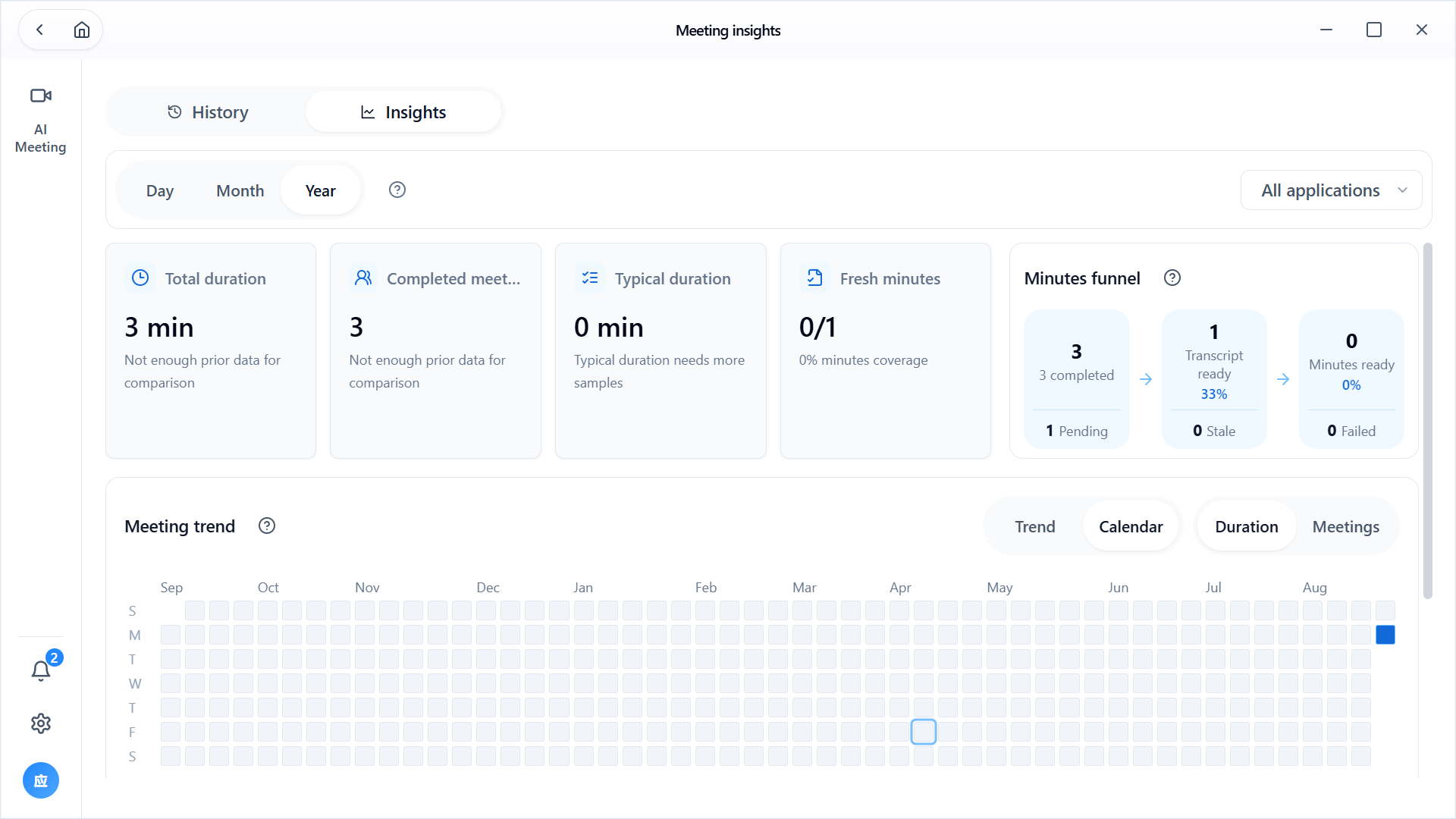
Insights
- Trend: view meeting trends by day / month / year.
- Calendar: review meeting duration and meeting counts.
- Needs processing: open an existing minutes workspace to update, review, or generate minutes.
7. Data and sync
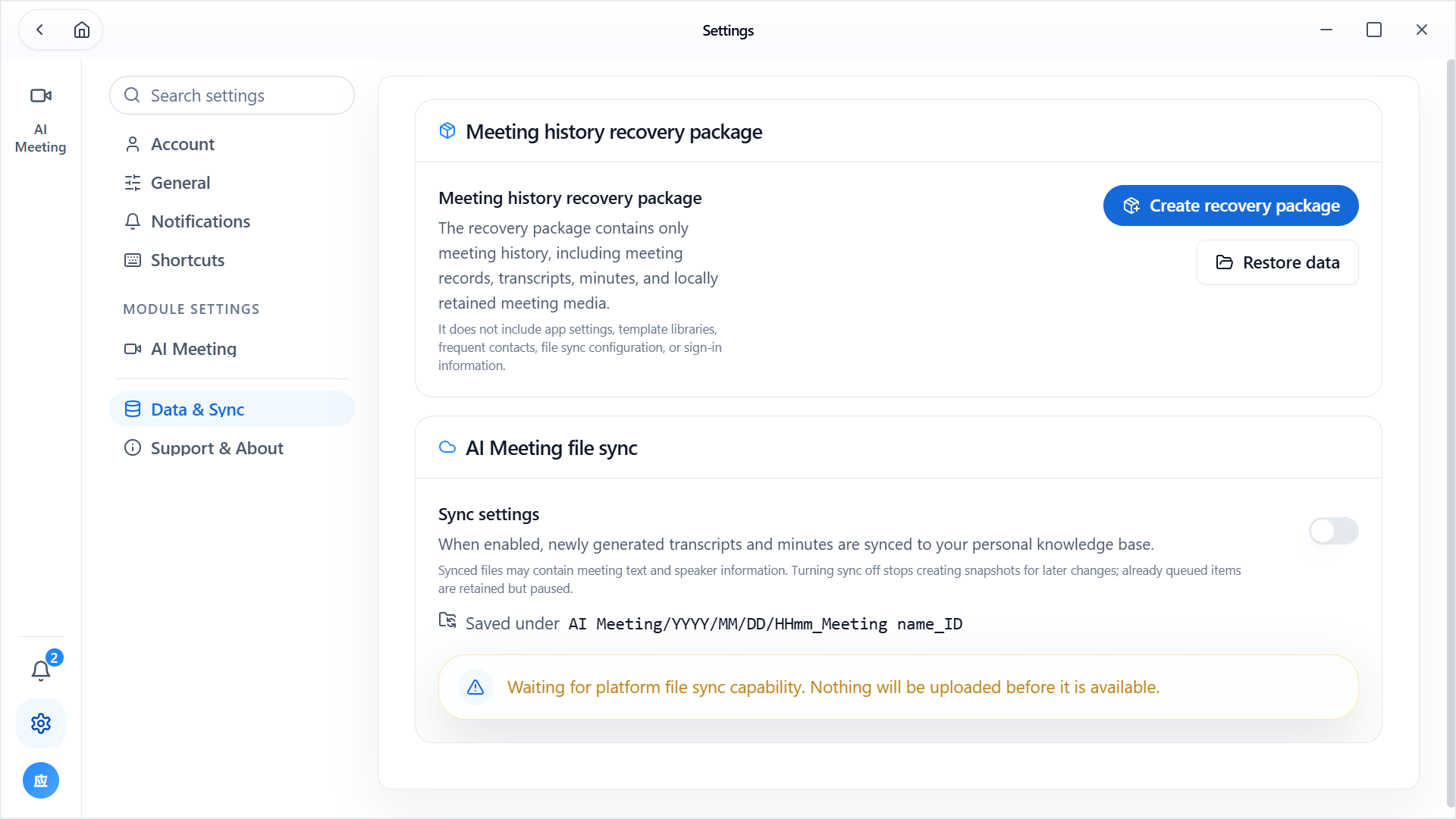
- Meeting history recovery package: create a recovery package that includes only meeting history (meeting records, transcription, minutes, and locally retained meeting media files).
- File sync: currently under development.
- When enabled: newly generated meeting records and minutes are synced to your personal knowledge base.
- When disabled: no new sync copy is created for later changes; queued items are retained but processing is paused.
- Save path: Meeting Agent/year/month/day/time_meeting-name_ID.
Usage Boundaries
- You must be logged in and have meeting records to view historical content.
- Before a meeting starts, confirm device permissions and input sources to avoid missing or blank subtitles.
- Subtitle quality depends on source language, audio quality, and speech clarity.
- Generated minutes are suitable for organizing conclusions, but cannot replace formally approved minutes that require manual confirmation.
- Real-time recording and historical sync may be affected by network or permission constraints.
Value
- Helps users understand multilingual speech in real time during meetings.
- Reduces post-meeting manual effort for minutes and task follow-up.
- Makes meeting output easier to review, trace, and distribute.
- Improves efficiency in cross-language collaboration and formal meeting record-keeping.
Settings
The details page and settings page provide common options you can standardize before production use:
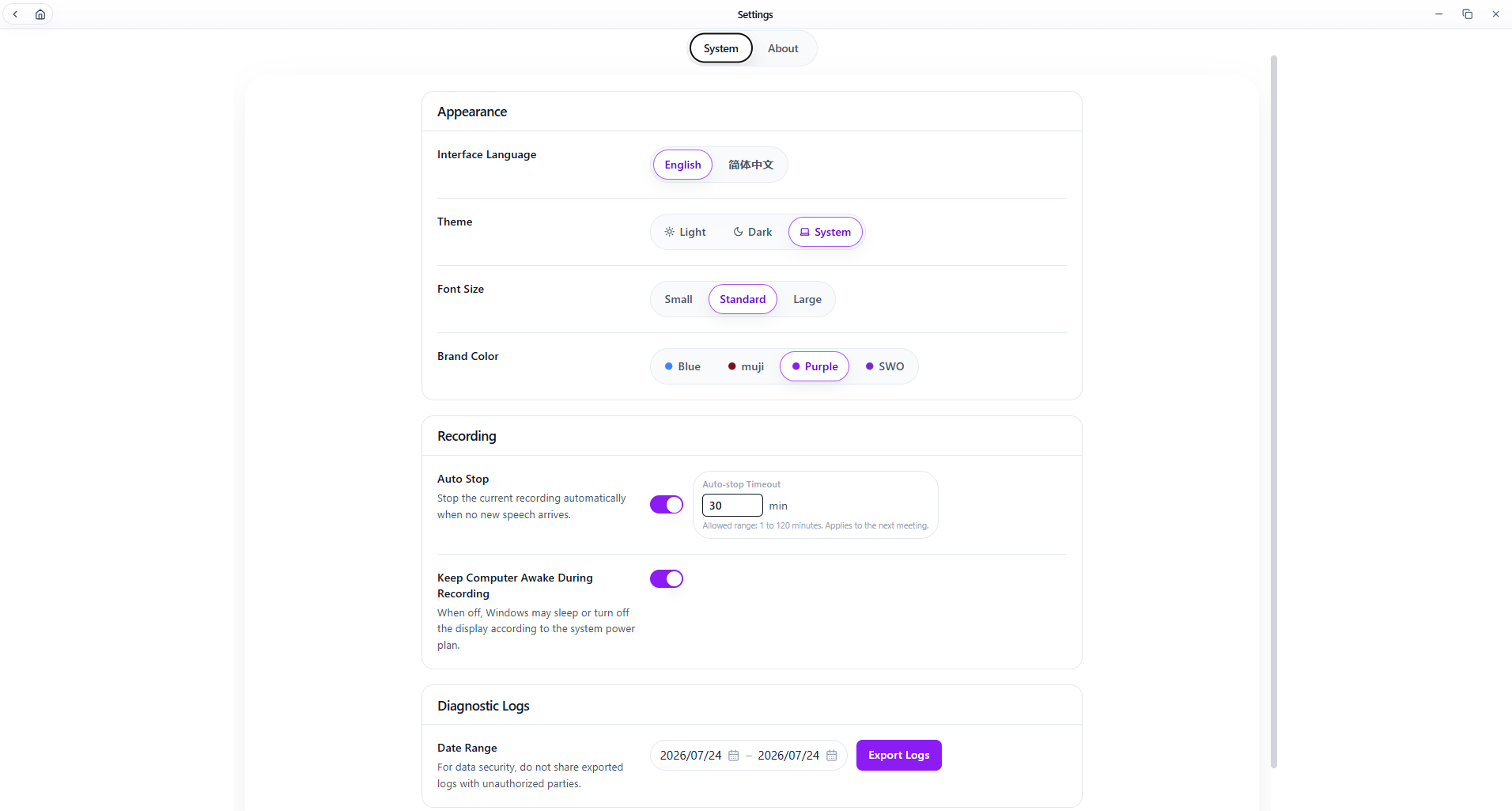
- Interface language: switch between English and Simplified Chinese.
- Theme: Light, Dark, and System modes.
- Font size: Small, Standard, and Large for reading comfort in long meetings.
- Brand color: switch brand themes while maintaining consistent visual style.
- Auto stop: automatically end recording after long silence.
- Keep awake: prevent system sleep during recording.
- Diagnostic logs: export logs for a selected date range to troubleshoot audio, transcription, or sync issues.