Outlook Agent
Scenario Overview
Outlook Agent mainly covers two types of email scenarios, focusing on solving three key problems: “slow to send, slow to reply, and hard to strike the right tone”:
- New email: drafting, translation, optimization, and review.
- Reply email: generate a reply based on the most recent email, with support for translation, optimization, and review.
It is best suited for the following business scenarios:
- Customer communication: Quickly generate polite and professional replies in English or Chinese.
- Internal collaboration: Write emails for project updates, progress reminders, resource coordination, risk explanations, and more.
- Formal notifications: Produce notifications, announcements, and change notices with consistent wording.
- Cross-language communication: Translate received foreign-language emails first, then decide how to reply.
Outlook Agent mainly provides 5 types of capabilities:
- Drafting: Generate a new email body based on prompts.
- Reply email: Generate a reply draft based on the most recent incoming email.
- Translation: Translate selected text or the entire email.
- Optimization: Expand, shorten, adjust tone, and structure expression.
- Review: Check grammar, punctuation, and consistency of expression.
If your goal is to “express yourself clearly and quickly,” start with drafting; if your goal is to “respond accurately to others,” start with reply email; if you have already written the email, then use optimization or review.
Prerequisites
Before use, it is recommended to confirm the following conditions:
- The mailbox has been opened in a currently supported Outlook environment.
- Office Agent has been separately enabled and you have successfully logged in.
- The current email is in an editable state and is not restricted by read-only, encryption, or permissions.
- If you want to process a selection, first select the body text; if you want to process the entire email, keep nothing selected.
- It is recommended to save the draft first for easier comparison before and after AI processing.
Steps
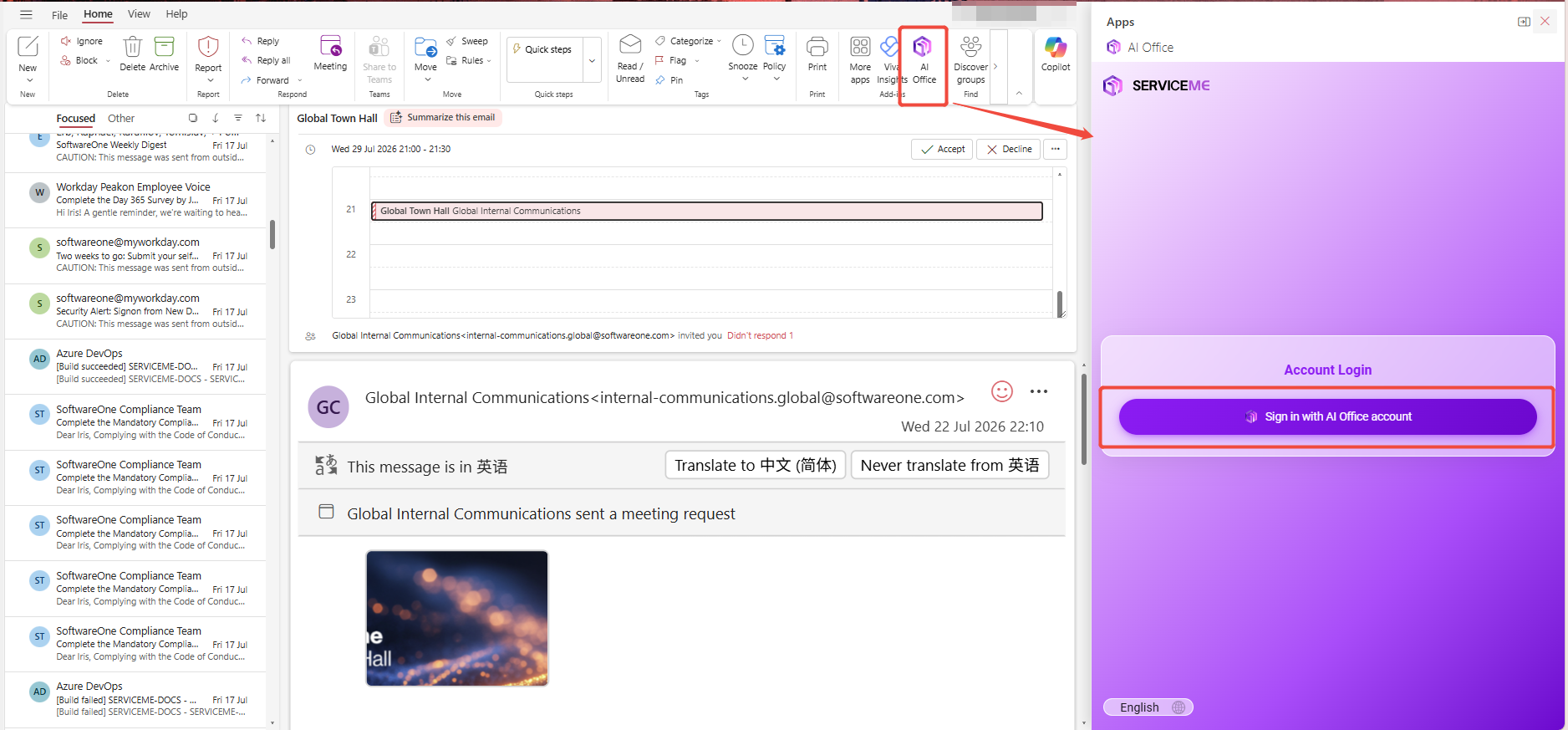
1. Enter Outlook Agent
Applicable when: You are about to start reading, writing, or replying to emails.
How to operate:
- Open the Outlook email window and click the Office Agent entry in the upper-right corner or sidebar.
- Based on the current scenario, confirm whether you are reading an email, composing an email, or replying to an email.
- Make sure the email is in an editable state before performing subsequent AI operations.
Result description:
- Only after correctly entering the editing context can generated content be stably written back into the email body.
- If writing fails, it is usually related to permissions, read-only status, or host limitations.
2. Compose a New Email
Applicable when: You need to draft an email body from scratch, or want to quickly generate a first draft.
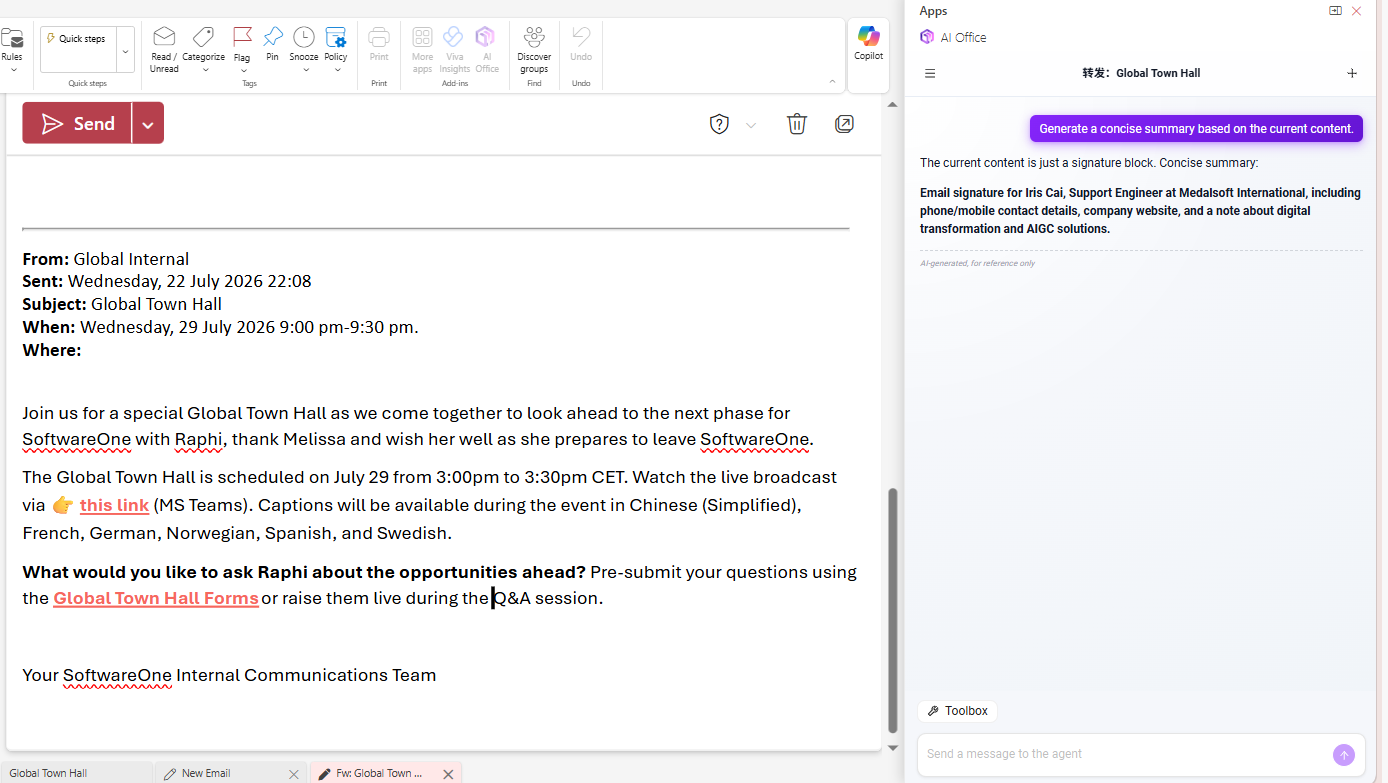
How to operate:
- Open the new email window.
- Enter a prompt in “Drafting,” such as a holiday notice, project update email, customer follow-up email, etc.
- Add key constraints in the prompt, such as target audience, tone, length, action items, and deadline.
- After generation, click “Insert Content” to write the result into the email body.
- Fine-tune the subject line, salutation, signature, and attachment notes as needed.
Result description:
- The more complete the context, the higher the usability of the first draft.
- Before sending formally, it is recommended to perform at least one round of “optimization or review.”
3. Translate Email Content
Applicable when: You need to understand foreign-language emails, or produce multilingual versions for external communication.
How to operate:
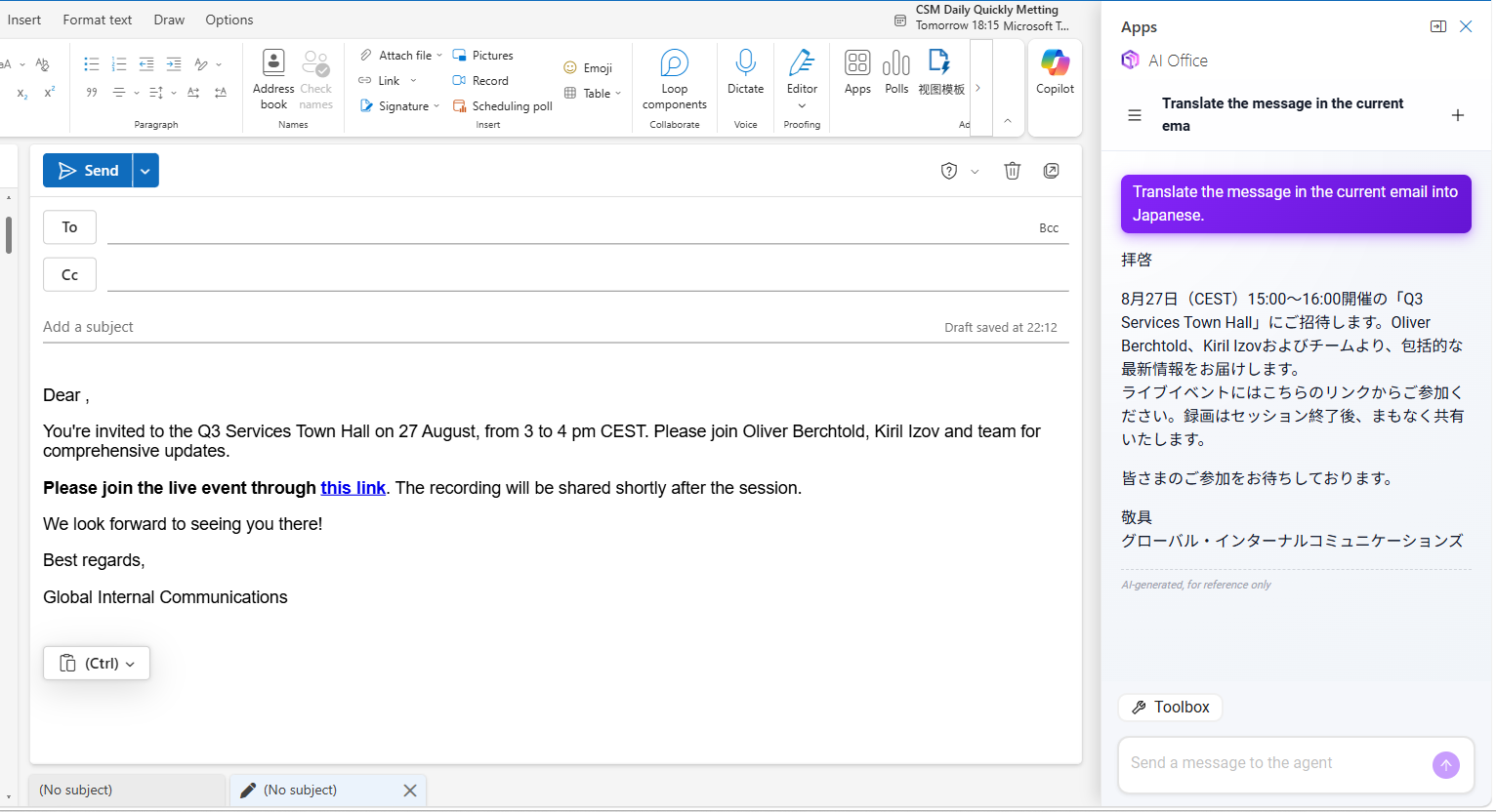
- Select the text to be translated; if nothing is selected, the entire email will be processed.
- Set the source language and target language, then click generate.
- Confirm “Apply” to insert or replace the translation in the email body.
- Pay special attention to terminology, proper nouns, numerical units, and date formats.
Result description:
- Selection translation is more suitable for refining key paragraphs.
- Full-email translation is more suitable for quickly building contextual understanding.
4. Optimization and Review
Applicable when: The draft is complete, but you want the expression to be more professional, concise, or better suited to the audience.
How to operate:
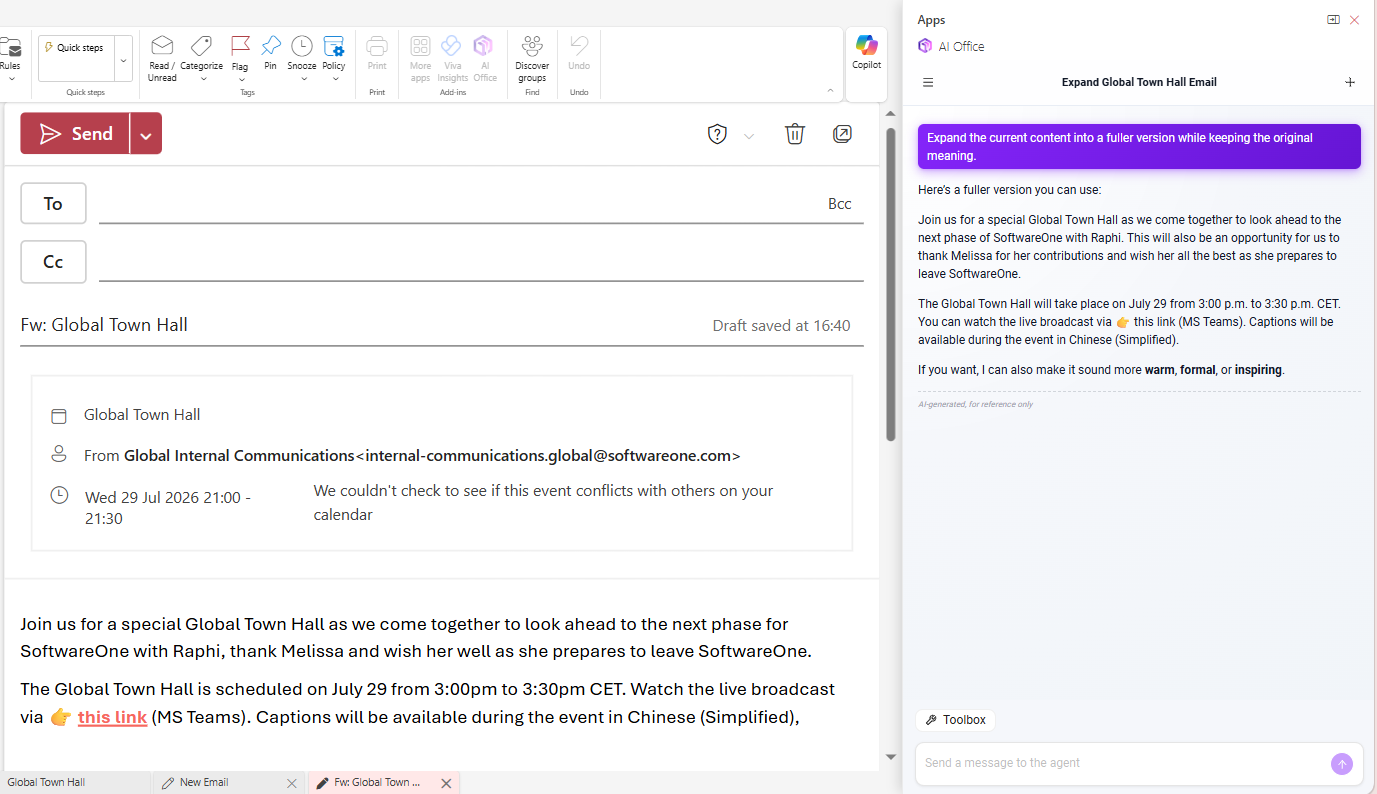
- Choose the optimization or review capability:
- Optimization: shorten, expand, adjust tone, and reorganize expression.
- Review: check typos, grammar, punctuation, and formatting consistency.
- Enter additional requirements, such as formal tone, cross-department collaboration tone, customer communication tone, etc.
- Review the generated result and compare it with the original text.
- Decide whether to insert it into the email body, or continue generating the next version.
Key checks:
- Whether the “conclusion, action items, and deadline” are clearly stated.
- Whether vague wording and ambiguous commitments are avoided.
- Whether salutations, honorifics, and signature style remain consistent.
Recommended Workflow
You can choose the following paths based on different email tasks:
- Draft an email from scratch: Compose a new email -> Optimization and review -> Final confirmation before sending.
- Reply to a customer email: Reply email -> Optimization and review -> Final confirmation before sending.
- Cross-language communication: Translate email content -> Reply email or compose a new email -> Optimization and review.
If time is limited, it is recommended to at least perform “optimization and review” before sending, which can significantly reduce communication risks.
Usage Boundaries
Currently supported environments
- office365 Web Outlook
- office365 Windows Desktop Outlook (New)
- office365 Windows Desktop Outlook (Classic)
Unsupported environments
- office365 versions below the above, such as Office 2019 and Office 2016
Environments not yet verified
- office365 Mac Desktop Outlook
Restricted situations
-
Web Outlook does not support dragging to adjust plugin width
In Outlook Web (OWA) and New Outlook, the Task Pane width is fixed by the host and cannot be resized by dragging. The frontend will adapt as much as possible through responsive layout, but the display space for long code blocks, wide tables, and similar content is still limited.
-
Selected content cannot be retrieved in reading mode
In reading mode, even if you highlight part of the email body, the plugin cannot retrieve the selected content. It will automatically fall back to reading the entire email body and prompt that there is currently no selection.
-
Selected tables may not be retrievable in editing mode
If the selection is a non-plain-text object such as a table or image, reading the selection may return an empty result. In this case, you need to select editable body text instead.
-
Cannot replace any arbitrary local area of the entire email
Writing to the email body can usually only replace the selection or overwrite the whole content. It cannot reliably locate any arbitrary sub-area within the email body like Word can, so it is not recommended to attempt forced partial replacement within the entire email.
-
Errors occur and processing cannot continue after exceeding model context
After stacking the email body, historical quotes, and multi-turn conversations, the total content may exceed the model context window. In this case, it is recommended to simplify the email body first before continuing.
Situations that cannot be completely avoided
- The model may output HTML format directly with some probability: The system will try to constrain the output style, but HTML tags may still occasionally appear.
- Tool execution is relatively slow in the Classic client: Due to the heavier host rendering mechanism, reading and writing the email body is usually slower than in Web/New Outlook.
- Replacement is relatively slow when the email contains images: Images usually exist as embedded content, and replacing content requires additional handling of these resources.
If you use Outlook Agent within these limitations, it is recommended to prioritize processing body text and avoid operating directly on complex tables, images, or excessively long quote chains whenever possible.
FAQ
1. Why does the reply content look complete, but not close enough to my actual intent?
It is recommended to add reply strategy constraints before generation, for example: “First acknowledge receipt, then provide a three-point action plan, while keeping the tone restrained and professional.” The more specific the constraints, the closer the result will be to expectations.
2. Why can’t my selected content sometimes be read?
Common reasons are that you are in reading mode, or you selected non-plain-text objects such as tables or images. It is recommended to switch to editing mode and select editable body text.
3. What should I do if long email processing fails?
This is usually caused by overly long context. It is recommended to first delete lengthy quote chains, keep only the key context, and then process in sections.
4. Can I send AI-generated results directly with one click?
Not recommended. If the email involves amounts, time, commitments, or legal clauses, manual review is required before sending to confirm business meaning and responsibility boundaries.
Value
- Improve the efficiency of drafting and replying to emails.
- Reduce the comprehension cost of cross-language communication.
- Help users unify email tone, format, and wording.
- Enable reading, replying, translating, and polishing within the same workflow.