AI Slides
Product Overview
AI Slides is an intelligent PPT generation application designed for enterprise presentation scenarios, suitable for high-frequency tasks such as market research, business reporting, client proposals, internal training, and project closure. It provides a complete workflow from idea input, knowledge retrieval, and outline generation to PPT creation and online editing, helping users quickly transform initial ideas into presentation documents that are structurally complete, stylistically consistent, and ready for delivery.
- System-side capabilities: Supports LLM model management, text-to-image model management (such as GPT-Image), and template import.
- User-side configuration: Supports parameter settings such as model selection, page count, writing style, templates, web search, and knowledge bases, and allows configurations to be persisted and reused to reduce repetitive setup costs.
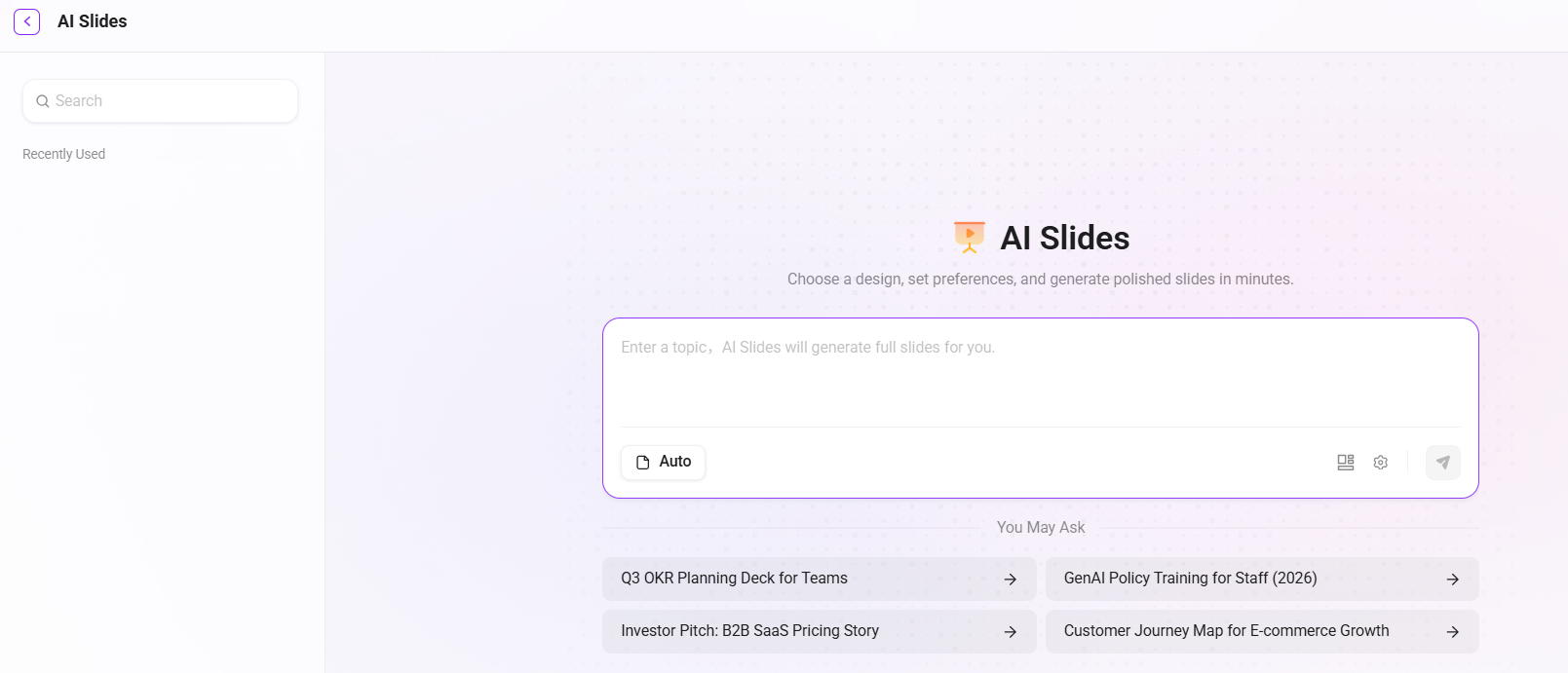
AI Slides page:
Typical Application Scenarios
- Business users can quickly generate a structured presentation draft after entering a topic.
- AI automatically generates an outline with streaming preview, and users can manually edit it or use AI-assisted expansion.
- Automatically generates Slides based on the outline, supporting page-by-page streaming rendering and natural language conversational modifications.
Core Value
- Provides a practical presentation document production capability within enterprises, forming an alternative to similar paid external products.
- By integrating with the knowledge base, it provides reliable information sources and stores generated results together with referenced materials in the internal system, reducing the risk of fragmented knowledge and improving reuse and governance capabilities.
Using AI Slides
Prerequisites
Administrator:
- Configure the model (recommended model: gpt-5.4)
- Configure the image generation model (optional)
- Configure OCR environment variables
- Configure templates
- Configure the web search tool (optional)
User:
- Have access permission to the AI Slides APP
Usage Boundaries
-
Model
- The model used by AI Slides in the model center must be configured in the OpenAI format, and if it is a reasoning model, reasoning mode must be turned off
- Unsupported models: models below the gpt-4.1 series, deepseek V3, Qwen3 models
- Not recommended model: pgt-5 is slow and not recommended
-
PPT Generation
- The maximum page limit for PPT generation is 30 pages
- After PPT generation, AI editing does not support image generation in this release
- In PPT editing, uploaded images are limited to 10MB, supported upload formats: .jpg, .png, .webp, .gif
-
Conversation Input Limits
- Topic input is limited to 10,000 characters; content beyond that will be automatically truncated
Enter Topic and Requirements
Open AI Slides, describe the presentation topic, target audience, and key requirements in the input box, and optionally set the page range as needed.
Example input:
Enterprise-grade large model application implementation practices and phased achievement report: covering ROI evaluation and experience accumulation across three core scenarios—intelligent customer service, coding assistant, and document review,
The target audience is the CTO and the Digitalization Committee, with key requirements to highlight comparative efficiency data for each scenario, showcase typical use cases, explain the model selection decision logic, and outline the next-stage path for scaled promotion
AI PPT Settings
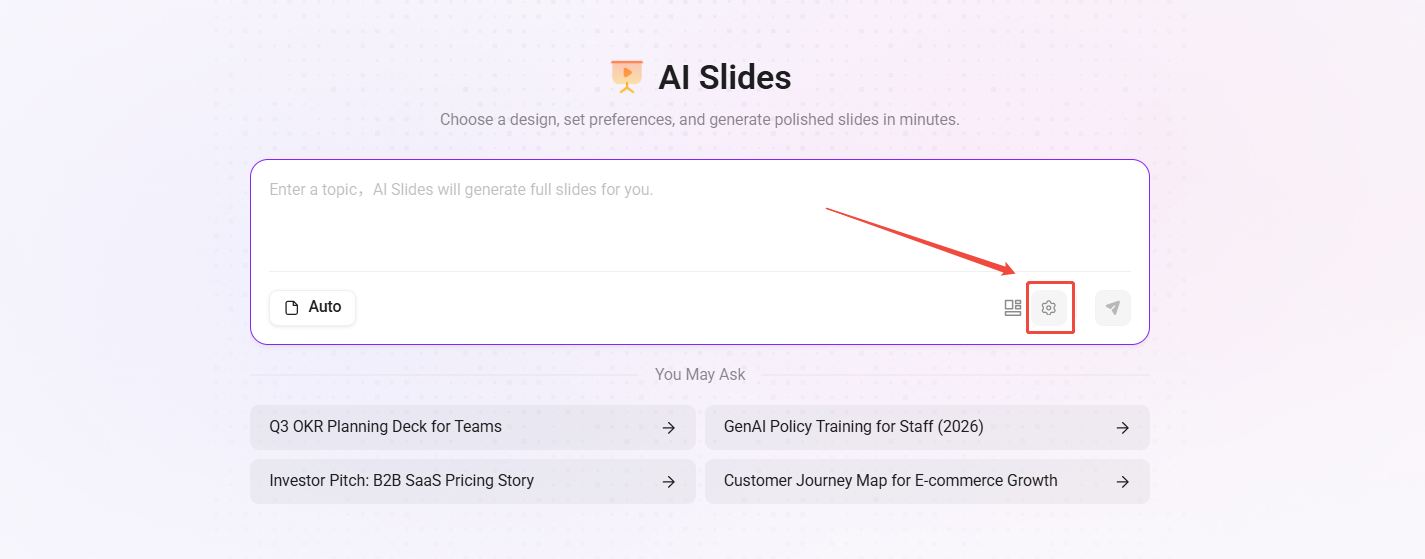
- Click the “gear” to enter AI PPT settings and configure knowledge bases and MCP resources.
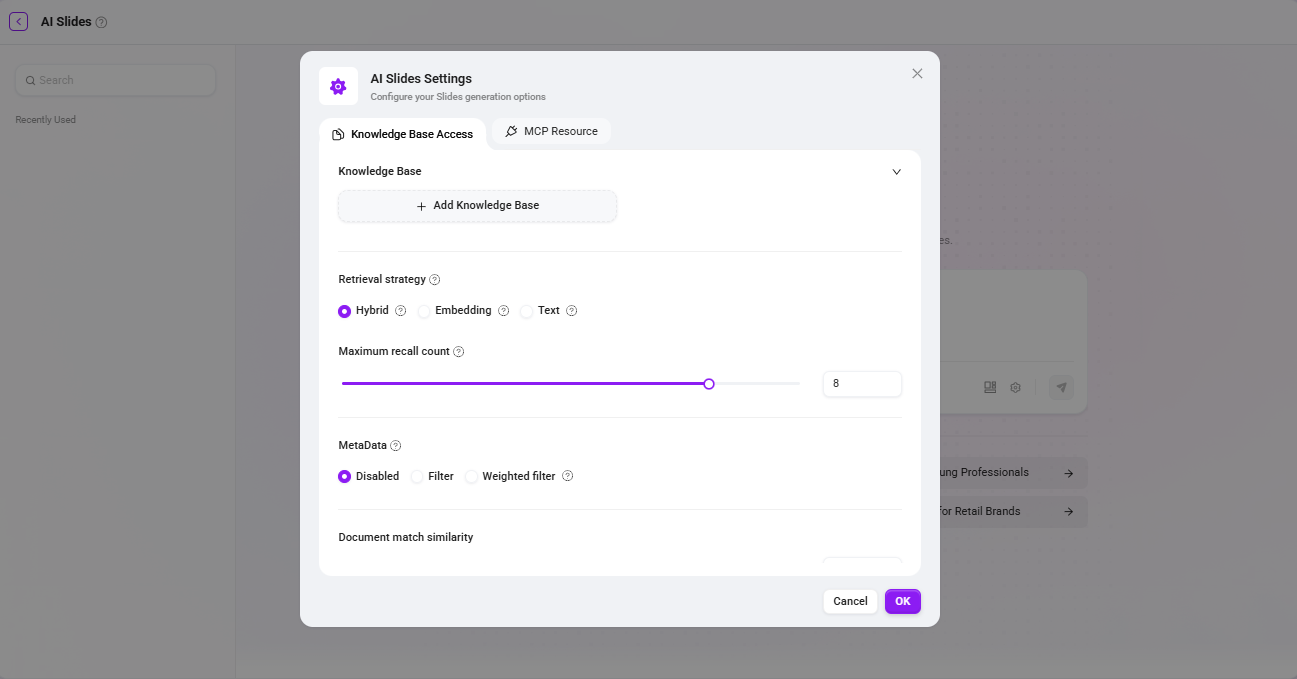
- Knowledge Base Access (optional): Select associated knowledge bases and configure retrieval strategies and recall parameters.
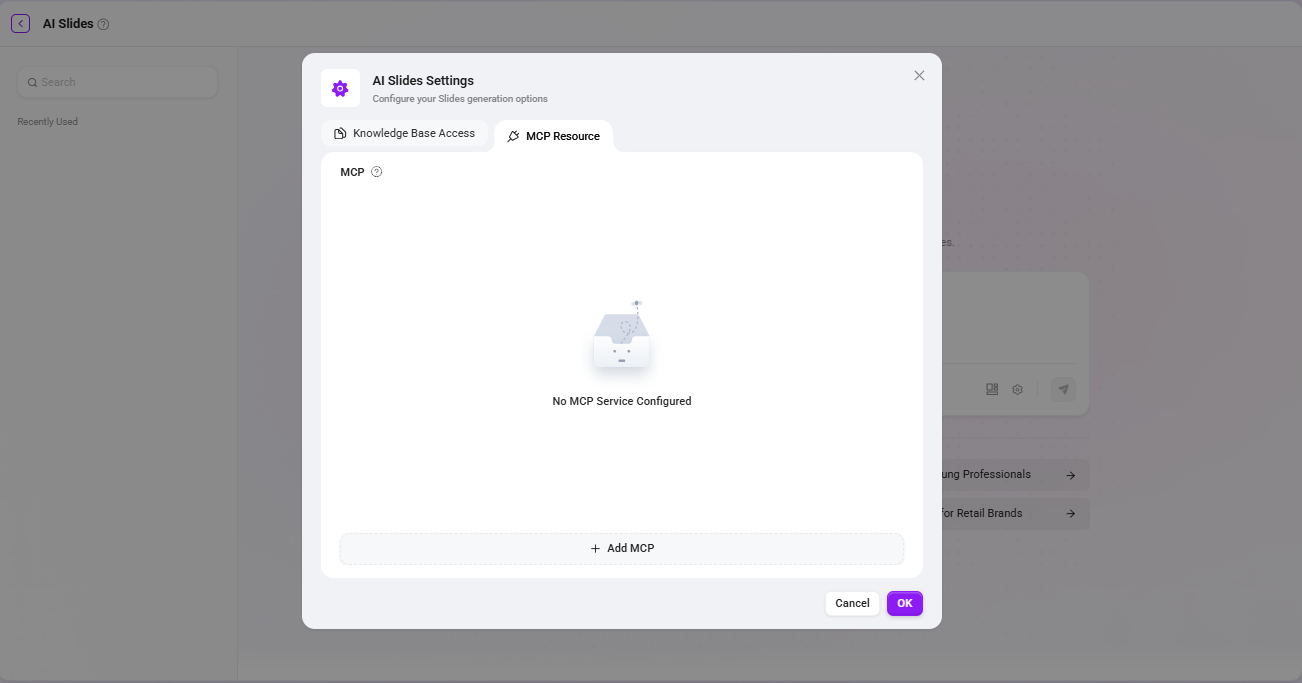
- MCP Resources (optional): Connect to external data sources or tools, such as real-time APIs, internal systems, etc.
Tip: Click the “
” icon to view and preview PPT templates before creation.
Generate and Optimize
- Click send, and the system will perform retrieval and content preparation while displaying progress in real time;
- After the system generates the initial outline, you can choose to confirm, modify, or continue adding requirements;
- Confirm the outline and select a template, then the system starts generating the PPT page by page;
- After generation is complete, you can continue optimizing content and layout through conversational or visual methods;
- Finally, you can choose to present online, download the
.pptxfile, or keep it on the platform for continuous iteration.
Configuration Instructions
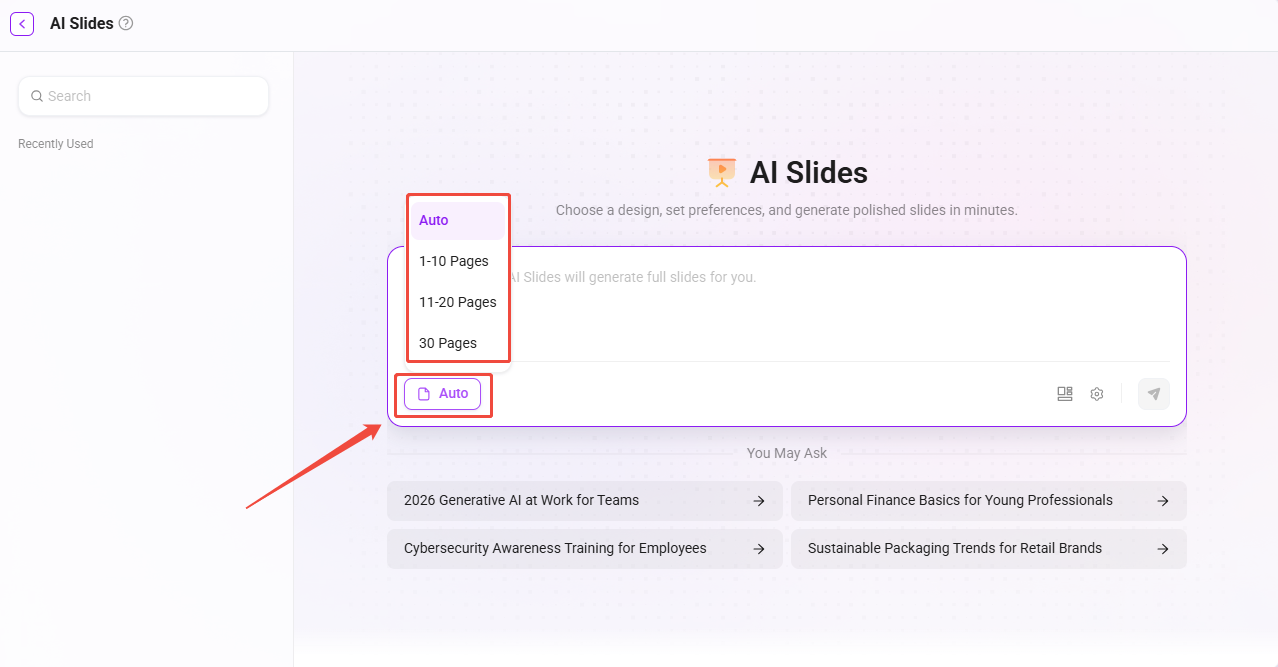
Page Count Configuration
- Auto: The system intelligently matches the page count based on content volume, suitable for quick generation.
- 1-10 pages: Suitable for brief reports, product introductions, and meeting minutes.
- 11-20 pages: Suitable for regular business reports, client proposals, and internal training.
- 30 pages: Suitable for in-depth industry research, large project closure, and strategic planning.
Recommendation: If you are not yet sure about the content depth, you can first use “Auto” to generate a draft, then adjust the page count based on the actual content density.
Knowledge Base Access Configuration (Optional)
- Knowledge Base: You can select one or more authorized knowledge bases; it is recommended to prioritize knowledge bases related to the topic;
- Retrieval Strategy: Supports three strategies—hybrid, embedding, and text; hybrid retrieval is recommended as the first choice;
- Maximum Recall Count: Supports 0-10; the higher the value, the richer the information, but the longer the time required;
- Metadata Filtering (Preview): Supports none, filter, and weight, used to control the scope and weighting of recalled content;
- Document Match Similarity: Used to control the document recall threshold; the commonly recommended value is 0.7;
- Q&A Match Similarity: Used to control the Q&A recall threshold; the commonly recommended value is 0.8.
Note: Higher match similarity is not always better. It is recommended to start with the default value and fine-tune gradually based on actual output results.
MCP Resource Configuration (Optional)
- If you need to connect to external capabilities such as internal CRM, real-time data APIs, or ticketing systems, you can configure the MCP server with credentials;
- If the current task does not depend on external resources, you can skip it directly without affecting the core generation functionality.
- Enable MCP only when the presentation content requires real-time data or information from external systems, so as to ensure timeliness while avoiding unnecessary configuration complexity.
AI Slides Management
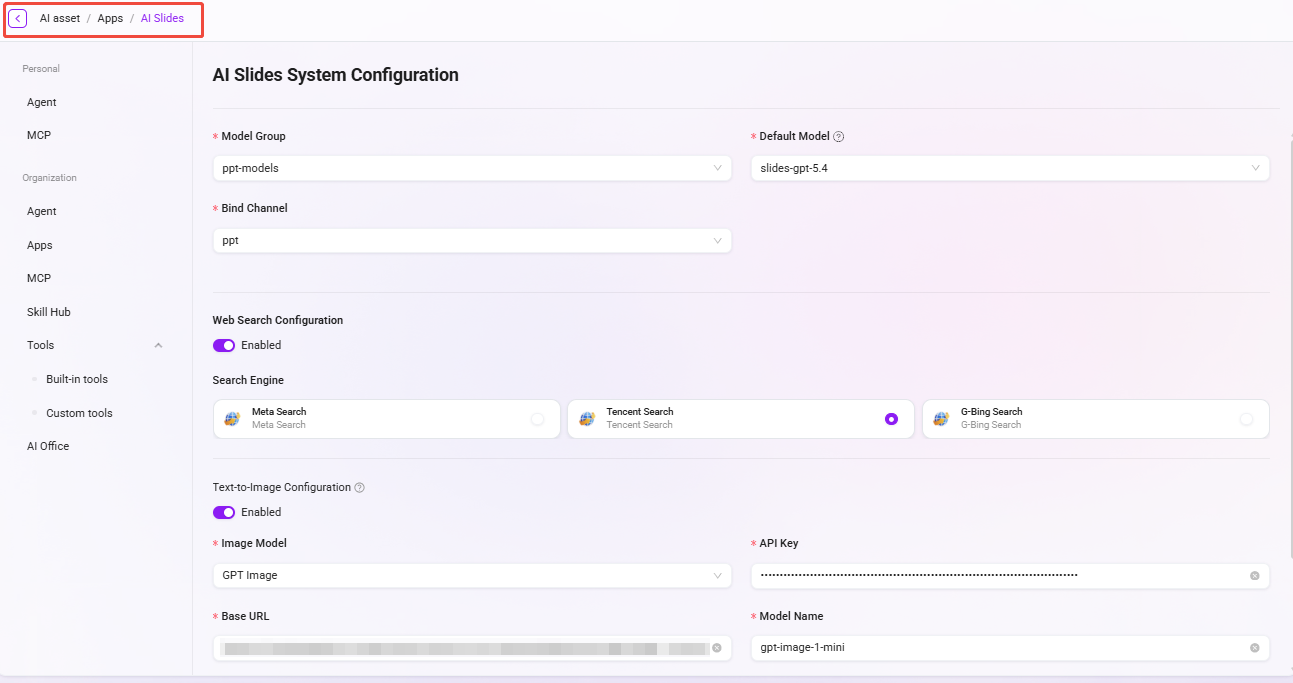
Administrators can perform global configuration for AI Slides to centrally manage core capabilities such as models, web search, and text-to-image generation.
Operation path: Management → Agent Management → APP → Find AI Slides → Click Configuration under the Actions column.
Permission Note: The above configurations are all global settings. Changes will affect all users of AI Slides, and such adjustments are restricted to administrators only.
Model Groups and Channels
- Model Group: You can specify the large language model group called by AI Slides, with support for multi-model configuration.
- Bind Channel: Associate configured API channels to carry model invocation requests.
Web Search
- Enabled Status: The toggle controls whether AI Slides is allowed to call web search engines to obtain real-time information.
- Available Search Engines: Supports multiple selections, including Bing Search, Google Search, Metaso Search, Tencent Search, etc.
Text-to-Image
Used to control whether AI image illustration capability is enabled during PPT generation.
- Enabled Status: The toggle controls enabling and disabling the text-to-image function.
- Image Type: Select the model used for image generation.
- API Key: Enter the API key for the corresponding service.
- Base URL: Configure the request endpoint for the image generation service.
- Model Type: Select Azur or OpenAI.