File Sources
File Source Overview
File sources are used to connect to and synchronize documents and files from external cloud storage platforms, such as SharePoint and Google Drive, into the knowledge base, enabling unified cross-platform content management and retrieval.
Through file sources, enterprises can directly reuse existing cloud documents without repeatedly uploading and maintaining materials. At the same time, authorized file sources associated with a knowledge base can automatically synchronize newly added or modified files at the configured frequency, helping keep the knowledge base content up to date.
💡 Tip: This feature is only supported in V4.2 and later.
Value of File Sources
- Unified access to external documents: Bring materials scattered across different cloud platforms into the knowledge base for centralized management.
- Reduced manual maintenance costs: Minimize the workload of manually downloading, uploading, and repeatedly organizing files.
- Keep knowledge content up to date: Use synchronization mechanisms to promptly obtain newly added or modified files from external platforms.
- Improve knowledge retrieval efficiency: After external documents are included in the knowledge base, they can be searched, previewed, and used in a unified way.
- Accelerate knowledge base construction: For teams with a large amount of historical materials, knowledge accumulation can be completed more quickly.
Applicable Scenarios
- Enterprise materials are mainly stored in SharePoint or Google Drive, and you want to connect them directly to the knowledge base.
- Team materials are updated frequently, and you want the knowledge base to automatically synchronize the latest content.
- Multiple departments share the same set of file materials, and you want to reduce repeated transfers and version confusion.
- You want to include external documents in the unified scope of knowledge retrieval, Q&A, or agent usage.
Currently Supported File Source Types
- SharePoint: Automatically synchronizes documents and file libraries in SharePoint sites.
- Google Drive: This feature is currently under development. Stay tuned.
File Source List
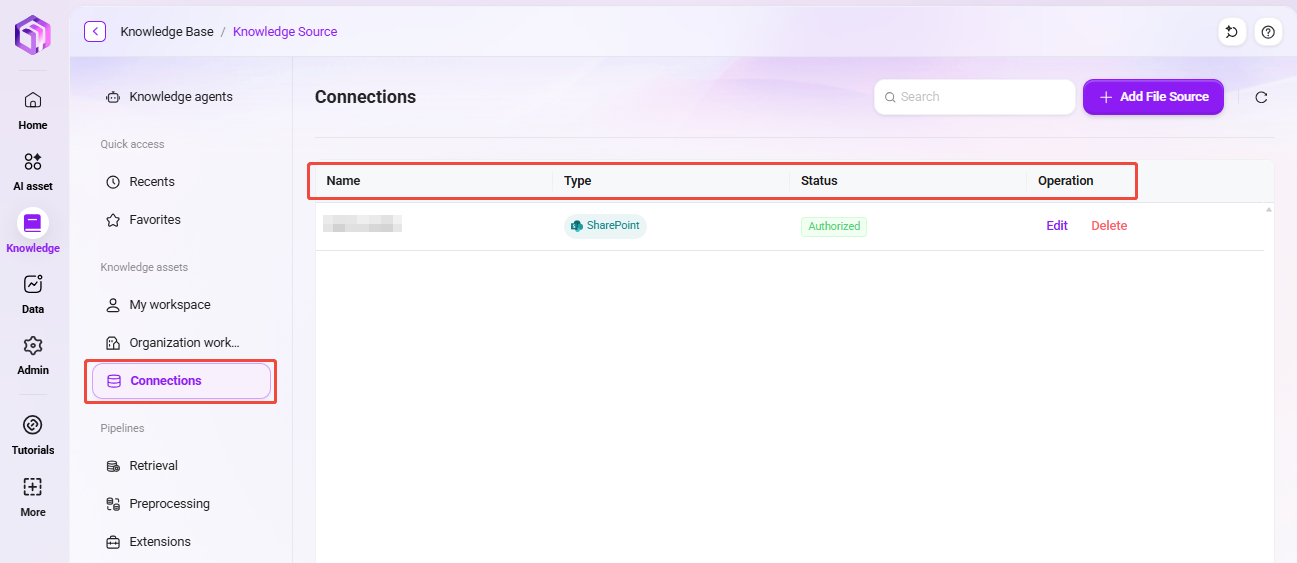
Go to the Knowledge → File Sources page to view all currently configured file sources.
- File Source Name: A custom connection name used to identify different file sources.
- Type: Cloud storage type. Currently supports SharePoint and Google Drive.
- Authorized: Displays the connection status (Authorized / Unauthorized). Only authorized data sources can synchronize properly.
- Actions: Supports editing the configuration or deleting the file source.
- Edit: Modify the file source name, description, or connection configuration (some fields cannot be changed).
- Delete: Remove file sources that are no longer in use. After deletion, the corresponding synchronization tasks will stop.
💡 Tip: After an authorized file source is associated with a knowledge base, the system will automatically synchronize newly added or modified files at the configured frequency to ensure the knowledge base content remains consistent with the cloud.
Recommendations for Using the List
- It is recommended to use clear naming conventions to distinguish different file sources, such as “Marketing Department SharePoint Document Library” or “Overseas Project Google Drive Repository”.
- If there are many file sources, it is recommended to name them by department, project, or purpose for easier maintenance and troubleshooting later.
- Before deleting a file source, it is recommended to confirm whether it is still being used by a knowledge base to avoid affecting synchronization tasks.
Create a File Source
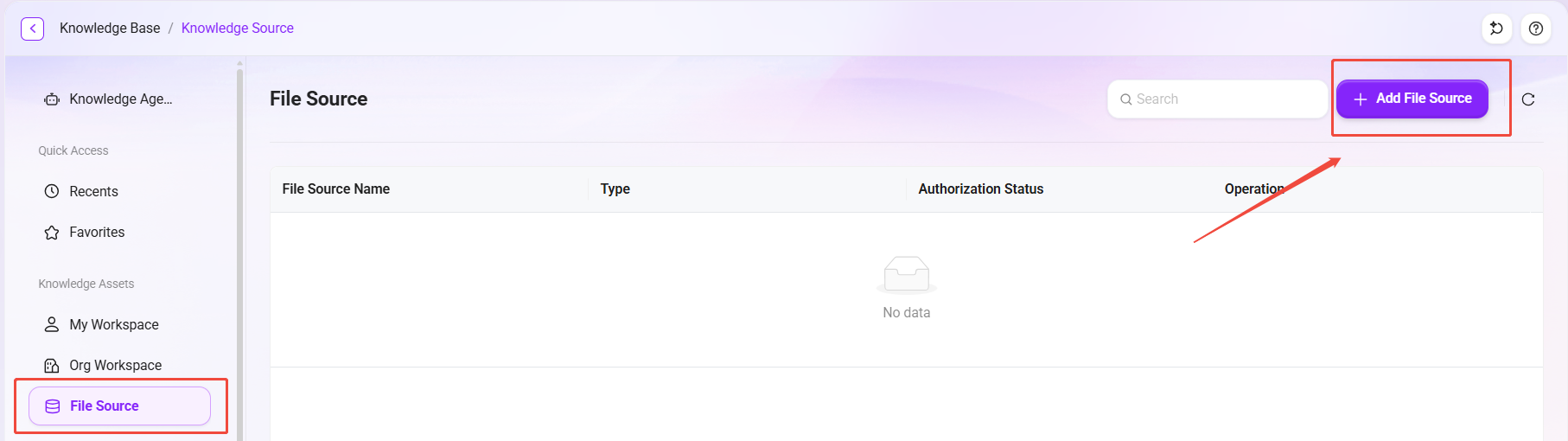
- On the file source list page, click the “Add File Source” button to enter the creation page.
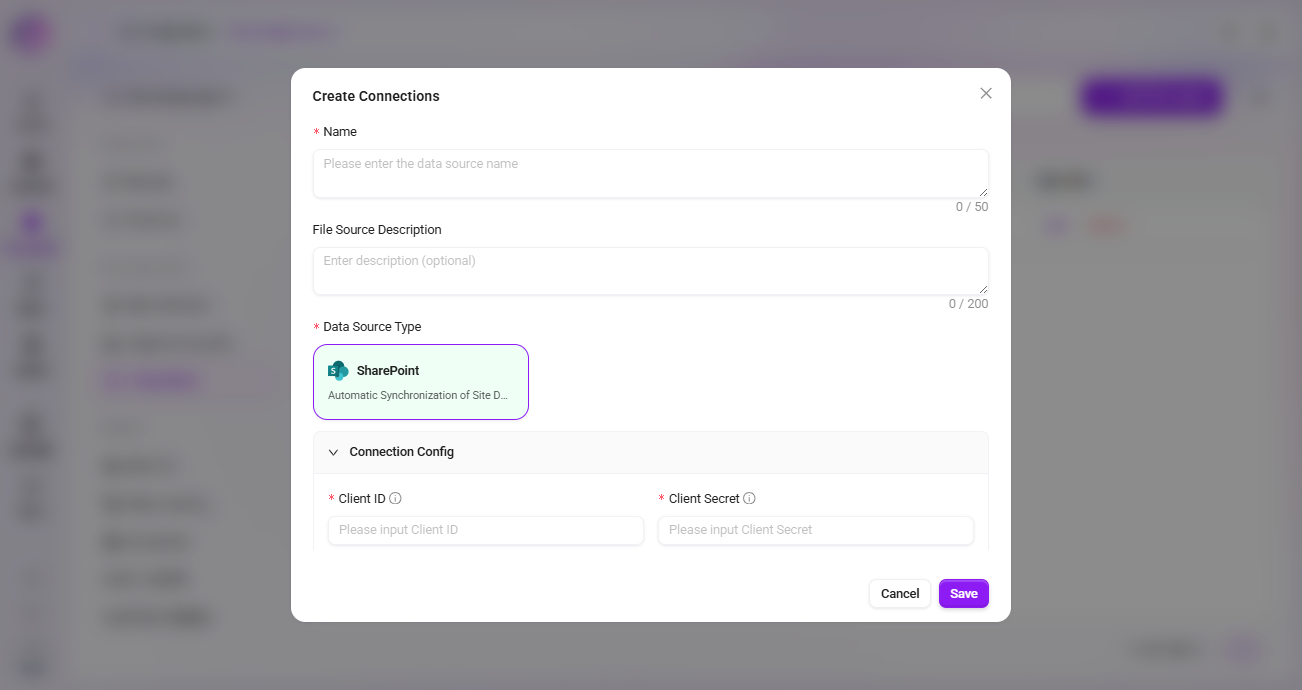
- Fill in the basic information:
- File Source Name: Enter an easily recognizable connection name, up to 50 characters.
- File Source Description: Add a description of the purpose or scope of the data source, up to 200 characters.
- Select the Data Source Type:
- SharePoint: Automatically synchronizes documents and file libraries in SharePoint sites.
- Google Drive: This feature is currently under development. Stay tuned.
- Configure the connection parameters (using SharePoint as an example):
- Client ID: The client ID of the Azure single sign-on application.
- Client Secret: The client secret corresponding to Azure single sign-on.
- Tenant ID: The tenant ID of the Azure SSO application.
- Authority: The authority URL of the Azure SSO application.
- After completing the form, click “Save”. The system will attempt to connect and authorize. After authorization succeeds, the file source status will change to “Authorized”, and you can then add the corresponding synchronized folder in the knowledge base.
Creation Notes
- After a file source is created successfully, it means the system has the ability to access the corresponding external platform.
- Successful authorization only indicates that the connection is available. You still need to select the folders or directory scope to be synchronized in the knowledge base afterward.
- Authorization methods and parameters may vary by file source type. It is recommended that administrators or personnel with the required permissions provide the relevant configuration.
Usage Notes
- Authorization status must remain valid: If the external platform authorization becomes invalid, the secret expires, or permissions are revoked, the file source will no longer be able to continue synchronizing.
- Deletion stops synchronization: After a file source is deleted, its associated synchronization tasks will also stop.
- Standardized naming is recommended: As the number of file sources increases, standardized naming helps distinguish sources and purposes.
- It is recommended that administrators maintain connection parameters: This helps avoid authorization failures or synchronization issues caused by incorrect authentication configuration.
Summary
File sources are an important capability for connecting the knowledge base to external document platforms. Through file sources, enterprises can bring files from platforms such as SharePoint and Google Drive into the knowledge base in a unified manner, and continuously maintain the timeliness and consistency of knowledge content through authorization and synchronization mechanisms, thereby reducing material management costs and improving knowledge usage efficiency.