MCP Management
Publish MCP
1. Create a personal MCP
In the personal workspace, users can create and test a fully functional MCP.
This process is typically used to implement cross-system collaboration or complex automation tasks.
2. Publish as an organizational MCP
When the MCP is running stably, it can be published as an organizational MCP so that other users can also reuse the automation workflow:
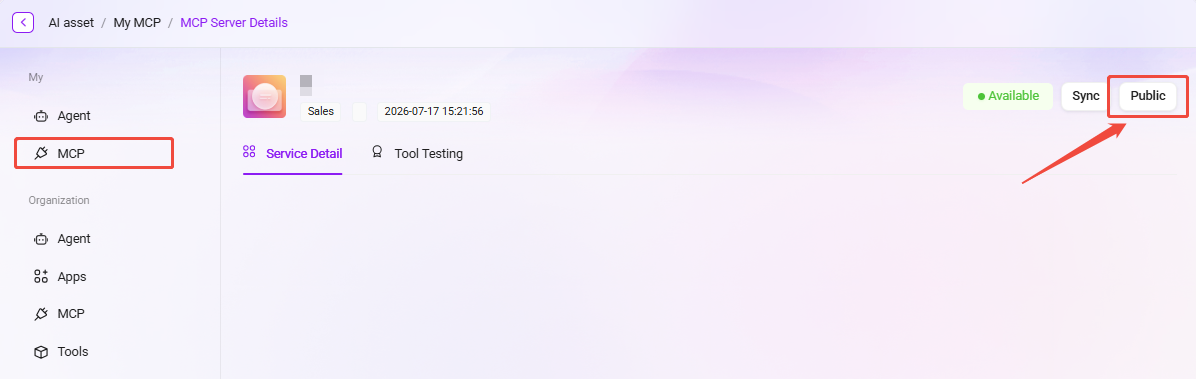
- Open the personal MCP page;
- Click the "Publish" button in the upper-right corner;
- After confirming the publish action, the MCP will be synchronized to the organization side.
3. Permissions and access instructions
Published MCPs also require administrators to grant usage permissions.
Administrators can assign access scopes based on departments or user groups to ensure that automation tasks are executed only within compliant boundaries.
Typical application scenarios:
- Publish the automated report generation workflow for use by the data department;
- Publish knowledge synchronization or translation workflows for use by the content operations team.
Personal MCP Management
Administrators can manage personal MCP services in the system. These services are used to extend the external capabilities of agents. Through MCP management, users can connect various external tools and data sources to personal agents.
View the MCP list
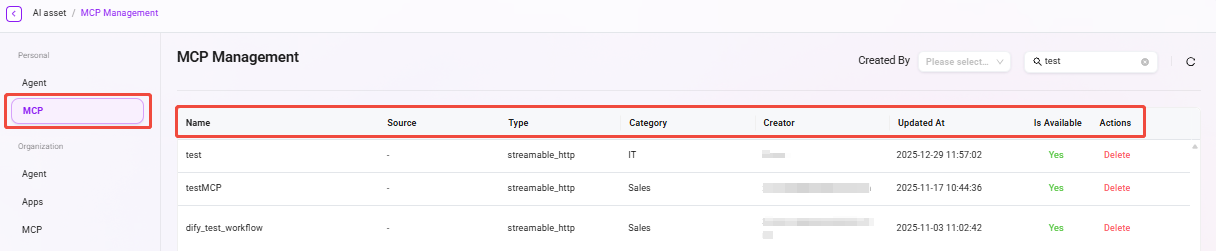
- Go to the MCP management page: Navigate to "Personal -> MCP Management".
- View configured MCP services: The system will list all configured MCP services, including information such as each MCP's name, type, and availability.
Filter and search MCPs
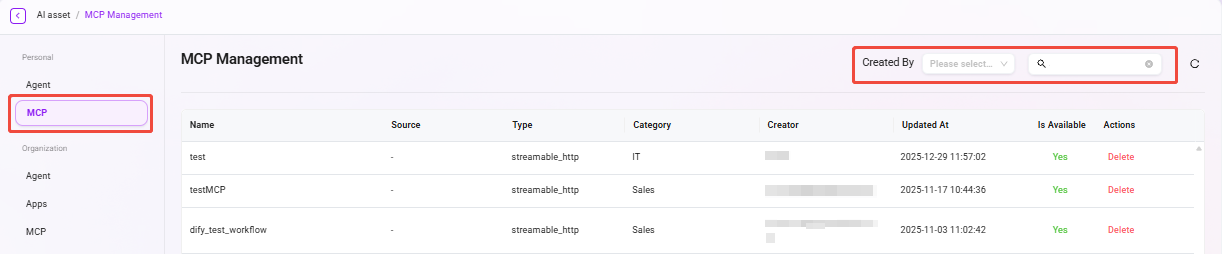
- Open the filter function: On the organizational MCP management page, click the type or category filter.
- Select filter criteria: Choose the type or category conditions to filter from the dropdown list.
- View filter results: The system will display a list of MCP services that match the filter criteria.
- Keyword search: Enter an MCP name or description keyword in the search box in the upper-right corner of the page, and the system will display matching results in real time.
Organizational MCP Management
Administrators can manage organization-level MCP services in the system. These services provide standardized external capability extensions for the entire organization. Through organizational MCP management, administrators can ensure the stability and security of organization-level services.
View the MCP list
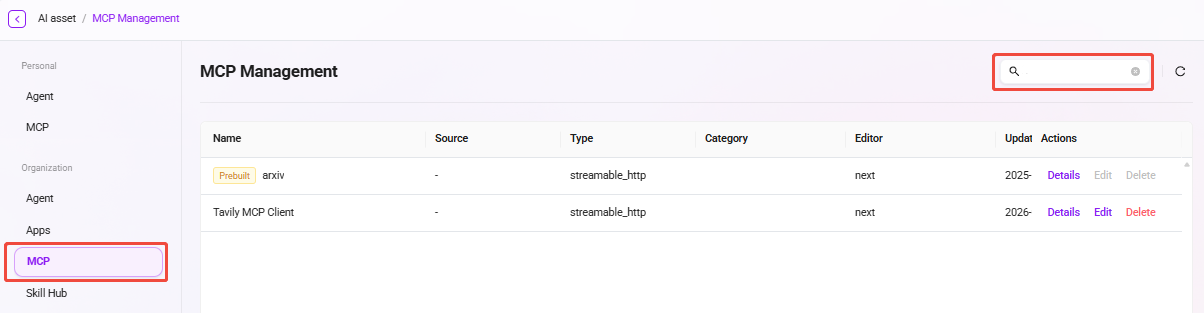
- Go to the organizational MCP management page: Navigate to "Organization Studio -> MCP Management".
- View organization-level MCP services: The system will list all organization-level MCP services, including information such as each MCP's name, type, availability, and type category.
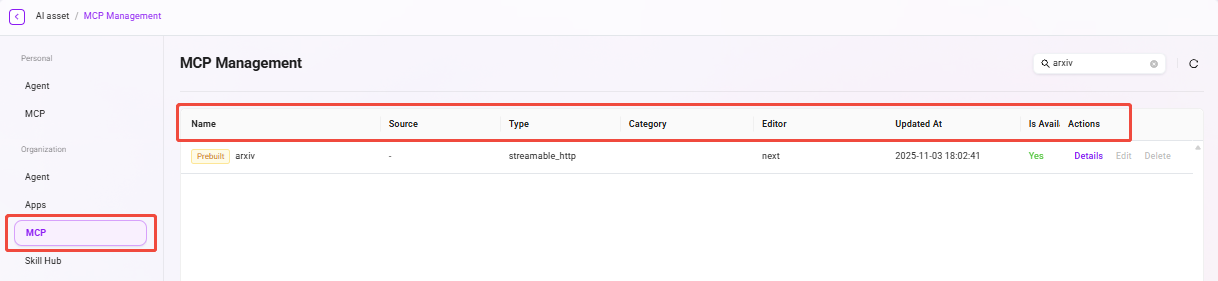
View MCP details
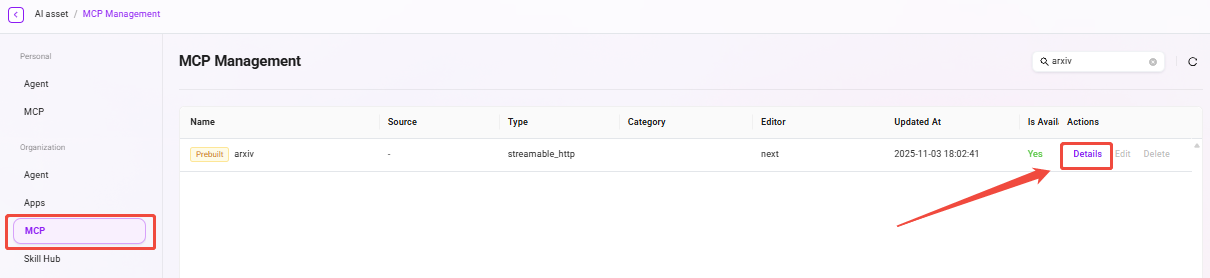
- Select the MCP to view: In the organizational MCP list, select the item whose details you want to view.
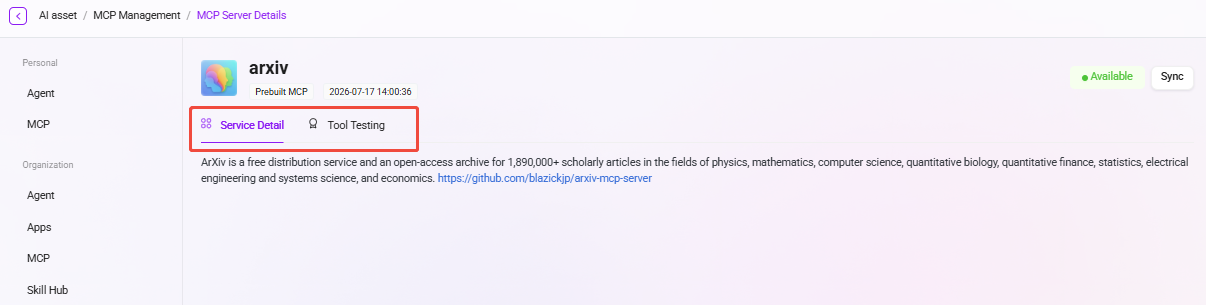
- Click the "Details" button: View the MCP service details and test tools.
- Close the details page: After viewing, click the "Back" button to close the details page.
Edit MCP
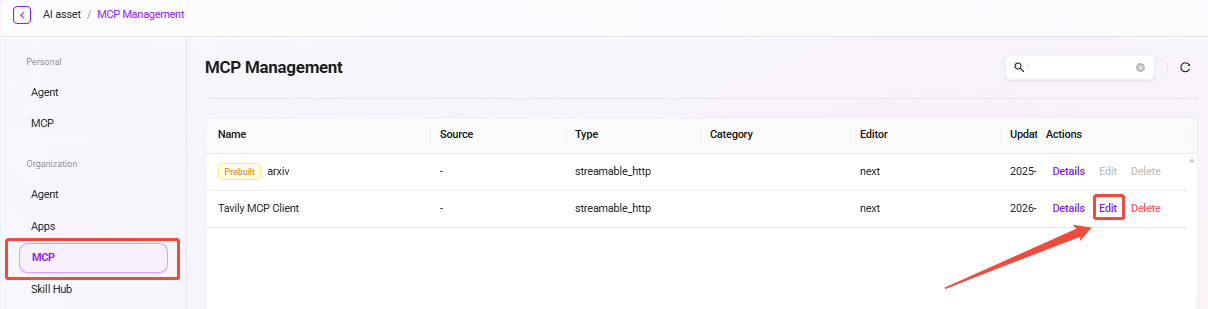
- Select the MCP to edit: In the organizational MCP list, select the item you want to edit.
- Click the "Edit" button: Enter the edit page, where the administrator can modify the MCP's name, avatar, description, category, and MCP service configuration.
- Save changes: After editing is complete, click the "Save" button to update the MCP configuration.
💡 Tip: System preset MCPs are in read-only status and their configurations cannot be edited or deleted, ensuring the stability of core services.
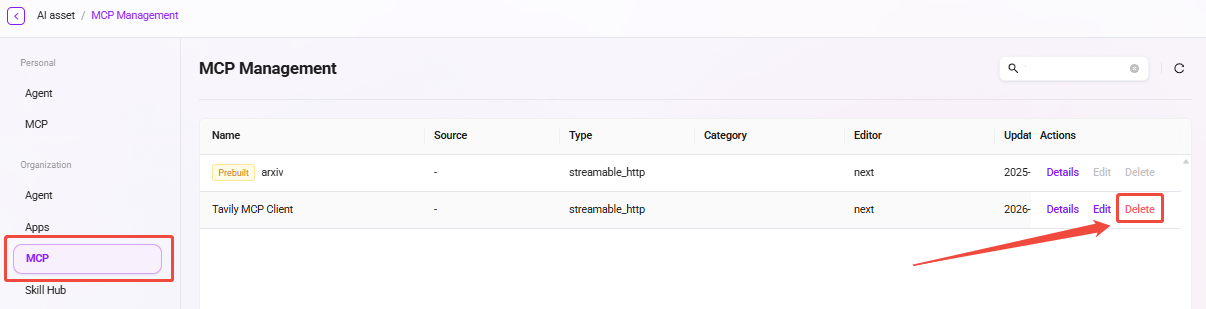
Delete MCP
- Select the MCP to delete: In the organizational MCP list, select the item you want to delete.
- Click the "Delete" button: Click the "Delete" button in the action column.
3.Confirm deletion: The system will display a confirmation dialog box. After confirmation, the MCP service will be disabled and removed.
Search MCP
- Locate the search box: Find the search box in the upper-right corner of the MCP management page.
- Enter keywords: Enter keywords from the MCP name, description, or category.
- View filter results: The system will display a list of MCPs matching the keywords in real time.