Agent Management
Publish Agent
1. Create a Personal Agent
In SERVICEME, users can create a personal Agent in the following three ways:
- Basic Creation: Start from a blank template and manually configure the Agent's name, role, instructions, and knowledge sources;
- Workflow Creation: Use visual process design to connect multi-step operations into an automated workflow;
- Share Code Creation: Quickly duplicate an existing Agent by entering another Agent's share code.
2. Publish as an Organization Agent
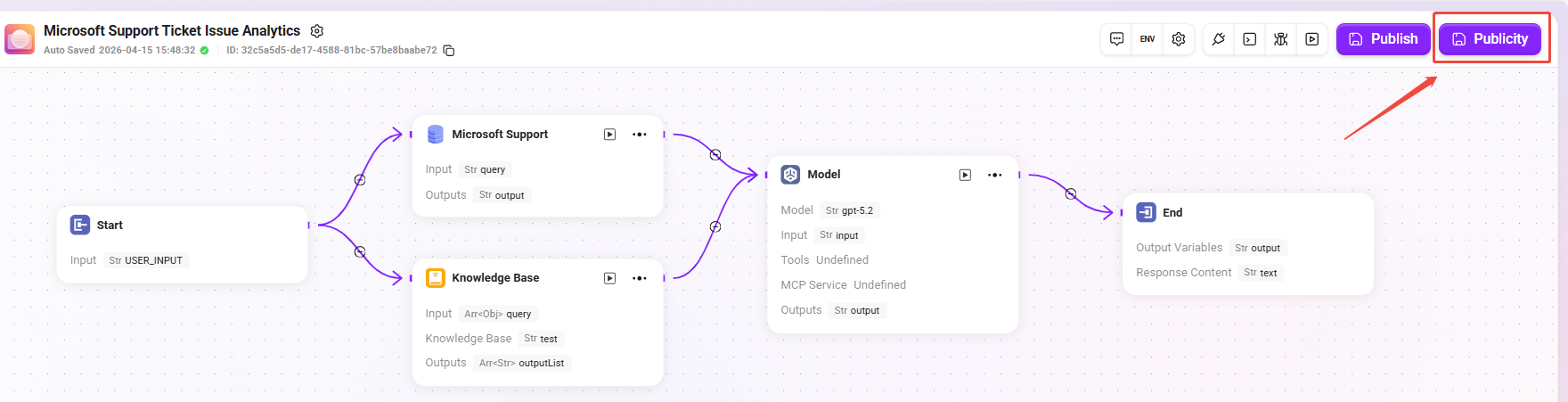
When a personal Agent has been fully configured and verified as usable, it can be published to the organization for unified team access and management:
- Go to the configuration page of the target Agent;
- Click the “Public” button in the upper-right corner;
- The system will prompt for publishing confirmation. After confirmation, the Agent will become an organization Agent.
3. Permissions and Access
After an Agent is published to the organization, an administrator must configure access permissions in the backend.
Only authorized members can use the Agent in the organizational environment, ensuring security and access control.
Typical Application Scenarios:
- Publish a personally built sales assistant or data analysis Agent to the entire sales team;
- Publish an automated approval Agent for shared use by the finance or HR department.
Personal Agent Management
Administrators can manage personal Agents in the system. These Agents are AI Agents created by users based on their own needs. Through Agent management, users can organize, maintain, and optimize their own AI Agent resources.
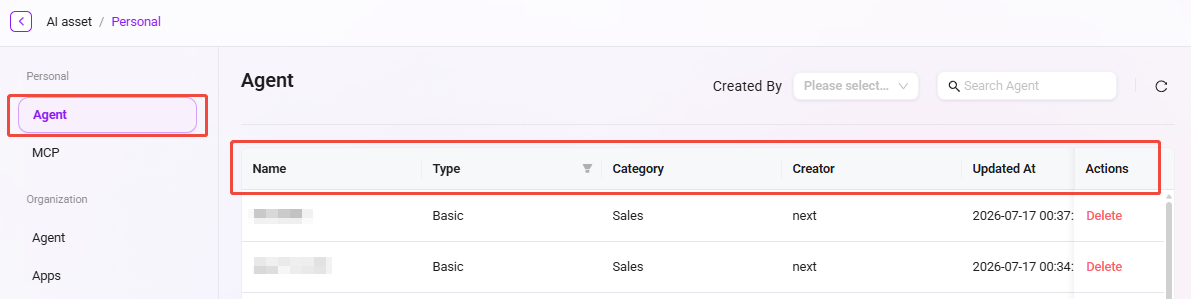
View Agent List
- Go to the Agent Management page: Navigate to “Personal -> Agent Management”
- View created Agents: The system will list all created Agents, including information such as each Agent's name, type, description, category, and creation time.
Delete Agent
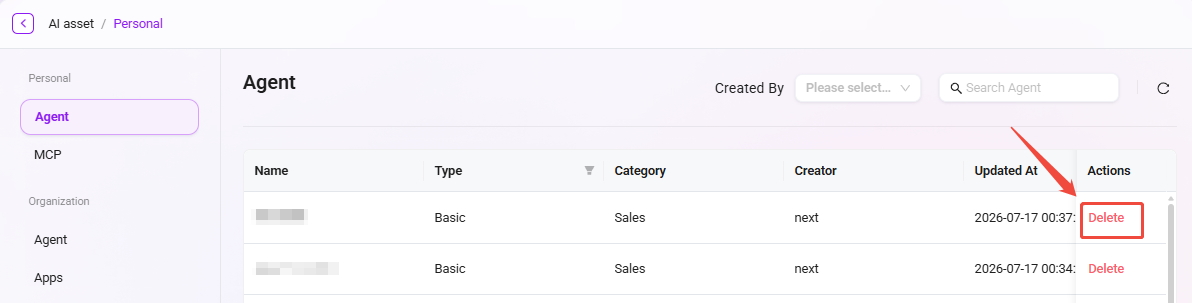
- Select the Agent to delete: In the Agent list, select the item that needs to be deleted.
- Click the "Delete" button: Click the "Delete" button in the action column.
- Confirm deletion: The system will display a confirmation dialog box. After confirmation, the Agent will be deleted.
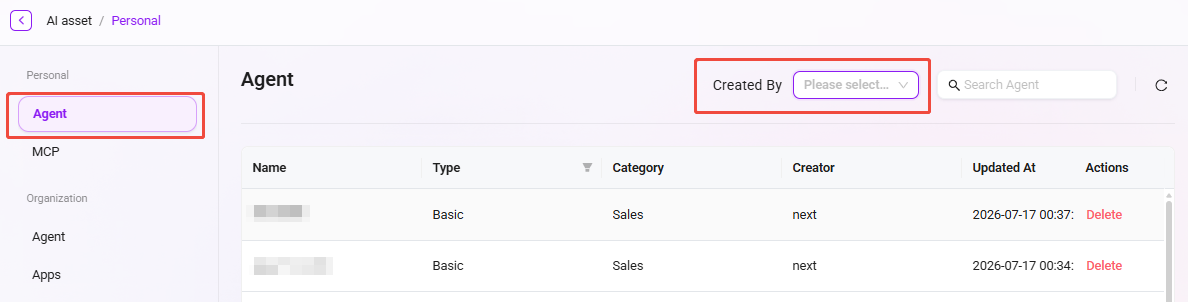
View Agent Creator
- Locate the user selector: In the upper-right corner of the Agent Management page, find the user selection control.
- Click to view creators: Click this control to view and filter the list of Agents created by a specific user.
Search Agent
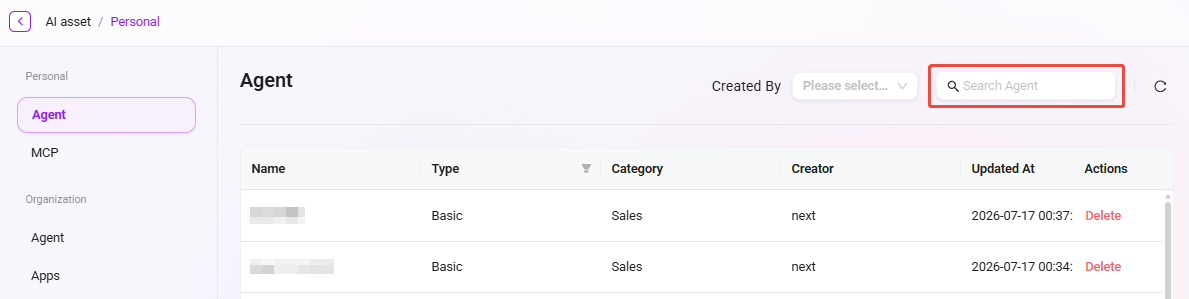
- Open the search function: Enter keywords in the search box on the Agent Management page.
- Perform the search: Click the search icon or press Enter to search.
- View search results: The system will display a list of Agents that match the search criteria.
Organization Agent Management
Administrators can manage organization-level Agents in the system. These Agents are AI Agents that have been reviewed and promoted to organization-level resources. Through organization Agent management, administrators can ensure the quality and consistency of AI Agents within the organization.
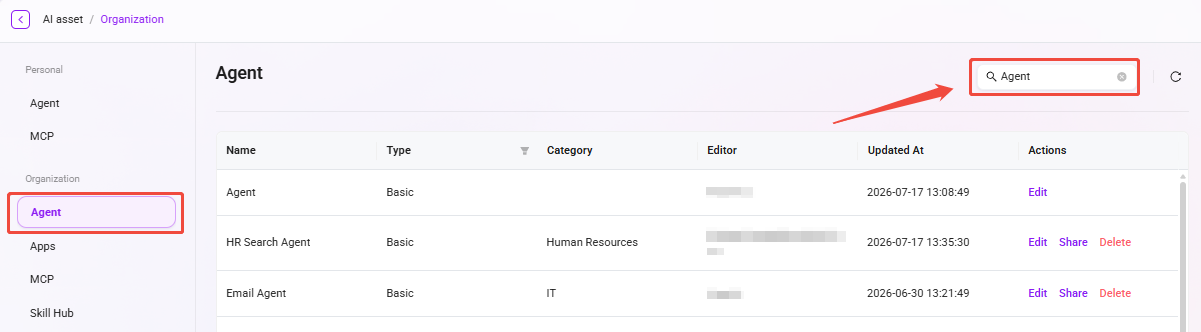
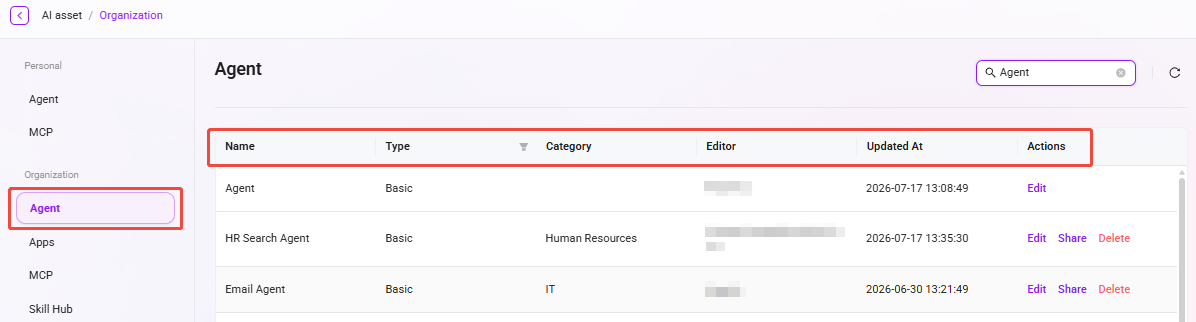
View Organization Agent List
- Go to the Organization Agent Management page: Navigate to “Organization Studio -> Agent Management”
- View organization-level Agents: The system will list all organization-level Agents, including information such as each Agent's name, type, description, category, and creation time.
Edit Agent
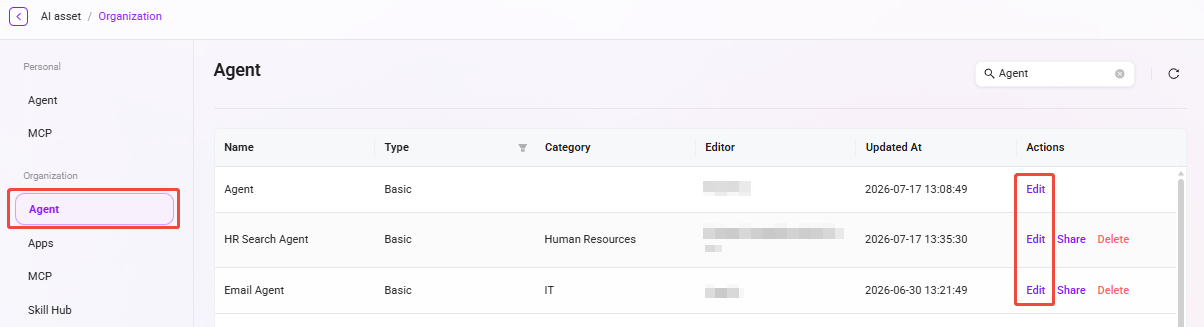
- Select the Agent to edit: In the organization Agent list, select the item that needs to be edited.
- Click the "Edit" button: Enter the edit page, where the administrator can modify the Agent's configuration parameters and function settings.
- Save changes: After editing is complete, click the "Save" button to update the Agent configuration.
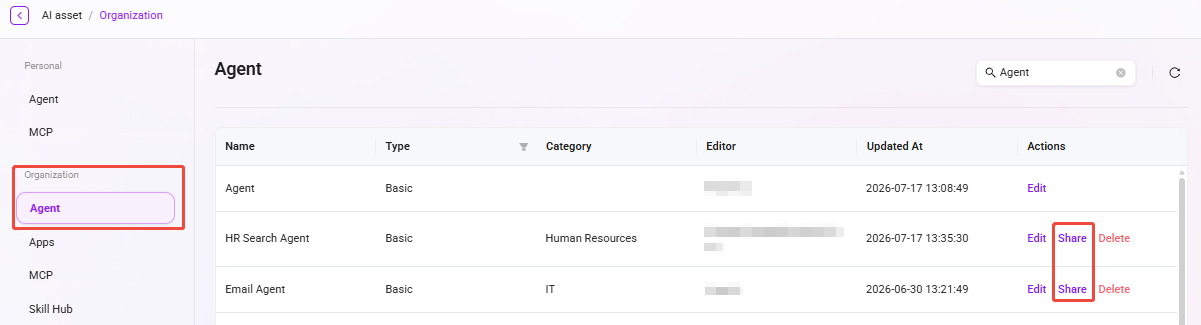
Share Agent
- Select the Agent to share: In the organization Agent list, select the Agent to be shared.
- Click the "Share" button: The system will generate an exclusive share configuration code. Copy and save the configuration code.
- Confirm sharing: When creating an Agent, choose to create it with a configuration code, paste the configuration code, and click the "Confirm" button to complete the sharing operation.
Delete Agent
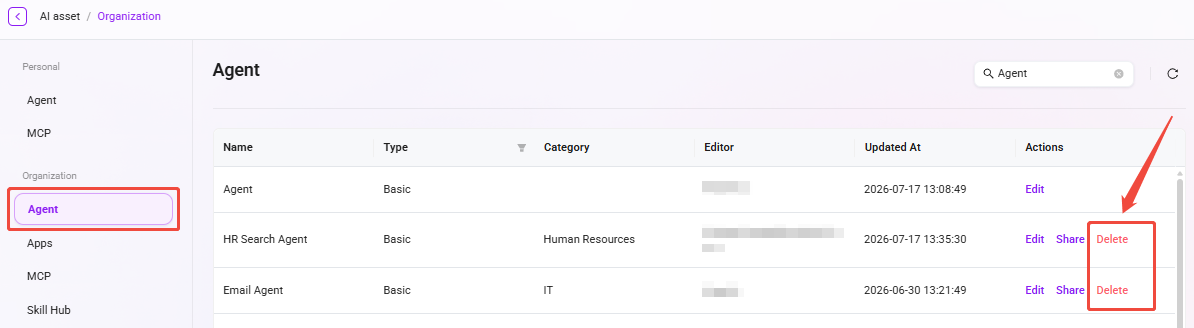
- Select the Agent to delete: In the organization Agent list, select the item that needs to be deleted.
- Click the "Delete" button: Click the "Delete" button in the action column.
- Confirm deletion: The system will display a confirmation dialog box. After confirmation, the Agent will be removed from the organization list.
Search Agent
- Open the search function: Enter keywords in the search box on the organization Agent Management page.
- Perform the search: Click the search icon or press Enter to search.
- View search results: The system will display a list of organization Agents that match the search criteria.