Using Agent
Applicable Scenarios
-
Internal Enterprise Knowledge Q&A
- Employees can ask questions about HR policies, financial processes, IT support, and more through the chat window, and the system will automatically retrieve answers from the knowledge base.
- For example: the HR Agent can answer questions such as “How long is the probation period?” and “How do I submit a reimbursement?”, while the Finance Agent can handle questions like “Invoice precautions,” “Travel reimbursement process,” and “Q1 sales performance.”
-
Intelligent Document Parsing and Q&A
- Supports uploading PDF documents and conducting intelligent Q&A based on document content.
- Multiple documents can be switched and compared for questioning, making it suitable for contract review, technical document analysis, training material Q&A, and more.
-
Multi-Document Knowledge Base Q&A
- Administrators can upload multiple policy documents, SOPs, and FAQs to build a knowledge base.
- When users ask questions, the system will accurately match and return answers from the knowledge base, making it suitable for standardized Q&A in departments such as HR, Finance, QA, and CSC.
-
Web Search and External Information Retrieval
- Public-domain agents support web search, making them suitable for obtaining the latest news, industry updates, technology trends, and other content not included in GPT training.
How to Use Agent?
Start a Conversation
Natural language conversation is the primary way to interact with an Agent, just like chatting with a person. Users can ask the Agent questions or request it to complete a task using natural language.
For example:
- Ask the Agent to perform a web search: “Please help me search the internet for chip industry companies in Shanghai, Guangzhou, and Beijing.”
- Ask the Agent to perform knowledge base Q&A: “Under the company annual leave policy, are employees in the probation period entitled to annual leave?"
- Ask the Agent to analyze a document: “Please summarize the breach of contract liability clauses in the uploaded contract.”
Steps:
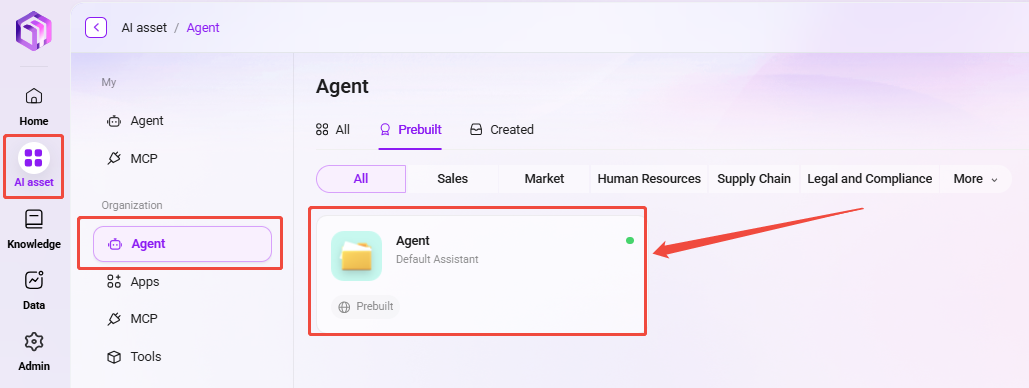
- Log in to the SERVICEME platform.
- Go to the AI Asset page.
- Select the corresponding Agent in the Agent panel, for example Default Agent (the default Agent name).
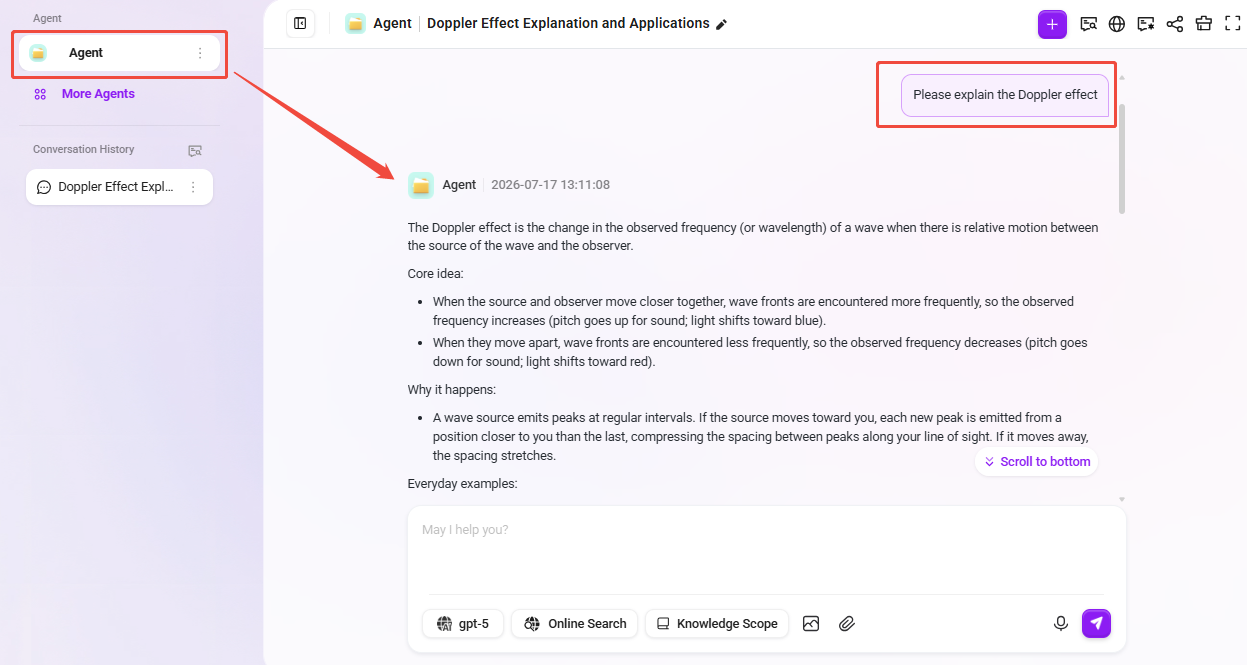
- Enter your question in the conversation input box (for example: “Please explain the Doppler effect”), then wait for the agent to respond.
Additional Notes:
- Deep Thinking: When enabled, the Agent will perform deeper multi-step reasoning, suitable for complex questions, logical analysis, or strategic planning scenarios.
- Web Search: When enabled, the Agent can retrieve internet information in real time, supplementing the latest content not covered in the knowledge base.
- Knowledge Scope: You can restrict the Agent to retrieve answers only from designated knowledge bases or documents, ensuring controllable and compliant answer sources.
- Voice Input: You can enter input by voice.
- New Conversation: Start a new conversation topic without being affected by the current conversation context.
Review Historical Conversations
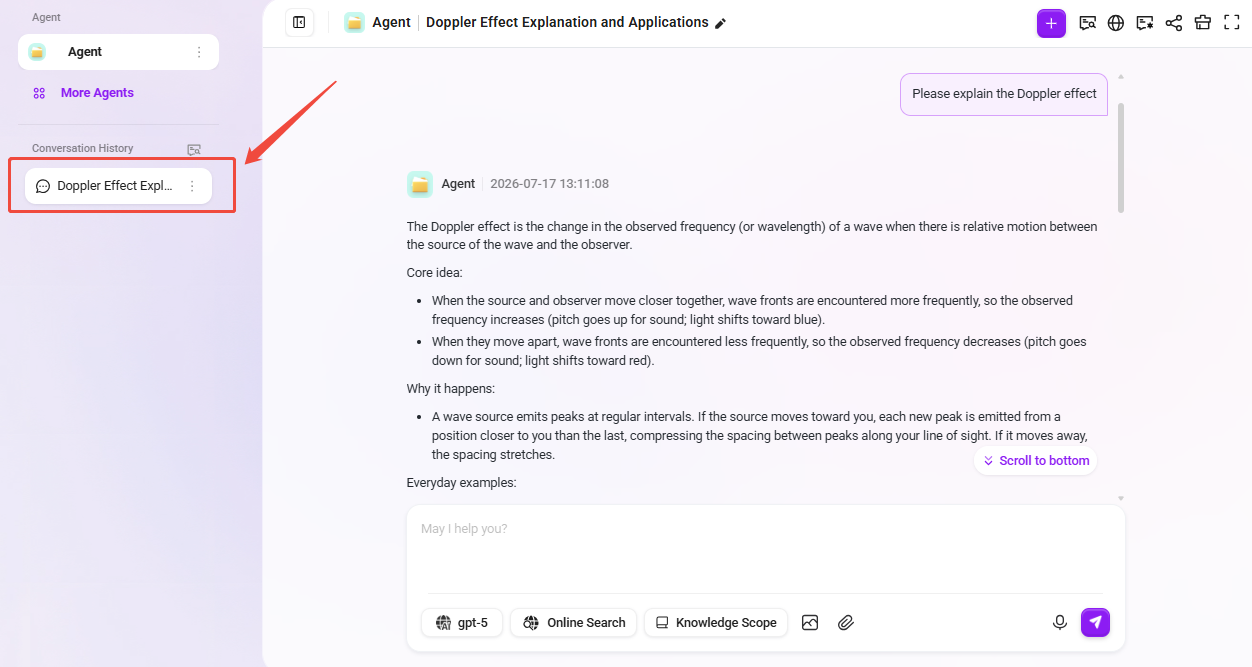
Each time a new conversation is started, the system automatically generates a historical conversation record, making it convenient for users to review previous communication at any time.
- View Conversation: Click the title of a historical conversation to review the dialogue record from that time and quickly find past communication content.
- Quick Search: Enter title keywords to quickly locate relevant historical conversations.
- Delete/Rename: You can delete or rename historical conversations using the edit button on the right side of the historical conversation.
How to Narrow the Knowledge Scope for Q&A?
When too much knowledge is associated with an Agent, there may be contradictions between different knowledge sources. To ensure answer accuracy, we can optimize results by limiting the knowledge scope for Q&A. The following are two main filtering modes:
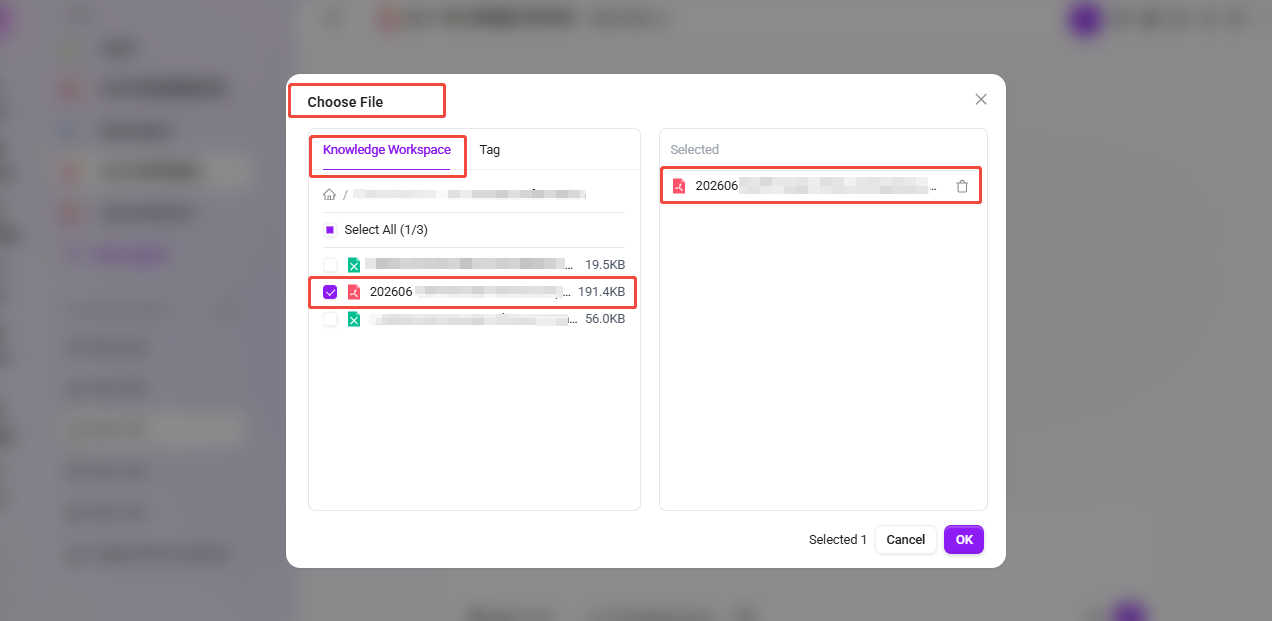
- Knowledge Workspace
- This mode allows users to limit the Q&A scope to one or more specific knowledge workspaces.
- It also allows the Q&A scope to be limited to a specific file.
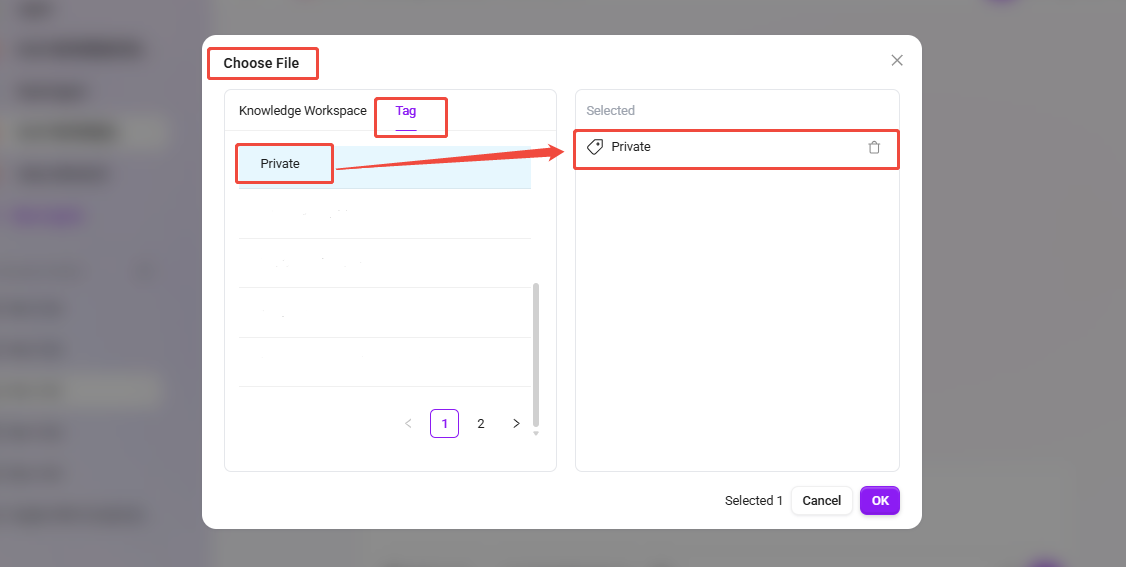
- Tag
- Users can select the Q&A scope using one or more specific tags.
Operations Based on Responses
Rate Responses
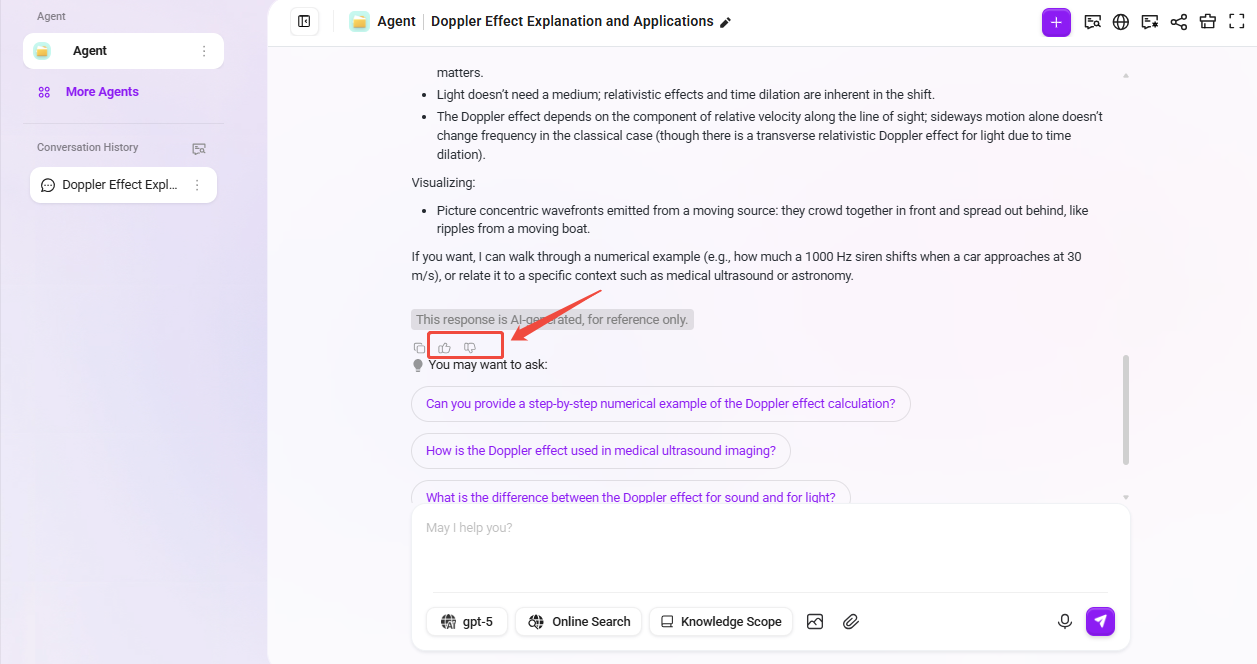
For responses generated by the Agent, users can rate them by liking or disliking them.
- If you are satisfied with the response content, hover over the response and click
 to like the content.
 - If you are dissatisfied with the response content, hover over the response and click
 to provide feedback that the answer is unsatisfactory.
- Fill in Detailed Feedback
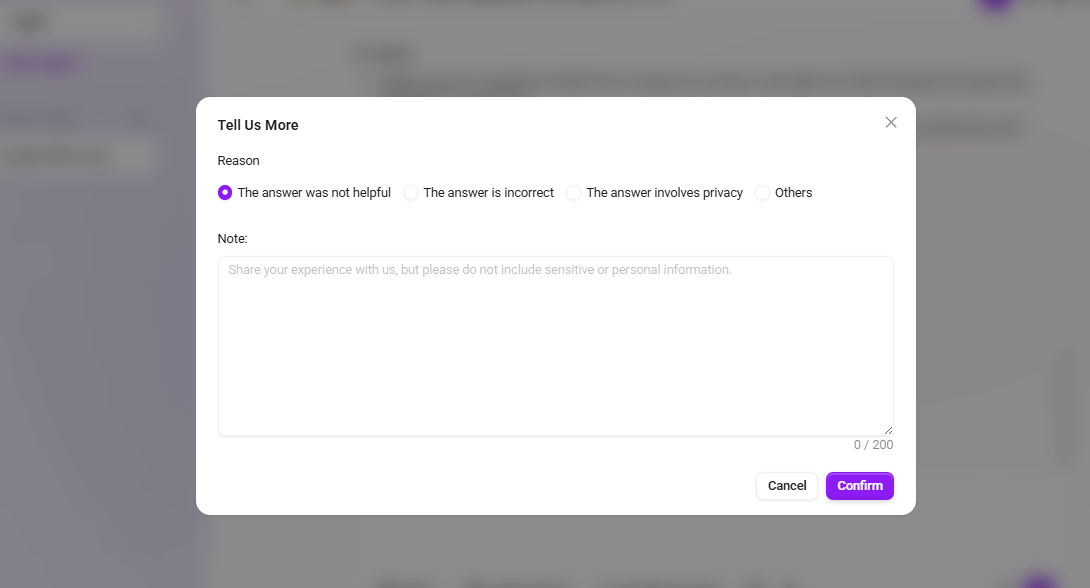
To use the detailed feedback feature, enable the “Chat Feedback” option in the conversation experience settings of the Agent configuration.
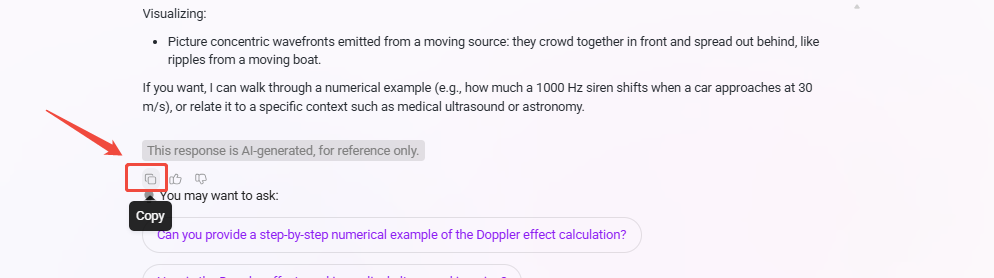
Copy Responses
Copy the response content, including its formatting and images (the paste target must support HTML format, such as Word).
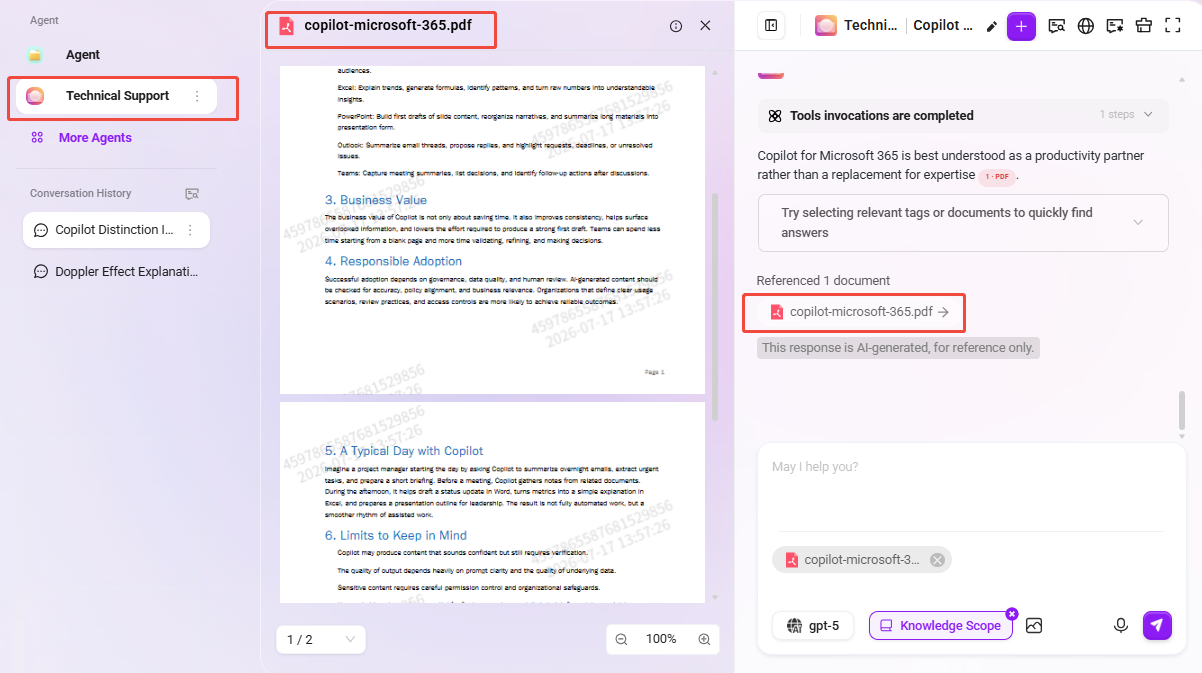
View Citation Sources
If you want to know which specific excerpts this answer cites and which documents they come from, you can view them through the links in the answer.
Question Guidance and Follow-up Questions
-
Intelligent Question Recommendation and Auto-Completion
- When a user enters a question in the conversation box, the system uses intelligent algorithms to automatically generate related questions that the user may be interested in for reference.
- If the user’s question is incomplete, the system will automatically complete it to ensure a smoother and more efficient interaction process.
-
Follow-up Question Feature
- After Q&A, users can ask further questions based on the answer, file, or tag provided by the agent.
- The specific method for follow-up questions is:
- Click the file or tag after the agent’s answer,
- Click “Ask Again” below the answer, and the agent will further narrow the scope based on the file and tag to provide a more targeted answer.
💡 Tip: Before using this feature, you need to enable the question guidance and follow-up options in the agent configuration.

Private Knowledge Q&A
When using an agent, if you want to conduct Q&A with a private knowledge base, you can configure it by following these steps:
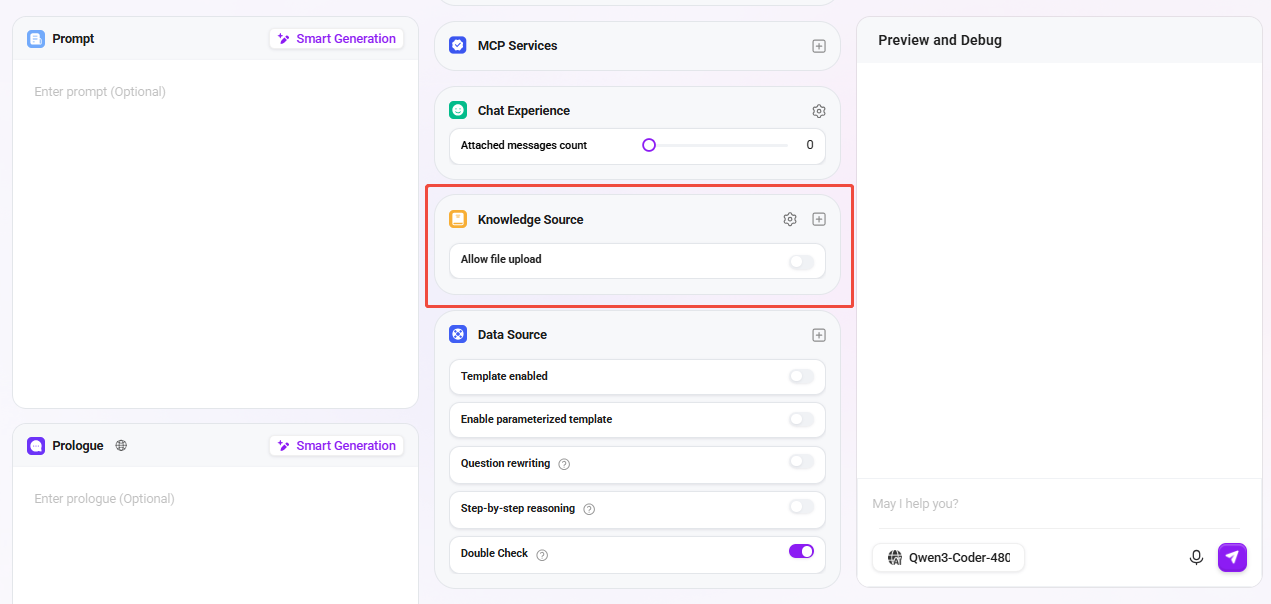
- Go to the agent configuration page and turn off the “Allow File Upload” button in Knowledge Source Configuration.
- Click the “+” button on the right side of the knowledge source to add private knowledge base content to the agent.
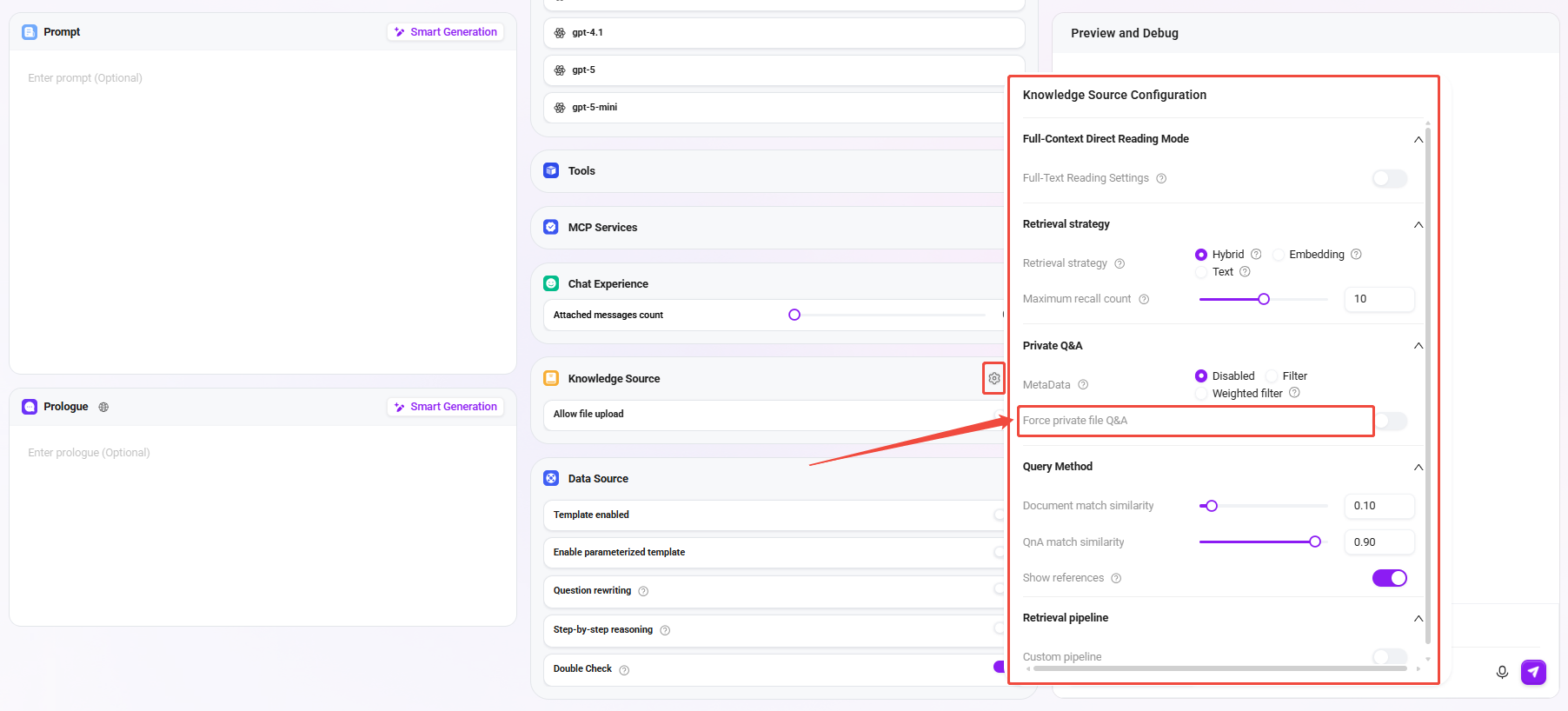
- Click the settings button on the right side of the knowledge source and enable the “Force Private File Q&A” option.
- After completing the configuration, click the “Save Configuration” button in the upper-right corner to successfully create a private Q&A agent.
- It is recommended to perform appropriate testing after configuration to ensure the private Q&A feature works as expected.
💡 Tip: After enabling forced private Q&A for the agent, the web search capability will be disabled by default, and web search can no longer be used.
Single-Document Q&A
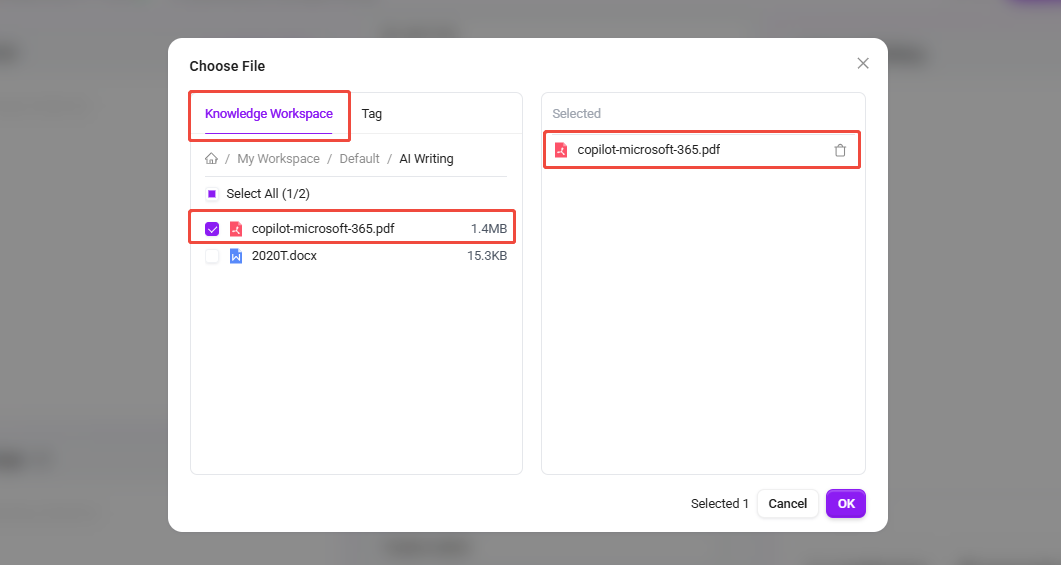
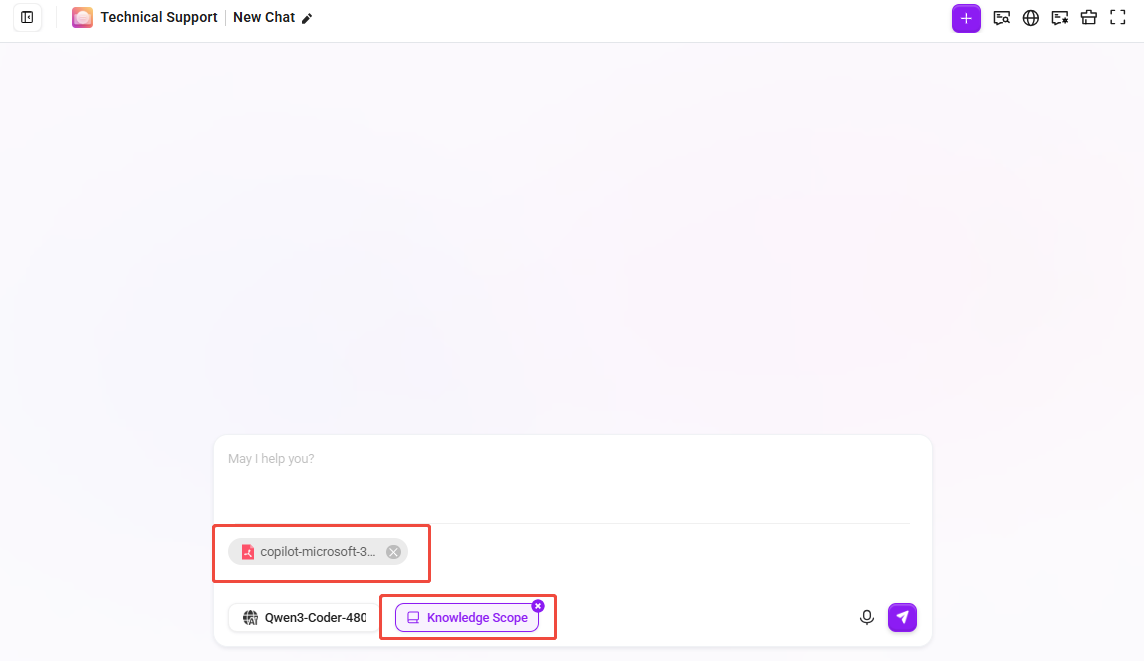
When using an agent, if you want to conduct Q&A on a single document, after configuring the knowledge source for the agent, you can select a single document in the knowledge scope.
- Click “Knowledge Scope”, select a single document, and click “Confirm”.
- After selecting a single document, you can conduct Q&A specifically for that document.
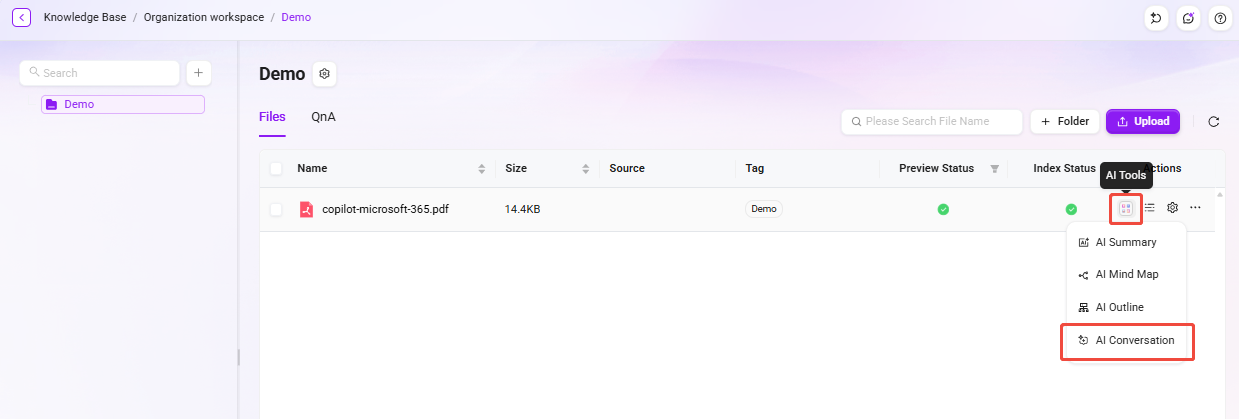
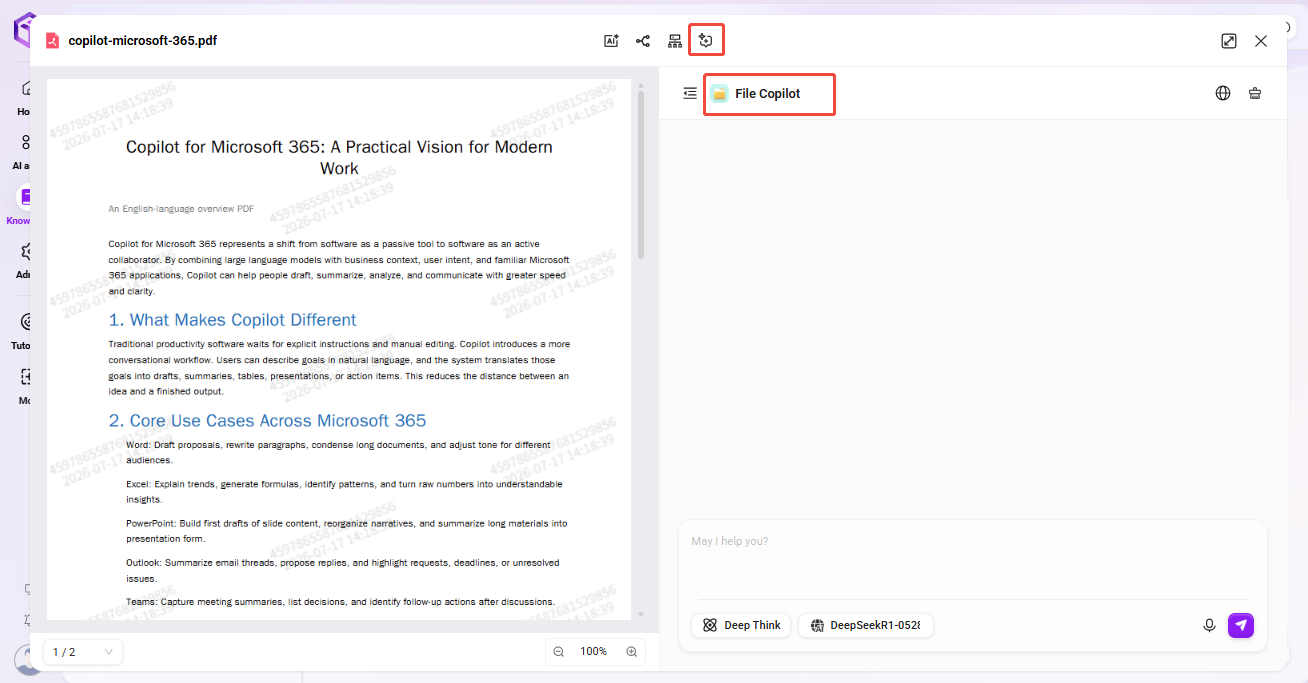
In addition to selecting a single document in the knowledge scope for Q&A, you can also use AI summary to conduct Q&A on the document.
- Find the document in the knowledge base and click “AI Tools”;
- Select “Conversation” to open the agent named “File Copilot” for document Q&A.
Multi-Document Q&A
Multi-document Q&A is similar to single-document Q&A. After configuring the knowledge source for the agent, select multiple documents within the knowledge scope.
- Click “Knowledge Scope”, select multiple documents, and click “Confirm”;
- After selecting multiple documents and confirming, you can conduct Q&A on these multiple files.
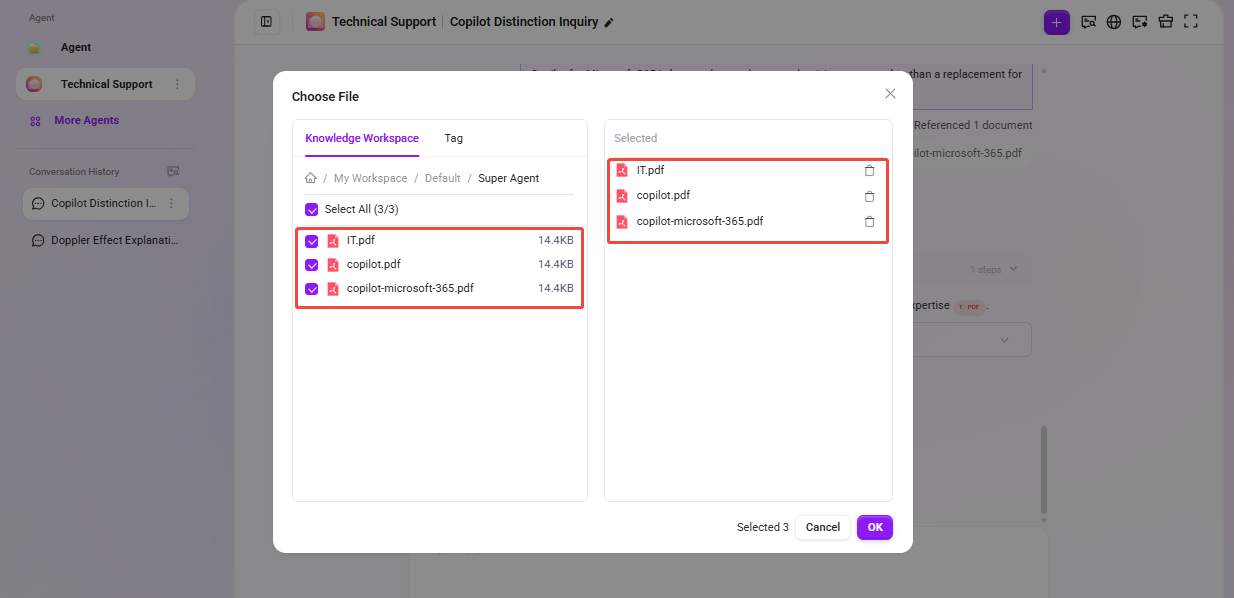
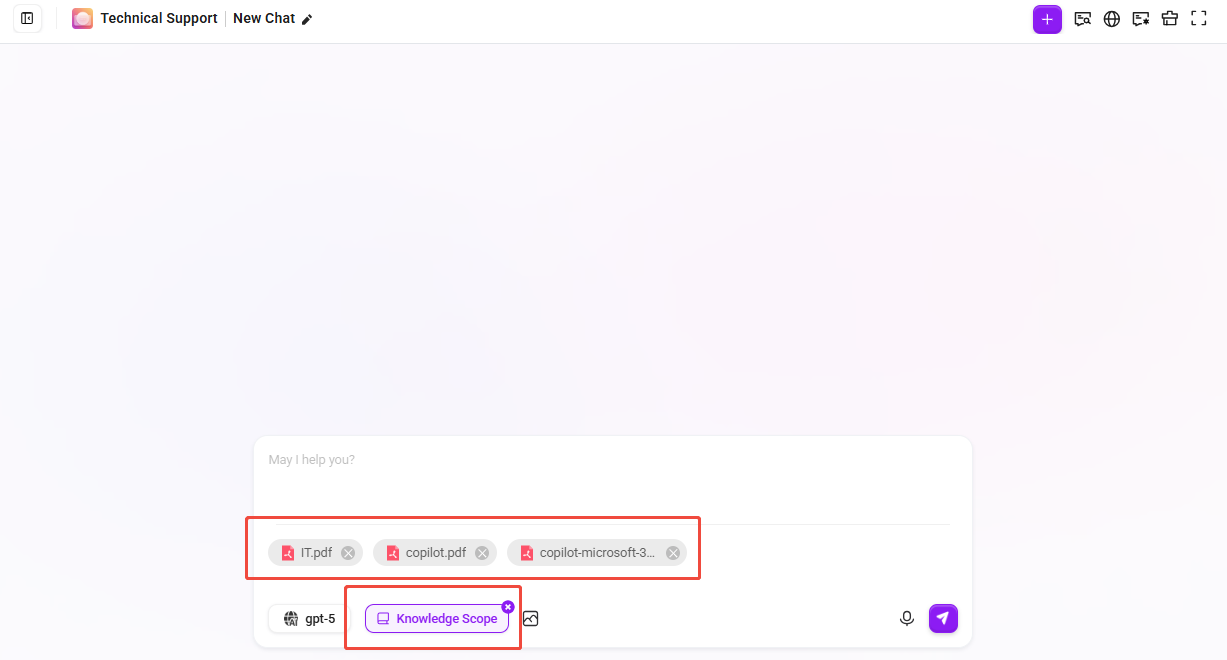
- When selecting files in the knowledge scope, you can also directly select the entire knowledge base for Q&A, provided that this knowledge base was selected in the knowledge source settings during agent configuration.
- In addition, the knowledge scope does not support selecting folders; only files or knowledge bases can be selected.
Agent API Creation and External Invocation
Objective: Generate an API Key for a published Agent that can be called by external systems, and obtain the official integration documentation.
Step 1: Enter the Agent API Console
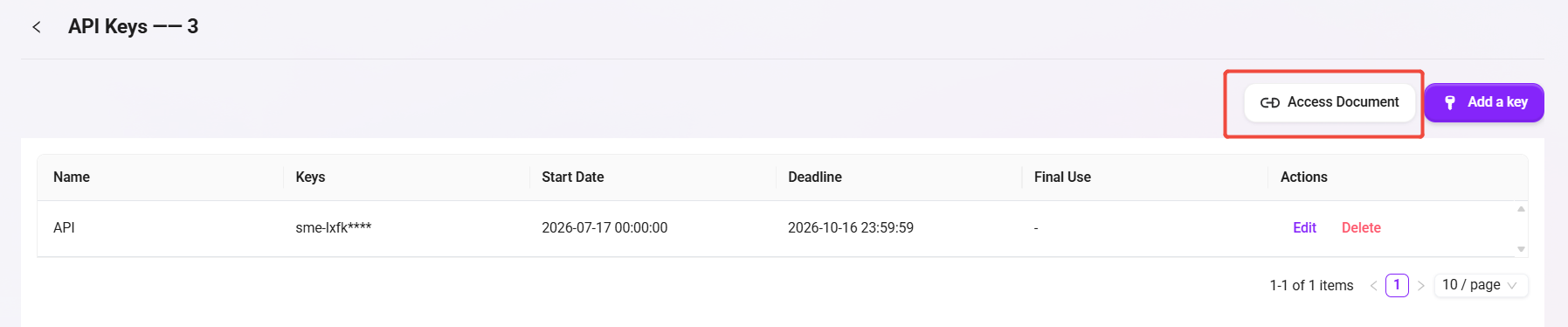
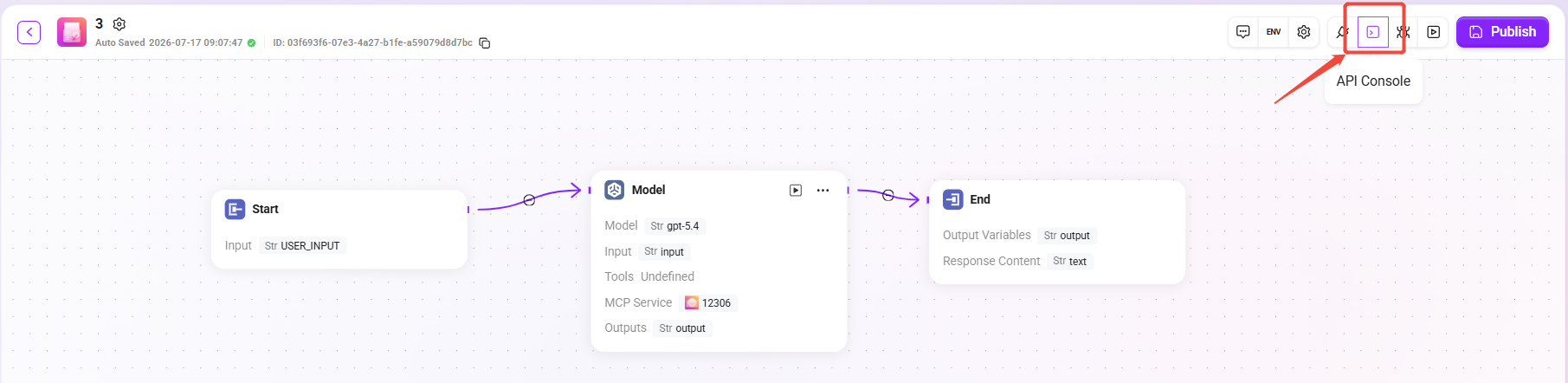
- Click API Console in the upper-right corner of the Agent orchestration page.
- After entering, you will see the API channels list page.
Step 2: Create an API Channel
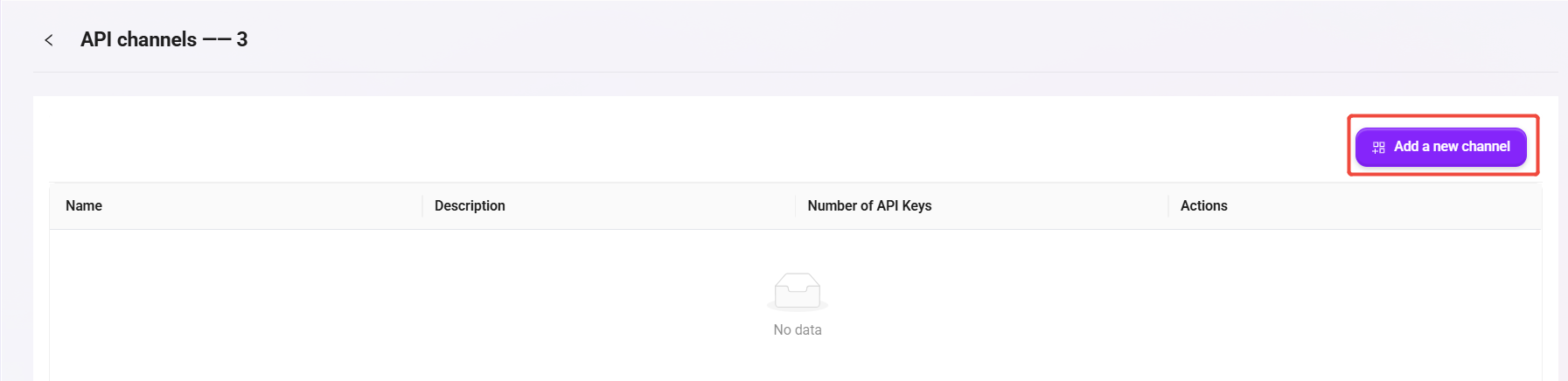
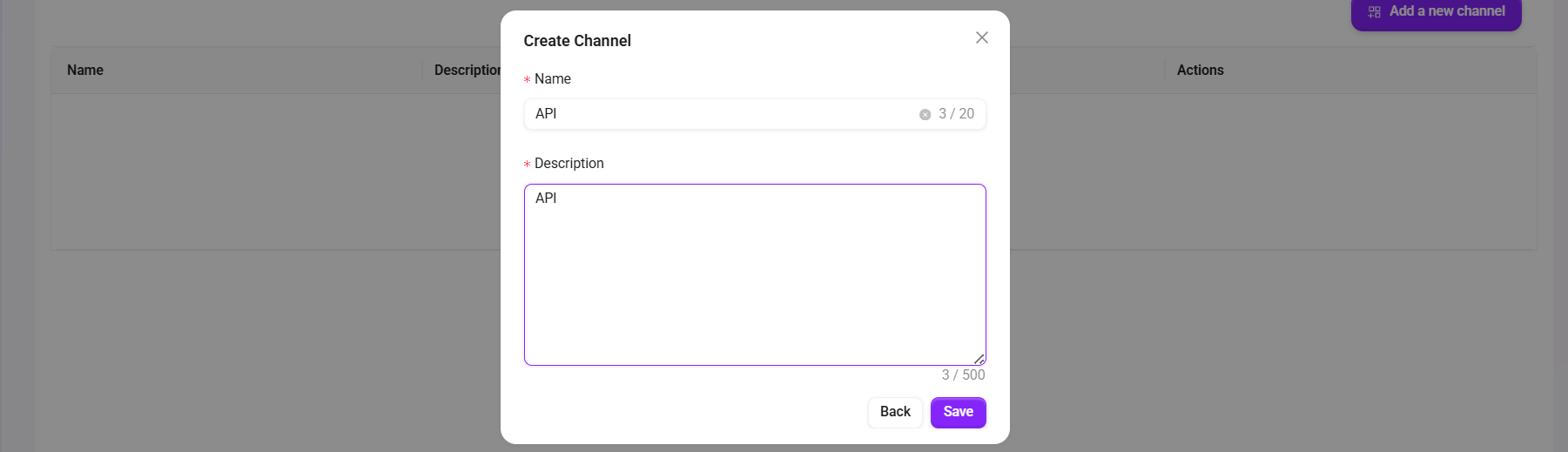
- Click Add a new channel.
- Fill in the following in the pop-up window:
- Name:for example
API - Description:for example
API
- Name:for example
- Click Save to save.
Step 3: Go to the Channel Key Page
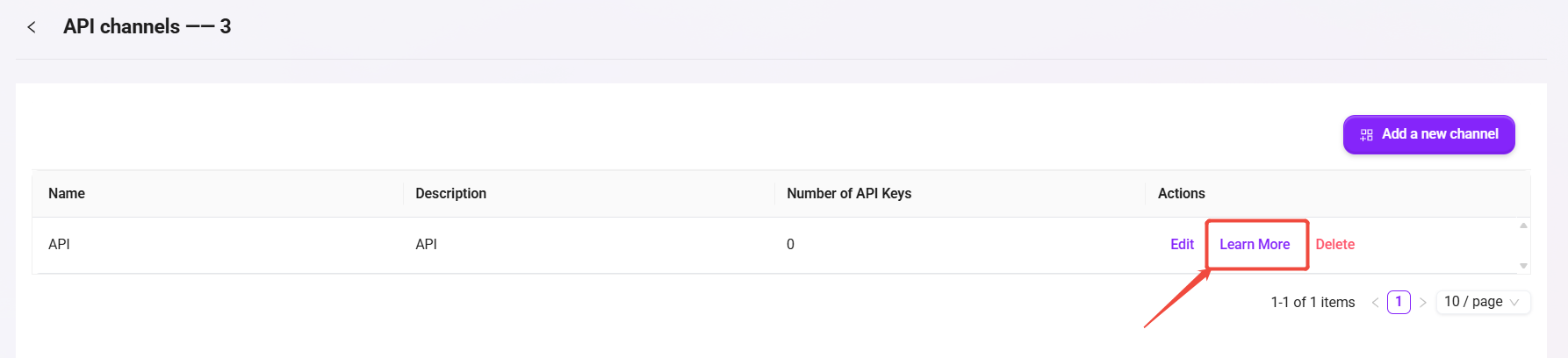
- Find the record you just created in the channel list.
- Click Learn More to enter the API Keys page.
Step 4: Generate an API Key
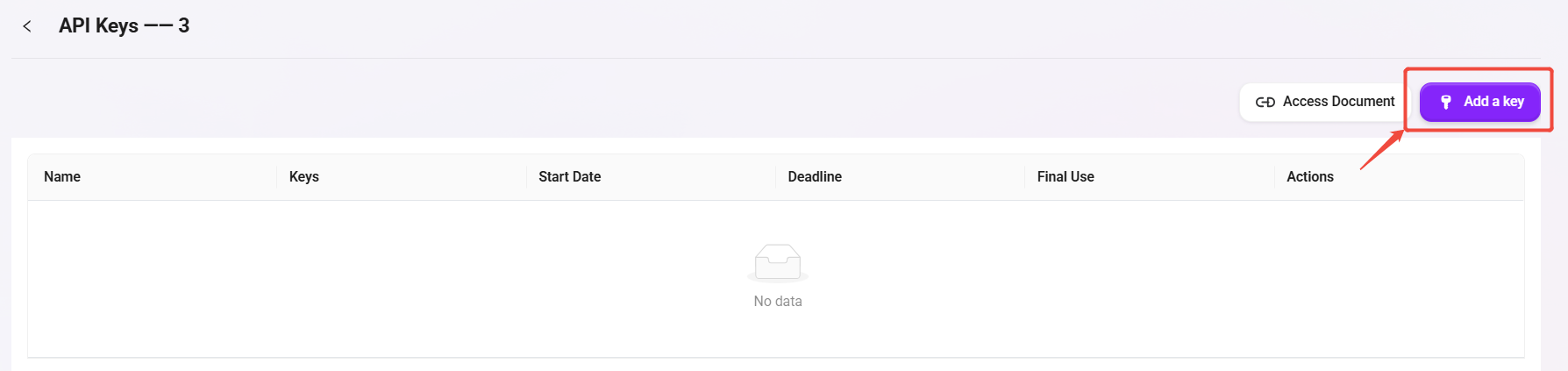
- Click Add a key.
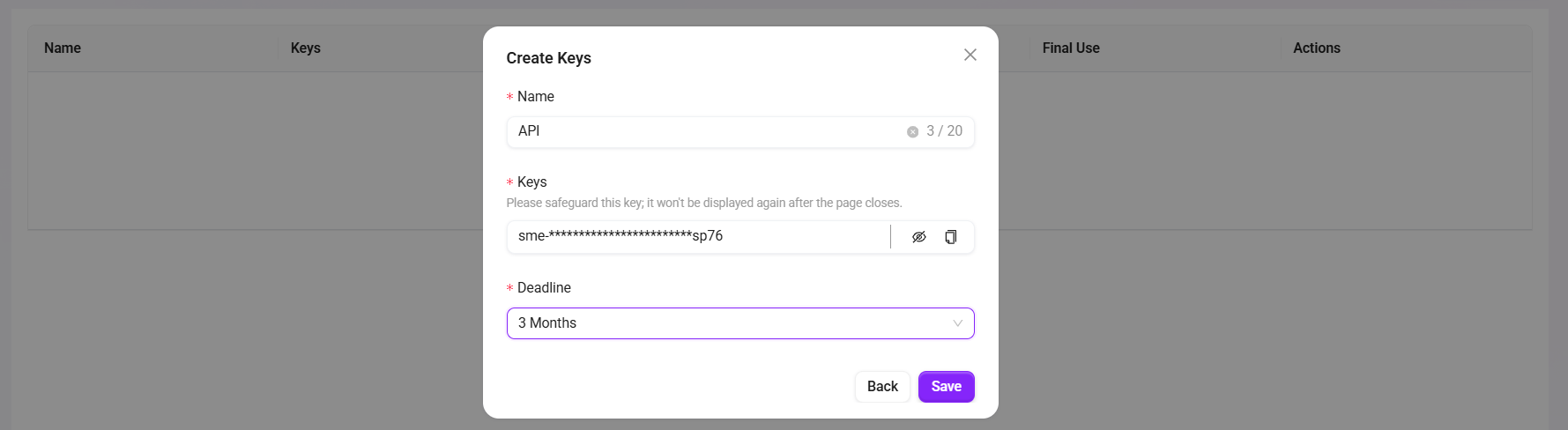
- Set the following in the pop-up window:
- Name:for example
API - Deadline:select the validity period as needed (for example 3 Months)
- Name:for example
- Click Save to generate the key.
- Copy and securely save the Key immediately (it is usually not fully displayed again after the page is closed).
Step 5: Obtain the Integration Documentation and Connect
- Click Access Document on the API Keys page.
- Copy the following information from the documentation for external system integration:
- Request URL (Endpoint)
- Authentication method (usually
Authorization: Bearer <API_KEY>) - Request body example (input parameters)
- Response body example (output fields)
- The external system can call the Agent by sending an HTTP request according to the documentation examples.