Business Domain
Create a Business Domain
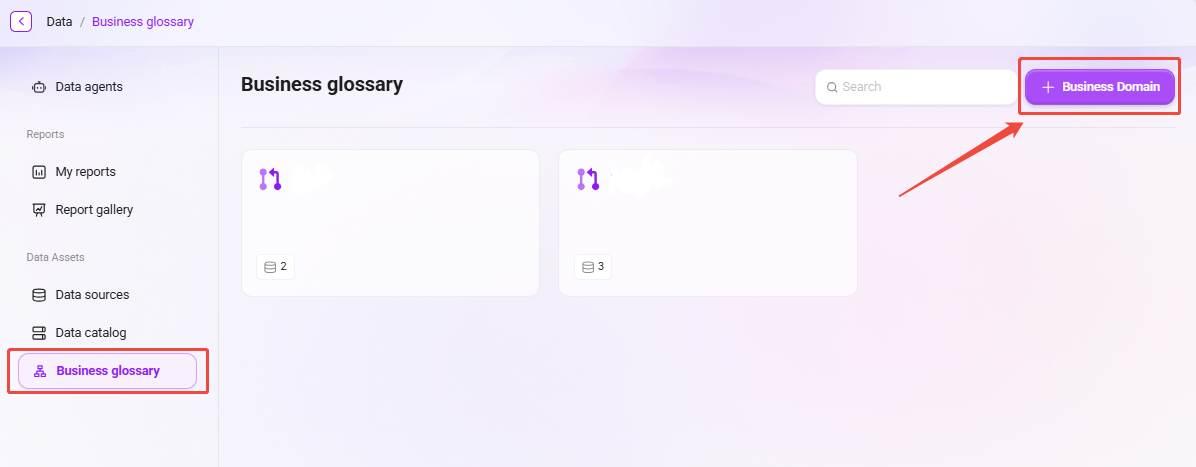
- Navigate to Data > Business Domain, and click the "Create Business Domain" button in the upper-right corner of the page.
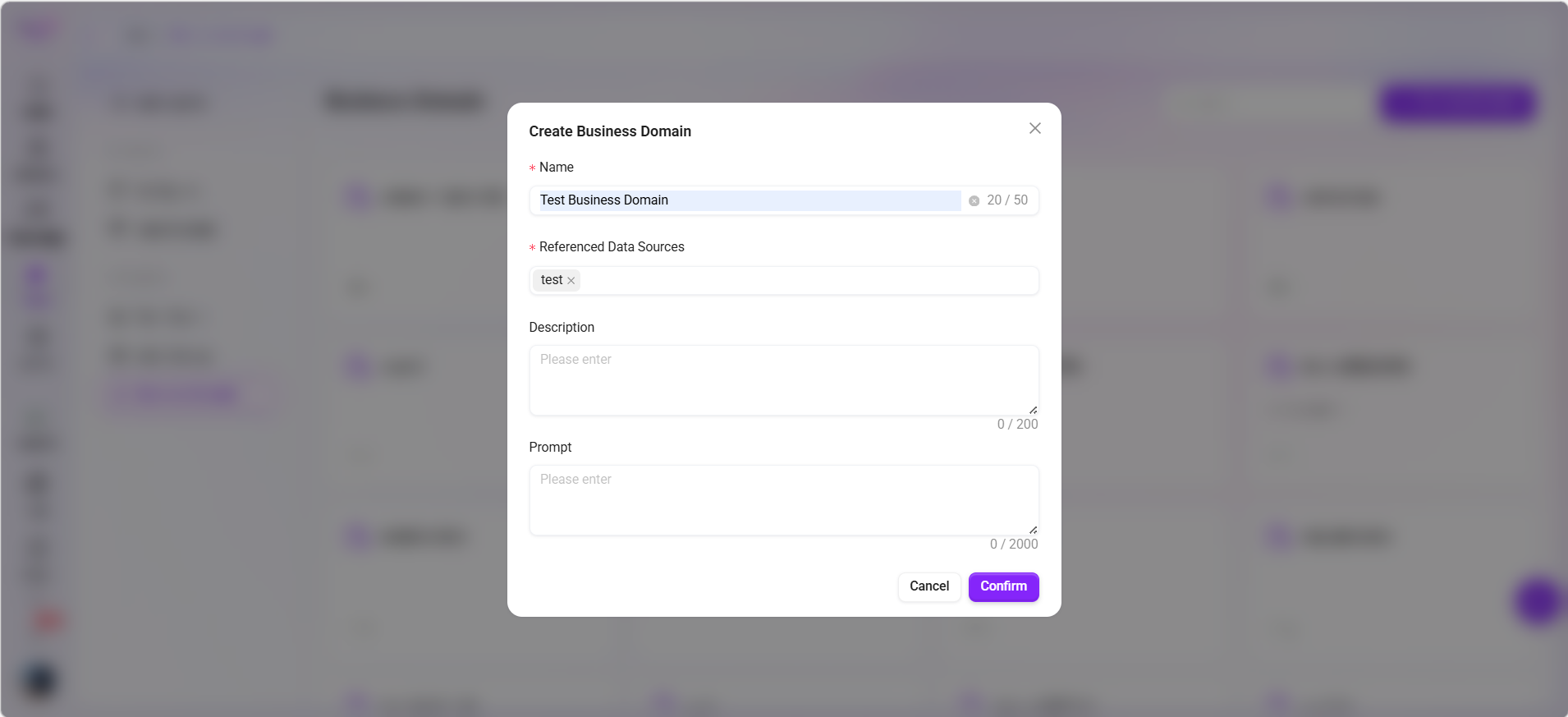
- In the creation form, fill in the following information:
- Name: The name of the business domain, used for identification (within 50 characters).
- Referenced Data Source: Select a connected data source from the dropdown list as the data foundation of this business domain.
- Description (optional): Briefly describe the purpose of this business domain (within 200 characters).
- Prompt (optional): You can enter prompt text for the business domain (within 2000 characters).
- After creation is completed, you can enter the business domain management interface. You can start adding data tables, defining relationships, creating parameterized templates, and reference templates.
Add Data Tables and Relationship Modeling
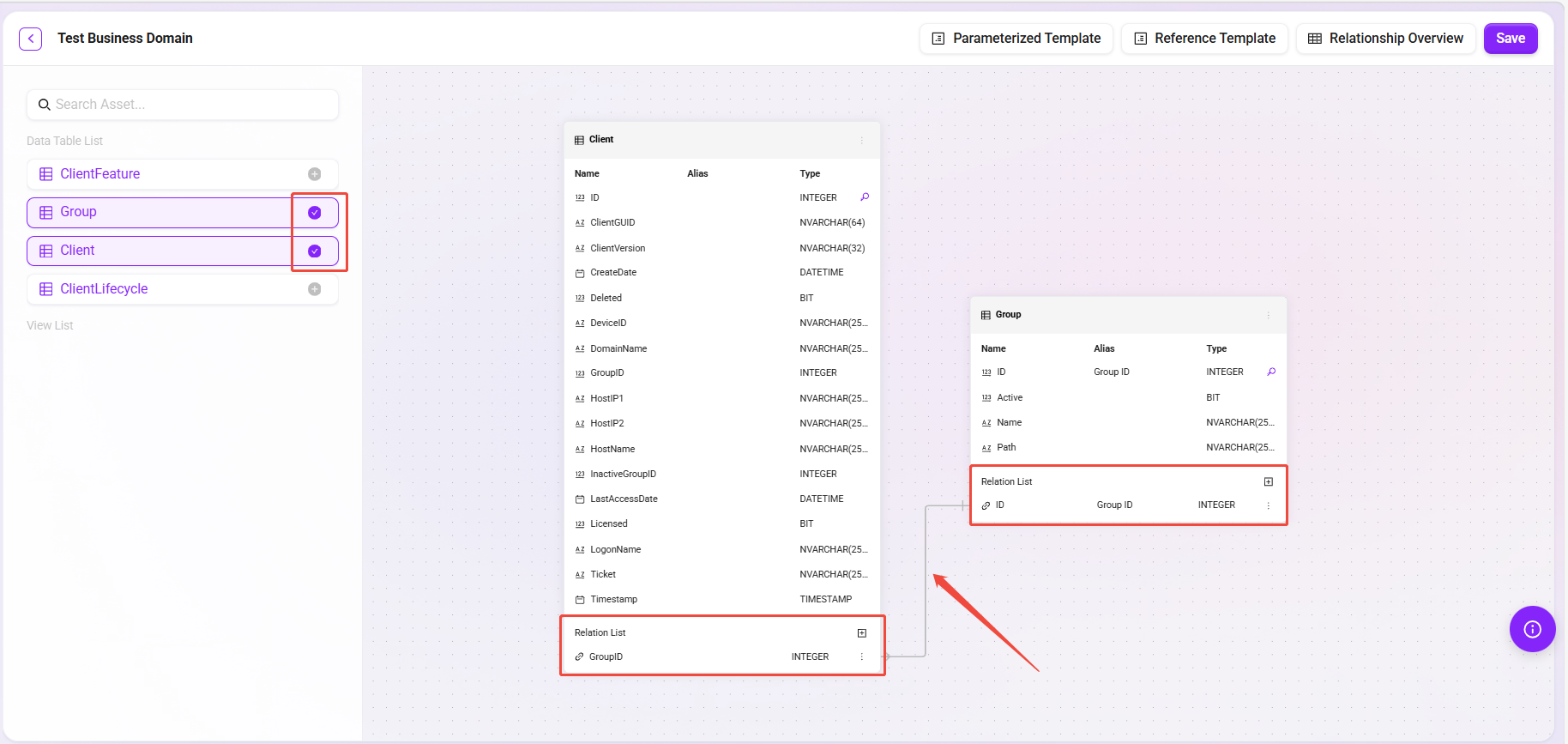
- Add multiple business-related data tables as "business domain nodes";
- Each node represents a table, and multiple nodes can be added (up to 10);
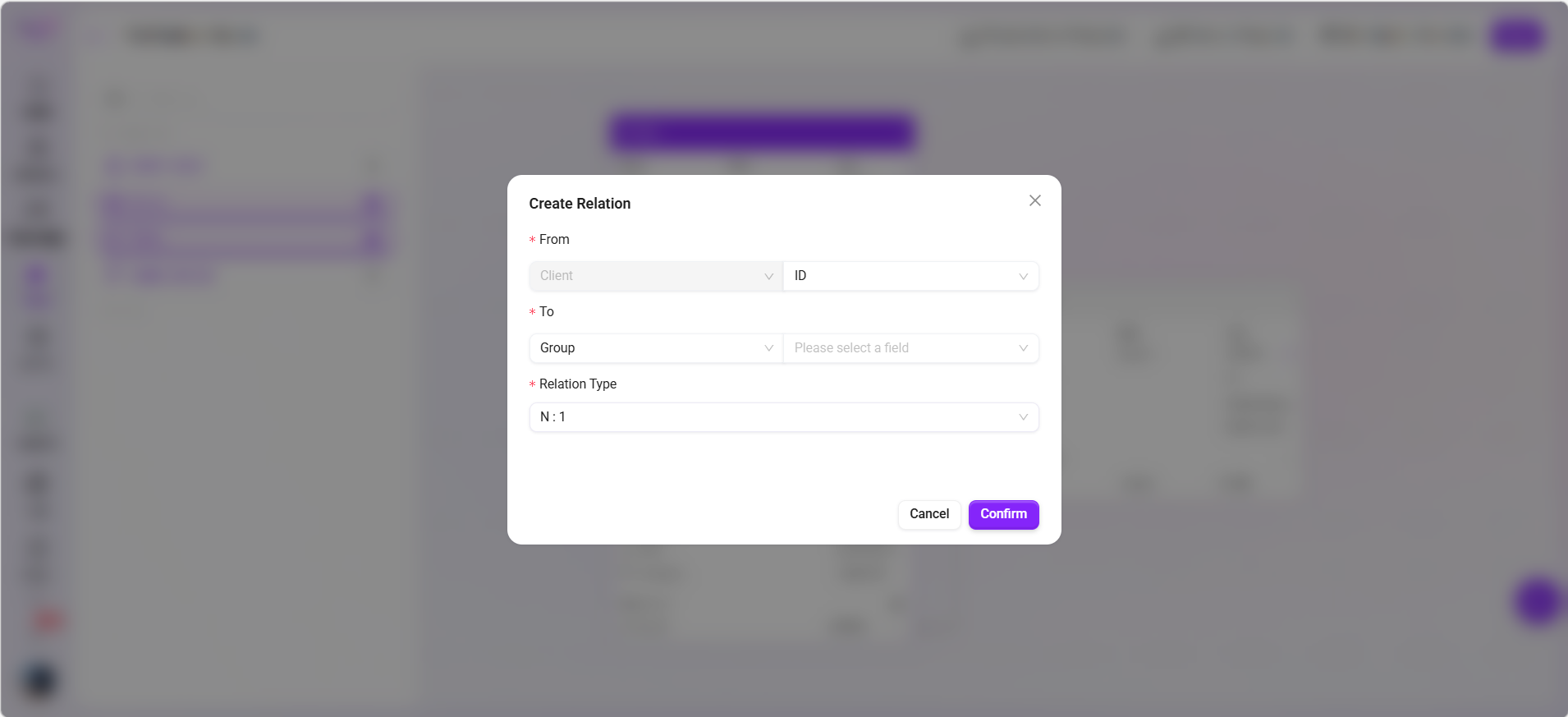
- Click the "Relationship List" of each table node to add relationships:
- Set the From field (a field in the current table);
- Set the To table and its field (the target table and target field);
- Select the relationship type: one-to-one, one-to-many, many-to-one, many-to-many;
- After submission, the relationship binding between the two tables is completed.
In this way, users can build a complete data relationship network within the business domain, facilitating subsequent intelligent queries and chart generation.
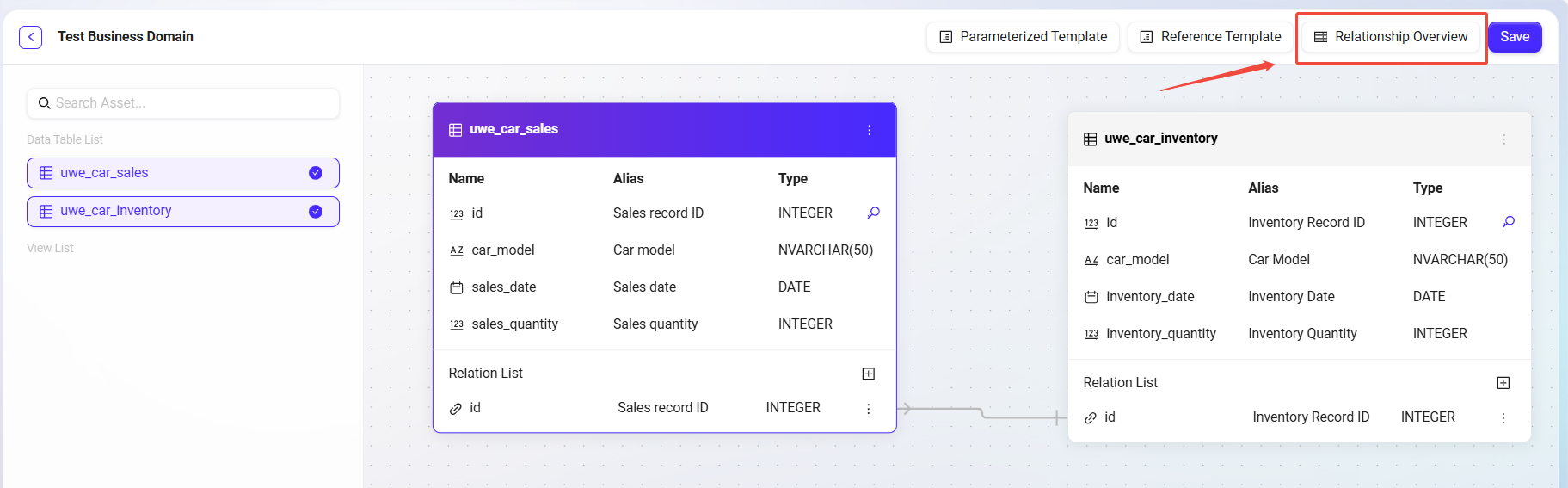
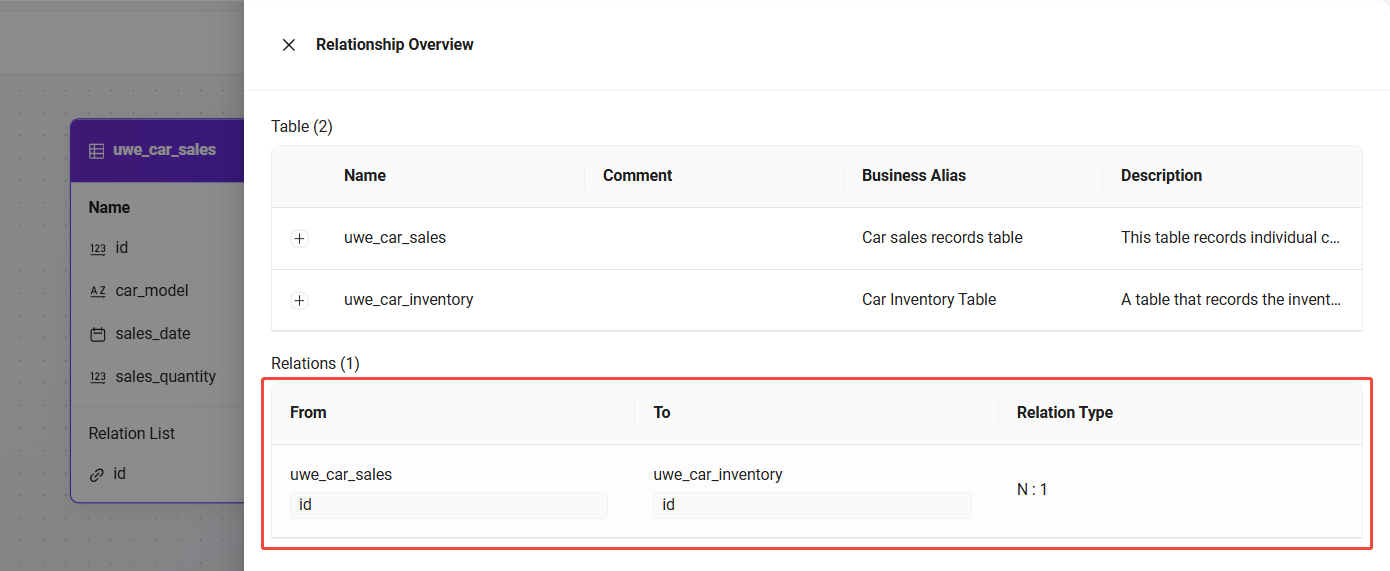
Relationship Overview
Displays all tables in the business domain and the structural relationships between them, making global understanding and management easier.
Parameterized Templates
Supports creating SQL templates with parameterized variables to flexibly meet data query requirements in different scenarios.
Create a Template
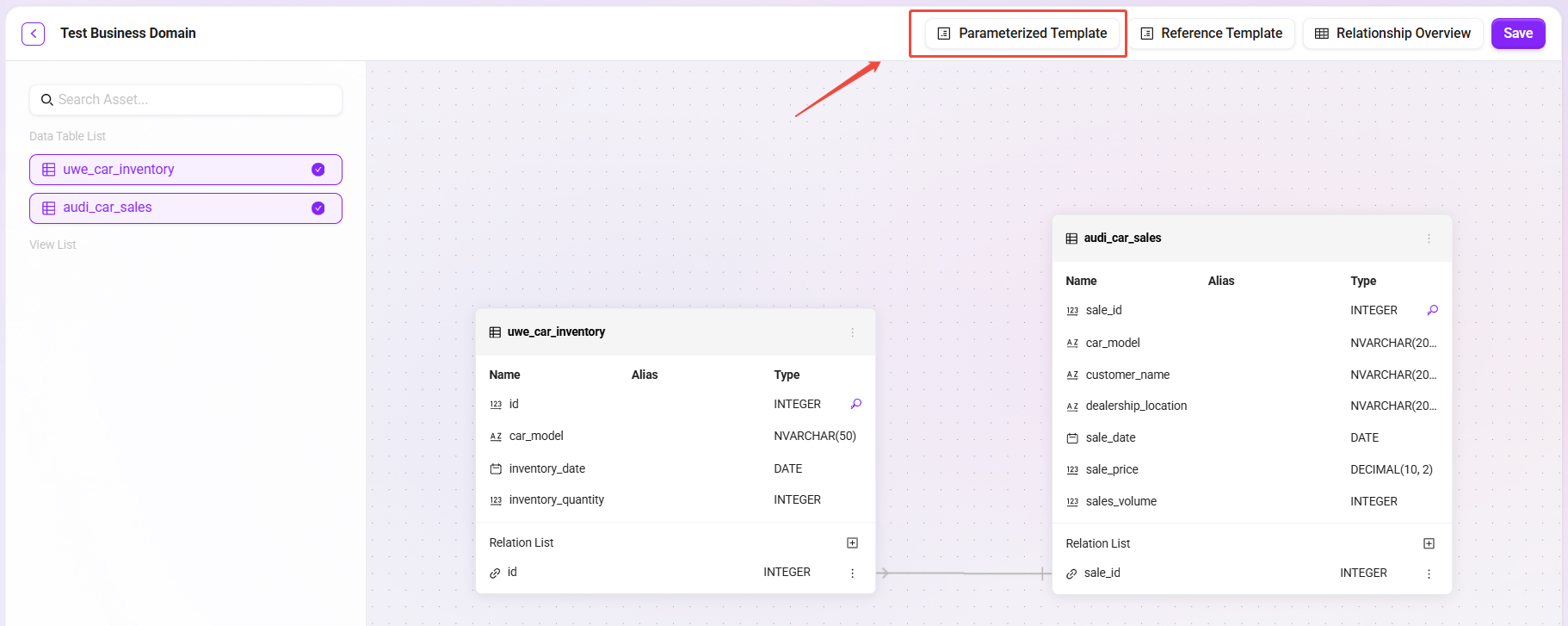
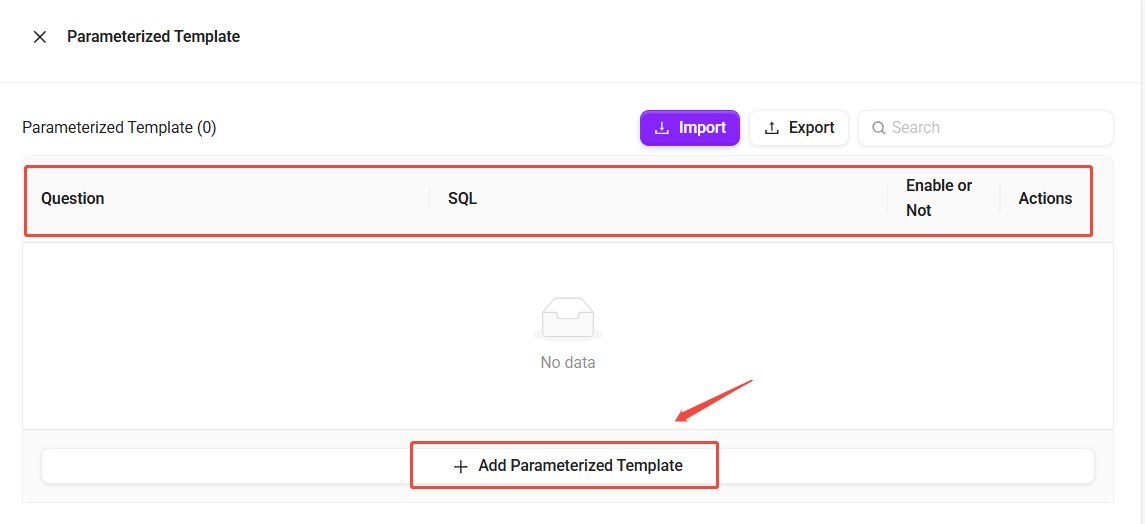
- Click the Parameterized Template button in the upper-right corner of the page to enter the management page.
- Here you can view the question description, SQL statement, and enabled status of all templates.
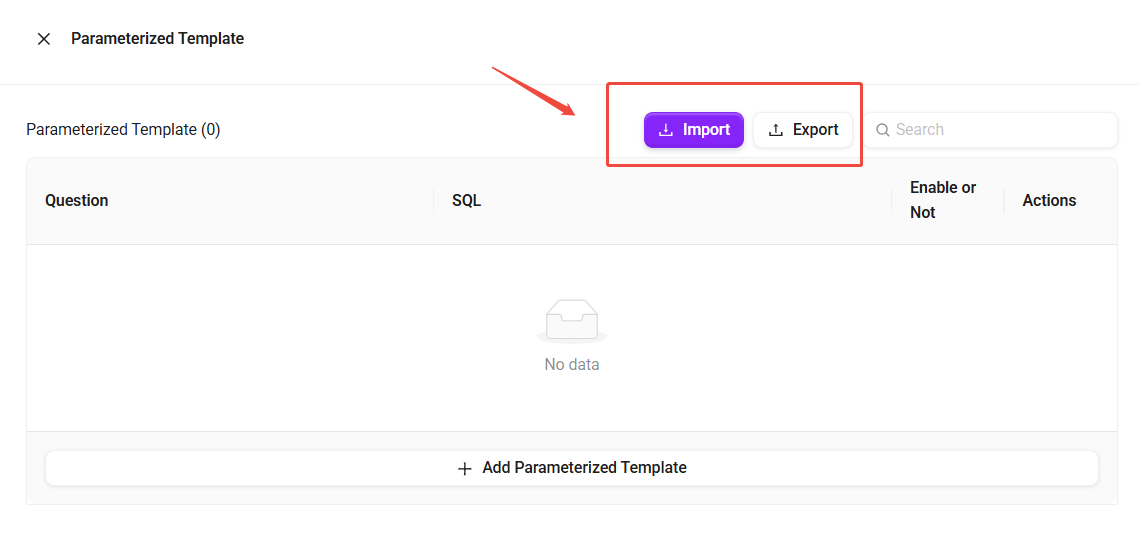
- Supports editing, disabling/enabling, and import/export operations for existing templates.
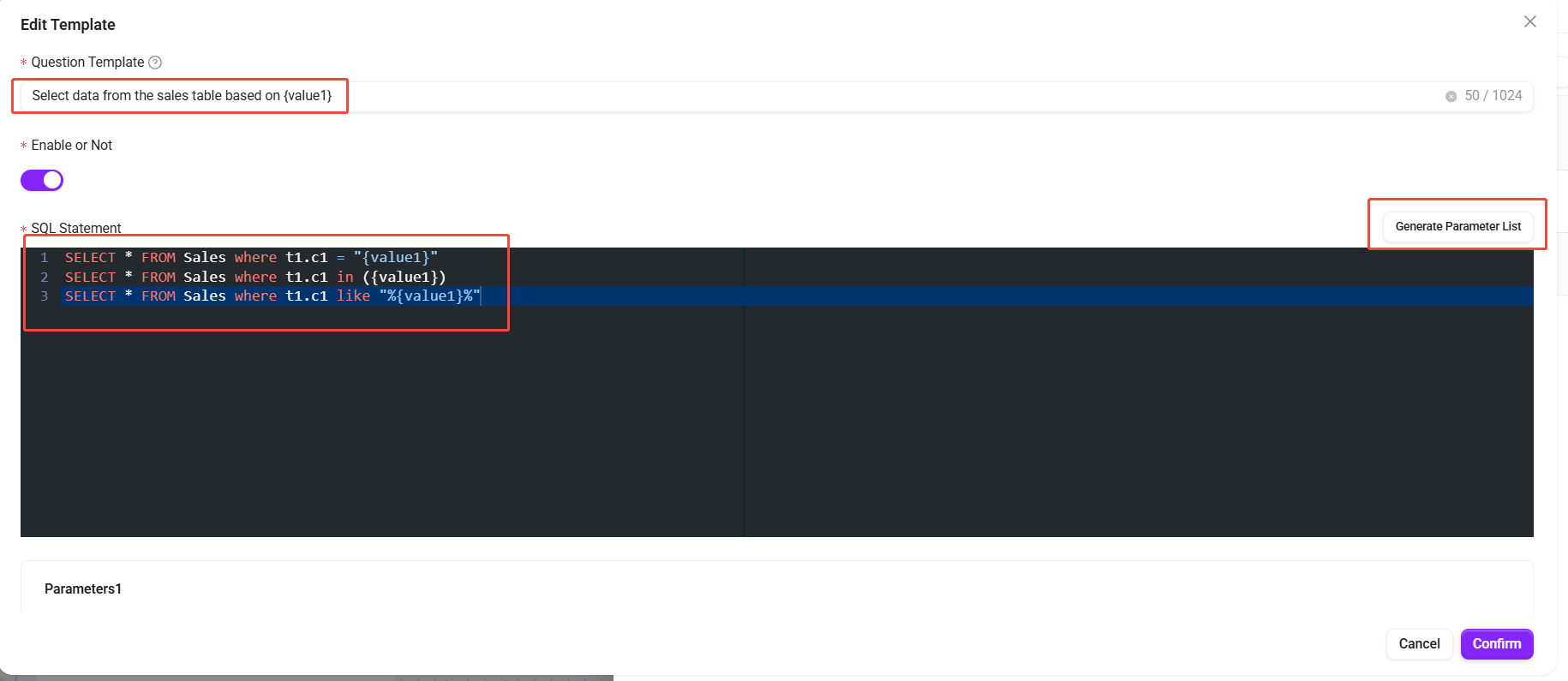
- Click Add Parameterized Template to enter the creation page:
- Question Template: Describes the scenario or problem solved by this template. AI will determine whether to use it as a reference based on the description of the question template.
- SQL Statement: Parameters can be defined in the template (such as date, department, region, etc.) and inserted into the SQL statement in the form of placeholders.
- Whether Enabled: Controls whether the template is available.
Configure Parameters
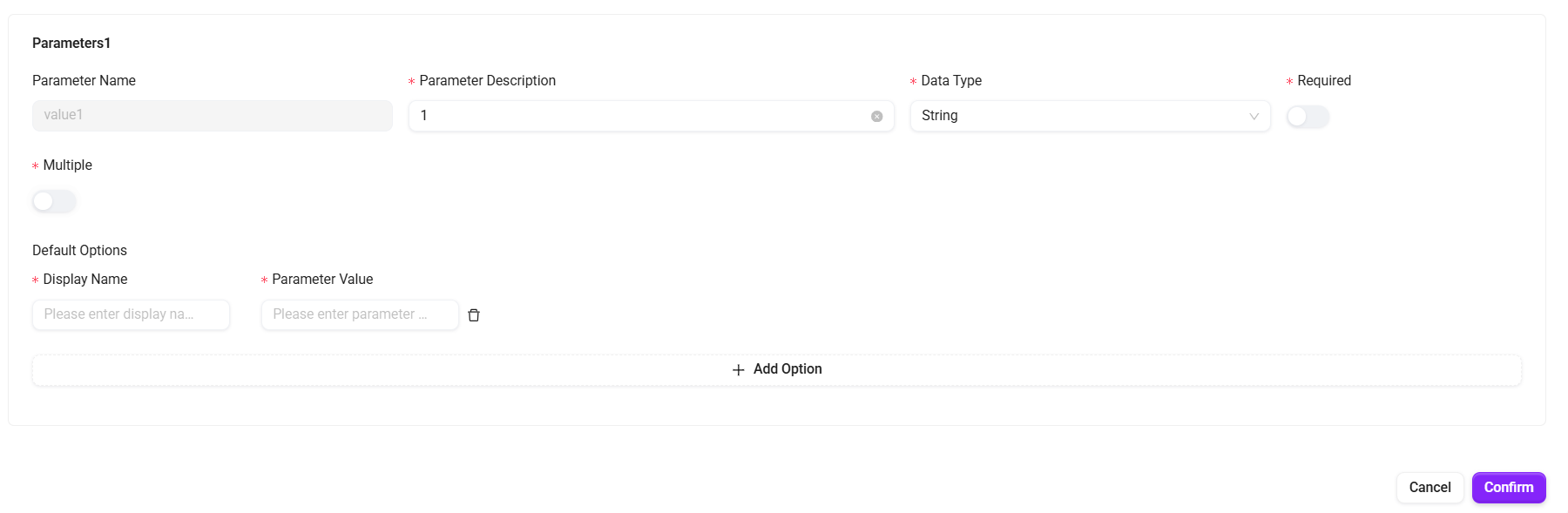
- Click Generate Parameter List in the upper-right corner of the SQL statement input box. The system automatically extracts placeholders in the SQL and configures attributes for each parameter:
- Fill in the parameter name, character type, whether it is required, and whether multiple selection is supported.
- Preset options can be configured for parameters (including display name and corresponding parameter value).
Features
- When invoked, users can enter different parameter values, and the system will automatically generate the corresponding SQL query;
- Suitable for query scenarios that are commonly used but require frequent condition adjustments, significantly improving reusability and query efficiency;
- Supports setting default values and input restrictions for parameters to ensure the accuracy and security of query results.
SQL statement examples:
SELECT * FROM Sales where t1.c1 = "{value1}"
SELECT * FROM Sales where t1.c1 in ({value1})
SELECT * FROM Sales where t1.c1 like "%{value1}%"
Import and Export of Parameterized Templates
To facilitate migration or batch deployment of query templates across different environments (such as development, testing, and production), the system supports import and export functions for parameterized templates.
- Implementation or delivery personnel can export multiple templates at one time and quickly import them into the target system, greatly reducing repetitive configuration work;
- Supports version management and batch updates of templates, which is beneficial for team collaboration and unified template maintenance.
Reference Templates
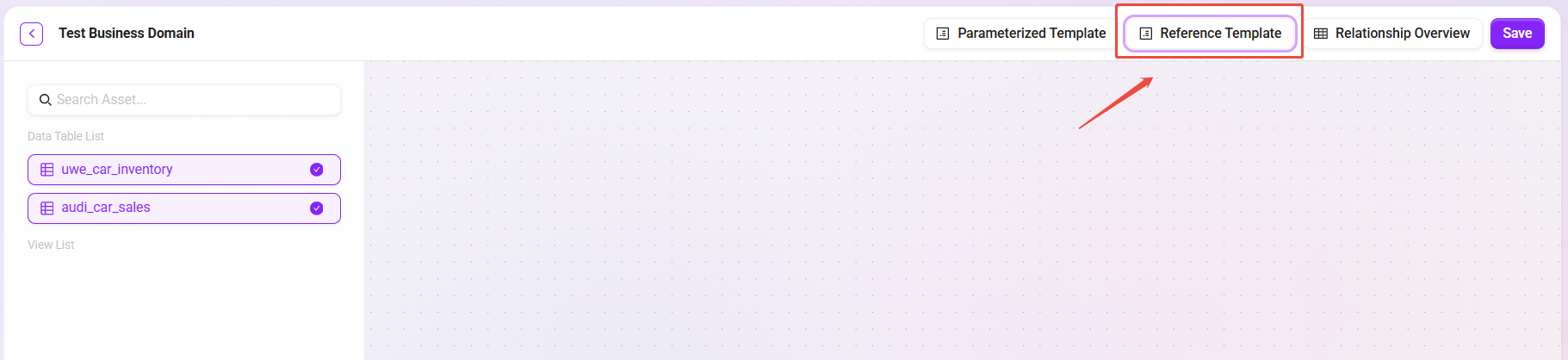
Reference templates are created based on parameterized templates by replacing dynamic parameters with fixed values, forming predefined queries that can be executed directly.
Core Advantages and Features:
- The creation process is similar to that of parameterized templates, with the difference that fixed query condition values need to be filled in directly.
- Users can refer to the logic and field settings of the template to customize query models that meet business requirements.
- Helps teams standardize data query practices, improve query consistency, and reduce errors caused by non-standard condition input.