Data Management
The entry point for data management is shown below:
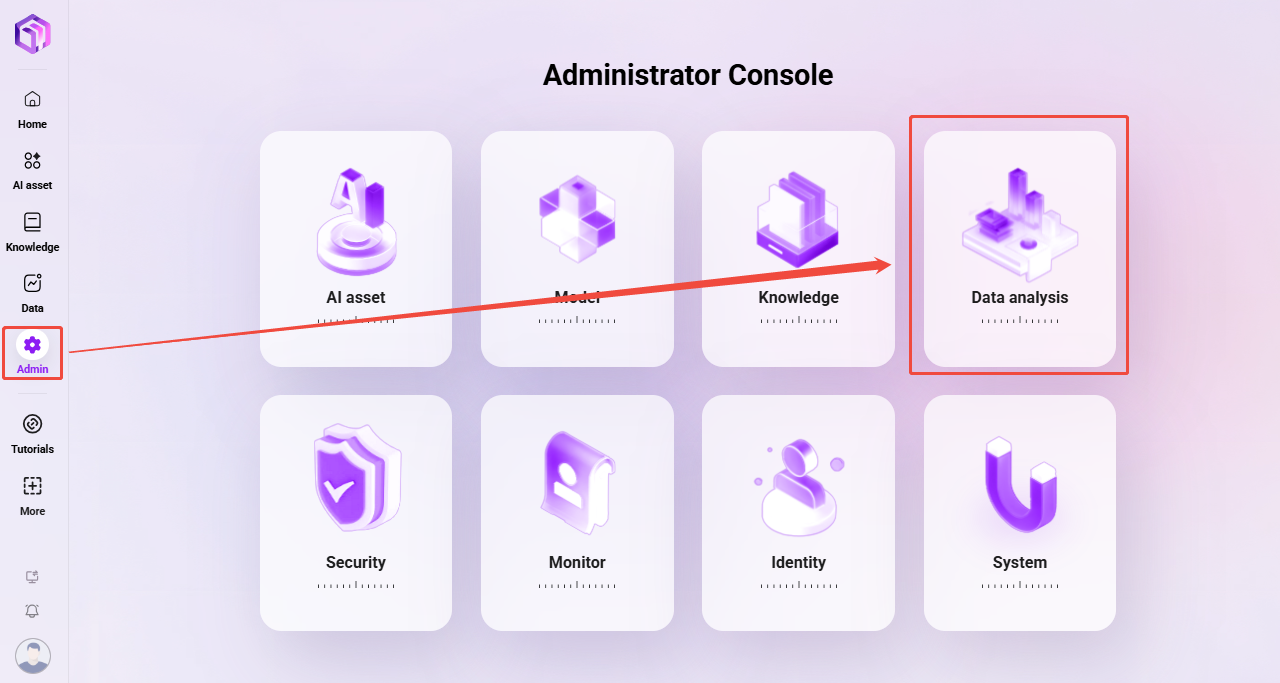
Data Analysis Management
Administrators can create, edit, and delete analysis report categories in Data Analysis Management, and can also view all analysis reports.
View All Data Analysis Reports
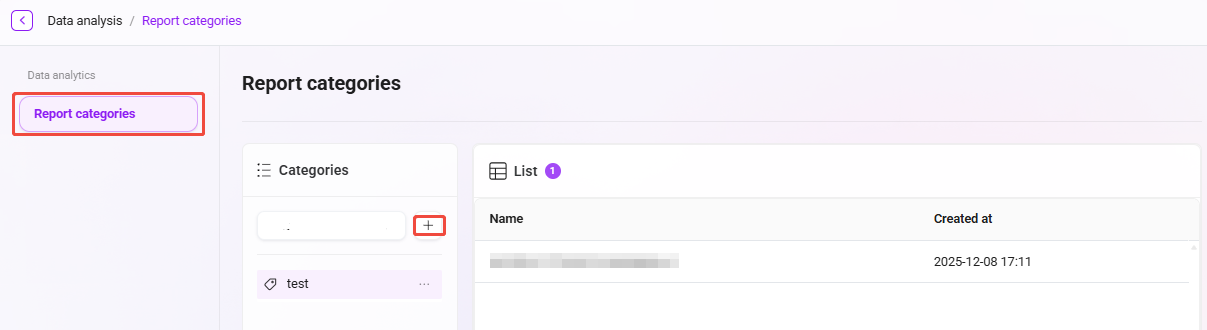
- Go to the Report Management page: Select "Report Management" in System Settings to enter this page.
- View report categories: All report categories are displayed on the left. After clicking the corresponding category, all report names under that category are displayed on the right, including information such as report name and creation time.
- Perform operations: Administrators can edit or delete reports under each report category. Click the corresponding "Edit" button to modify a report, or click the "Delete" button to delete a report.
Create a New Report Category
- Click the "New" button: On the Report Management page, click the "New" button on the left to start creating a new report category.
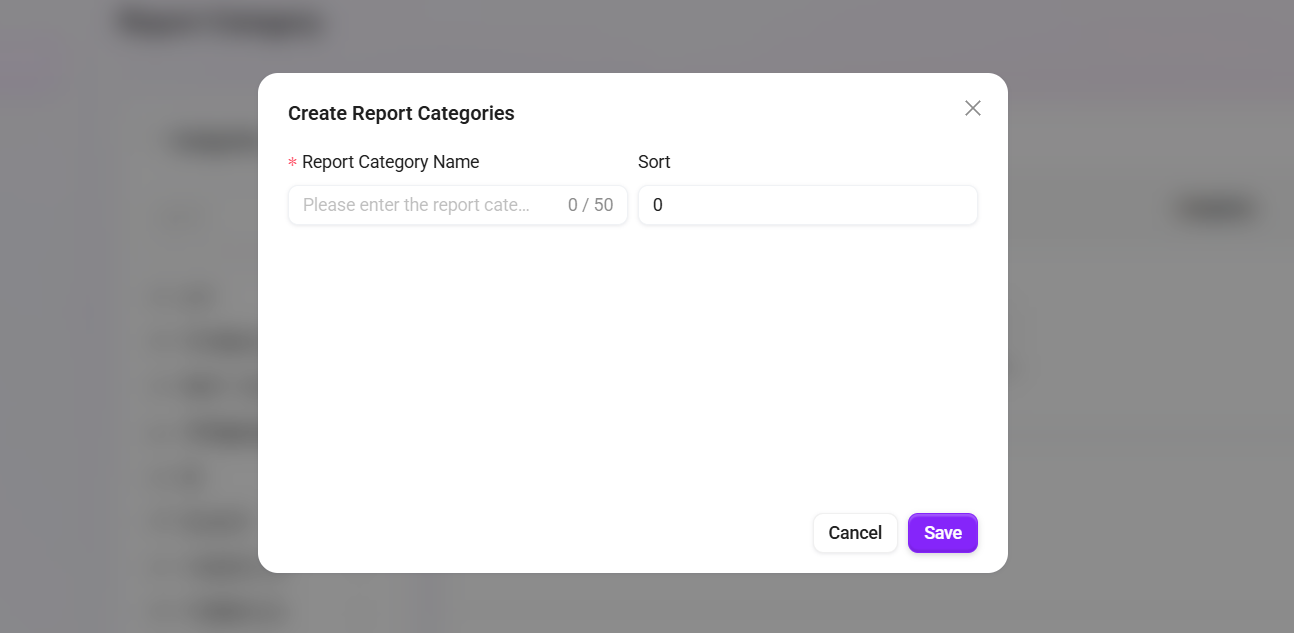
- Fill in report category information:
- Report category name: Specify a unique name for the new report category.
- Sort order: Specify a sort number for the report category for easier management.
- Click "Save": After filling in all required information, click the "Save" button to successfully create a new report category.
Edit a Report Category
- Select the report category to edit: In the report category list, select the category that needs to be edited.
- Click the "Edit" button: Enter the edit page, where the administrator can modify information such as the report category name and sort order.
- Save changes: After editing is complete, click the "Save" button to update the report category.
Delete a Report Category
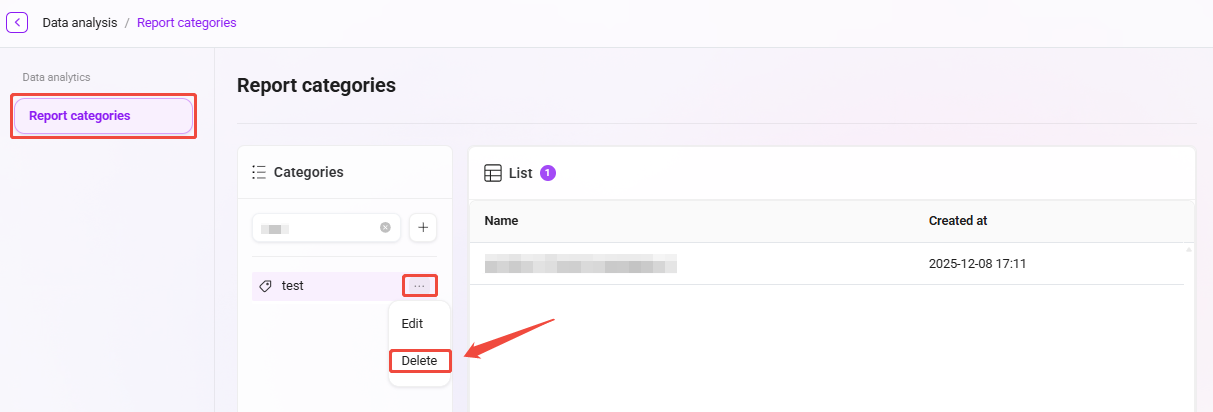
- Select the report category to delete: In the report category list, select the category that needs to be deleted.
- Click the "Delete" button: After secondary confirmation, the report category can be deleted.