Permissions
The entry point for permissions is shown below:
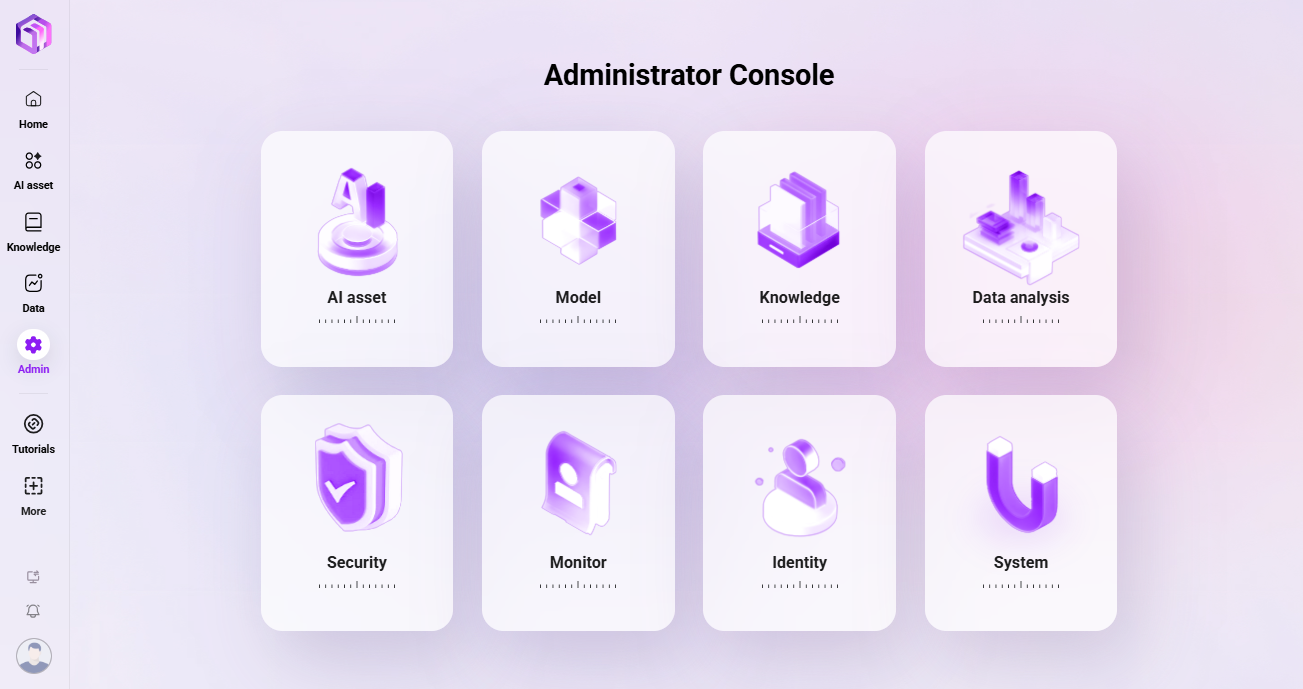
User Management
How to add a user?
The specific steps to add a user are as follows:
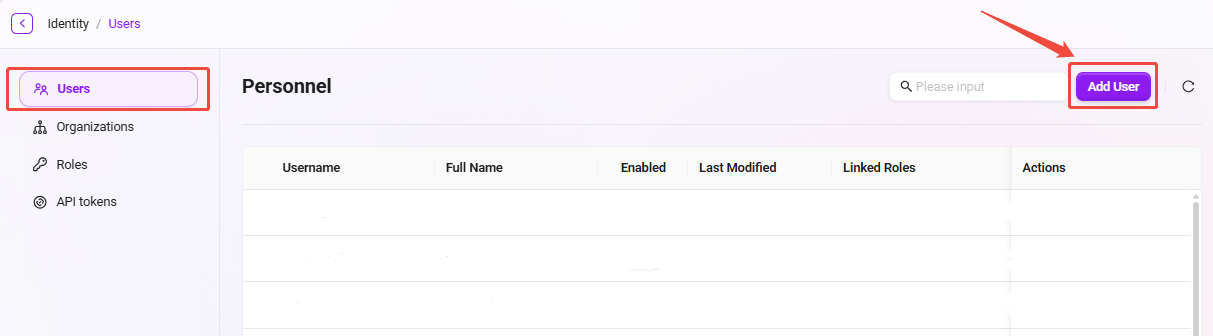
- Go to Management > Permissions > User Management.
- Click the Add User button on the right to enter the Add User page.
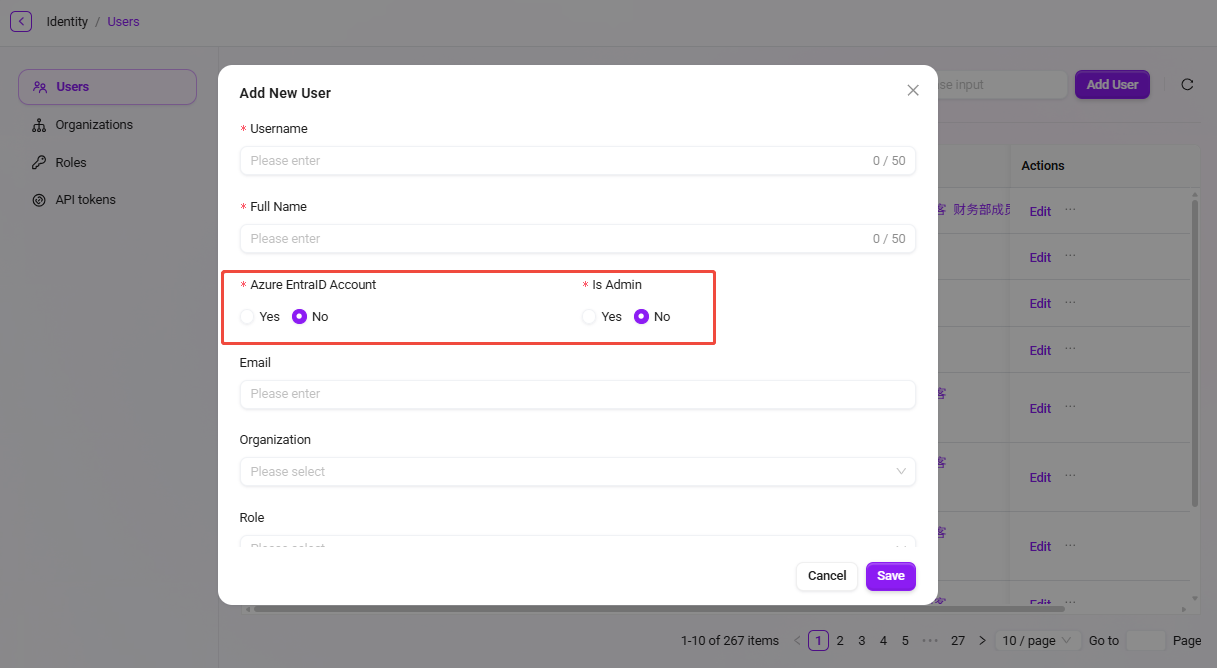
- Fill in the user information:
- Username: Enter the username for the new user (within 50 characters).
- Real Name: Enter the user's real name (within 50 characters).
- Whether it is an Azure Entra ID account: Choose whether it is an Azure Entra ID account.
- Whether it is an administrator: Choose whether to set this user as an administrator.
- Other information (such as email, organization, role, etc.) is optional and can be filled in as needed.
- After completing the information, click the Confirm button to finish creating the new user.
💡 Tip: If the new user is selected as an Azure Entra ID user, then email is required.
How to change a user password?
The system supports changing user passwords in the following two ways:
- Method 1: Administrator password reset (applicable when the user forgets the password or for initial setup)
The administrator can generate a temporary random password for the user, and the user must change it immediately after logging in with it for the first time.
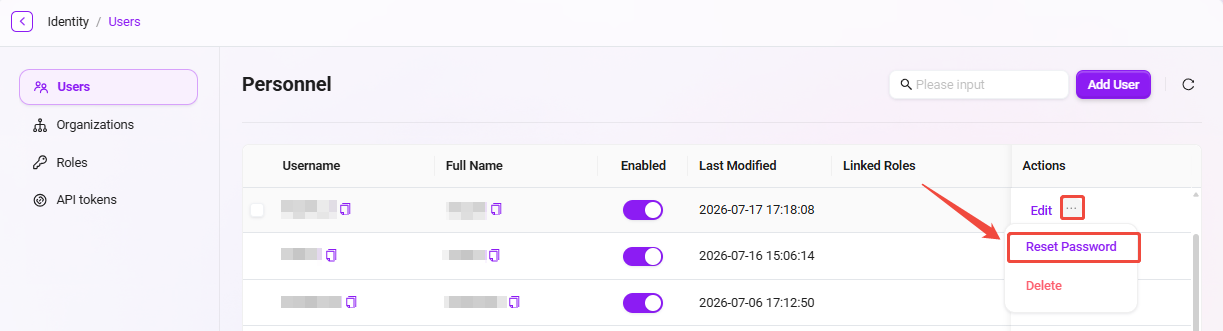
- Navigate to Management >Permissions > User Management.
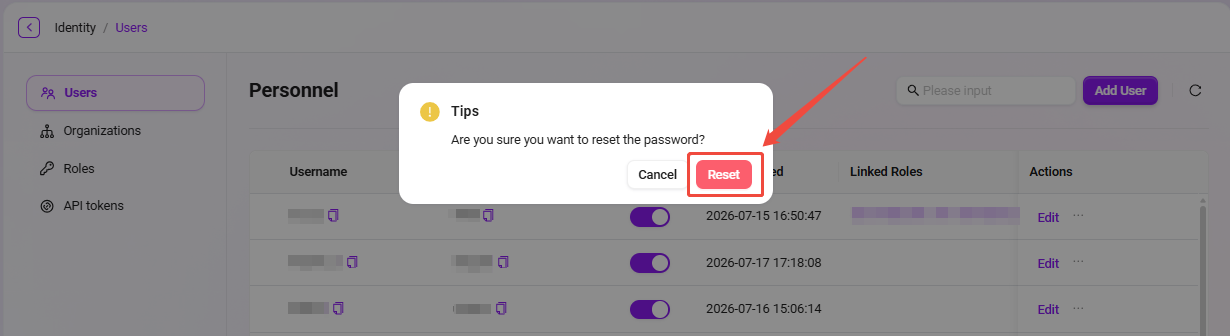
- Find the user whose password needs to be reset, click the three dots after that user, and select Reset Password.
- In the secondary confirmation dialog that pops up, click Confirm, and the system will generate a new random password.
- Copy the new password and provide it to the user to complete the password reset.
💡 Tip:
- After the password is reset, the user needs to change the password upon first login, thereby achieving the purpose of password modification.
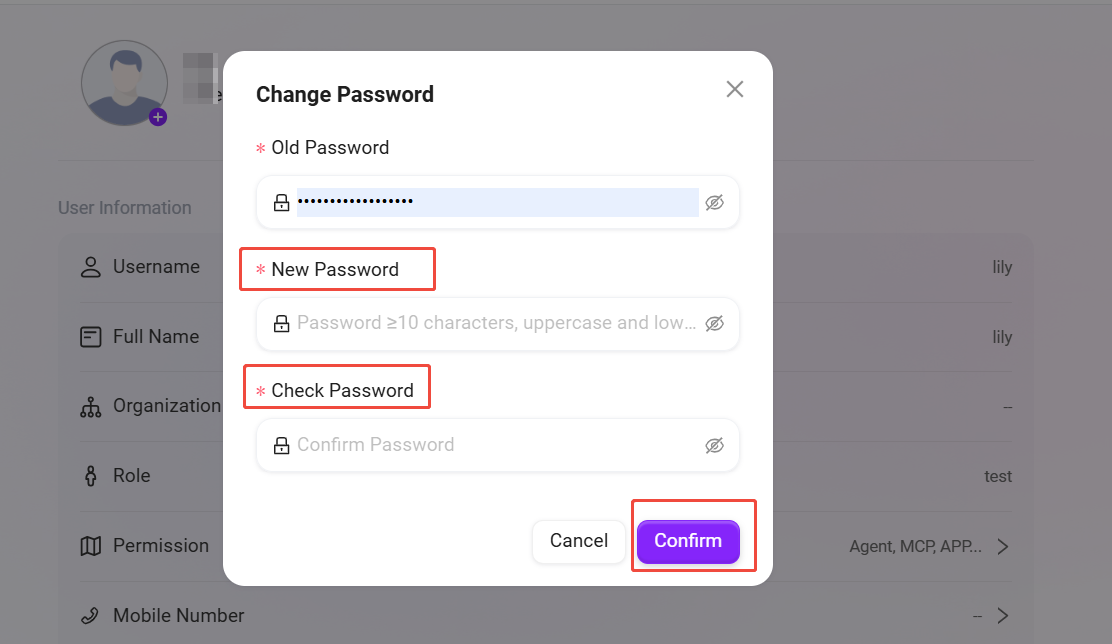
- The password must be at least 10 characters, and must include uppercase and lowercase letters + numbers + special symbols.
- Method 2: User self-service password change
After logging in, users can change their own password at any time in the Personal Center.
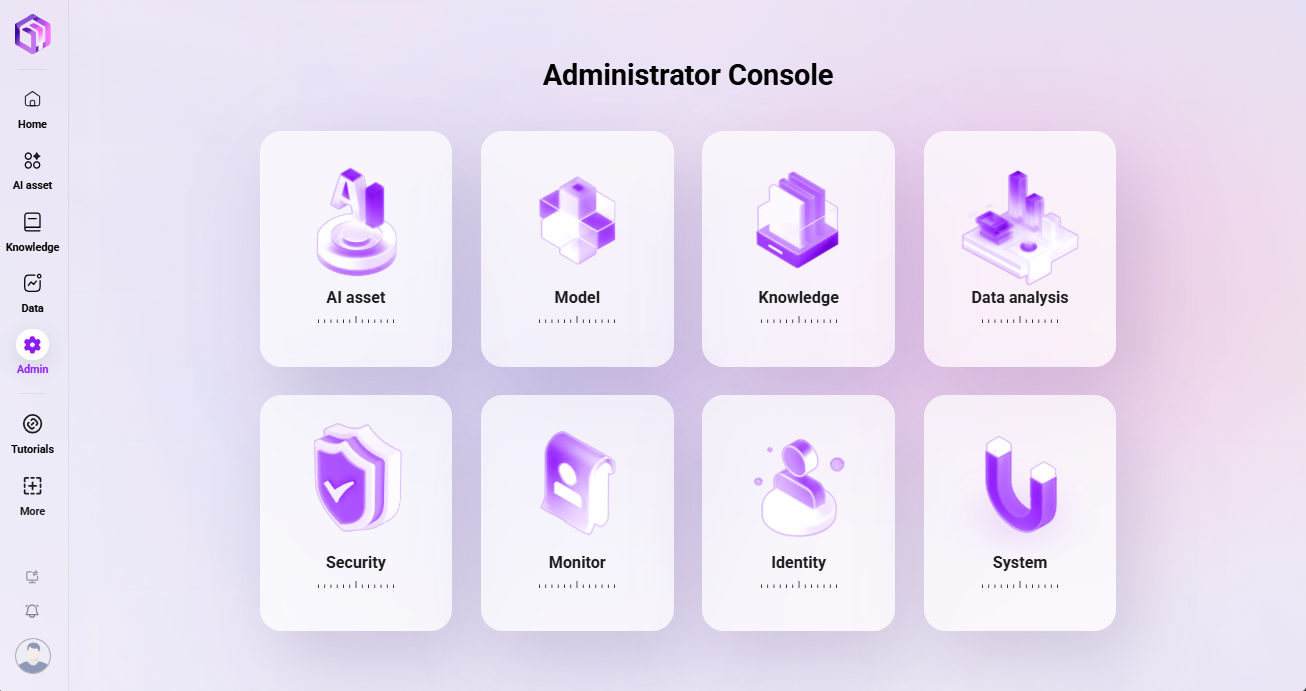
- Click the user avatar in the lower-right corner of the system interface to enter the Personal Center.
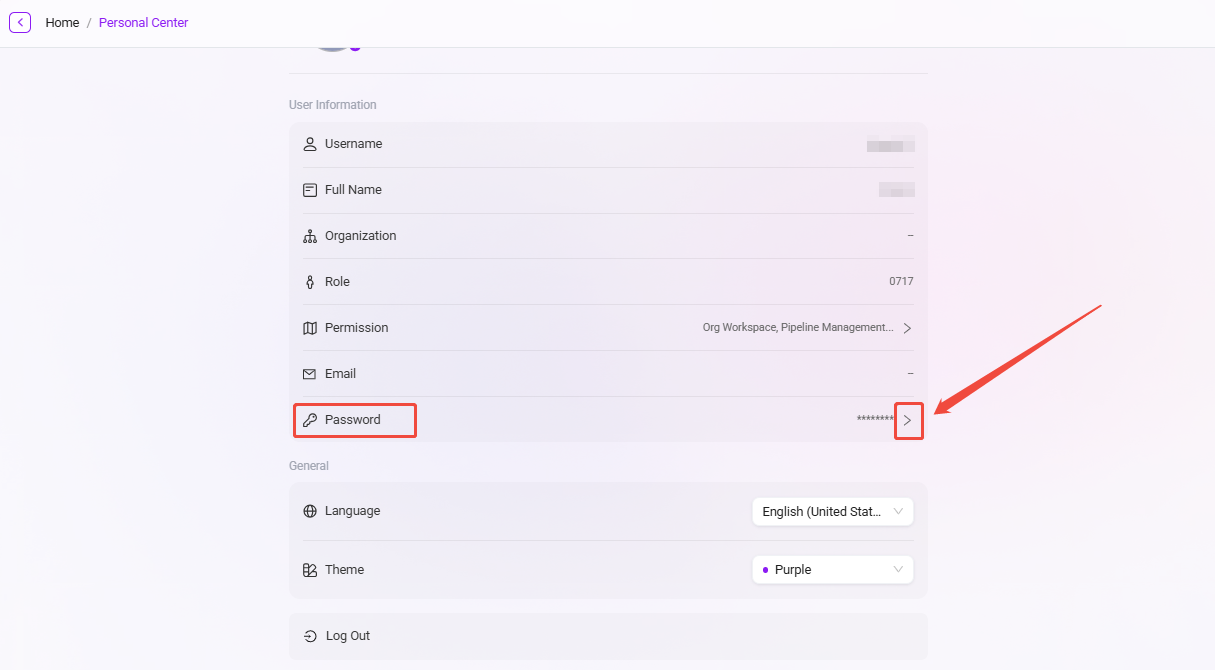
- Click Password and enter the old password (the system usually auto-fills the password of the currently logged-in account);
- According to the password rules mentioned above, enter and confirm the new password, then click Confirm to successfully change the password.
Personal Center
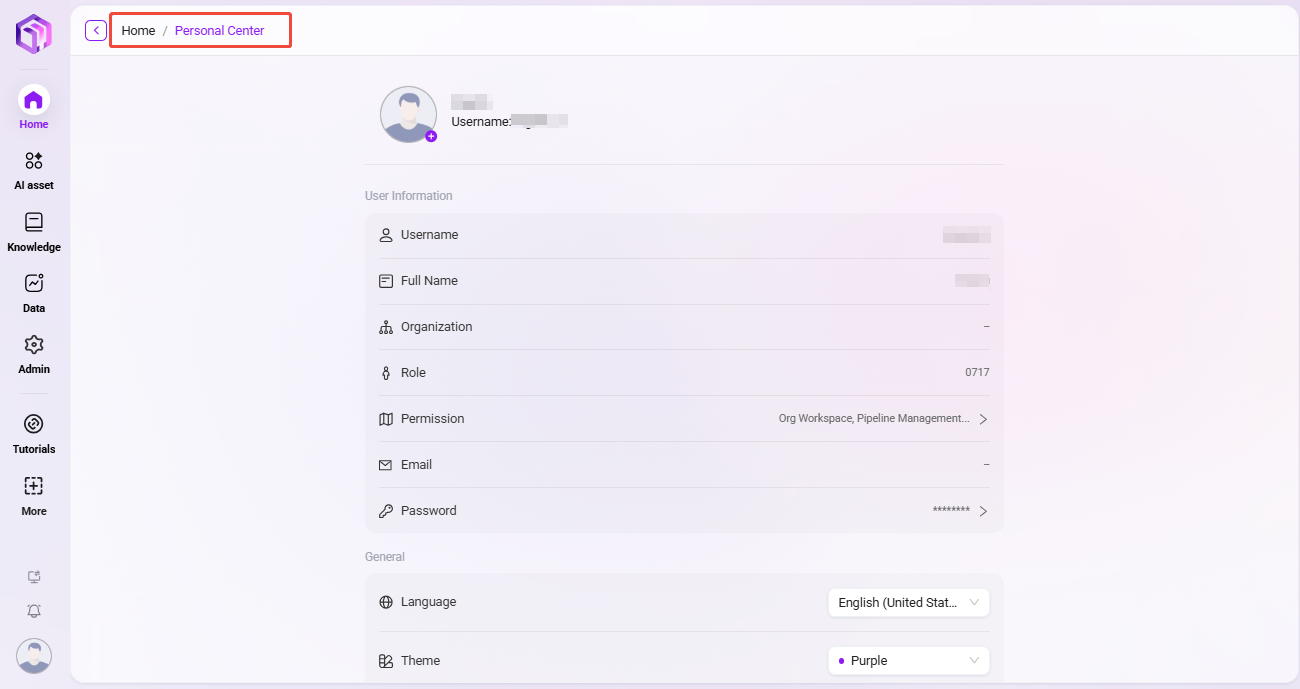
The Personal Center is the core page where users can view and manage their own account information and preference settings. Here, you can verify personal information, view assigned permissions, and customize the system display language and theme.
Access path: Click the user avatar in the lower-right corner of the system interface to enter.
User Information
This area displays the basic identity information of the user account.
- Avatar: Click the avatar to change your profile picture.
- Username: The user's system login account.
- Real Name: The real name registered by the user in the system.
- Organization: The organization or department to which the user belongs.
- Role: The system role assigned to the user (such as
admin,管理员). - Permissions: The list of specific operation permissions the user has (such as
技能管理,智能体,MCP, etc.), determined by the administrator. - Email: The bound contact method, which can be used for login or receiving notifications.
- Password: Displayed here as hidden asterisks (
*******). If you need to change it, click the “>” button to enter the password change page.
General Settings
Users can personalize the system interface here to obtain a user experience more in line with personal habits.
- Multilingual: Switch the display language of the entire system interface. Available languages include: English, Chinese (Mainland China), Traditional Chinese, Japanese, Korean, German.
- Theme: Switch the overall visual theme color of the system. Currently, Purple and Blue theme options are provided.
- Log Out: Click this button to safely log out of the currently signed-in account.
💡 Tip: Most of the information displayed in the Personal Center (such as organization and role) is read-only and is centrally configured and maintained by the system administrator in the backend. If you need to modify information such as “Real Name” or “Organization”, please contact your system administrator.
Organization Management
Administrators can manage organizations in the system, including creating, editing, and deleting organizations, and associating users with organizations. Organization management helps efficiently manage various internal enterprise teams and external partners.
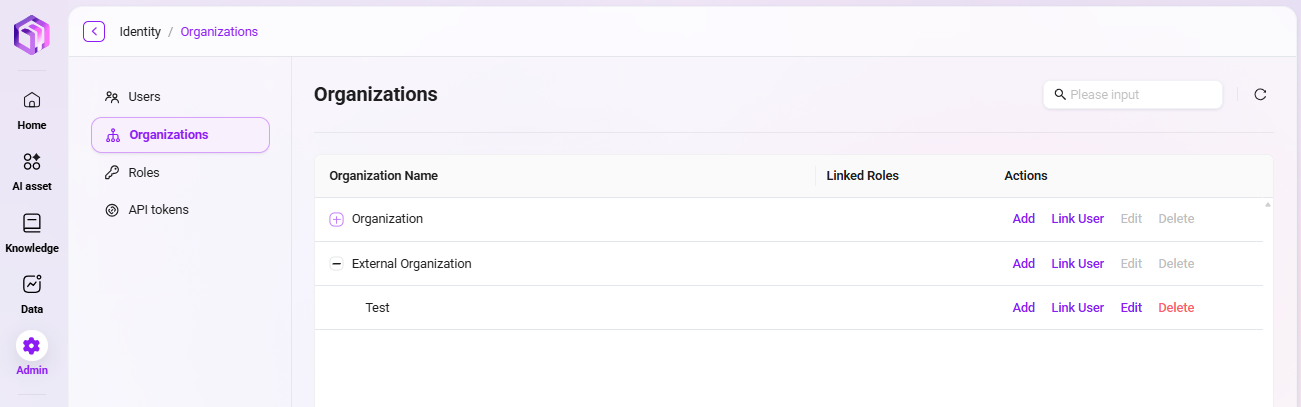
View the organization list
- Enter the Organization Management page: Select “Organization Management” in the system settings to enter this page.
- View created organizations: The system displays all existing organization information, including organization name, associated roles, and whether it is an external organization.
- There is an “Edit” button on the right side of each organization. Administrators can modify the organization, or click the “Delete” button to delete the organization.
How to create an organization?
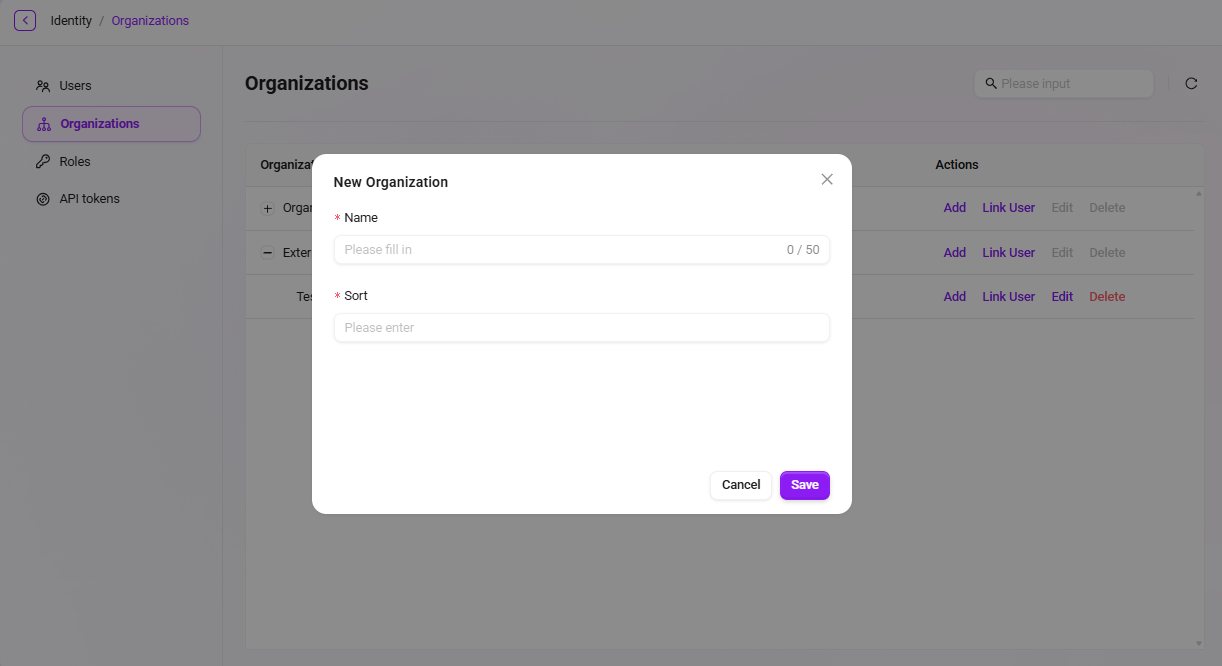
- Click the “Add” button: On the Organization Management page, click the “Create” button on the right to start creating a new organization.
- Fill in organization information:
- Organization Name: Specify a unique name for the organization.
- Sort Order: Specify a sort number for the organization for easier management.
- Click “Confirm”: After filling in all required information, click the “Confirm” button to successfully create the new organization.
💡 Tip: It is recommended that the organization hierarchy not exceed 7 levels.
How to edit an organization?
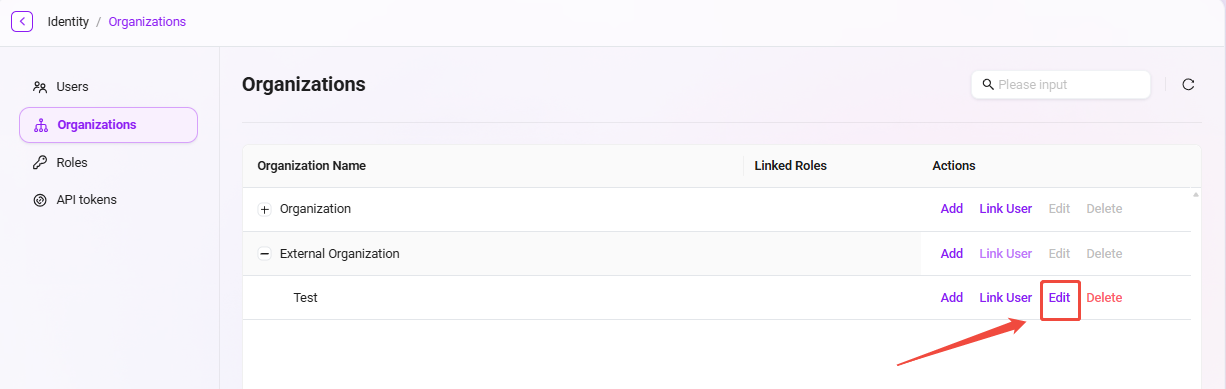
- Select the organization to edit: In the organization list, select the organization that needs to be edited.
- Click the “Edit” button: Enter the edit page. The editable content is the same as when creating a new organization. Administrators can modify information such as the organization name and sort order.
- Save changes: After editing is completed, click the “Save” button to update the organization information.
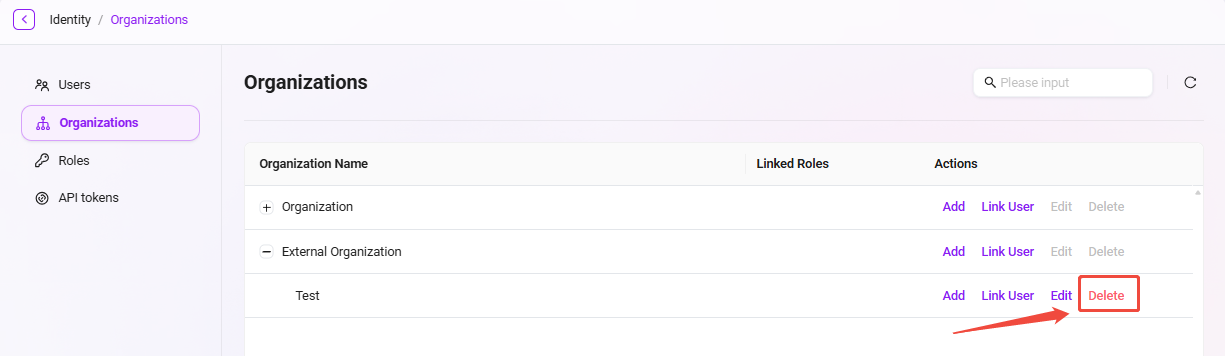
How to delete an organization?
- Select the organization to delete: In the organization list, select the organization to be deleted.
- Click the “Delete” button: After secondary confirmation, the organization can be deleted.
Associate users
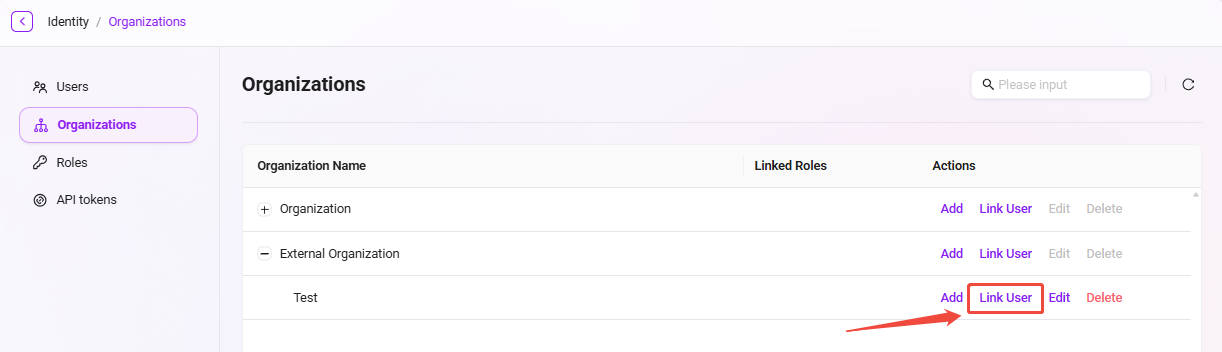
The specific steps for adding and removing associated users are as follows:
- Click “Associate Users”: On the Organization Management page, select the organization to associate users with, and click the “Associate Users” button on the right.
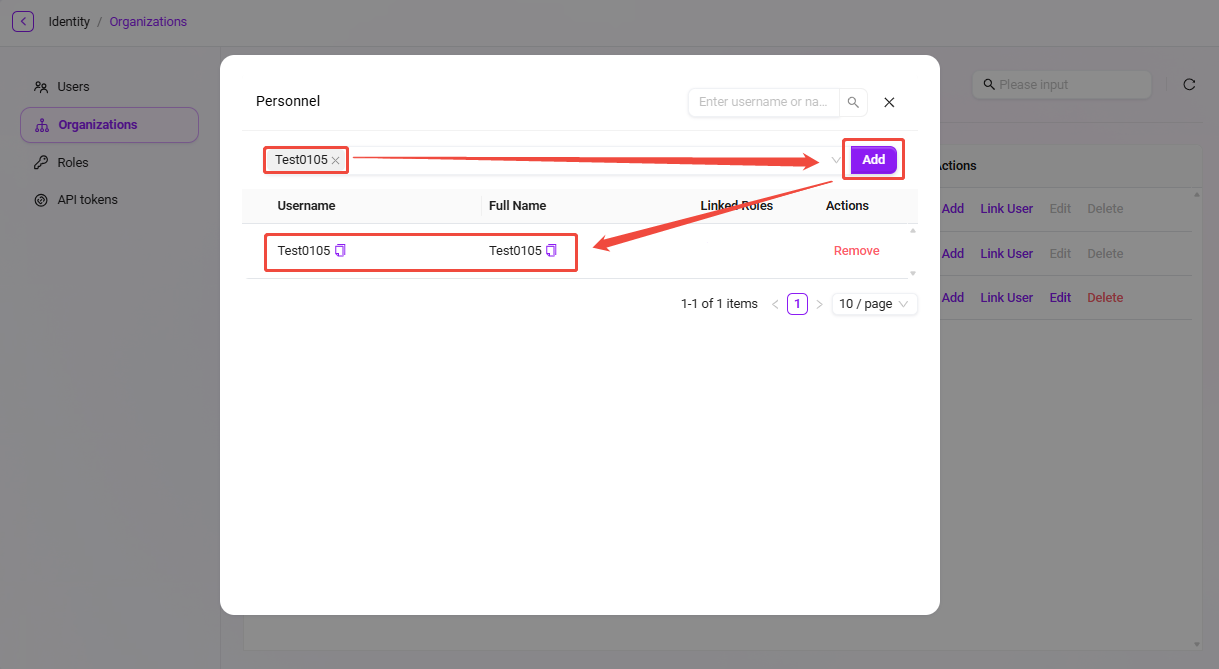
- View associated users: After entering the associated users page, the administrator can see all users already associated with the organization.
- Remove associated users: The administrator can select associated users and click the remove button to remove the user from the organization.
- Add associated users: Select the user to add from the drop-down box, then click the “Add” button to associate the new user with the organization.
Role Permissions
How to create a role group?
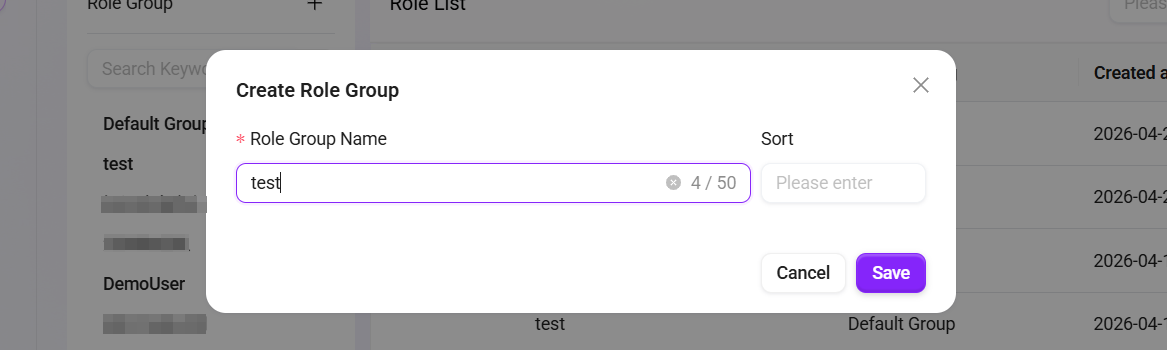
In role permission management, administrators can create new role groups. After creating a role group, administrators can also create new roles within the role group and authorize them.
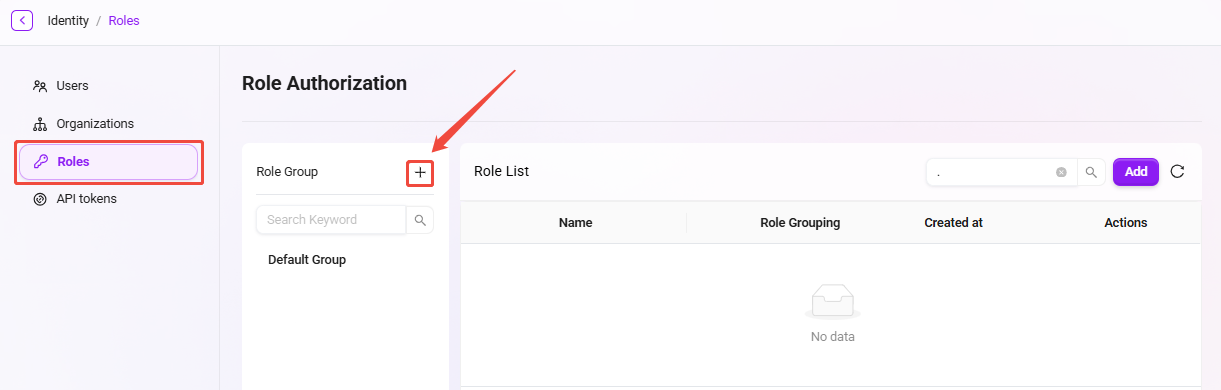
- Navigate to Management > Permissions > Role Permissions.
- Above the role group list on the left, click the + button to create a new role group.
- In the pop-up window, enter the role group name and sort order.
- Click Confirm to complete the creation of the role group.
How to add a role?
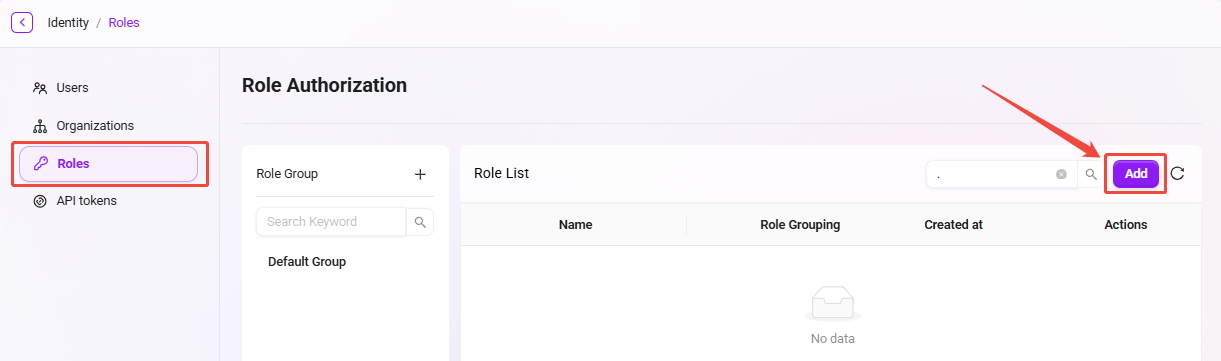
- Navigate to Management > Permissions > Role Permissions.
- Select the role group in which you want to create a new role.
- On the role group page, click the Add button on the right side of the role list.
- Enter the new role name, select the group to which the role belongs, and fill in the role description.
- Click Confirm to complete the creation of the new role.
💡 Tip: The character count for both the role name and description must be within 200 characters. Please note the character limit before proceeding.
How to authorize functions for a role?
In simple terms, authorizing functions for a role means defining what functions this role has.
The steps to authorize functions for a role are as follows:
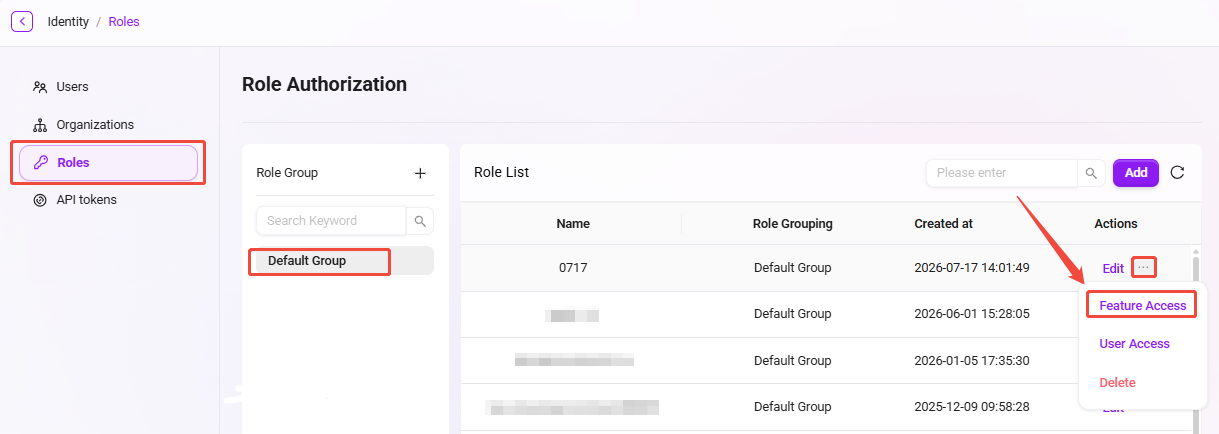
- Navigate to Management > Permissions > Role Permissions.
- Select the role that needs function authorization.
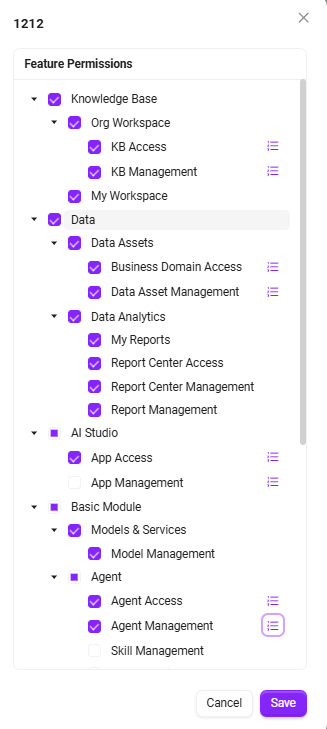
- Click the Function Authorization button after the role to enter the function authorization page.
- On the authorization page, you can authorize the following functions for the role:
- AI Center
- Model Management
- Model Channel Management
- Data Analysis
- Knowledge Base
- Pipeline Management
- Content Security Management
- Basic Modules
- After checking the required functions to authorize, click Confirm to complete the function authorization for the role.
How to authorize users for a role?
In simple terms, authorizing users for a role means assigning a certain role to a user.
The steps to authorize users for a role are as follows:
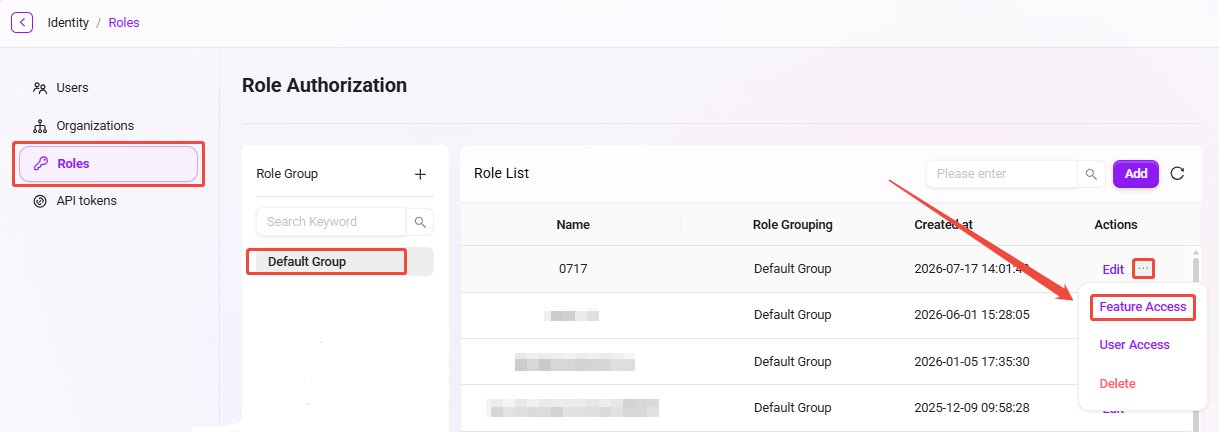
- Navigate to Management > Permissions > Role Permissions.
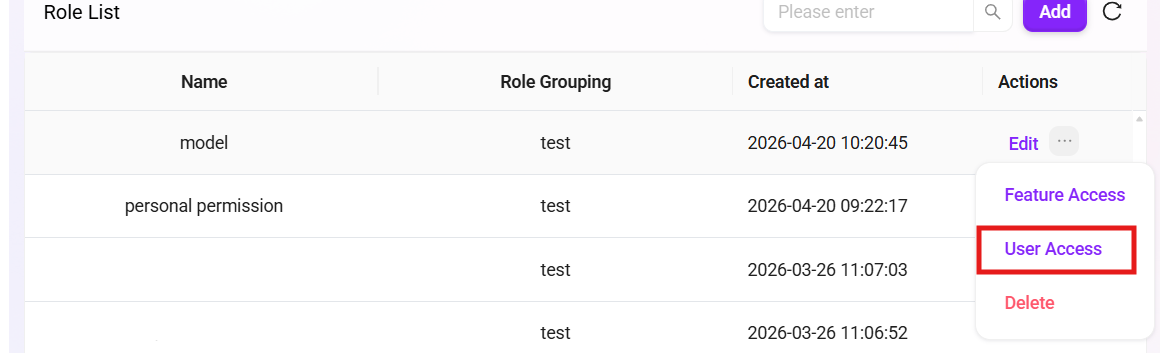
- Find the role to be authorized, and click the User Authorization button after the role to enter the user authorization page.
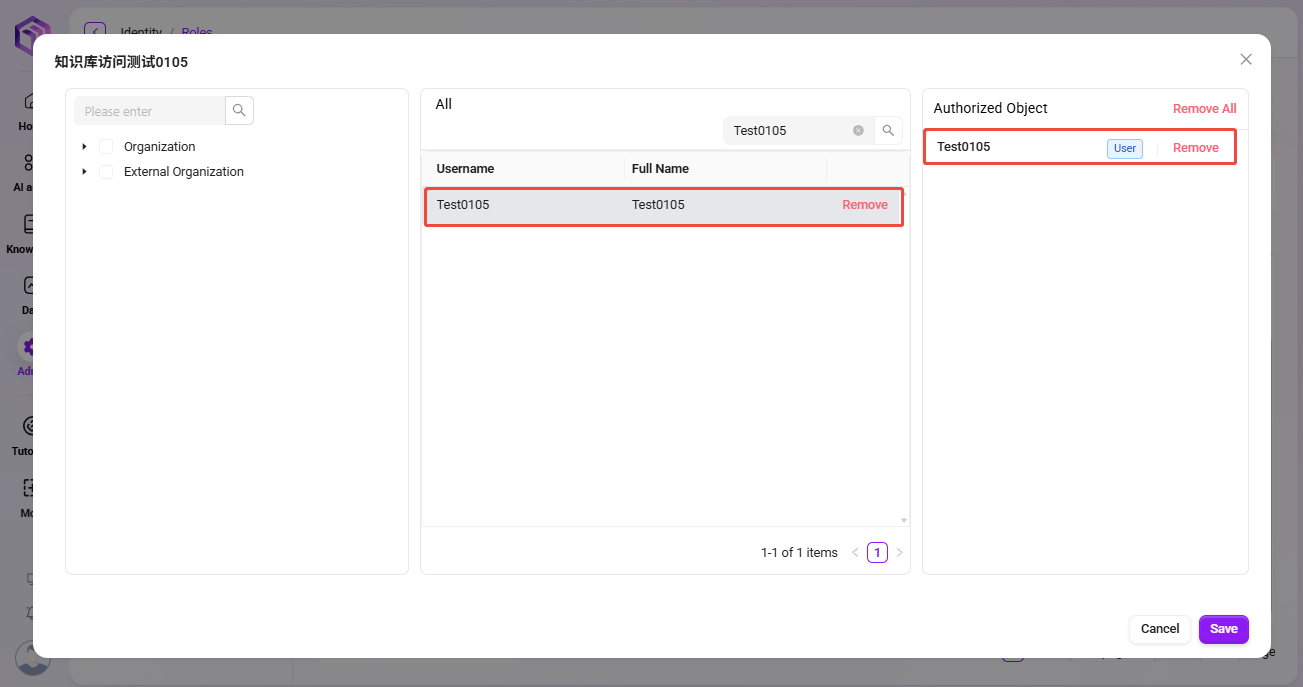
- On the user authorization page, find and check the users to be authorized according to the organization they belong to.
- Successfully selected users will appear in the authorized objects column.
- After completing the selection, click Confirm to complete user authorization for the role.
Token Management
💡 Tip: This feature is only supported in V4.1 and above
Token Management is an important newly added functional module designed to optimize the original API Key generation and usage method. The new version upgrades the previously scattered, resource-bound API Key mechanism into a centralized, user-permission-centric Access Token management system, achieving higher security and controllability.
In the new system, Access Tokens are strongly associated with user permissions. The access scope, validity period, and management permissions of each token are uniformly controlled by the system to ensure that system resources are secure and controllable.
Access Token support scope
Currently, Access Tokens can be used for the following API interfaces:
- Agent Configuration Query OpenAPI — Supports secure access to Agent-related configurations through tokens.
- FAQ List OpenAPI — Supports secure retrieval of FAQ data by external systems.
- All MCP Server interfaces published from Agent — Ensures that all external service access of Agent is controlled by the token system.
Token Management interface description
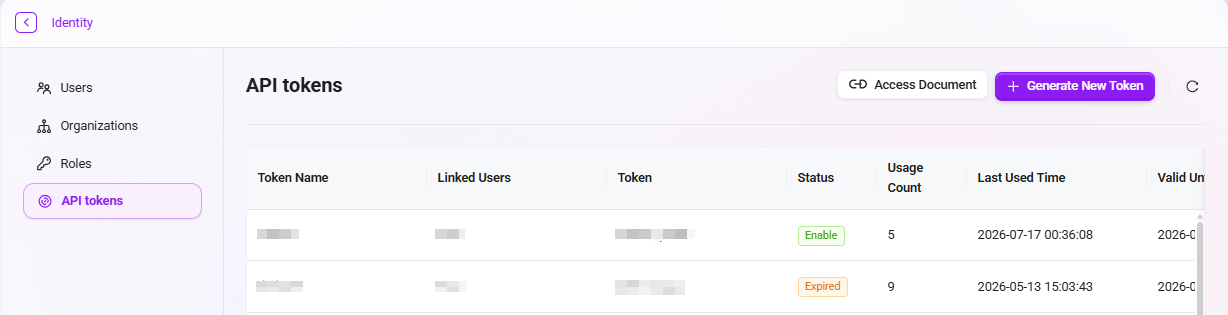
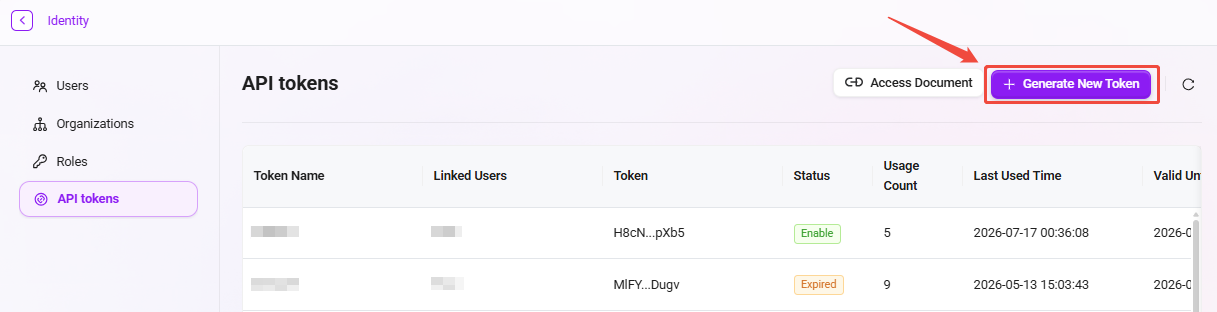
On the “Token Management” page, the system displays all currently created access tokens in a table, including the following information:
- Token Name: A token identifier customized by the administrator to distinguish tokens for different purposes.
- Managing User: The user bound to the token. The token's access permissions are inherited from this user.
- Token: The Access Token string automatically generated by the system.
- Status: Includes three statuses: Enabled, Disabled, and Expired, clearly reflecting the current availability of the token.
- Usage Count: Counts the number of times the token has been called, making it convenient for administrators to monitor usage frequency.
- Last Used Time: Displays the most recent time the token was used.
- Validity Period: Displays the token validity duration (such as 7 days, 30 days, 90 days, or permanent).
- Creation Time: Records the time when the token was generated.
- Operation: Provides a “Regenerate” button for updating the token value to ensure security.
Generate a new token
- Click the “Generate New Token” button in the upper-right corner of the page.
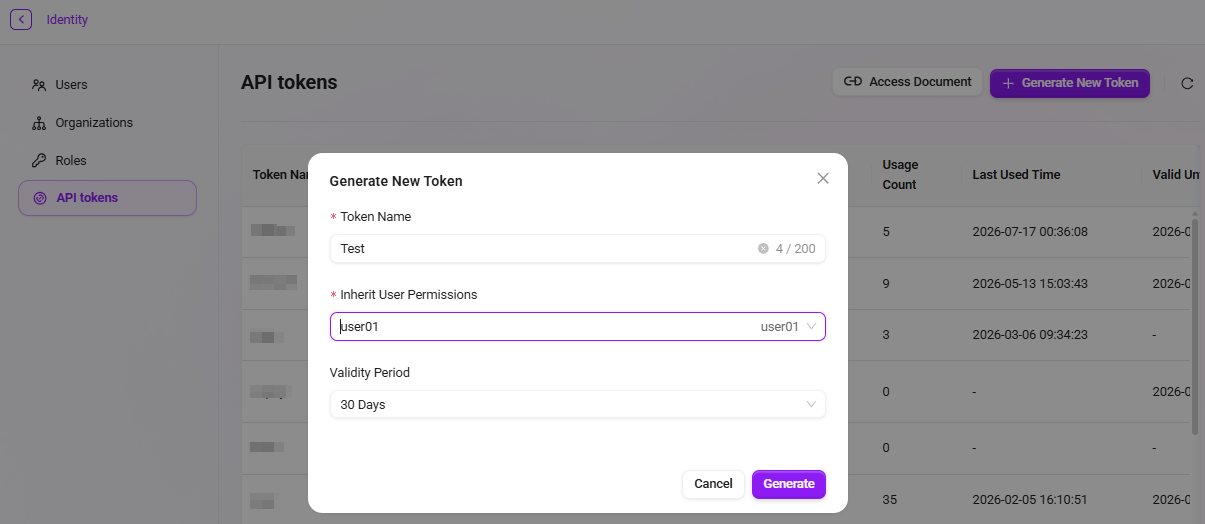
- In the pop-up window, fill in the following information:
- Token Name: Enter a meaningful name for the token to make its purpose easy to identify.
- Inherit User Permissions: Select the system user whose permissions need to be inherited. The token will automatically obtain that user's access scope.
- Validity Period: You can choose from four validity periods: 7 days, 30 days, 90 days, or permanent.
- Click the “Generate” button to generate a new Access Token.
The generated token will immediately appear in the list, and the administrator can copy the token for subsequent API access.
Token usage instructions
The generated Access Token can be used to call controlled API interfaces (such as Agent, FAQ, MCP Server, etc.). When using it, the token must be added to the request header as an authentication credential, for example:
Authorization: Bearer <Access Token>
In this way, the system can verify the visitor's identity and validate permissions, ensuring secure and compliant API access.