How to Use Agent?
Start a Conversation
Natural language conversation is the main way to interact with the Agent, just like chatting with a person. Users can ask the Agent questions or request it to complete tasks using natural language.
For example:
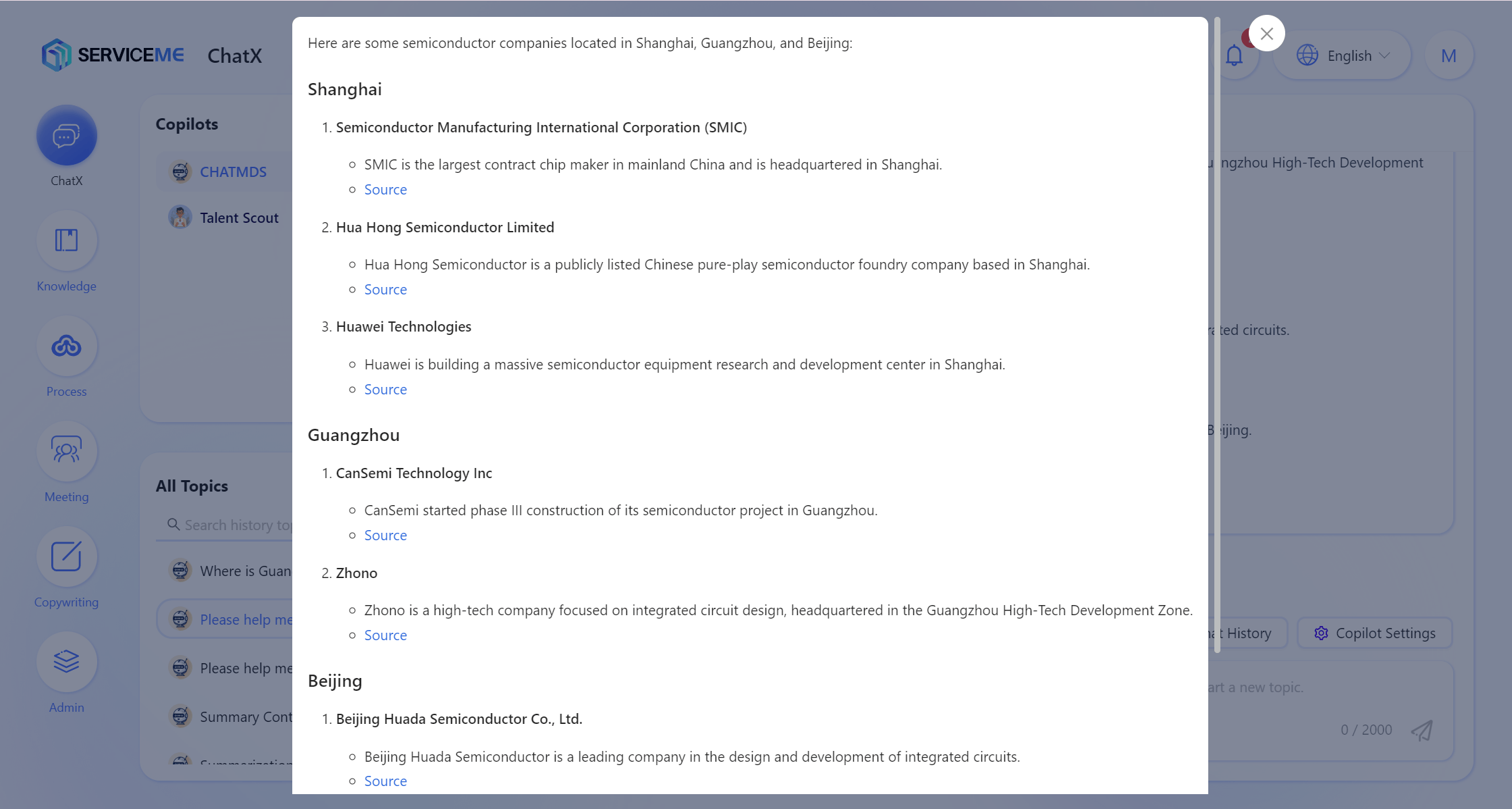
- Ask the Agent to perform an online search: "Please help me search for chip industry companies in Shanghai, Guangzhou, and Beijing via the Internet."
- Ask the Agent to assist with drawing: "Please generate two origami-style illustrations for the cover and end page of my PPT. One is sunlight streaming through a window, and the other is a camel walking in the desert."
Steps:
- Log in to the SERVICEME platform;
- Switch to the Chat application;
- In the Agents panel, select the corresponding Agent, such as ChatX (X is usually replaced with the company abbreviation)
- Ask your question and wait for the output
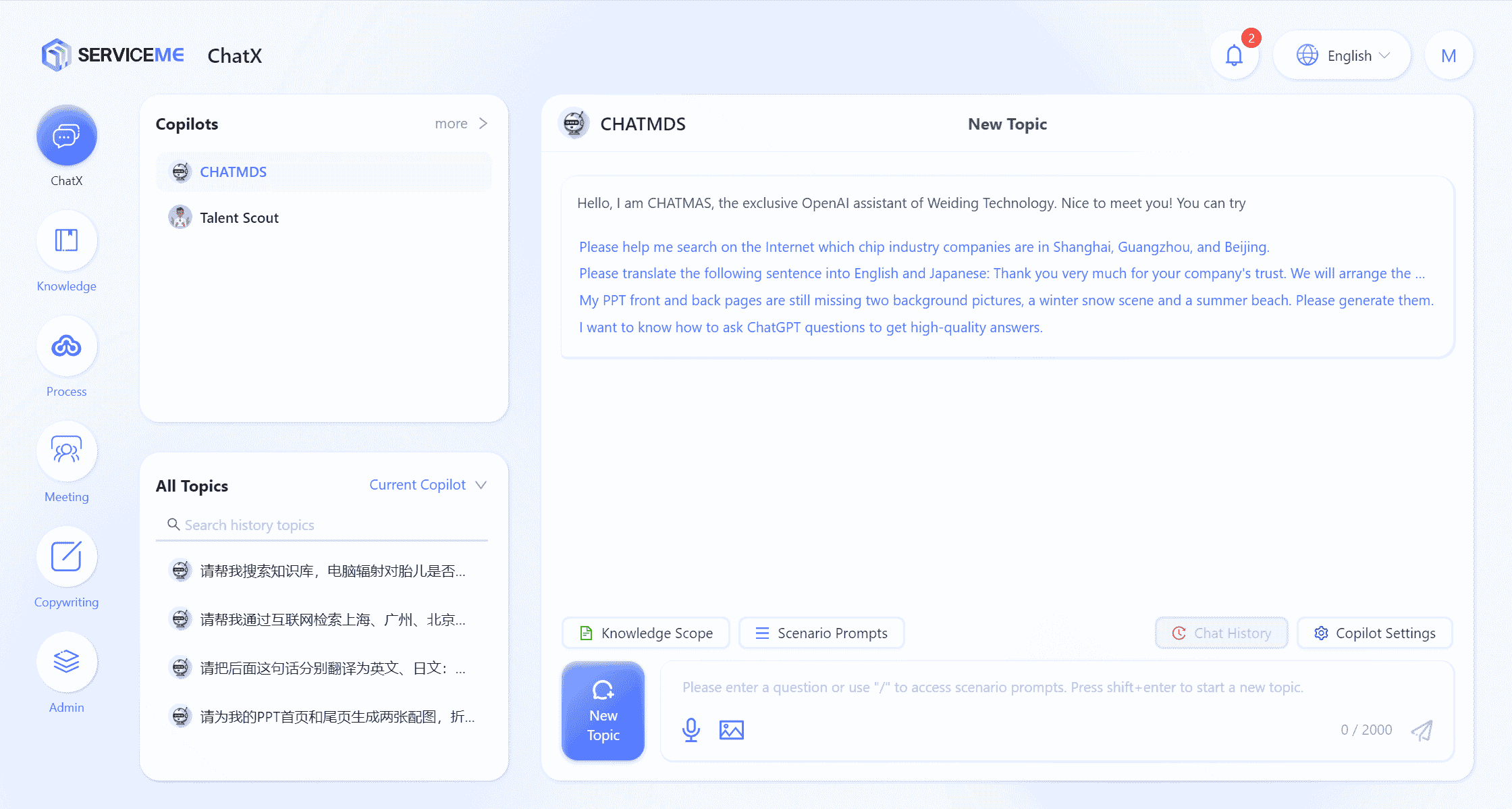
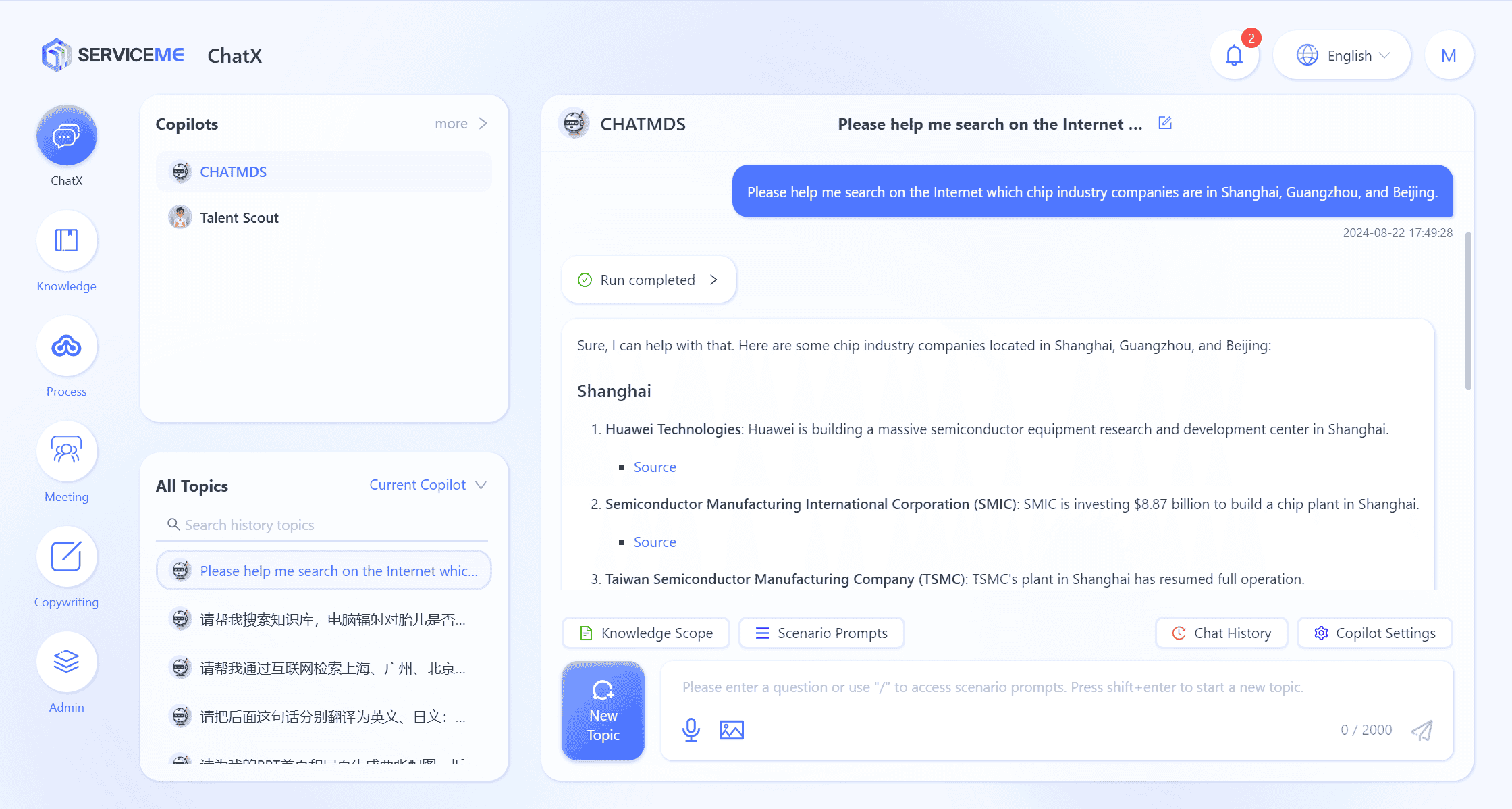
Additional notes:
- Voice input: You can input via voice
- Image attachment: Paste or select an image to start a conversation, for example: Please analyze the meaning of this image
- New conversation: Start a new conversation topic, which will not be affected by the current conversation context
View Conversation History
Each time a new conversation is started, the system will automatically generate a conversation history record, making it easy for users to review previous exchanges at any time.
- View conversation: Click the title of a historical conversation to revisit the dialogue record, helping you quickly find past communication content.
- Switch view: By default, the system displays the conversation history of the current Agent, but you can also switch views to see the history of all Agents.
- Quick search: By entering keywords from the title, you can quickly locate relevant conversation history.
- Batch delete: If you need to clean up history, you can use the Batch Delete feature to delete multiple unnecessary conversation records at once.
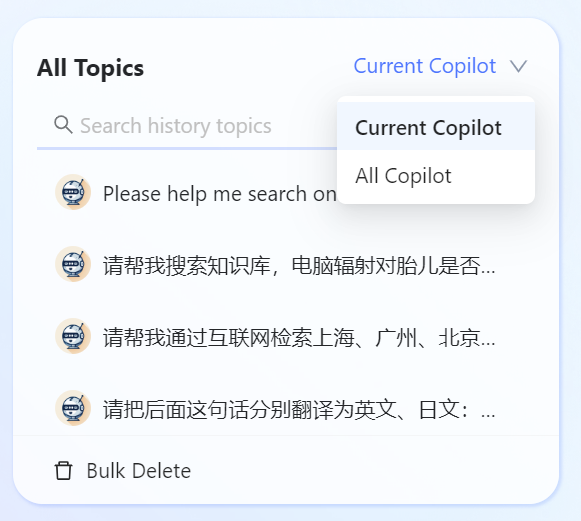
- By default, the system only keeps the latest 50 conversation history records.
- The system excludes conversations that did not use AI capabilities from the history to prevent accumulation of invalid records.
How to Narrow the Knowledge Scope for Q&A?
When the Agent is associated with too much knowledge, there may be contradictions between different pieces of information. To ensure the accuracy of answers, we can optimize results by limiting the knowledge scope for Q&A. Here are two main filtering modes:
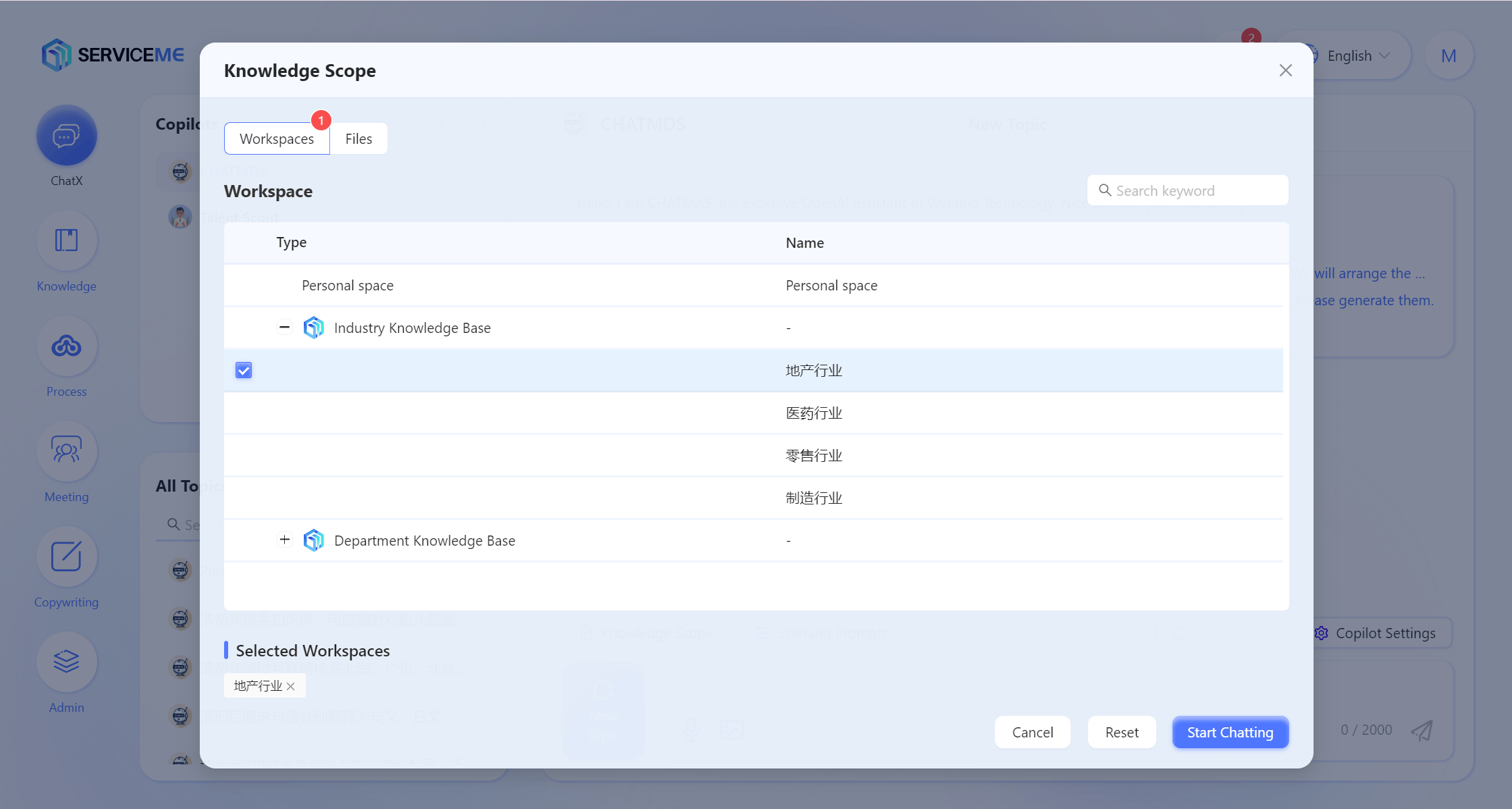
- Space Mode
- This mode allows users to limit the Q&A scope to one or more specific knowledge spaces.
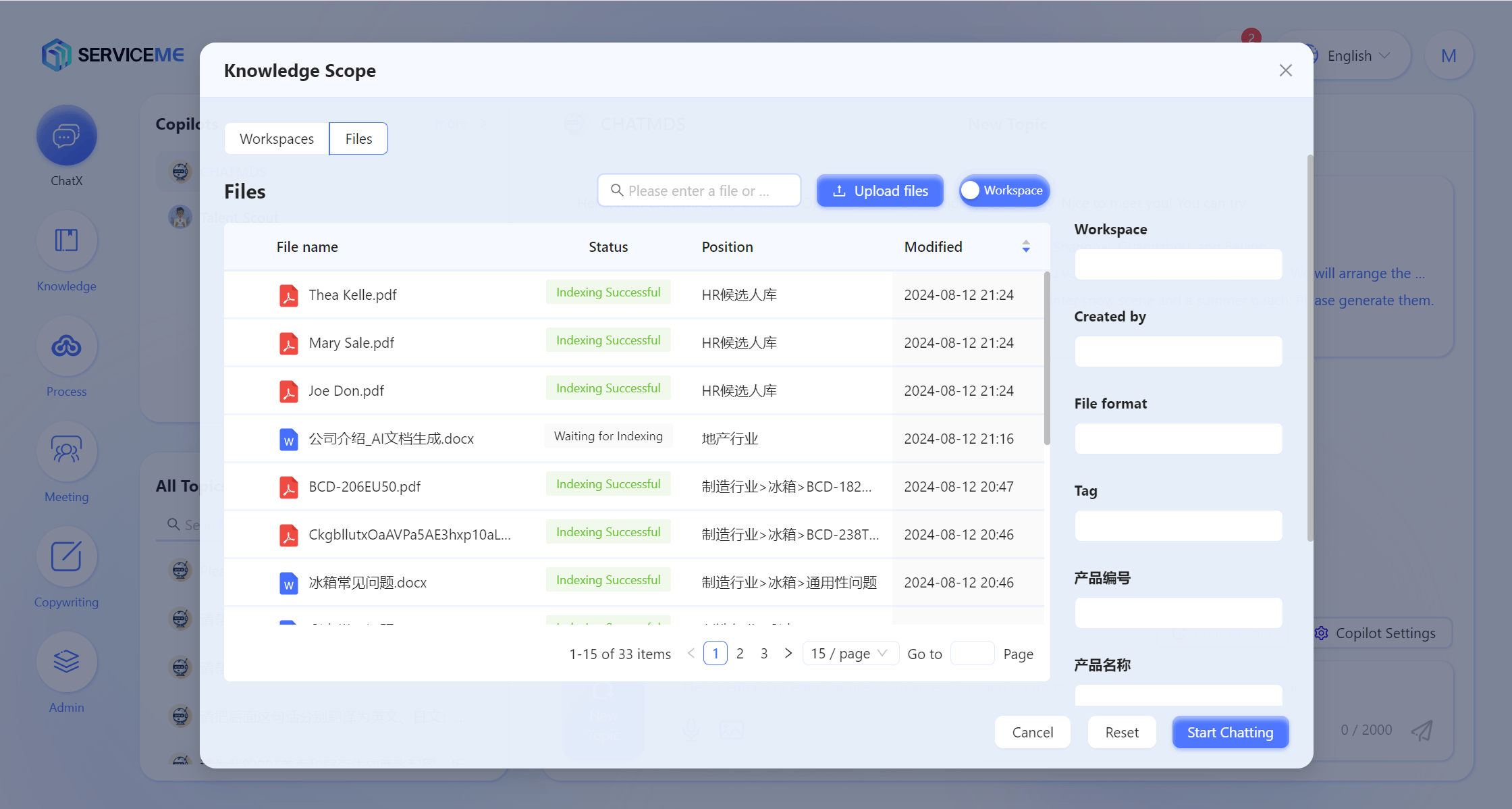
- File Mode
- Users can narrow the Q&A scope to one or more specific documents.
- Supports switching between knowledge space and personal space for easy document retrieval.
- Users can also add new documents to a specified area via the Upload File feature.
- The system will automatically index uploaded files, and once completed, you can perform precise Q&A based on the new documents.
Space Mode
File Mode
What Are Scenario-based Prompts?
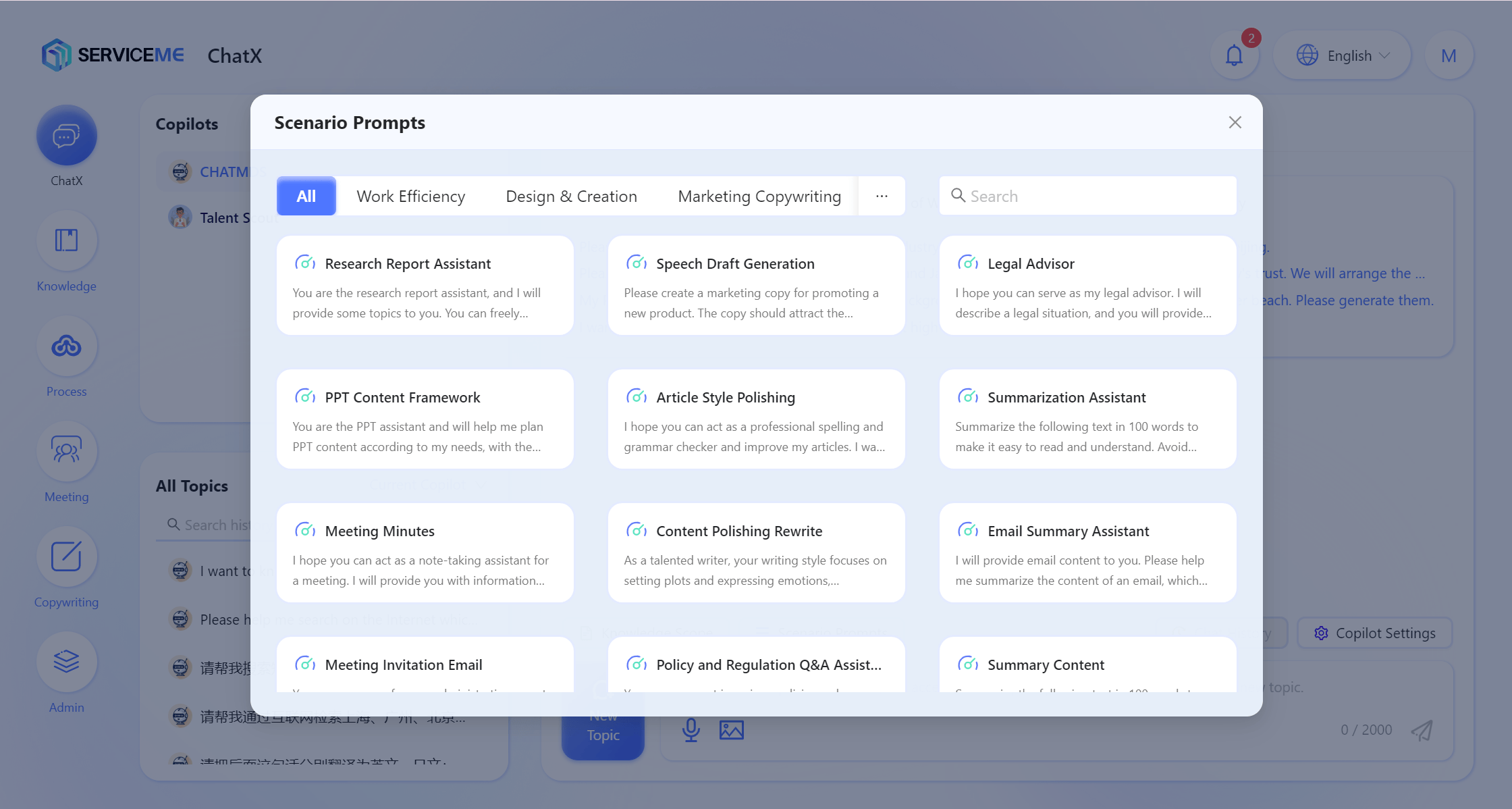
For frequently used prompt needs in daily work, the system provides scenario-based prompts, allowing users to quickly select from preset prompts without having to write from scratch each time.
For example:
- PPT Outline: When lacking ideas for creating a PPT, users only need to state their needs, and the Agent will generate a preliminary outline and provide structural suggestions.
- Meeting Minutes: The system can generate a draft of meeting minutes, helping users quickly organize meeting content according to standard requirements.
- Content Summary: Users can provide a long text, and the Agent will automatically extract key points to help quickly generate a concise summary.
Steps:
- Select ChatX in the Agent (currently only ChatX supports scenario-based prompts).
- Click Scenario-based Prompts and select the appropriate prompt in the pop-up window.
- Write and send your message; the Agent will complete the task based on the selected prompt.
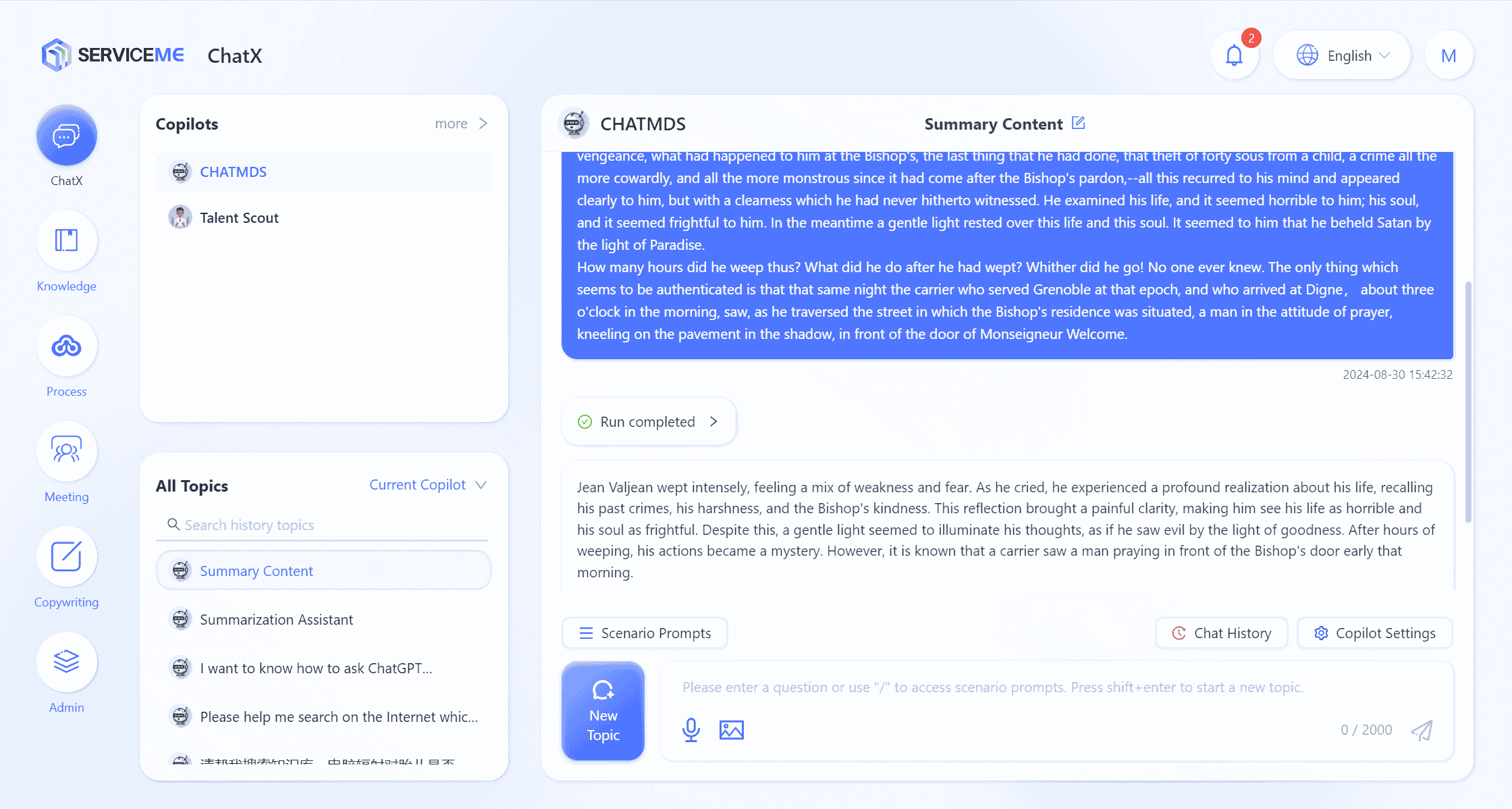
- To exit the current scenario Q&A, click + New Conversation to start over.
- Click the Favorite button in the upper right corner of the scenario to add it to your favorites. Favorited scenarios will be displayed first.
Operations Based on Replies
Rate Replies
For replies generated by the Agent, users can rate them by liking or disliking.
- If you are satisfied with the reply, hover the mouse over the reply and click
 to like the content.
 - If you are not satisfied with the reply, hover the mouse over the reply and click
 to give negative feedback.
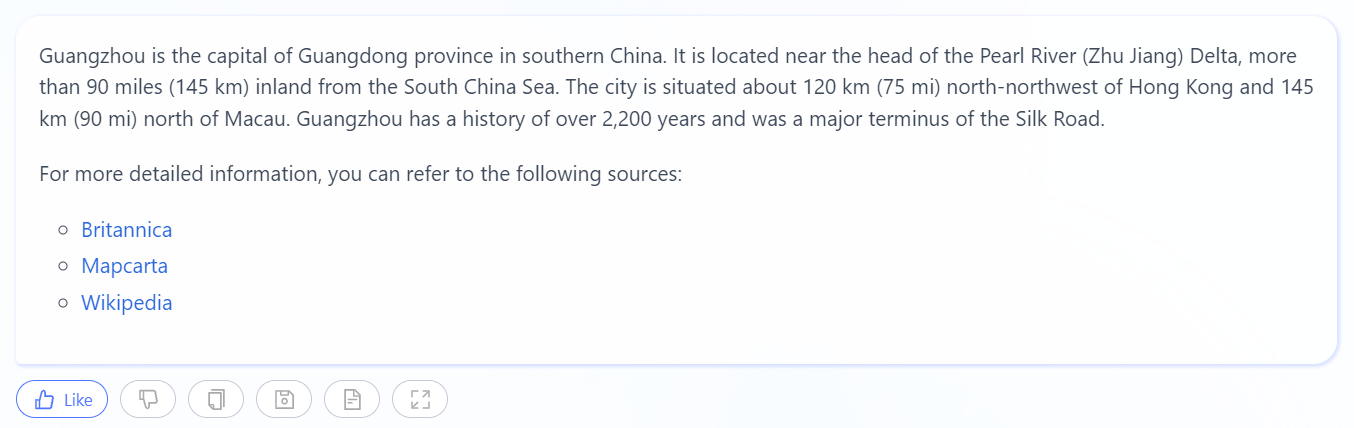
Provide detailed feedback
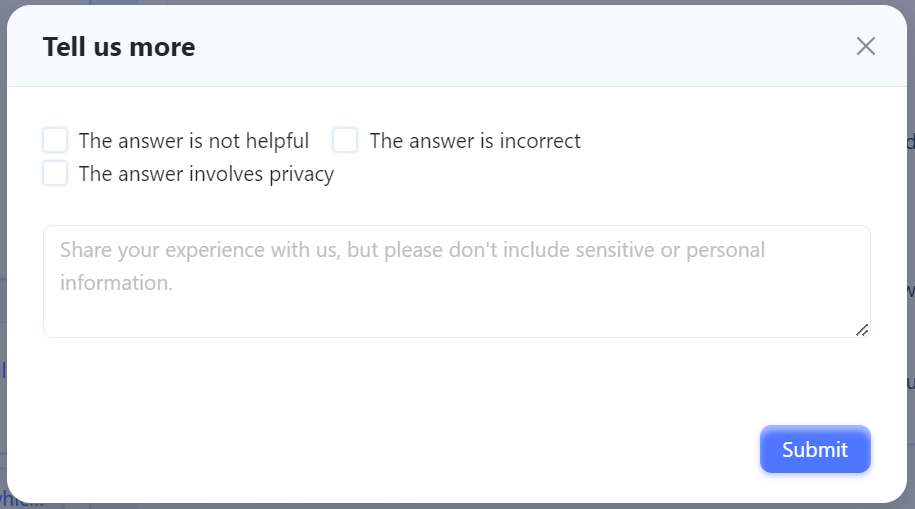
Detailed feedback requires the Agent to enable "Chat Feedback"
Copy Reply
Copy the reply content, including its formatting and images (the target you paste into must support HTML format, such as Word).
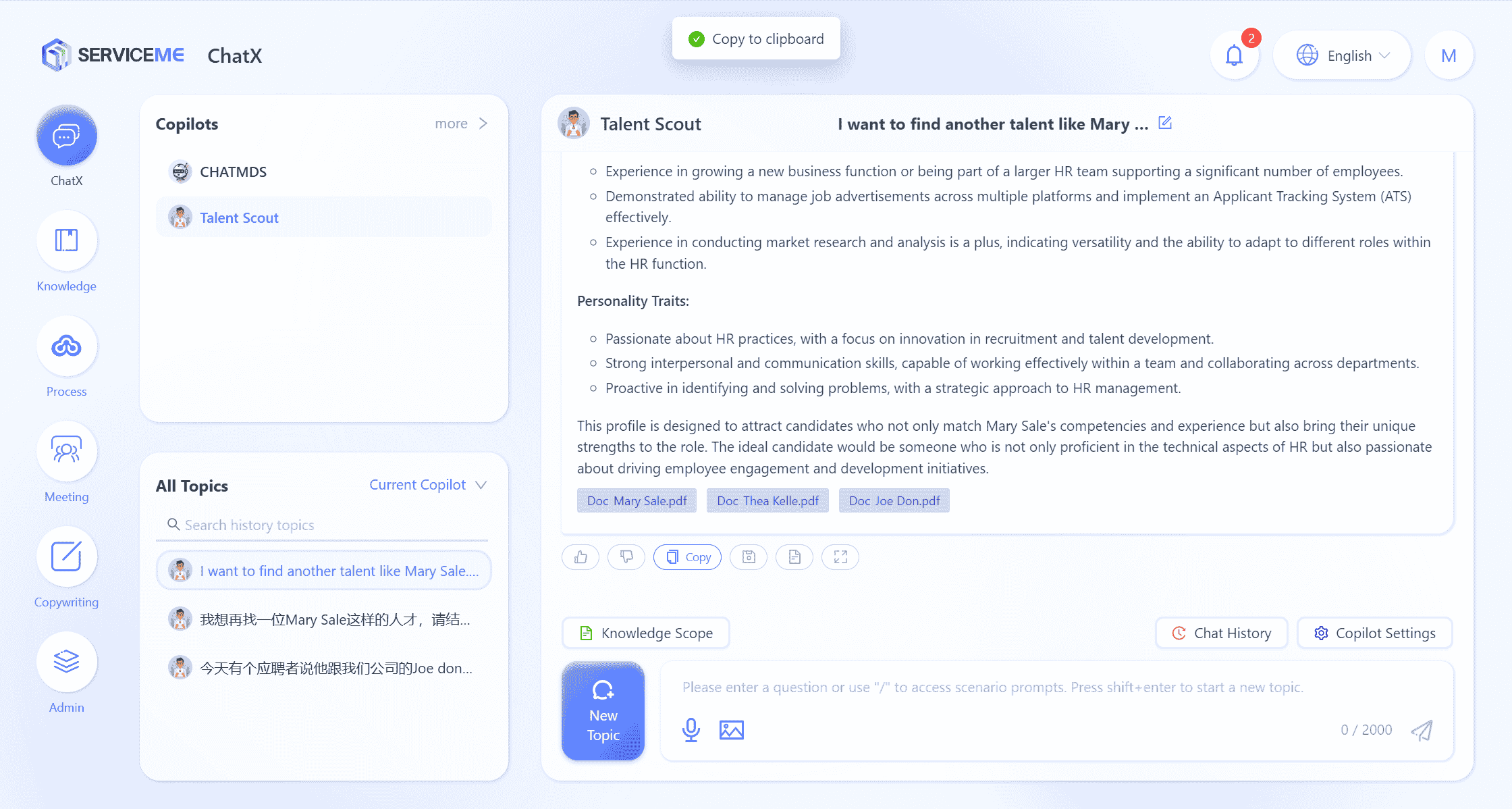
Add Reply to QnA
If you think the reply is of high quality, you can save the Q&A to QnA. When other users ask the same question later, this QnA will be used first for replies, which helps improve answer quality.

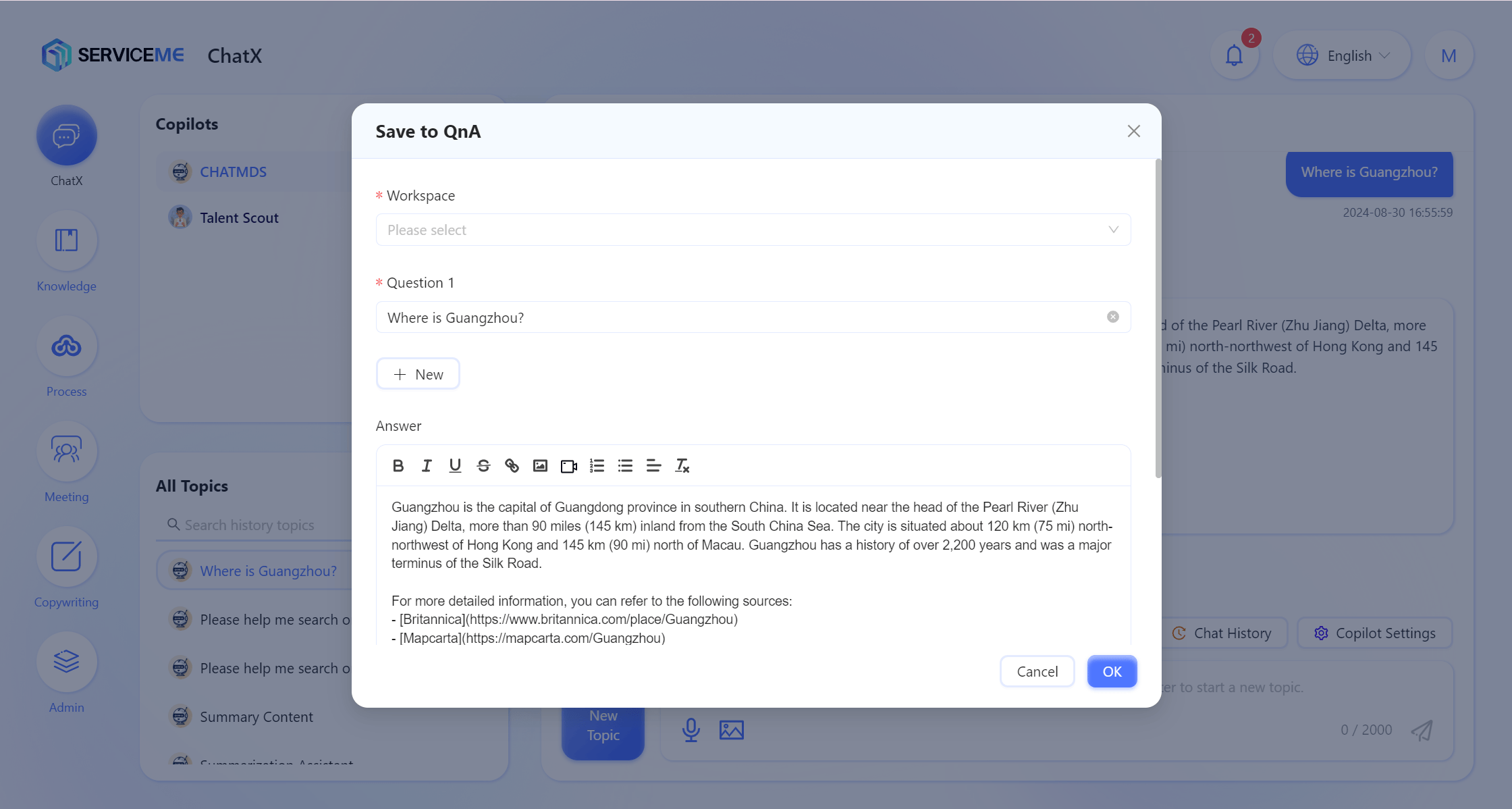
Instructions
- File Space: Select the target space to store the QnA. Users need corresponding access permissions to retrieve QnA;
- Question: The QnA question, which can be modified based on the original question;
- Answer: The QnA answer, which can be modified based on the original reply.
- "Answer" supports rich text/HTML tags. It is recommended to limit the content to within 2000 characters, which will help AI responses.
- To insert a video, use embedded code, for example
<iframe src="//player.bilibili.com/player.html?aid=535563667&bvid=BV1jM411S74q&cid=1322473540&p=1" scrolling="no" border="0" frameborder="no" framespacing="0" allowfullscreen="true"> </iframe>.
View Reference Sources
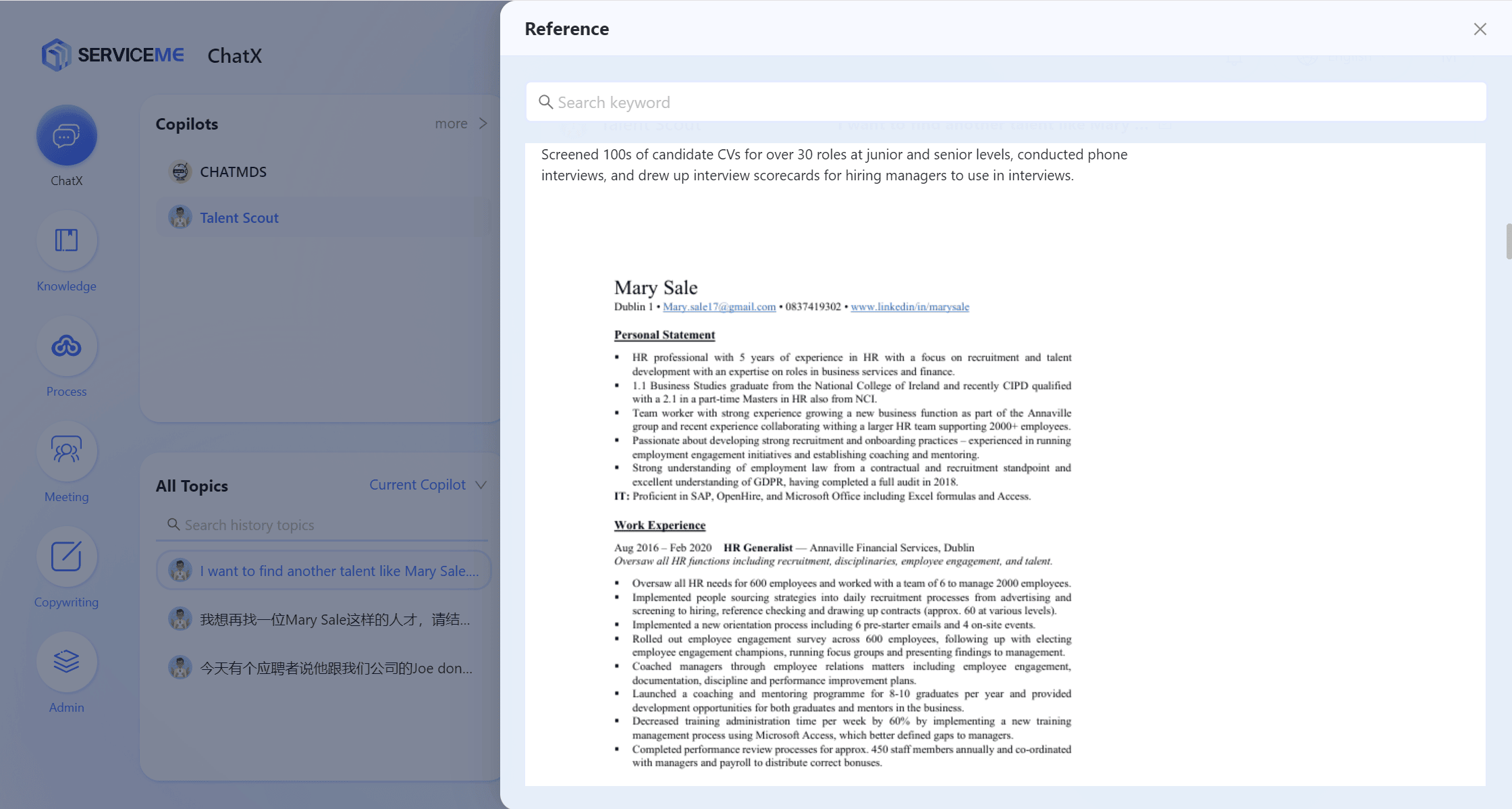
If you want to know which specific fragments this answer references and from which documents, you can view them via the "Reference" button.

Full Screen View
If the reply is too long to view completely in the chat window, you can maximize the reply content using the full screen view button.