Preprocessing
The preprocessing Pipeline is mainly used to define how documents are processed when they are added to the knowledge base. It takes effect automatically during document upload and ingestion, including document parsing, text chunking, vectorization, and other stages.
Users can customize processing strategies based on document type or business requirements to meet differentiated processing needs for multi-source document ingestion, ensuring that knowledge content is correctly parsed, segmented, and indexed during ingestion, thereby improving the recall quality of subsequent retrieval.
Usage
A knowledge base can be associated with multiple preprocessing Pipelines to adapt to the processing requirements of different file types. When files are uploaded, the system matches applicable preprocessing rules in order. If none are matched, it falls back to the default Pipeline.
- Platform built-in default rules: The system provides out-of-the-box default preprocessing Pipelines, which can be used directly or imported for reference.
- Customization and override: Supports creating new custom Pipelines, and also allows copying the default Pipeline for modification; the default Pipeline supports deletion.
- Rule matching mechanism: Preprocessing rules are matched in priority order. Once a match is found, the corresponding process is executed; if no match is found, default processing is used.
Recommendation: After adjusting preprocessing configurations, you can verify the processing effect by uploading test files.
Create a preprocessing Pipeline
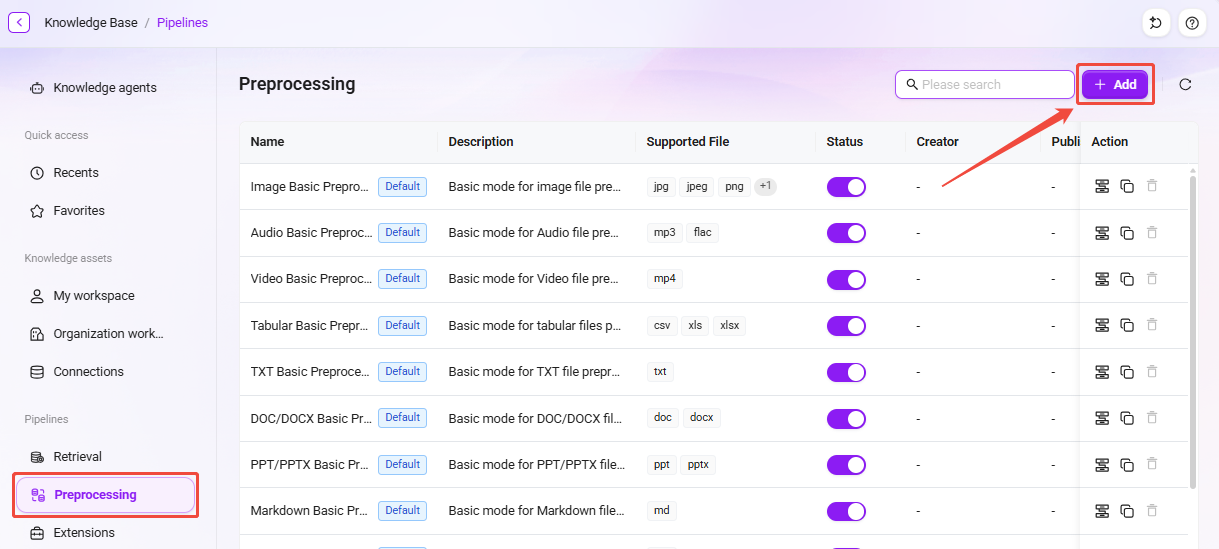
- On the preprocessing list page, click the "Add" button to open the creation window.
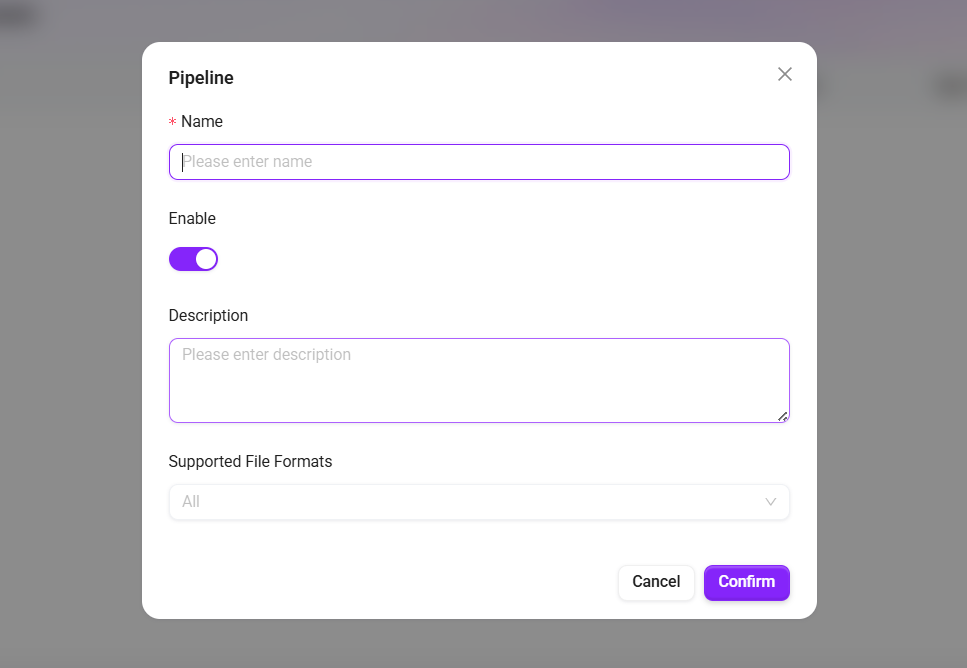
- Fill in the basic information:
- Name: The name of the preprocessing Pipeline.
- Enabled: After checking, the preprocessing takes effect and can be associated with a knowledge base for use.
- Description: Supplementary notes on the applicable scenarios or configuration points of this preprocessing.
- Click "Confirm" to complete creation, and the system will automatically navigate to the preprocessing editing canvas interface.
Detailed node functions
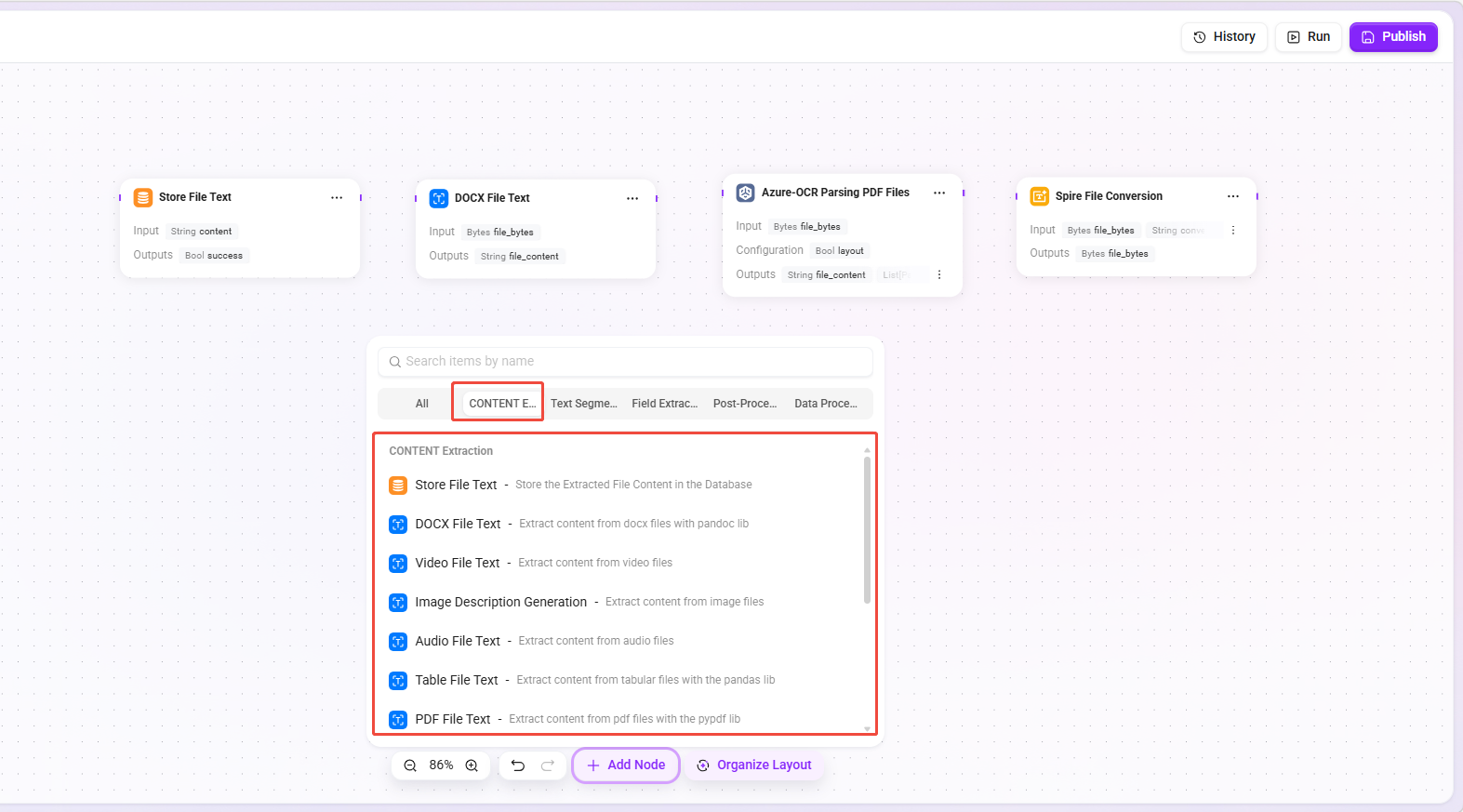
After entering the canvas editing interface, you can drag the required nodes from the node library onto the canvas and connect them to form a complete file preprocessing workflow.
The node library is divided into the following categories by function: Text Extraction, Text Chunking, Field Extraction, Post-processing, Plugins, and Data Processing.
Note:
- A corresponding storage node must be added at the end of each preprocessing workflow to ensure that the processing results of each stage are correctly persisted to the database.
- For more detailed descriptions of each node, click the "
" icon in the upper-right corner of any node's configuration page to view the documentation.
Text extraction nodes
Extract raw text content from various file formats as the basis for subsequent processing.
| Node Name | Function Description |
|---|---|
| Store File Text | Store the content extracted from the file into the database. |
| DOCX File Text | Use the pandoc library to extract content from docx files. |
| Video File Text | Extract content from video files. |
| Image Description Generation | Extract content from image files. |
| Audio File Text | Extract content from audio files. |
| Spreadsheet File Text | Use the pandas library to extract content from spreadsheet files. |
| PDF File Text | Use the pypdf library to extract content from PDF files. |
| Markdown File Text | Extract content from markdown files. |
| TXT File Text | Extract content from txt files. |
| Azure-OCR Parse PDF File | Use Azure Document Intelligence layout/read mode to extract content. Only .pdf format is supported, and noise data can be cleaned automatically. |
| Multimodal LLM Parse PDF File | Use the LLM OCR model to extract content. |
| Spire File Conversion | Use the Spire library for file format conversion. |
| LibreOffice File Conversion | Use the LibreOffice library for file format conversion. |
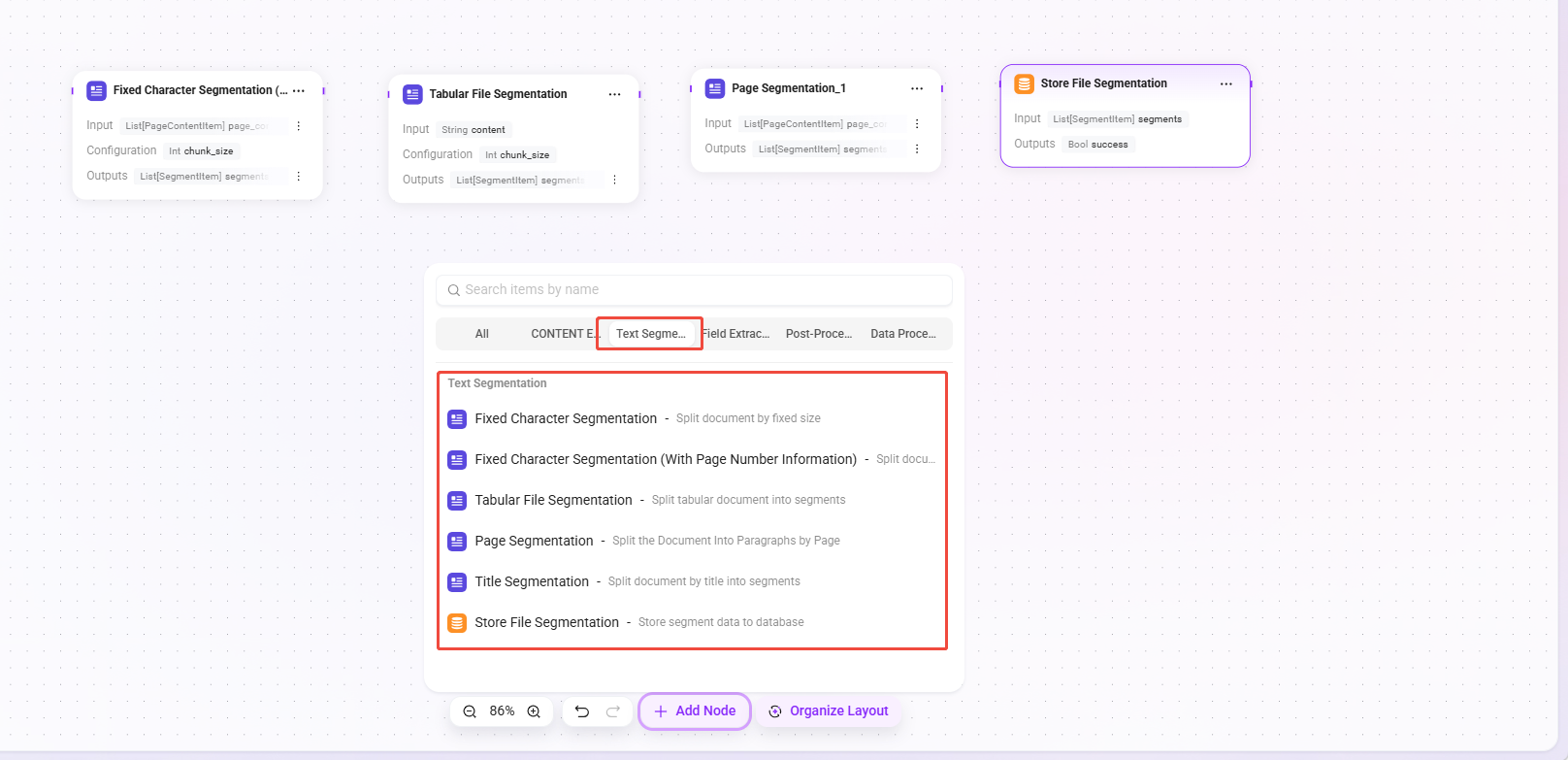
Text chunking nodes
Split extracted long text into multiple paragraphs or fragments according to a specified strategy to facilitate subsequent indexing and retrieval.
| Node Name | Function Description |
|---|---|
| Fixed Character Count Chunking | Split documents by a fixed size. |
| Fixed Character Count Splitting (with Page Number Information) | Split documents by a fixed size while carrying page start position information. |
| Spreadsheet File Chunking | Split spreadsheet documents into paragraphs. |
| Page-based Chunking | Split documents into paragraphs by page. |
| Heading-based Chunking | Split documents into paragraphs by headings. |
| Store File Segments | Store segmented data into the database. |
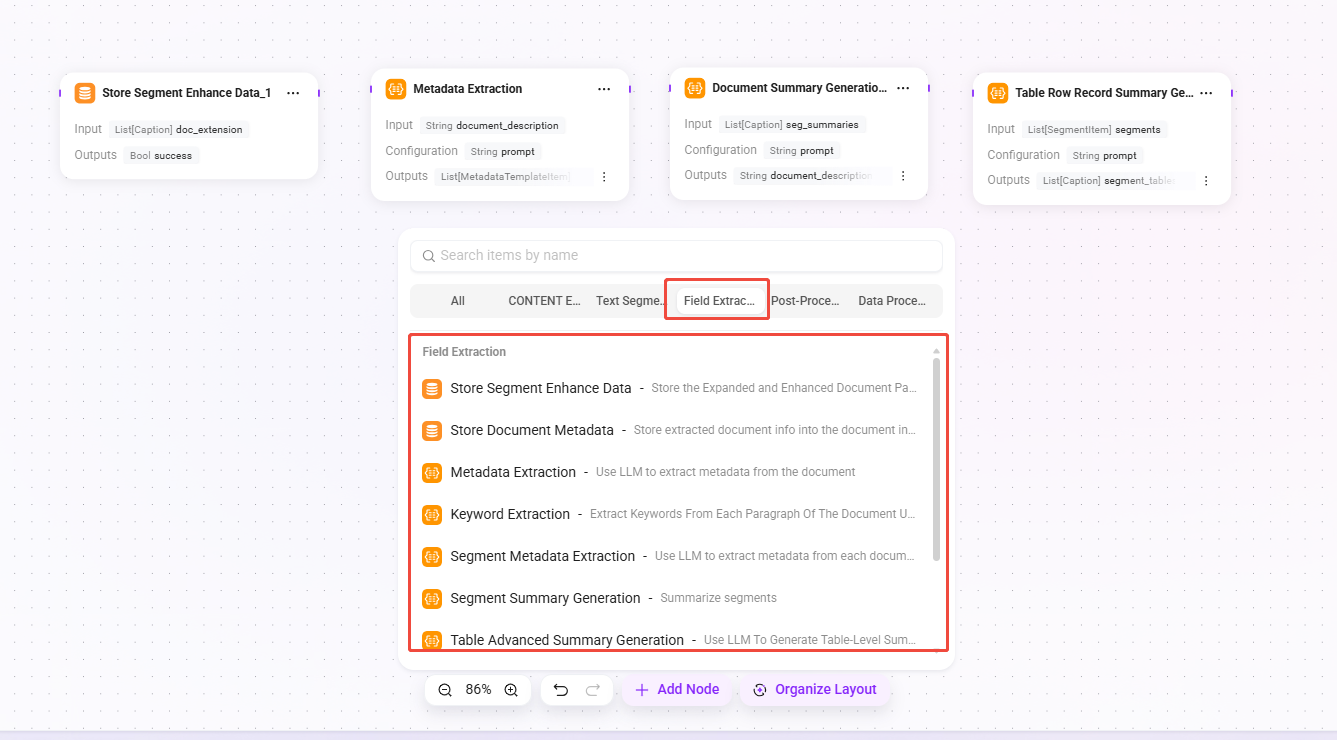
Field extraction nodes
Extract key information from document content or metadata to generate summaries, keywords, or structured fields.
| Node Name | Function Description |
|---|---|
| Store Paragraph Enhancement Data | Store extended enhancement data of document paragraphs into the document index. |
| Store Document Metadata | Store extracted document information into the document index. |
| Metadata Extraction | Use LLM to extract metadata from documents. |
| Keyword Extraction | Use LLM to extract keywords from each paragraph of the document. |
| Paragraph Metadata Extraction | Use LLM to extract metadata from each document paragraph. |
| Paragraph Summary Generation | Summarize paragraphs. |
| Advanced Table Summary Generation | Use LLM to generate table-level summaries and group-level narrative summaries. |
| Image Description Generation | Use image descriptions to enhance paragraphs. |
| Document Summary Generation | Summarize the entire document. |
| Table Row Record Summary Generation | Use table descriptions to enhance paragraphs. |
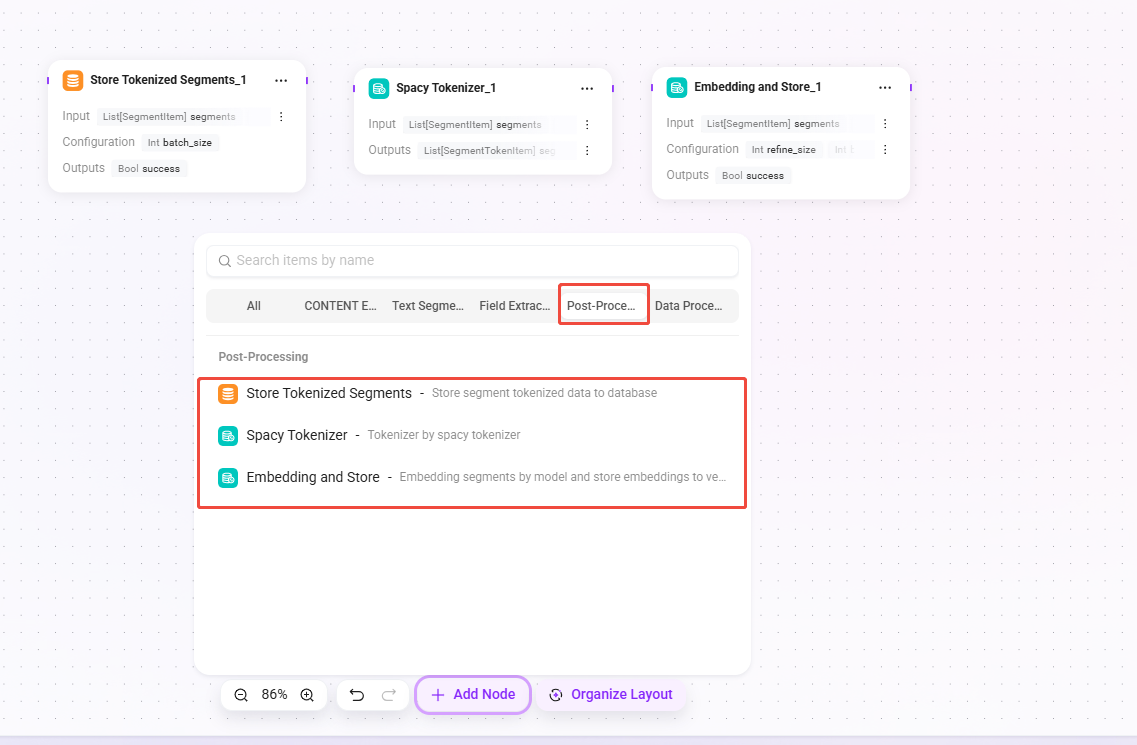
Post-processing nodes
Perform subsequent processing such as tokenization and vectorization on chunked text to complete preparation before indexing.
| Node Name | Function Description |
|---|---|
| Store Chunk Tokens | Store segmented token metadata into the database. |
| Tokenize Chunks Based on SpaCy | Use the SpaCy tokenizer for tokenization. |
| Vectorize Chunk Data and Store | Use a model to embed paragraphs and store the embedding vectors into the vector database. |
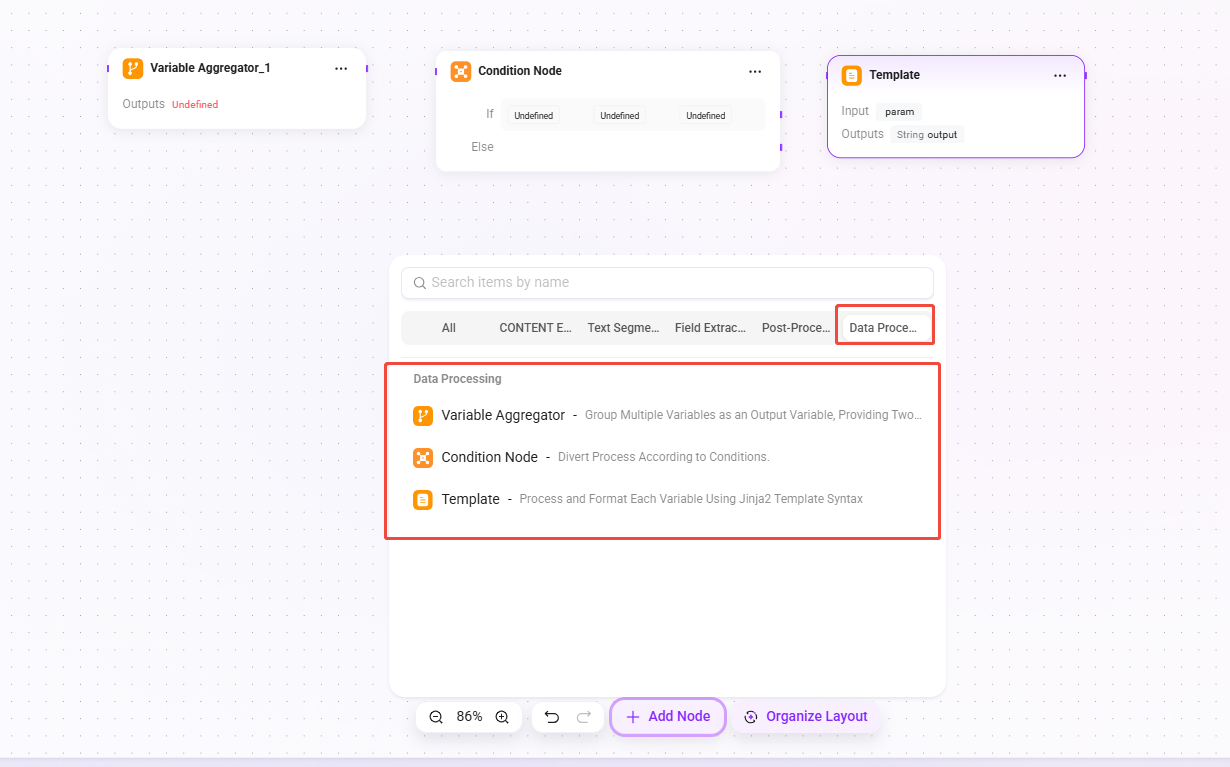
Data processing nodes
Provide workflow control and variable processing capabilities for building more complex preprocessing logic.
| Node Name | Function Description |
|---|---|
| Variable Aggregator | Group and aggregate multiple variables into output variables. Supports two strategies: "take the first non-empty value" and "merge into a list". Aggregation behavior is dynamically configured through set_output_mapping(). |
| Conditional Node | Perform branch control of the workflow based on conditions. The condition evaluation logic is handled externally by the pipeline engine, and the node itself does not produce output data. |
| Template | Use Jinja2 template syntax to process and format variables. |
Trial Run
After configuration is completed, you can verify whether the preprocessing workflow executes as expected through the trial run feature. The system supports uploading files locally or selecting files from the knowledge base for testing.
Note: To ensure testing efficiency, it is recommended that uploaded files do not exceed 5MB in size and 20 pages in length.
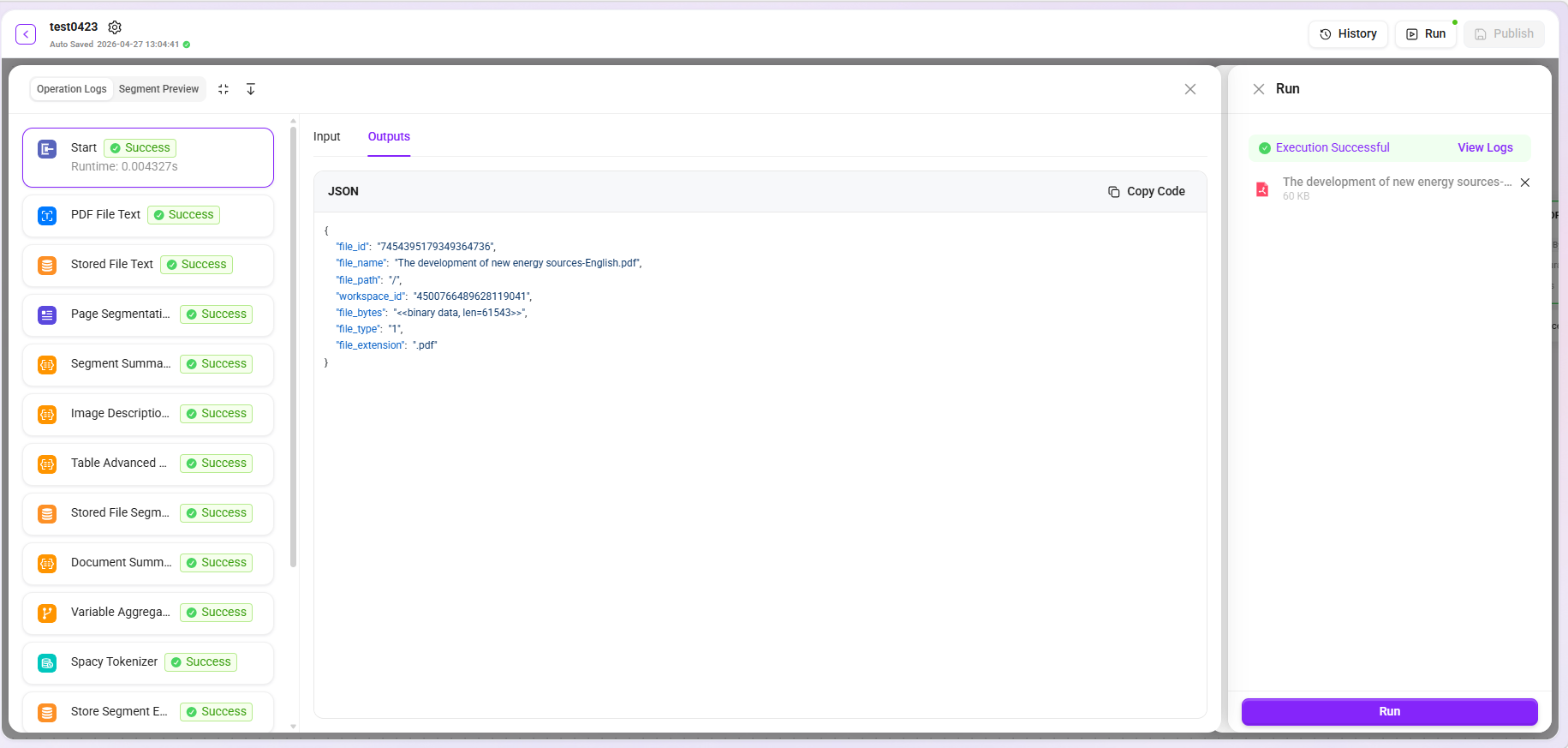
- View logs: Click "View Logs" to expand the detailed input and output content of each node, making it easier to troubleshoot issues node by node and accurately locate the specific stage where processing exceptions occur.
- Segment preview: Supports previewing processed text segments, allowing intuitive judgment of whether the effects of chunking, extraction, and other stages meet expectations.
- Data download: Due to display limitations, the preview area shows only the first 10 records by default. If complete data is needed, click the "Download" button to obtain all processing results.