Plugins
Plugins are the extension mechanism in RAG Pipeline, allowing users to implement customized data processing logic through custom Python code and uploading plugin packages. Plugins can be flexibly applied to the preprocessing or retrieval stages, meeting advanced customization needs in enterprise-level projects such as private algorithm integration, third-party service invocation, and API-based extensions.
Create a Plugin
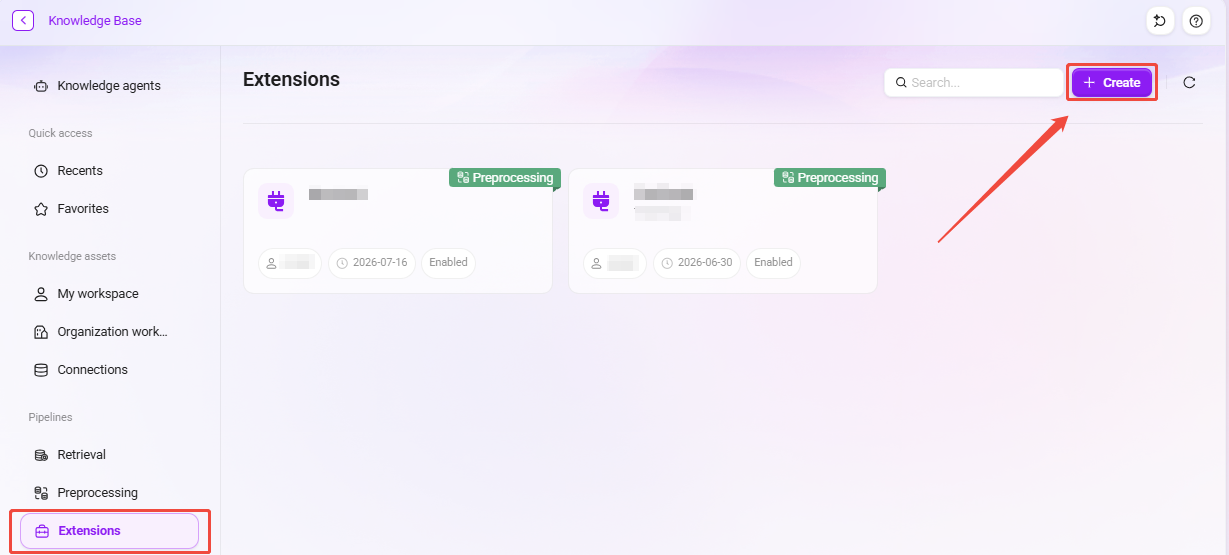
- Go to the Knowledge → RAG Pipeline → Plugins page.
- Click "Create" in the upper-right corner of the plugin page.
- In the creation method, select "Manually Create and Edit" or "Upload Local Plugin Package".
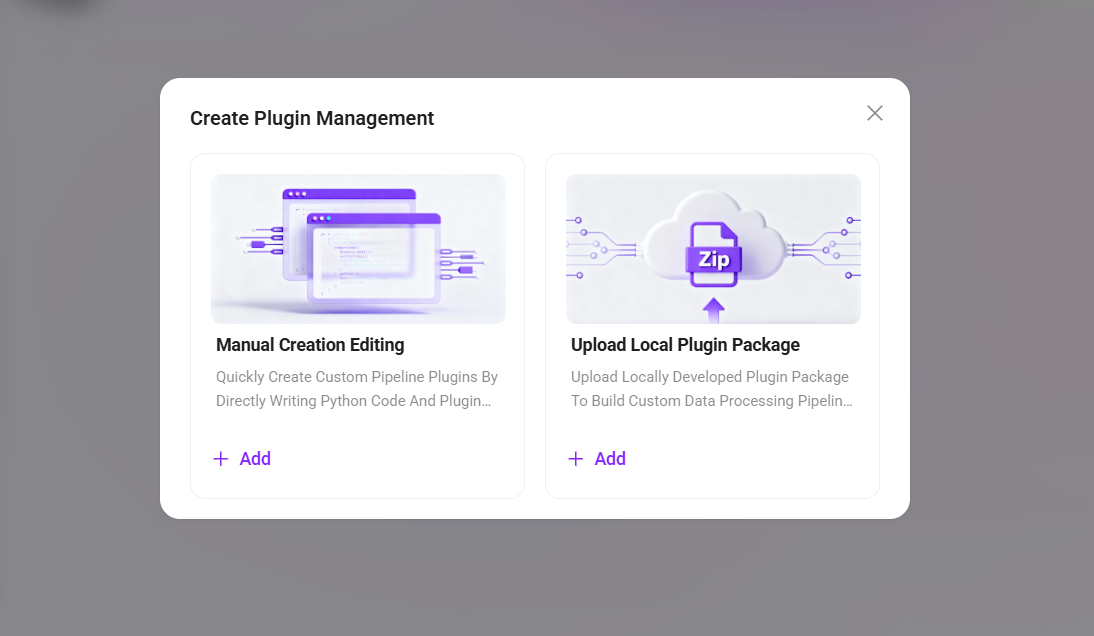
Manually Create and Edit
Directly write Python code and plugin configuration through the online editor to quickly create a custom Pipeline plugin.
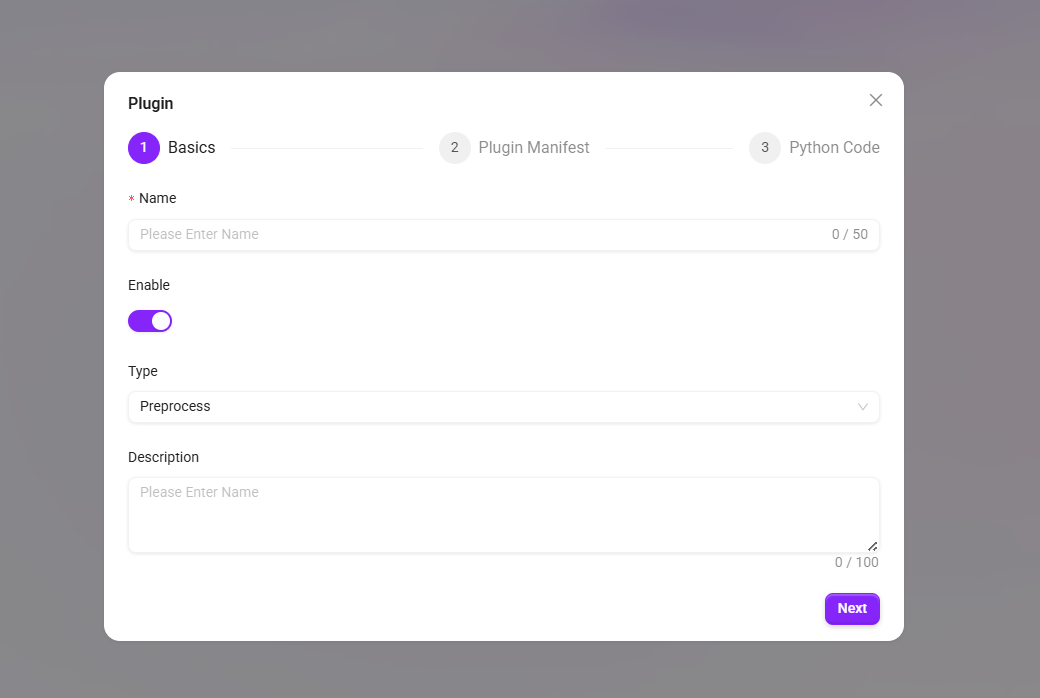
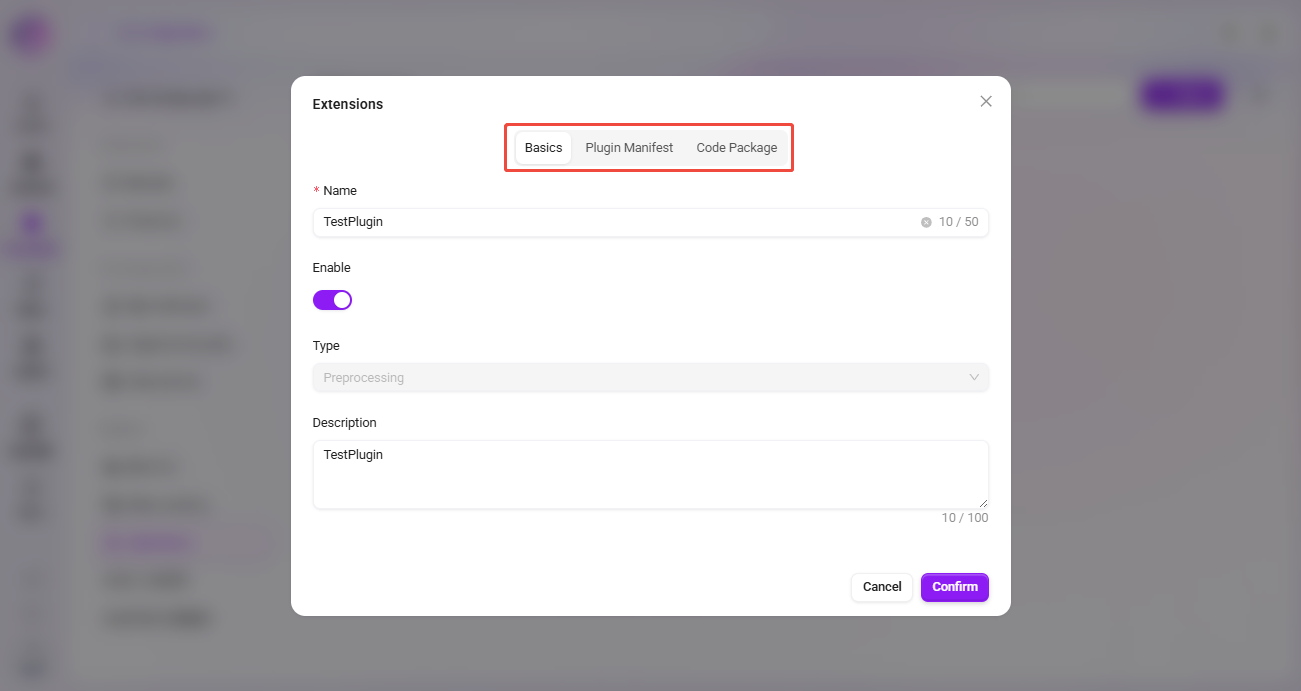
Fill in Basic Information
- Name: Enter the plugin name, no more than 50 characters.
- Enable: After checking, the plugin takes effect.
- Type: Select the applicable plugin scenario — Preprocessing or Retrieval.
- Description: Add a supplementary description of the plugin function, 100 characters.
Click "Next" to enter the plugin information configuration.
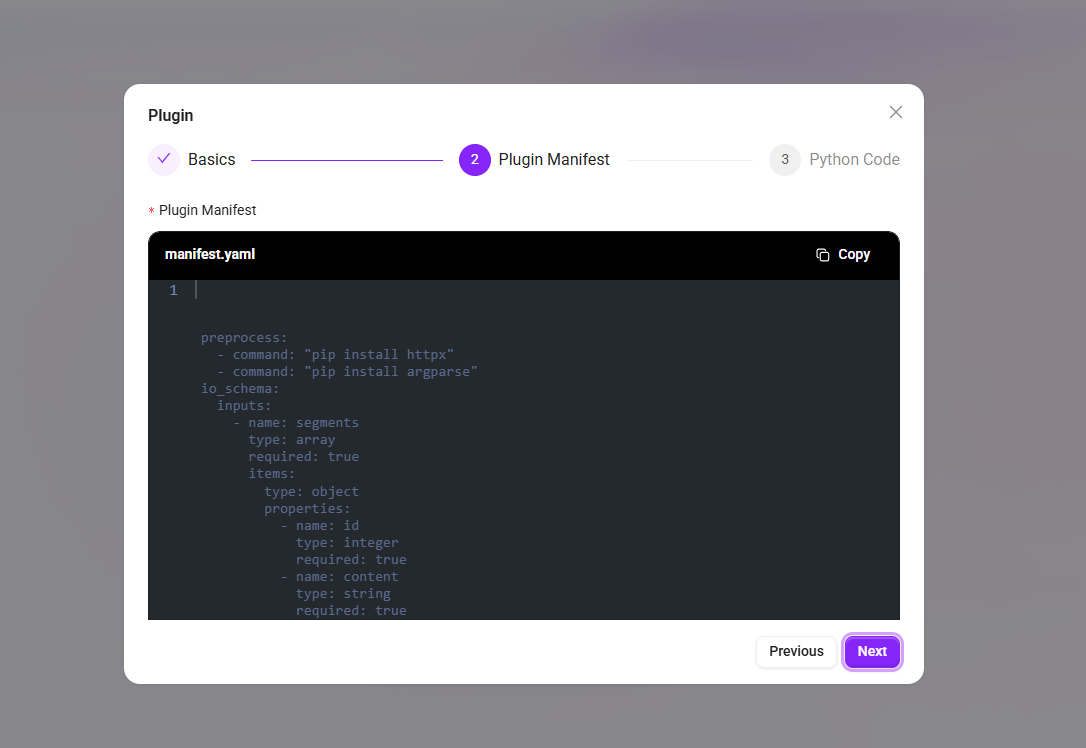
Plugin Information
Configure the plugin manifest file manifest.yaml, which is used to declare the plugin's dependency environment and input/output data specifications.
After completing the configuration, click "Next" to proceed to the code writing step.
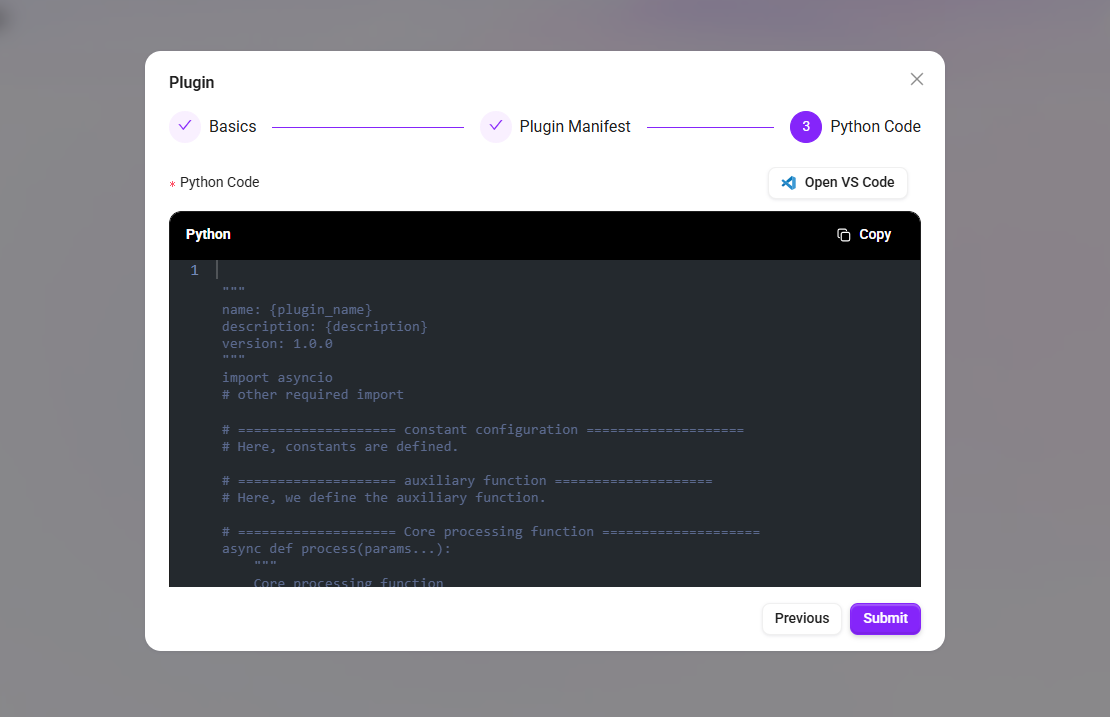
Python Code
Write the core processing logic of the plugin online. The editor provides a basic code framework, and users need to implement specific business processing functions based on it, process the input data, and return the result. After the code is saved, it will serve as the plugin execution body and be invoked when the plugin Pipeline runs.
Upload Local Plugin Package
Suitable for plugin projects that have already been developed offline, allowing quick integration into the platform by uploading a compressed package.
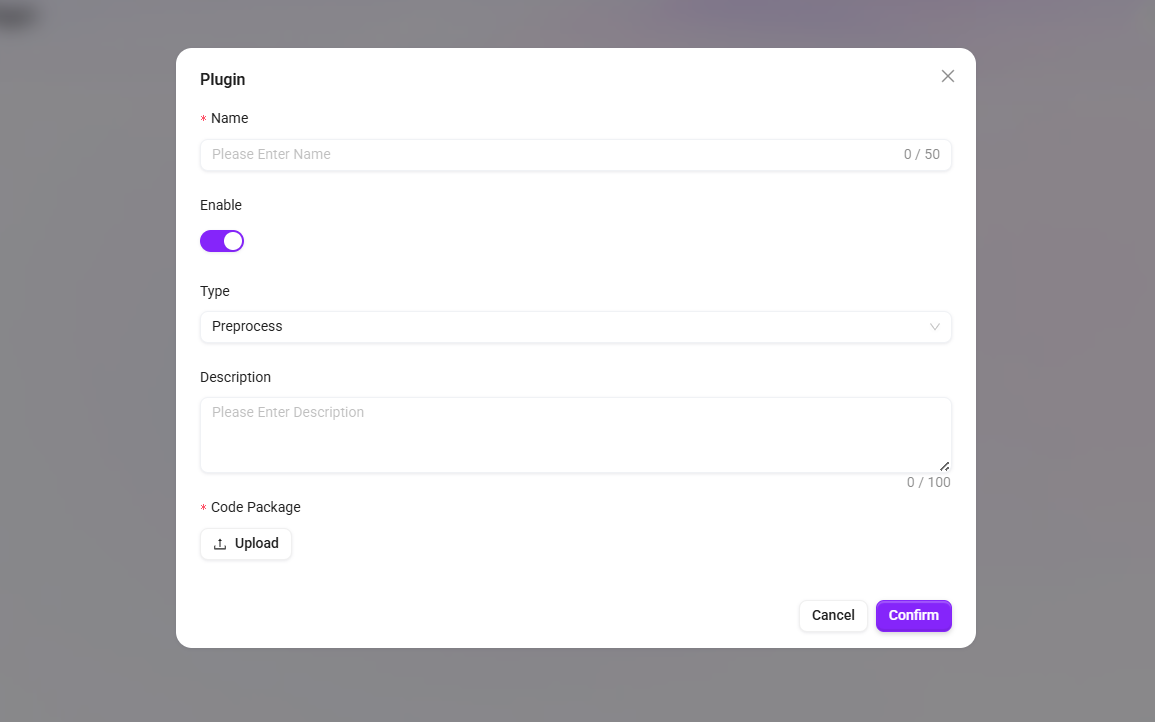
Fill in the following basic information:
- Name: Plugin name.
- Enable: Set whether to enable the plugin immediately.
- Type: Select Preprocessing or Retrieval.
- Description: Add a functional description of the plugin.
- Code Package: Click the upload area to select a local compressed package file.
Click "Confirm" to complete the upload. The system will automatically parse the plugin package and complete registration.
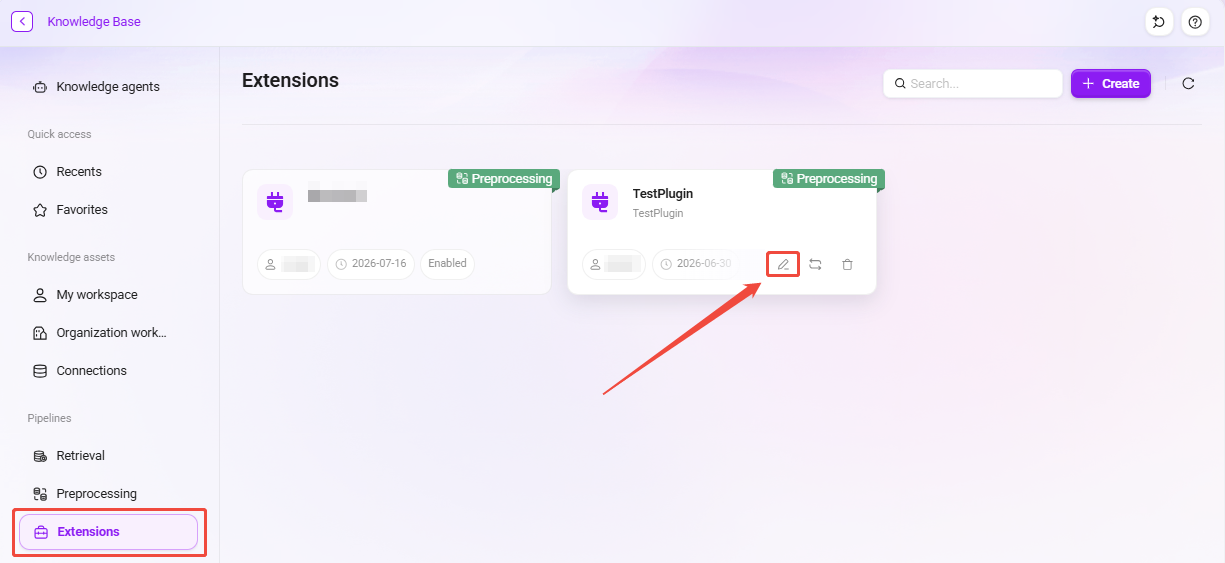
Plugin Card
Hover the mouse over the plugin card to display the Edit and Run action buttons.
Enter the plugin details page to view or modify the three configuration items: Basic Information, Plugin Information, and Code Package. For manually created plugins, online code editing is supported; for uploaded plugin packages, you can re-upload to replace the original package file. Changes must be saved to take effect.
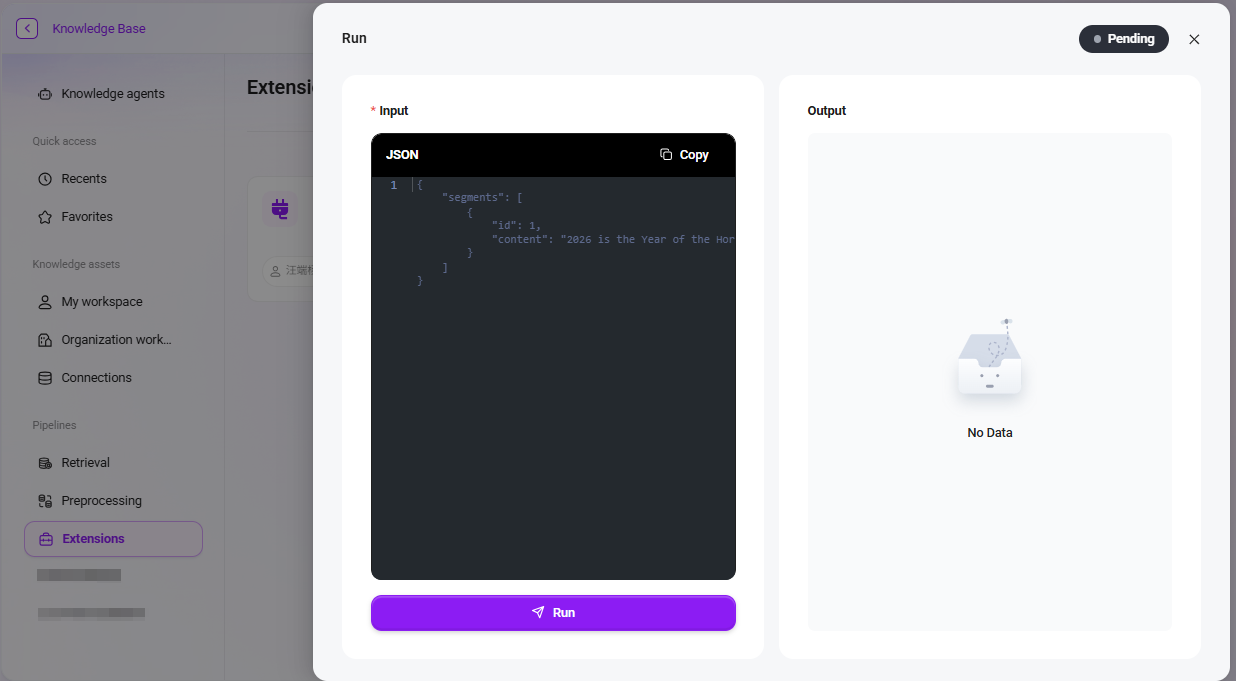
Run Test
The run function provides an independent debugging environment for plugins.
- Input Area: Enter test data in JSON format that conforms to the structure defined by the plugin
io_schema. - Output Area: After clicking the run button, the system will execute the plugin code and display the returned result here. If execution fails or no data is returned, the interface will provide the corresponding prompt.