APP
In AI Studio, Application is a collection of intelligent tools for business users, helping them quickly utilize AI capabilities without complex configuration. Currently, the platform includes two highly practical AI applications: Deep Research and AI Translation. These two apps cover common business needs from information research to document translation, truly integrating AI into daily work.
Deep Research – Intelligent Research Assistant
Function Positioning: Provides an end-to-end automated research solution from question posing to deep insights.
Main Purpose: Deep Research is an intelligent assistant capable of deep information mining and comprehensive analysis. You only need to input a research topic or specific question, and the system will automatically perform web-wide information retrieval, content analysis, cross-validation, and summarization, ultimately outputting a well-structured, well-argued professional research report, transforming traditionally tedious research work into an efficient automated process.
1. Launch the Application
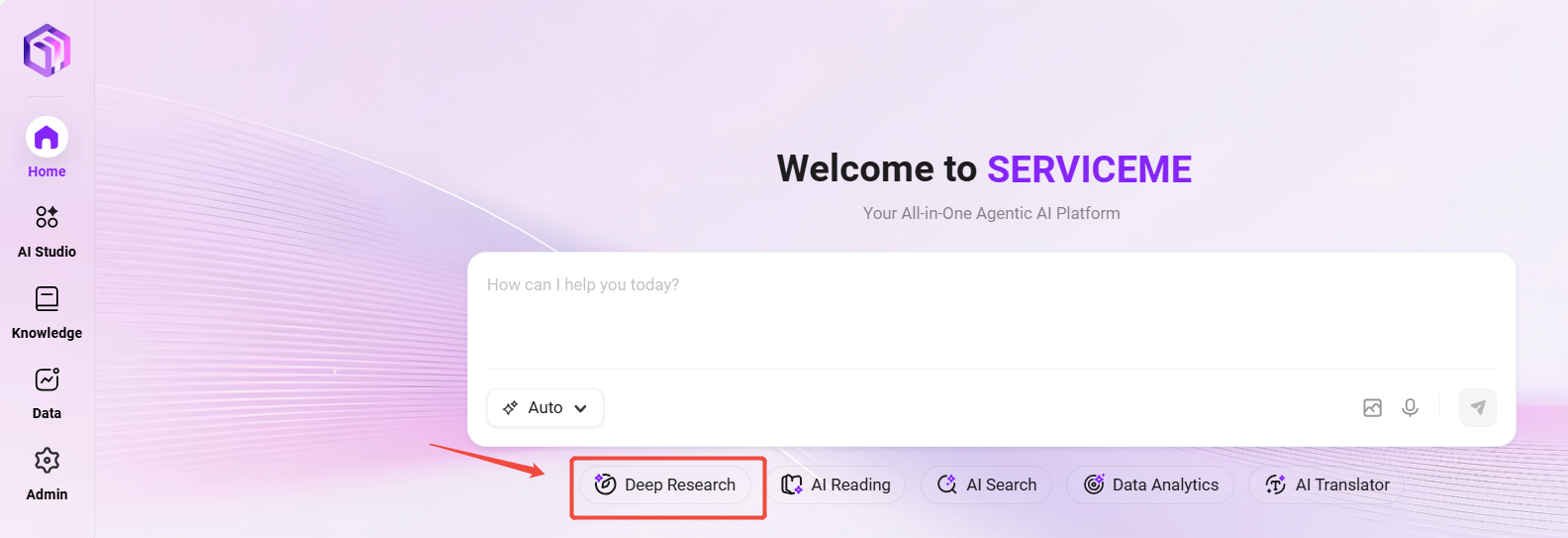
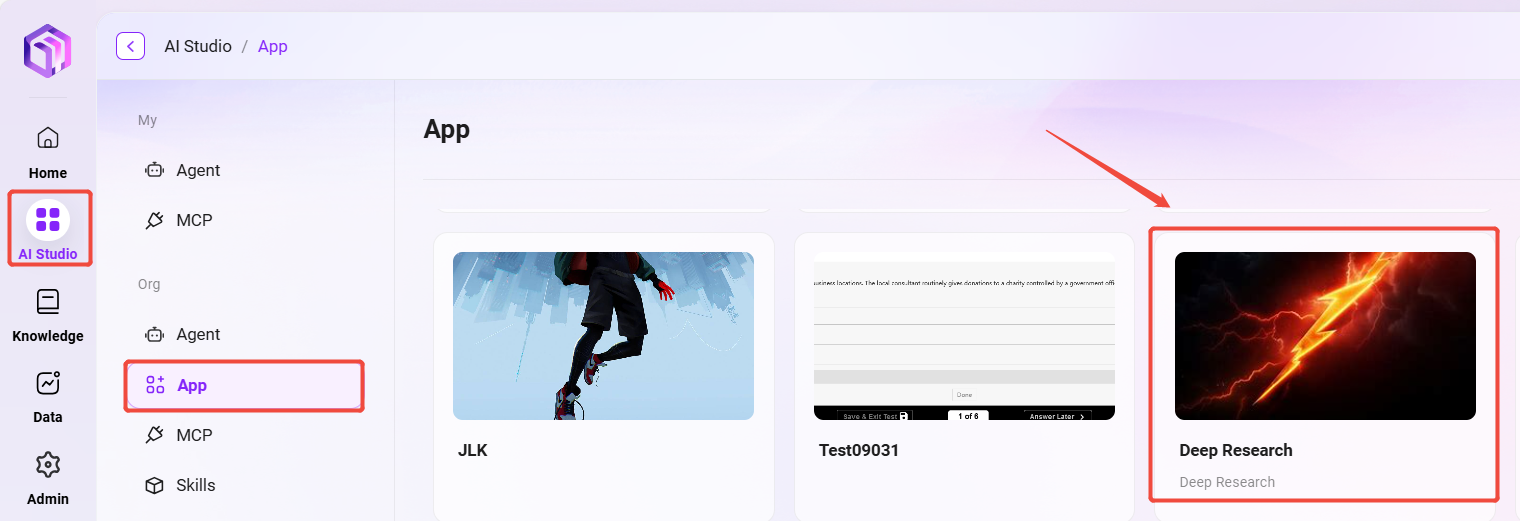
You can open Deep Research in two ways:
- Method 1: On the Home, click Deep Research below the input box.
- Method 2: Enter AI Studio, find and click the "Deep Research" application card on the APP page.
2. Initial Configuration
💡 Tip:
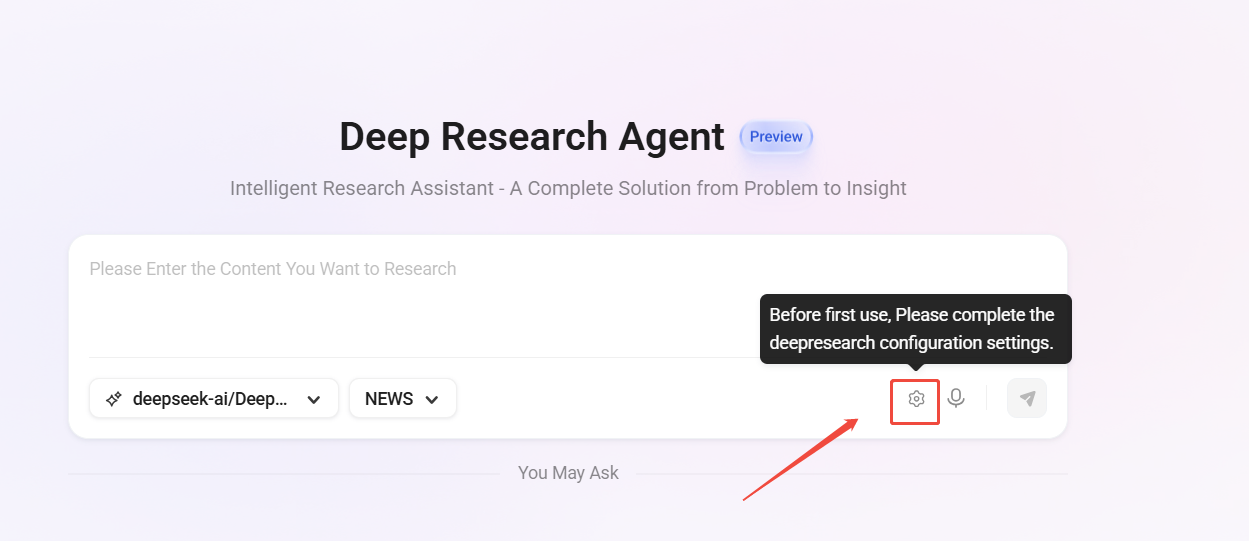
- Before first use, complete the necessary configuration settings (items marked with * are required).
- After each configuration page is completed, be sure to click the Save button to apply the settings.
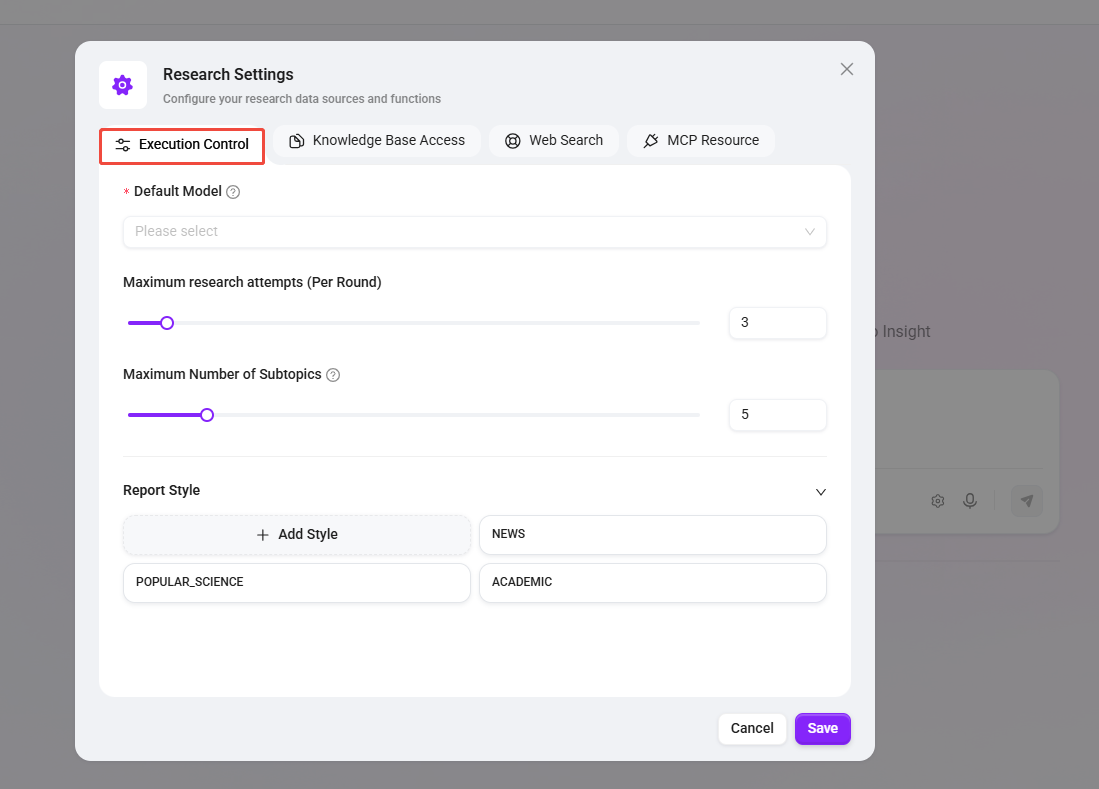
① Execution Control
Configure core execution parameters for research here.
- Default Model: Select the core large language model used for research (Deep Thinking models are currently not supported).
- Maximum Research Iterations (per round): Set the number of iterations for in-depth exploration of the topic in a single round of research (range 1–30, default 3).
- Maximum Number of Subtopics: The system decomposes your research topic into a specified number of sub-directions for parallel research (range 1-30, default 5).
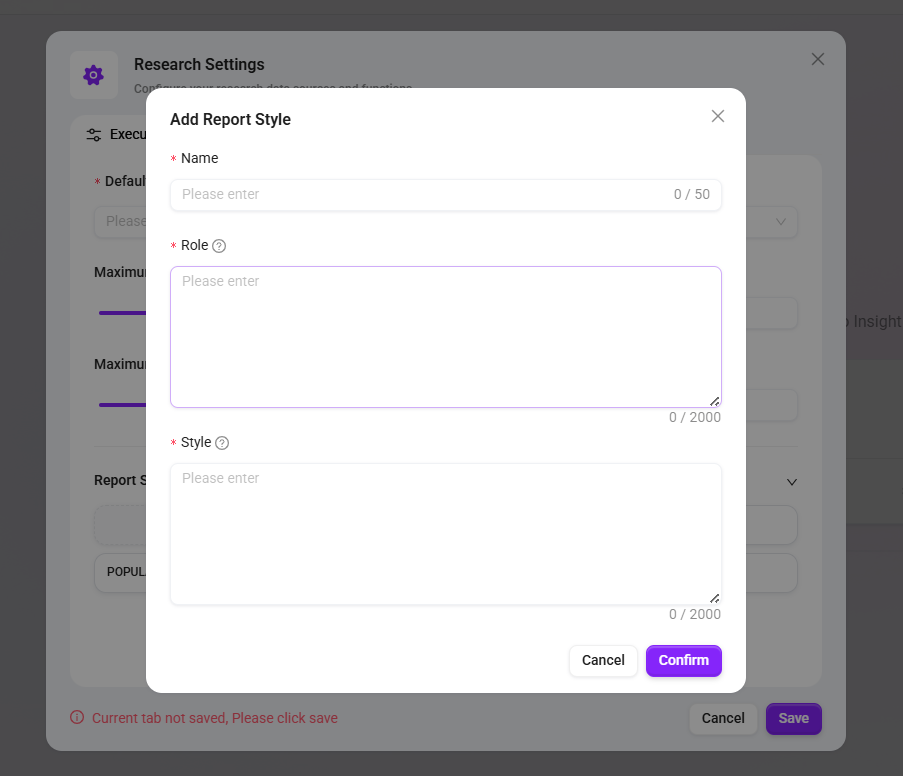
- Report Style: Preset report format and writing style, options include "News", "Academic", "Popular Science", or Custom Addition.
- Custom Style: You can define the following:
- Name: Style name (within 50 characters).
- Role: Simulate the characteristics of a report writer, for example: professional, rigorous, concise., within 2000 characters.
- Style: Define report structure, For example: Overview, Background, Value, Summary, within 2000 characters.
- Custom Style: You can define the following:
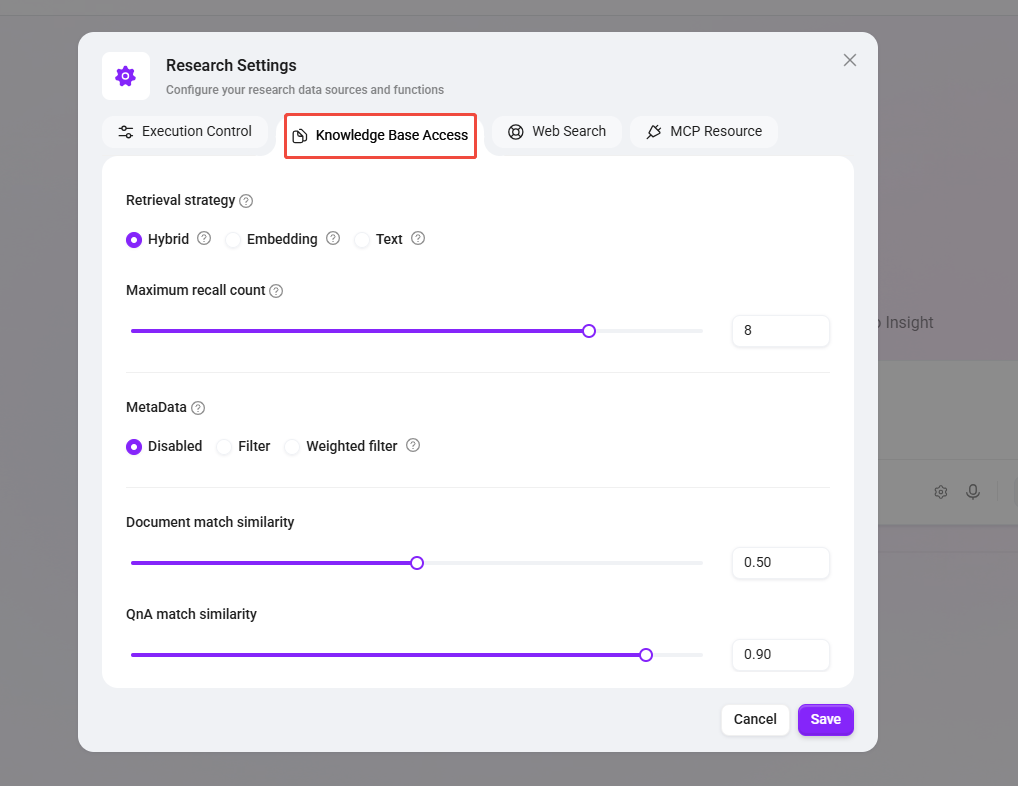
② Knowledge Base Access
Configure how to retrieve information from your knowledge base to enhance research depth.
- Add Knowledge Base: Select knowledge bases available for reference in this research.
- Retrieval Strategy: Supports Hybrid, Embedding, and Text.Knowledge retrieval is the method of accessing information from a knowledge base. Employing different retrieval strategies enables more effective location of correct information, thereby enhancing the accuracy and usability of generated answers.
- Maximum recall count: The maximum paragraph count parameter determines the amount of content returned from the knowledge base to the large model. The higher this value, the richer the relevant content returned (range 0-10, default 8).
- MetaData: Filters recalled fragments during document retrieval to reduce noise and improve data quality and processing efficiency.
- Disabled: No filtering.
- Filter: Filter according to rules.
- Weighted filter: Perform source data filtering on raw data based on pre-assigned weight values, retaining high-weight data and rejecting low-weight data to enhance the quality and efficiency of subsequent analysis.
- Document Match Similarity: Set the similarity threshold for document vector retrieval (range 0-1, default 0.5).
- QnA match similarity: Set the similarity threshold for Q&A pair retrieval (range 0-1, default 0.9).
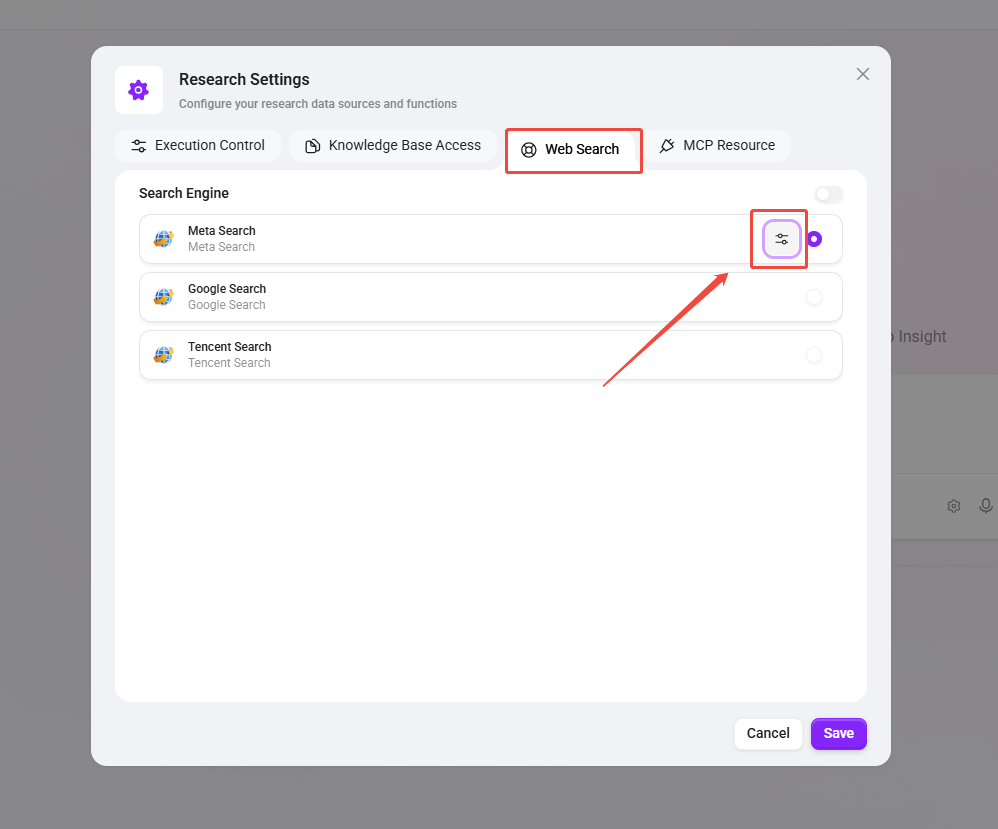
③ Web Search
Configure whether to enable and how to call web search capabilities.
- Built-in Default Skills: When enabled, you can select one from Mitsearch, Google Search, or Tencent Search as the default search engine.
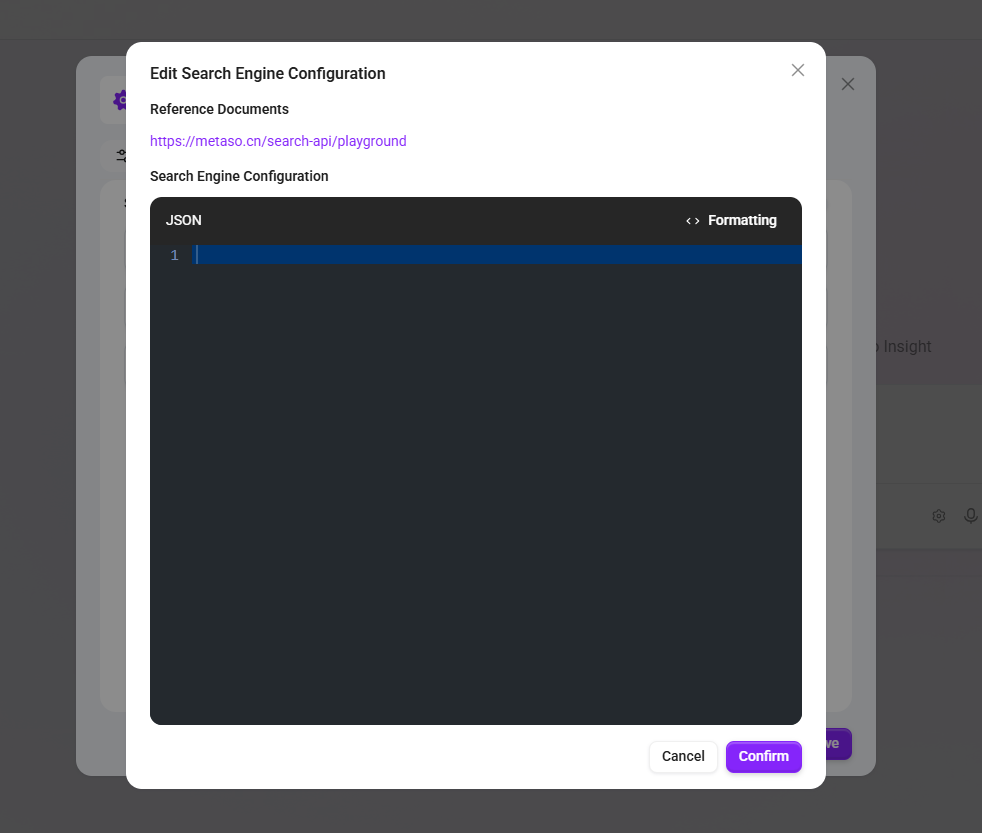
- Edit Configuration: Click the
 button to configure connection parameters like the API key for the selected search engine in detail.
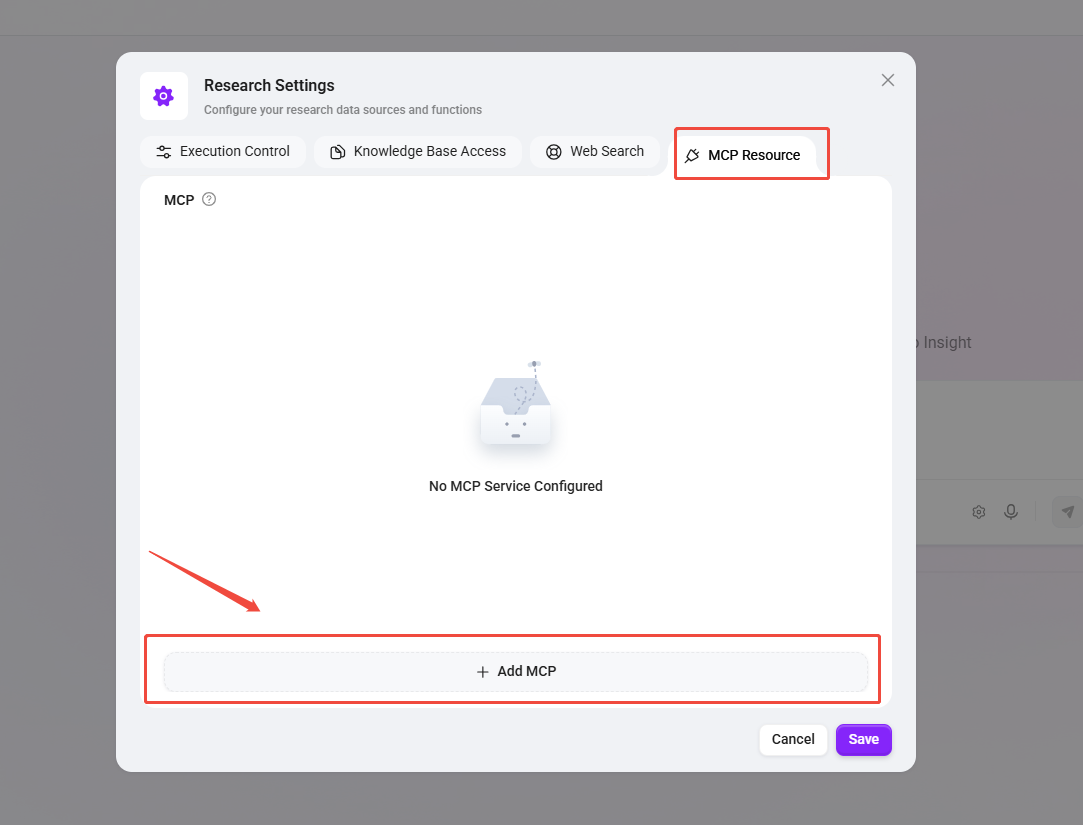
④ MCP Resources
Configure external tools or services available for use during the research process.
- Description: In the current version, MCP Services are only used during the information retrieval stage. Whether to use a specific MCP Service is determined by the LLM.
- Operation: Click the Add MCP button to add a new MCP service resource.
3. Input Research Topic
After completing the configuration, you can begin your research.
-
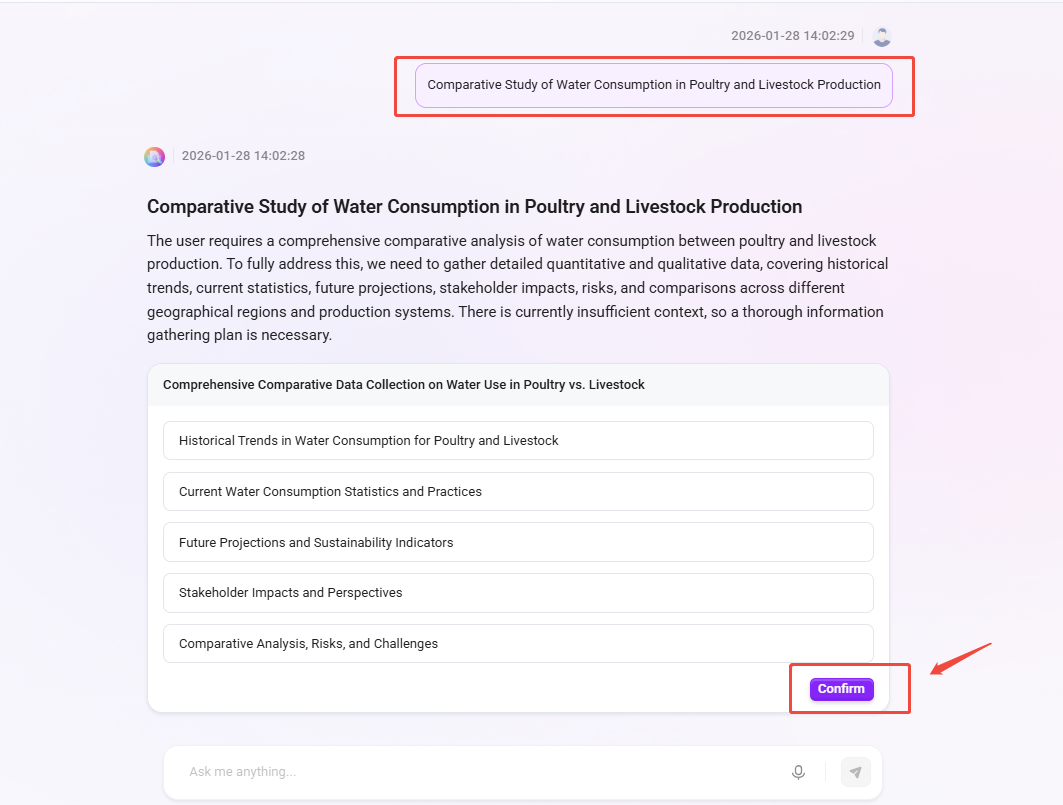
Enter the topic or question you want to explore in the input box, e.g.,
"Comparative Study of Water Consumption in Poultry and Livestock Production". -
The system will pre-analyze and display the main directions the research will cover, typically including:
- Background information and research status
- Core conclusions and comparative points
- Potential industry trends and extension directions
-
After confirmation, click the Confirm button, and the system will officially start the automated research process.
4. View and Obtain Report
The system will generate the report in the following steps. You can view the progress and details in real-time:
- Task Planning: View the research subtasks decomposed by the system.
- Basic Information Gathering: View real-time usage statistics from various channels, including: Web Search, Knowledge Base Retrieval, MCP Tools, AI Thinking.
- Generate Report: View the final complete structured report. Supports Download in formats including: PDF, Word, Markdown.
- Tip: Due to online environment security policies, some images in the report preview may not display normally, but reports downloaded locally are not affected.
- Task Statistics: View an overview of this research, including Number of Tool Calls, Total Duration, Tokens Consumption.
5. Review Learning History
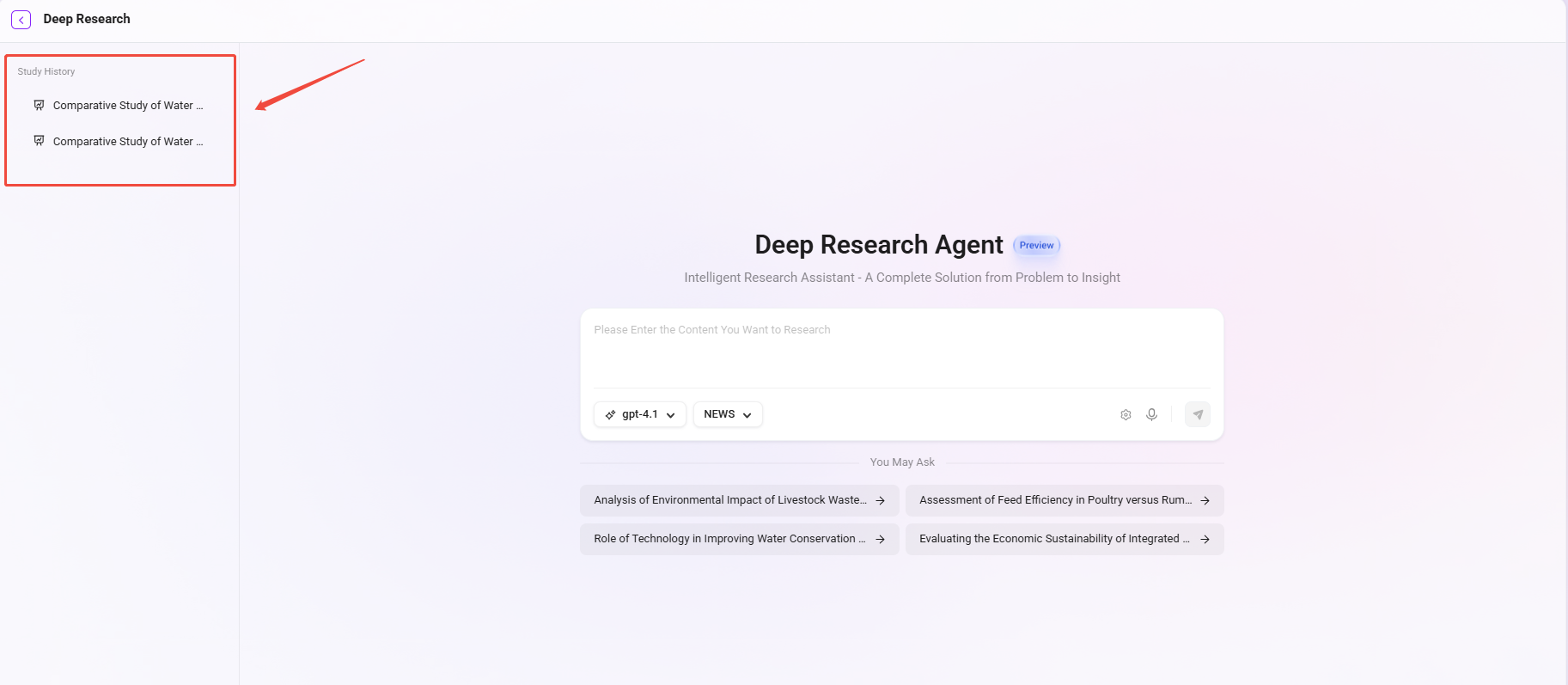
All completed research reports are automatically saved. You can view and review past research reports and results at any time in the "Learning History" panel on the left side of the Deep Research page.
Typical Application Scenarios:
- Market and Strategic Analysis: Quickly conduct industry trend, competitor dynamics, or market opportunity research.
- Sales and Customer Support: Efficiently prepare customer materials, project proposals, or professional Q&A content.
- R&D and Knowledge Management: Track technological developments, research academic frontiers, or integrate domain knowledge.
Core Usage Advantages:
- Process Automation: Replaces tedious manual searching, reading, and organizing work, shortening the research cycle from days/hours to minutes.
- Structured Output: Report conclusions are well-organized with clear arguments, making it easy to integrate directly into briefings, proposals, or decision-making materials.
- Professional Content: Generated content has natural language, accurate terminology, and meets professional requirements for business and academic scenarios.
AI Translation – Intelligent Translation Assistant
💡 Tip: This feature is only supported in V4.1 and later versions.
Function Positioning: Professional, efficient multilingual document translation tool.
Main Purpose: AI Translation helps users quickly complete cross-language document translation and supports glossary application to ensure more accurate translation in specialized fields.
Usage:
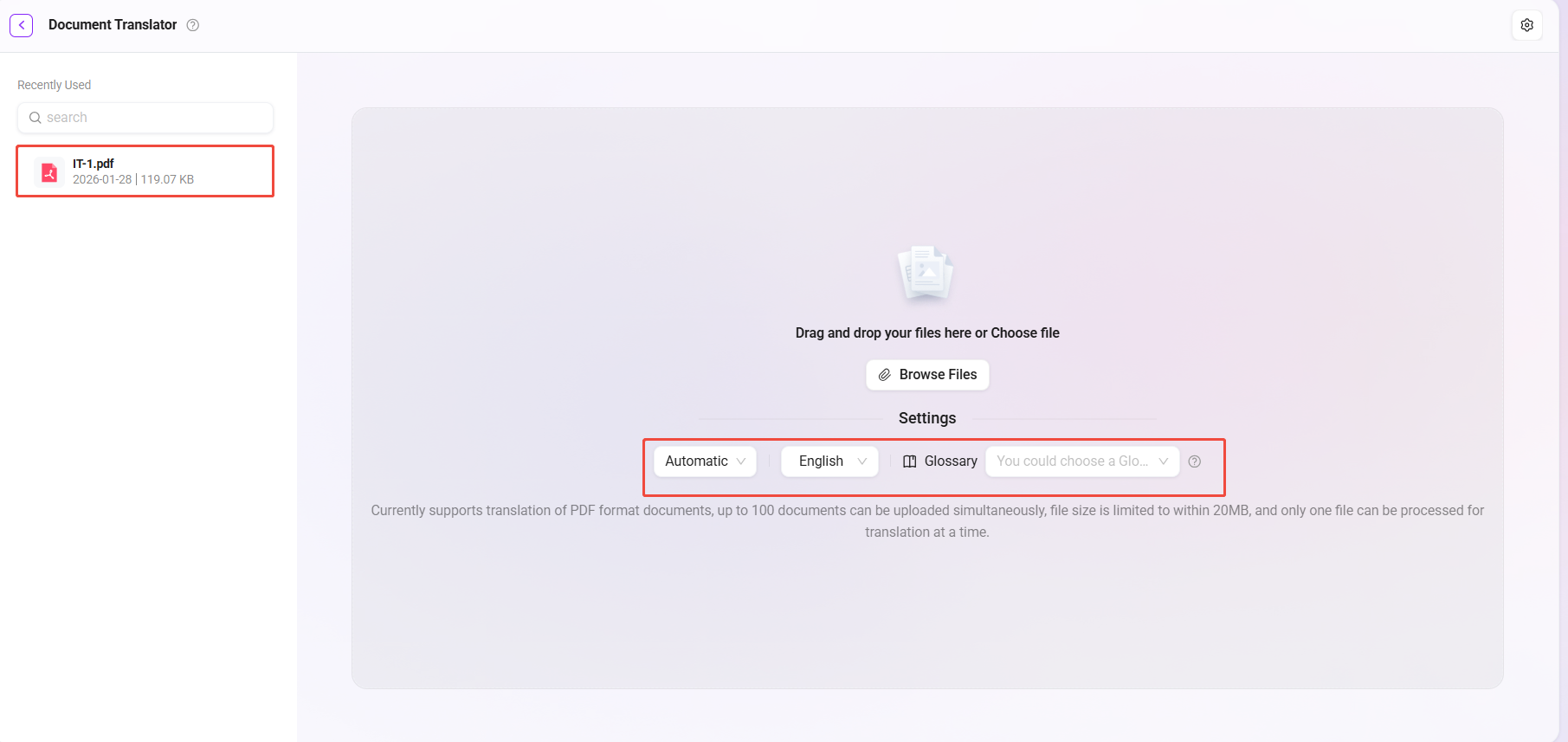
- In the APP page of AI Studio, find and open "AI Translation".
- Select the target language (e.g., Chinese, English, French, etc.).
- Select or upload a Glossary according to business needs:
- Different industries (such as medical, manufacturing, finance, etc.) have specific professional terms.
- Selecting the corresponding glossary can significantly improve translation accuracy and consistency.
- Upload the documents that need translation:
- Currently only supports PDF format documents; PDF scanned copies and encrypted documents are not yet supported for translation.
- Up to 100 files can be uploaded simultaneously.
- Each file size limit is 20MB.
- Currently, translation of image content is temporarily not possible.
- The system will process one file at a time to ensure translation quality.
- To maintain the structural consistency between the translation and the original, the translation (e.g., English translation) may have some paragraphs with automatically adjusted font sizes or overlapping overflow.
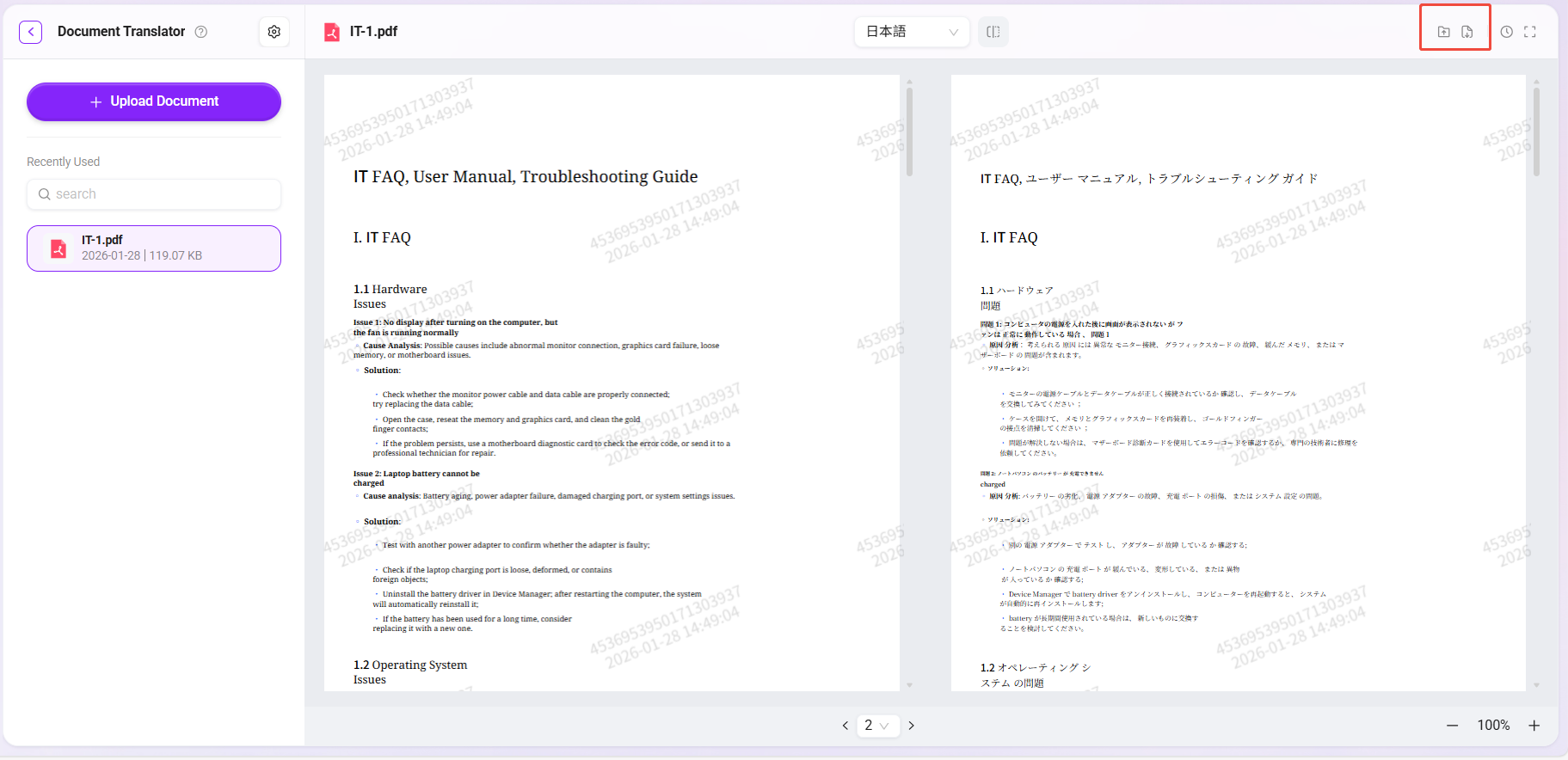
- After translation is complete, the page will display a side-by-side view of the original and translated text, allowing users to intuitively check the translation results.
- Users can choose to:
- Download the translation results to local storage.
- Or directly upload to the knowledge base for team sharing and subsequent AI use.
Applicable Scenarios:
- International business communication: Quickly translate quotations, contracts, emails, or customer documents.
- Marketing and content teams: Batch translation of multilingual marketing materials and localized promotional copy.
- Internal knowledge sharing: Translate foreign language documents uniformly and incorporate them into knowledge base management.
Usage Advantages:
- Professional and Accurate: Combined with glossaries, ensures translations meet industry standards.
- Visual Comparison: Original and translated texts are clear at a glance, facilitating manual review.
- Knowledge Integration: Translated files can be directly stored in the knowledge base, providing support for subsequent AI knowledge Q&A.
Summary
Whether you want to quickly obtain research insights or efficiently complete multilingual document translation, these two apps in AI Studio – Deep Research and AI Translation – can help business users significantly improve efficiency in daily work, making AI a true productivity tool.