Publishing Agents and MCPs
On the SERVICEME platform, users can first create personal Agents or MCPs, and after completing configuration and testing, publish them as organization-level applications for convenient sharing and use by team members.
Publishing an Agent
1. Create a personal Agent
In SERVICEME, users can create a personal Agent in the following three ways:
- Basic creation: Start from a blank template and manually configure the agent’s name, role, instructions, and knowledge sources;
- Workflow creation: Use visual process design to connect multi-step operations into an automated workflow;
- Share code creation: Quickly duplicate an existing Agent by entering another Agent’s share code.
2. Publish as an organization Agent
Once a personal Agent has been fully configured and verified as usable, it can be published to the organization for unified team access and management:
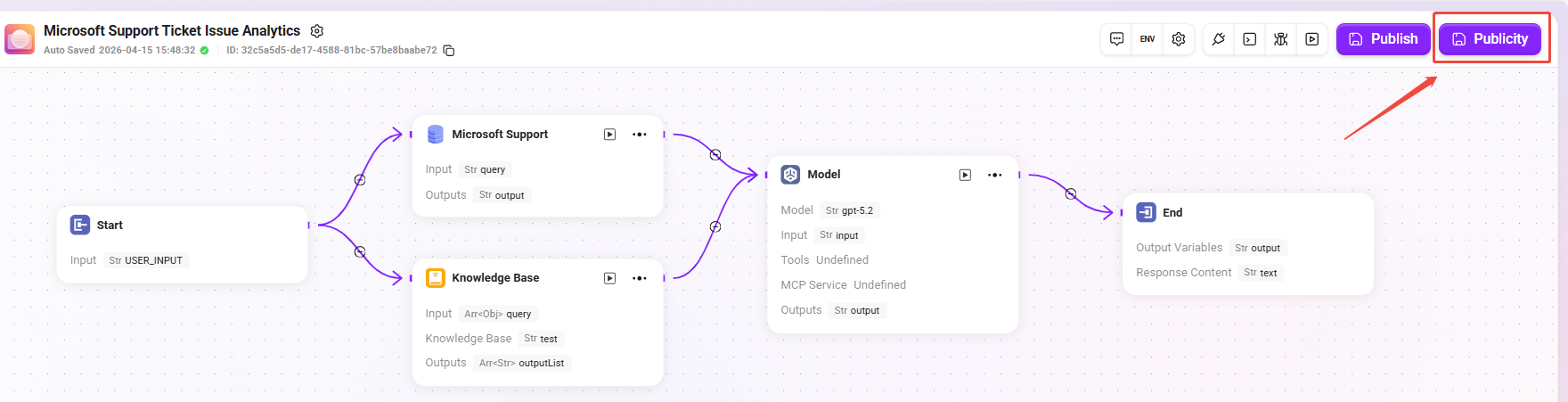
- Go to the target Agent’s configuration page;
- Click the “Public” button in the upper-right corner;
- The system will prompt for publishing confirmation. After confirmation, the Agent will become an organization Agent.
3. Permissions and access instructions
After an Agent is published to the organization, an administrator must configure its access permissions in the backend.
Only authorized members can use the Agent in the organization environment, ensuring security and access control.
Typical application scenarios:
- Publish a personally built sales assistant or data analysis agent to the entire sales team;
- Publish an automated approval Agent for shared use by the finance or HR department.
Publishing an MCP
1. Create a personal MCP
In the personal workspace, users can create and test a complete and usable MCP,
a process typically used to enable cross-system collaboration or complex automation tasks.
2. Publish as an organization MCP
Once the MCP is running stably, it can be published as an organization MCP so that other users can also reuse the automation process:
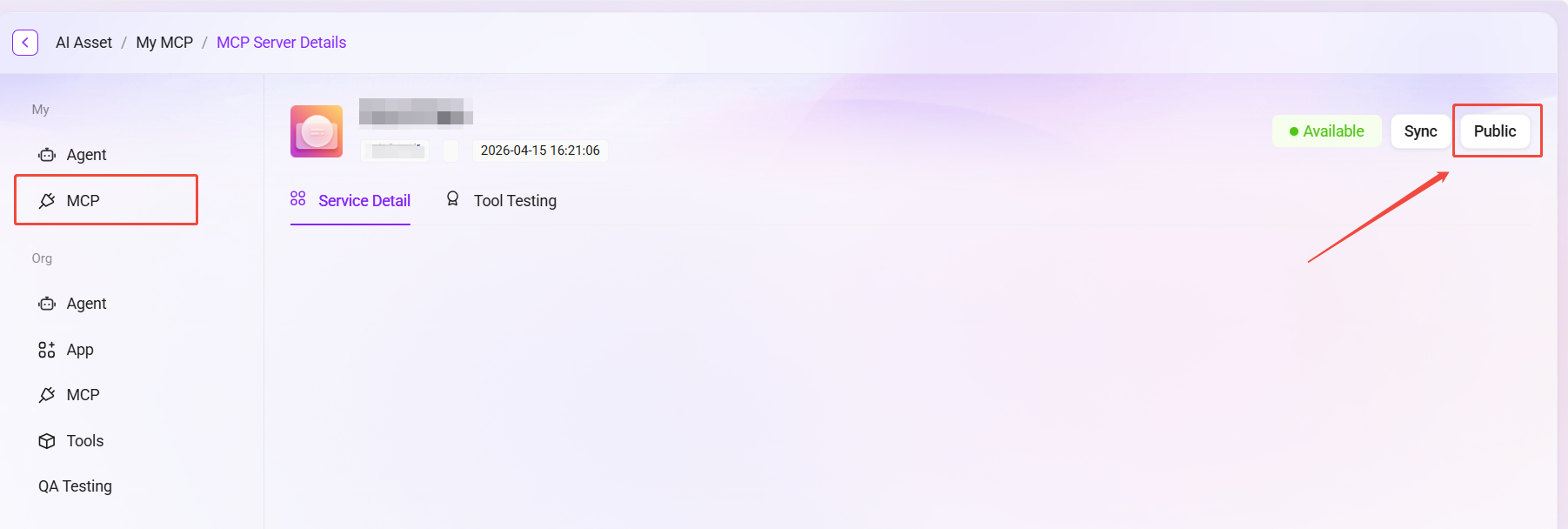
- Open the personal MCP page;
- Click the “Publish” button in the upper-right corner;
- After confirming the publishing action, the MCP will be synchronized to the organization side.
3. Permissions and access instructions
A published MCP also requires an administrator to grant usage permissions.
Administrators can assign access scope by department or user group to ensure that automation tasks are executed only within compliant boundaries.
Typical application scenarios:
- Publish an automated report generation process for use by the data department;
- Publish a knowledge synchronization or translation process for use by the content operations team.
Through the above methods, users can achieve a complete process in SERVICEME from personal ideas to organization-level applications,
allowing intelligent agents (Agents) and automation processes (MCPs) to truly integrate into the enterprise collaboration system and improve overall efficiency.