Basic Agent Creation
Select Agent Type
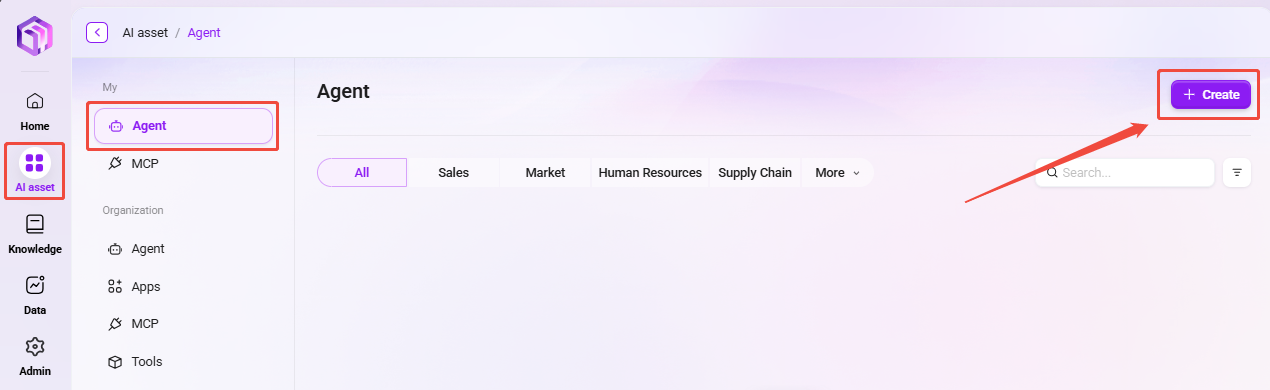
In the upper-right corner of the AI Asset page, click the "Create" button and select Basic Agent as the agent type.
Creation Steps
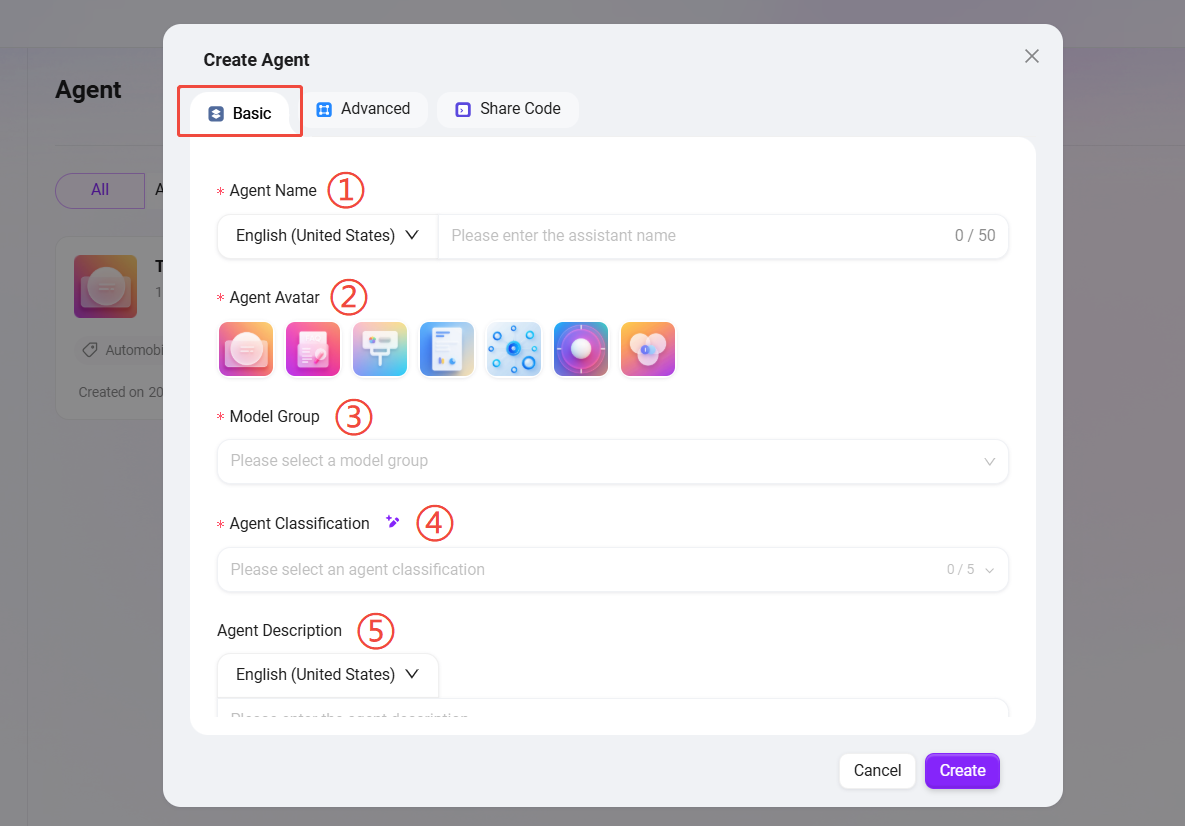
In the creation popup, fill in the following basic information:
① Agent Name: Enter the name of the agent as its identifier (within 50 characters).
② Agent Avatar: Select one from the system's default avatars (custom avatar upload is not supported yet).
③ Model Group: Configure an appropriate model group for the agent.
④ Agent Category: Select the group where the new agent belongs (up to 5 can be selected).
⑤ Agent Description: Enter a brief description explaining the agent’s functions and use cases.
Click "Create". After the agent is created, you will enter the basic orchestration agent configuration page. Once configured and published, it can be put into use.
💡 Tip: One-click auto-completion for internationalized content is available here, enabling fast multilingual translation adaptation for agent-related text. Supported languages include: Simplified Chinese, Traditional Chinese, Japanese, English, German, and Korean.
Agent Configuration
Enter the Configuration Page
You can enter the detailed configuration page of an agent in either of the following two ways:
- Method 1: After creating a new agent in AI Asset, the system will automatically enter its configuration page.
- Method 2: In the agent list, hover your mouse over the target agent card and click the appearing "✏️" icon to enter the configuration page.
Description of Core Configuration Items
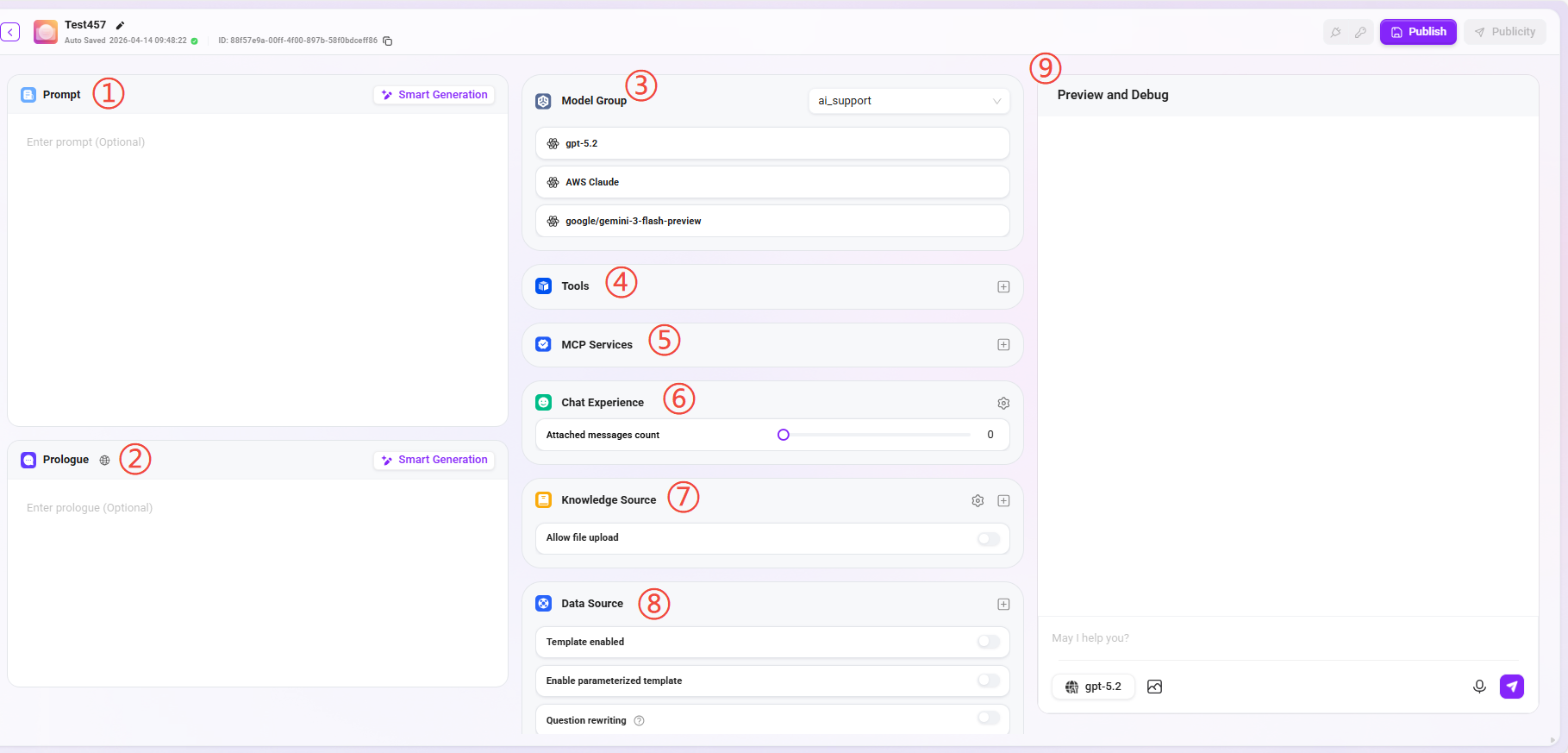
The configuration page contains the following core modules:
① Prompt: Enter the agent prompt, or use intelligent generation based on existing prompts.
② Opening Message: Enter the agent opening message, or use intelligent generation based on the prompt or an existing opening message.
💡 Tip: When the input for prompts or opening messages exceeds about 2000 characters, the system will display the message "Too much input content may affect performance", but it will not prevent continued input. It is recommended to keep the content concise to ensure optimal performance.
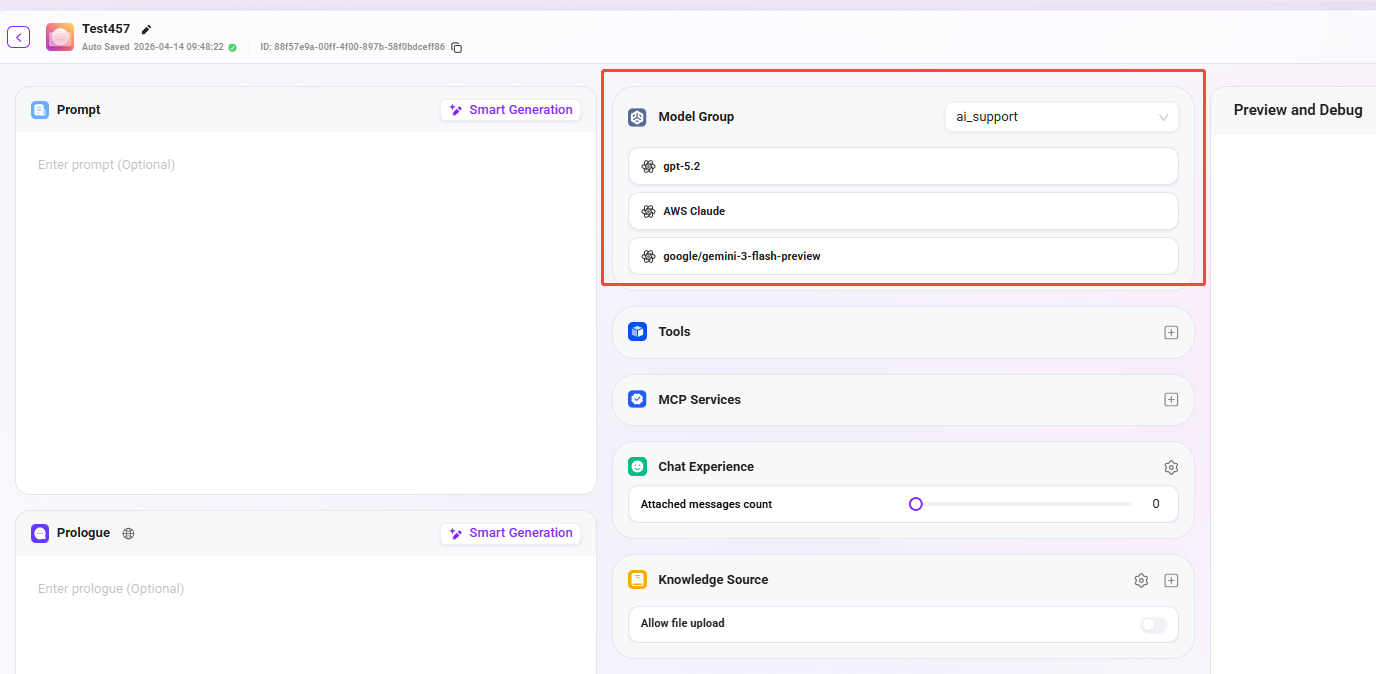
③ Model Group
- Function: Click "+" to add or switch a configured model group for the agent. A model group can contain multiple different AI models.
- Management Notes: Model groups must first be created and configured by an administrator in "Management > Model Management > Model Groups". Only after multiple models are added to the same model group can they be assigned here for agent use.
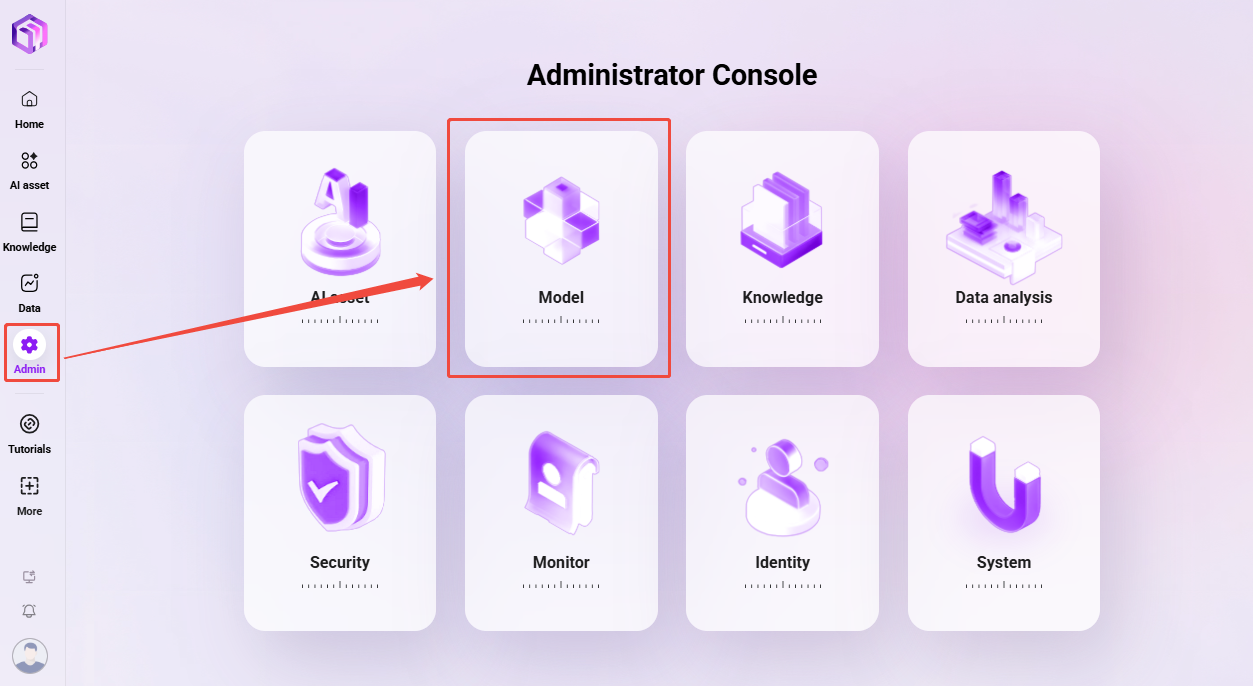
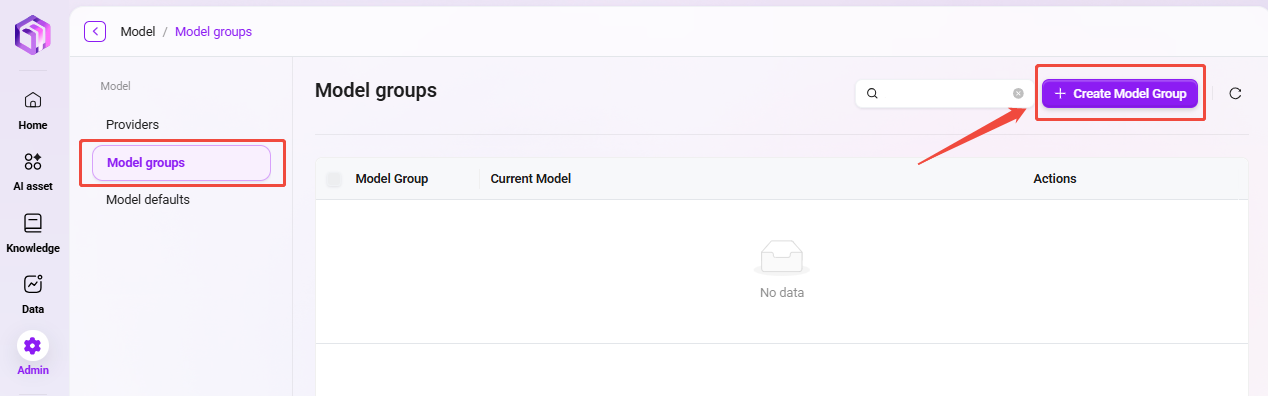
Steps for administrators to add a model group:
- Go to: Management → Model Management → Model Groups.
- Click "New Model Group".
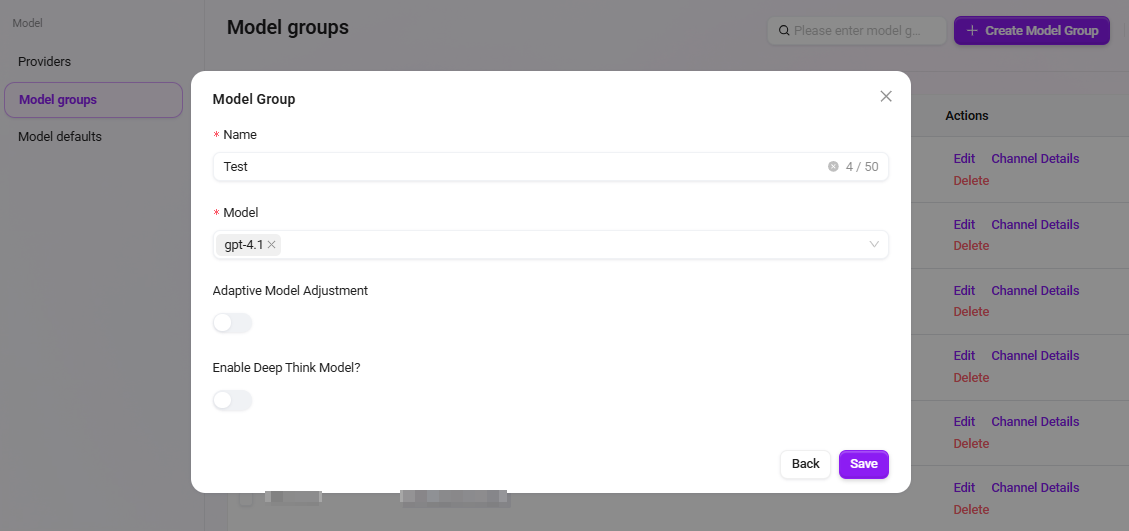
- Complete the following configurations:
- Enter the model group name.
- Select the models to be added to the group (multiple selections allowed).
- Choose whether to enable "Adaptive Model Deployment": when enabled, computing resources can be automatically adjusted based on traffic to ensure stable and smooth service.
- Choose whether to enable "Deep Thinking Model": when enabled, more powerful models will be intelligently invoked for complex problems, significantly improving answer quality.
- Click "Save".
④ Tools
Click "+" to add one or more tools (up to 20 tools can be added)
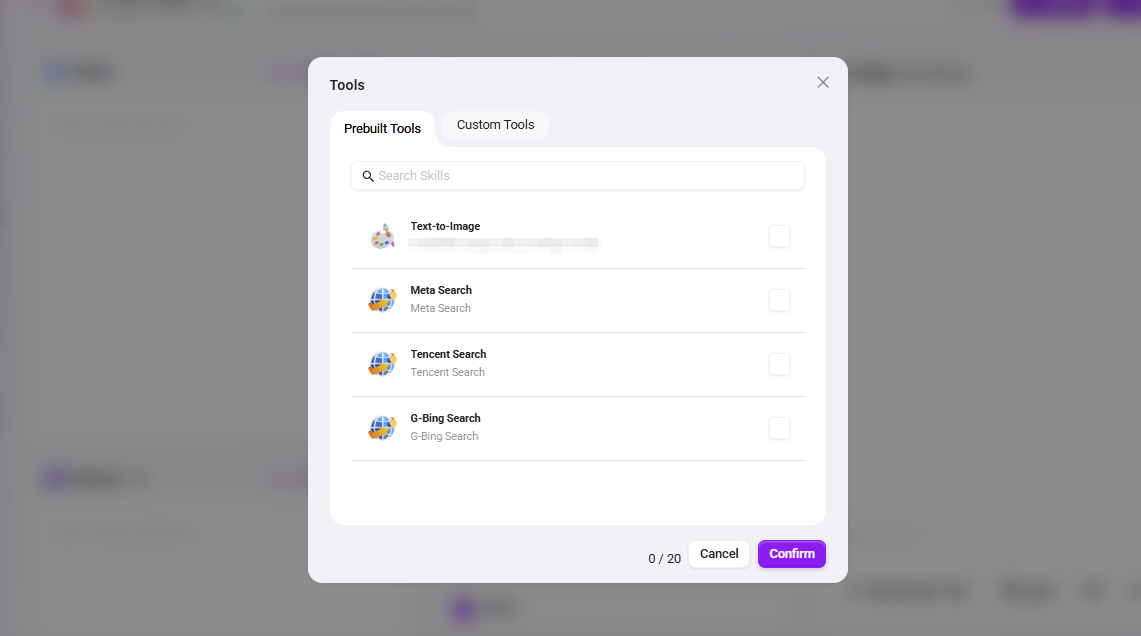
The system includes 8 built-in tools: Google Search, G-Bing Search, Bing Search, Tencent Search, Metaso Search, Text-to-Image, News Query Tool, and Webpage Reader.
- Google Search: Retrieves real-time and accurate web information through the Google search engine, supporting global webpage content retrieval.
- G-Bing Search: Provides comprehensive web search capabilities, balancing retrieval breadth and result precision.
- Bing Search: Powered by Microsoft Bing, supporting retrieval of multilingual global web pages, images, videos, and other comprehensive information.
- Tencent Search: Based on Tencent search technology, providing search services for the Chinese internet environment, with optimized retrieval performance for Chinese content.
- Metaso Search: Provides efficient and accurate search services, quickly locating and returning the key information users need.
- Text-to-Image: Automatically generates corresponding image content based on text descriptions, transforming textual creativity into visual presentation.
- News Query Tool: A dedicated tool for searching and retrieving various news information.
- Webpage Reader: Extracts webpage text, data, and other content, with the ability to parse webpage information.
Note: Additional tools are supported and can be operated and configured by administrators in the backend.
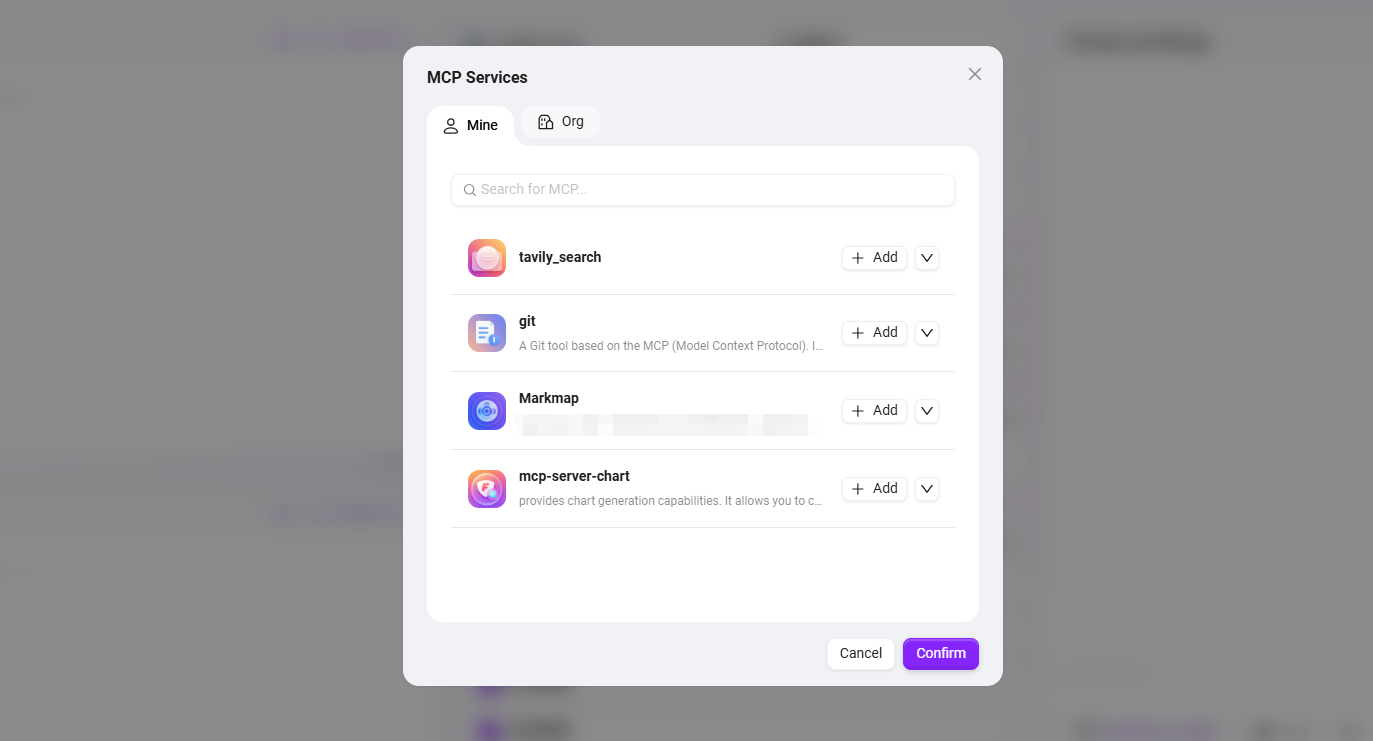
⑤ MCP Services
MCP services are used to connect external tools and data source capabilities to the agent.
- Function: In the MCP Services module, click "+" to enter the service selection page.
- Select Services: You can choose the services to connect from configured personal MCPs or organizational MCPs.
- Capability Activation: After being added, the agent can call the corresponding MCP capabilities during conversations to complete tasks.
- Configuration Recommendation: When the number of configured MCP tools reaches or exceeds 5, the system will issue a prompt. It is recommended to prioritize retaining high-frequency and necessary services to avoid overly long context caused by too many tools, which may affect runtime performance.
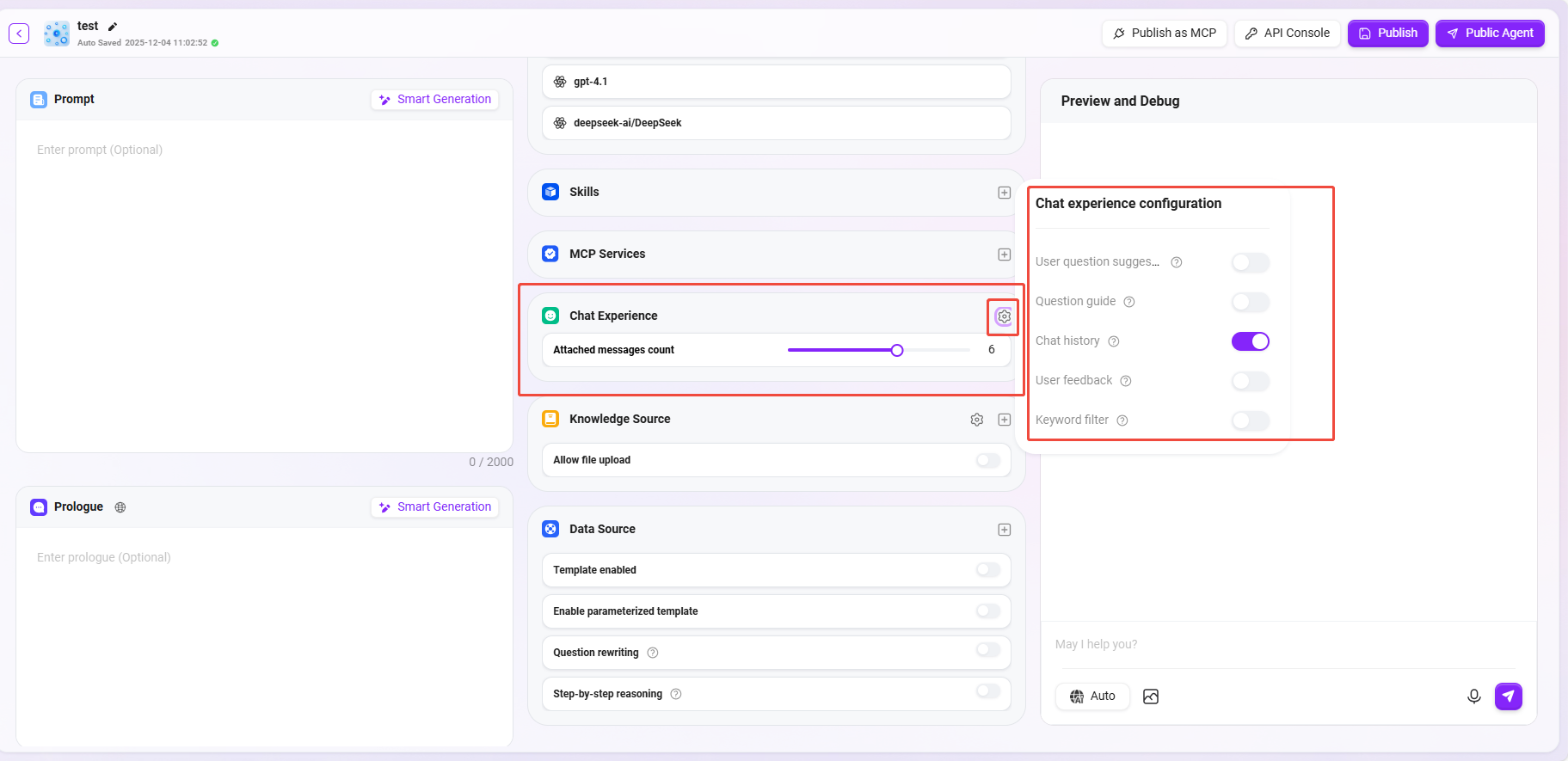
⑥ Conversation Experience
-
Context Memory Count: Set the number of historical conversation turns the agent can remember, from 1 to 10. A setting of 5 is recommended to balance conversation coherence and performance.
-
Conversation Settings: You can enable settings such as "User Question Suggestions, Question Guidance, Chat History, Chat Feedback, Keyword Filtering".
- User Question Suggestions: When enabled, the system will provide suggested follow-up questions based on the user's responses and the conversation context.
- Question Guidance: During conversations between the user and the agent, the model will infer possible user questions and complete user input based on the entered responses.
- Chat History: Whether to retain the agent’s chat history. If disabled, the agent’s chat history cannot be queried.
- Chat Feedback: Users can interact with the agent’s responses through actions such as thumbs up or thumbs down, which are used to optimize the agent’s answers.
- Keyword Filtering: Automatically intercepts sensitive content to ensure enterprise compliance and data security. When enabled, both prompts and AI return results will undergo sensitive word detection, and the sensitive word library can be maintained in advance.
⑦ Knowledge Base
Add knowledge sources to the agent to improve answer accuracy and controllability.
-
Knowledge Base: Click "+" to add knowledge bases. Up to 5 knowledge bases can be added as knowledge sources.
-
Allow File Upload:
- After enabling file upload, you will no longer be able to add knowledge base content as a knowledge source.
- After disabling file upload, you can choose to add knowledge bases from personal space or enterprise space as knowledge sources.
-
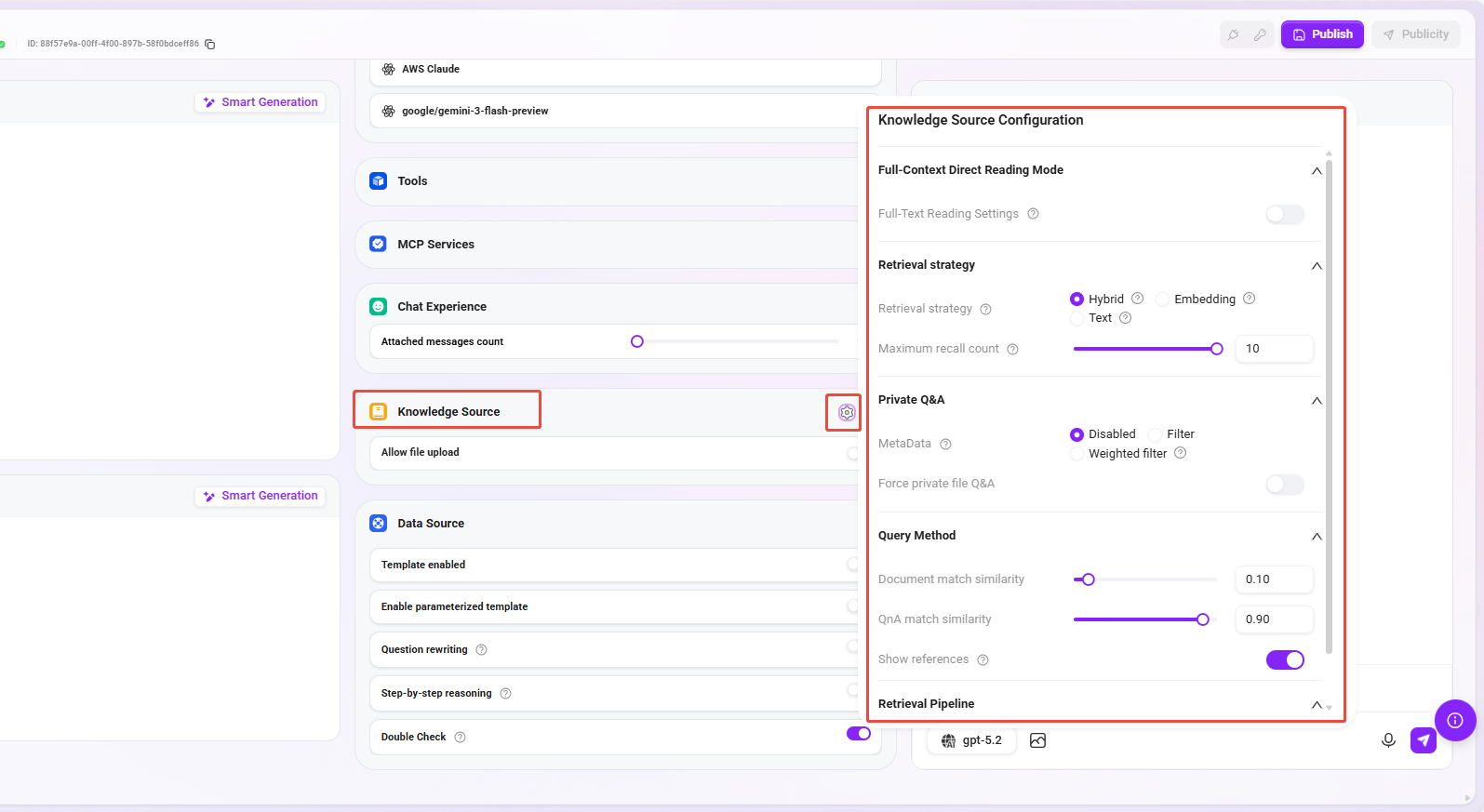
Knowledge Base Configuration: You can configure parameters such as "Retrieval Strategy, Private Domain Q&A, Retrieval Method" in detail.
1)Full-Context Direct Reading Mode: When enabled, the AI will read the entire document content to answer, rather than only the retrieved relevant fragments. This can improve answer quality, but it will consume more tokens.
2)Retrieval Strategy: Knowledge retrieval is the way information is obtained from the knowledge base. Using different retrieval strategies can more effectively locate the correct information, thereby improving the accuracy and usability of generated answers.
- Hybrid Retrieval: Combines the advantages of full-text retrieval and semantic retrieval, and performs integrated ranking on the results.
- Embedding Retrieval: Queries based on the relevance of vectorized text, recommended for scenarios requiring semantic understanding and cross-language retrieval.
- Text Retrieval: Relies on keyword retrieval mechanisms and is suitable for searching scenarios involving specific names, abbreviations, phrases, and IDs.
- Maximum Recall Count: Range 1–10. It is not recommended to set it too high or too low; the recommended value is 3–5.
3)Private Domain Q&A
- Metadata Filtering (Preview): Filters recalled fragments during document retrieval to reduce noise and improve data quality and processing efficiency.
- Force Private Domain File Q&A: When enabled, tools such as web search will not be used, and the agent’s answers will only target knowledge base content.
4)Retrieval Method
- Document Match Similarity: Range 0–1. The higher the value, the more similar the recalled document content is to the query. The recommended value is about 0.8 (that is, 80%).
- Q&A Pair Match Similarity: Range 0–1, similar to document content similarity matching. The recommended value is about 0.9 (that is, 90%).
- Show References: When enabled, the agent will list the referenced documents when answering, improving answer credibility. If this feature is disabled, functions such as citing file fragments, citing specific files, and asking follow-up questions based on files will be unavailable.
5)Retrieval Pipeline
- Custom Pipeline: You can choose to add a custom retrieval Pipeline and flexibly configure the retrieval process according to business needs to meet more complex recall scenarios.
💡 Tip: Whether it is Maximum Recall Count, Document Match Similarity, or QnA Match Similarity, higher or lower is not always better. It is recommended to configure them according to actual needs. If there are no special requirements, keeping the default values will provide stable results.
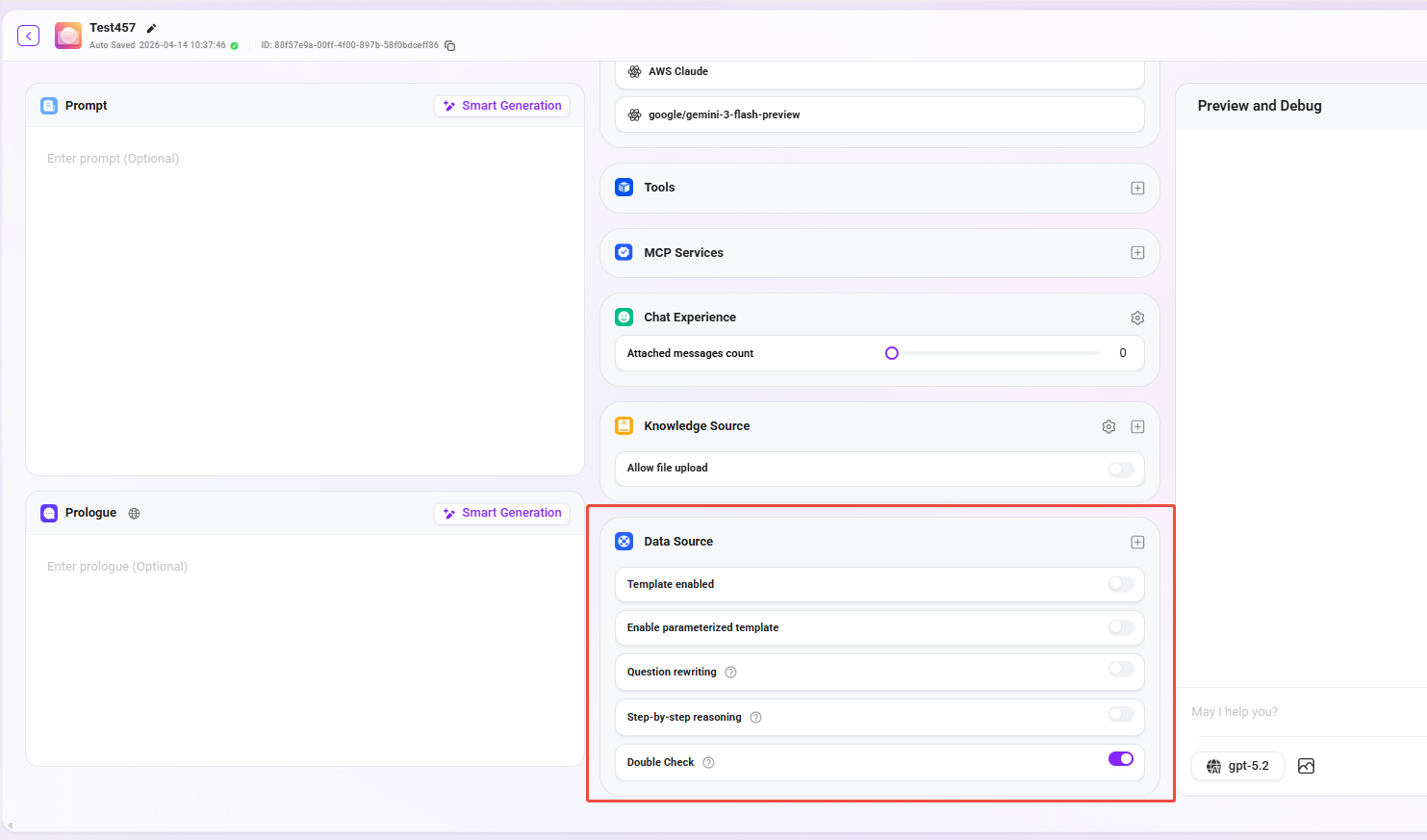
⑧ Data Sources
- Data Sources: Click "+" to add data sources as the agent’s Q&A data sources (up to 5 data sources can be added).
- Enable Templates: Controls whether to enable preset mapping templates between natural language and SQL.
- When a user enters a natural language question (for example: "
What were the sales last month?"), the system will first try to match a preset template. - If a matching template is found (for example, a general question like "
Query sales for a certain time period"), the SQL structure already defined in the template will be used as a reference, and then the final SQL statement will be generated in combination with specific fields/table names and other details.
- When a user enters a natural language question (for example: "
- Enable Parameterized Templates: When enabled, parameterized queries are used on top of templates to enhance query flexibility and security.
- Question Rewriting: When enabled, the user’s input question will be automatically optimized to ensure the accuracy of data queries.
- Original user question:
Check the sales amount(incomplete information). - After question rewriting:
Query the total sales amount of all products in July 2024(time and scope have been supplemented).
- Original user question:
- Step-by-Step Thinking: After enabling this feature, before generating the final query result, the system will output detailed thinking steps explaining how it analyzed the question and constructed the SQL query statement.
- Step 1: Identify the keywords "
July 2024" and "sales amount". - Step 2: Determine the data table
Ordersand the fieldsorder_dateandsales_amount. - Step 3: Construct the date range condition from
2024-07-01to2024-07-31. - Step 4: Generate SQL.
- Step 1: Identify the keywords "
- Secondary Confirmation: When enabled, the model will verify the accuracy of the generated SQL. Claude-series models are not currently supported.
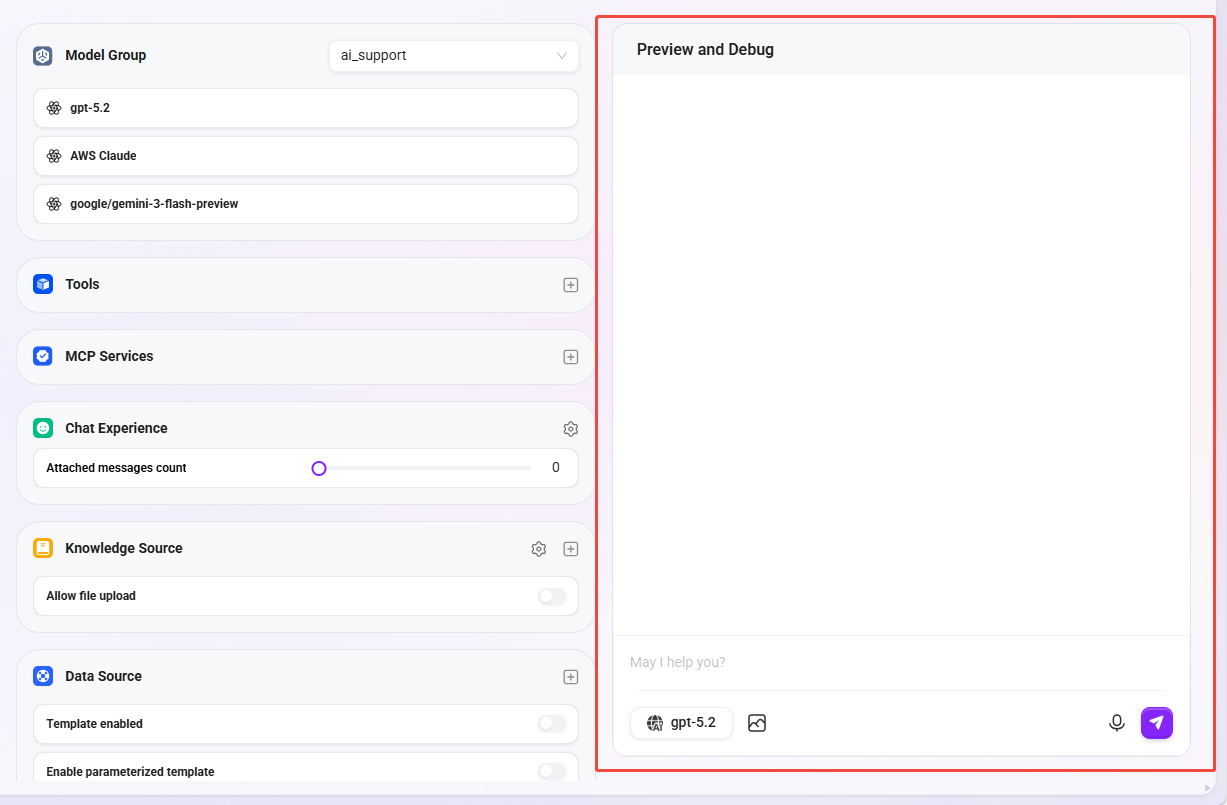
⑨ Preview and Debugging
- Function: Before publishing, you can test the agent through conversations here.
- Operation: Users can directly enter questions in the preview chat window and interact with the configured agent in real time to verify whether its prompt, knowledge base, skills, and other configurations meet expectations.
- Purpose: Ensure the agent behaves accurately before publishing, avoiding configuration errors that may affect user experience.
Publishing and Usage
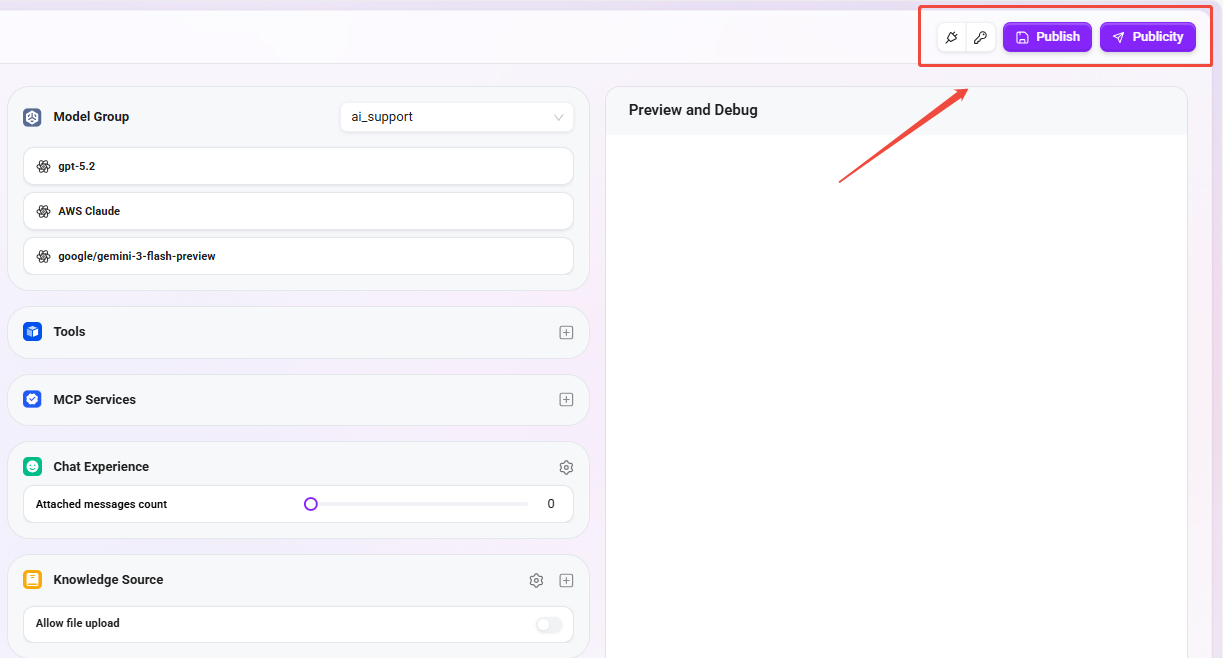
After configuration is complete, you can publish the agent through the following options:
- Publish as MCP: Click the
 icon to publish the agent as an MCP service for access and invocation by other agents.
 - API Console: Click the
 icon to enter the API Console, where you can view existing API channel names and the number of API Keys, and perform management operations such as adding new channels.
 - Publish: After confirming the configuration and passing preview debugging, click "Publish" to save the configuration, and the agent can then be officially put into use.
- Public Agent: The agent can be published to the organizational agent library for shared use by team members.