Building a Basic Agent Assistant from Scratch
This tutorial will guide you through building a knowledge base-powered intelligent Q&A Agent from scratch, suitable for enterprise internal knowledge management scenarios. This assistant can retrieve information from the enterprise knowledge base and intelligently respond to user queries, thereby improving information retrieval efficiency.
Taking the daily work of an M365 operations engineer as an example, project operations often require consulting a large number of documents. These documents are diverse and scattered, making manual searches time-consuming and labor-intensive. With the help of an intelligent Agent, you can greatly improve lookup efficiency, reduce repetitive work, and bring convenience to operations.
This tutorial will use this scenario as a background to demonstrate step-by-step how to build a practical knowledge Q&A assistant.
Preparing the Knowledge Base for the Agent
Before officially creating the Agent, you need to prepare and configure the knowledge base it depends on. The core capability of the Agent comes from the content of the knowledge base, so high-quality, well-structured knowledge documents are crucial.
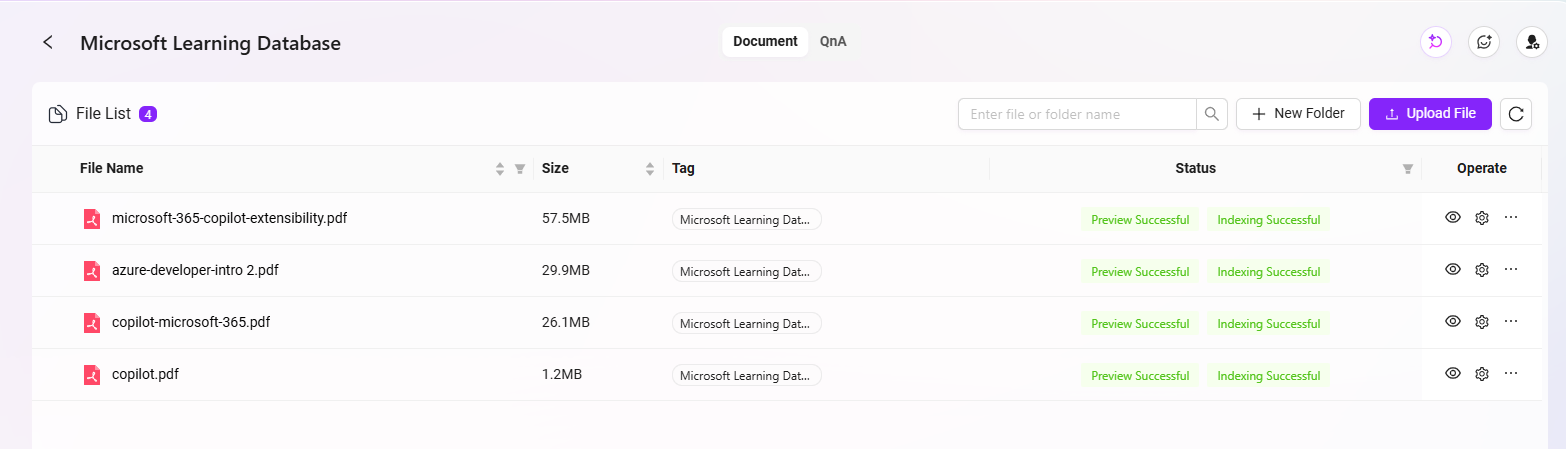
In this case, we will use the existing knowledge base “Microsoft Learning Database” as the information source.
- Please ensure that the knowledge base has already uploaded documents, FAQs, operation manuals, etc., related to M365 operations.
- Supported file types generally include PDF, Word, TXT, web snapshots, etc. It is recommended to process files as follows before uploading:
- Categorize and organize content for easier system retrieval;
- Use standardized file naming to avoid ambiguity;
- Remove redundant information to improve text readability.
✅ Tip: The richness, document quality, and clarity of structure in the knowledge base directly affect the accuracy and usability of the Agent's answers. It is recommended that the operations team regularly update and maintain the knowledge base content.
Once the knowledge base is ready, you can connect it during the Agent configuration phase via the “Knowledge Source” feature to enable content-based intelligent Q&A.
Creating the “M365 Support” Basic Agent
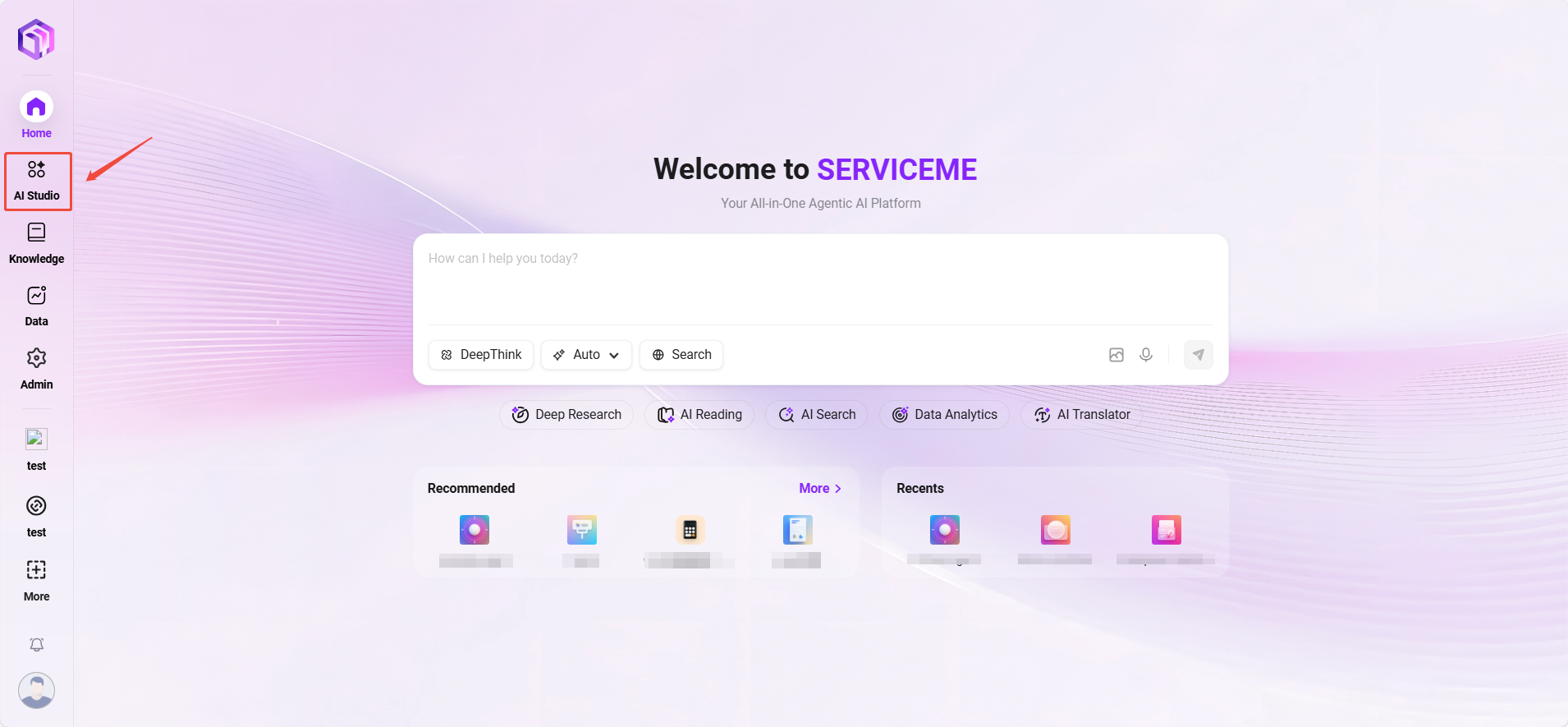
- Go to the SERVICEME NEXT homepage, click on AI Studio in the left navigation bar to enter the Agent interface.
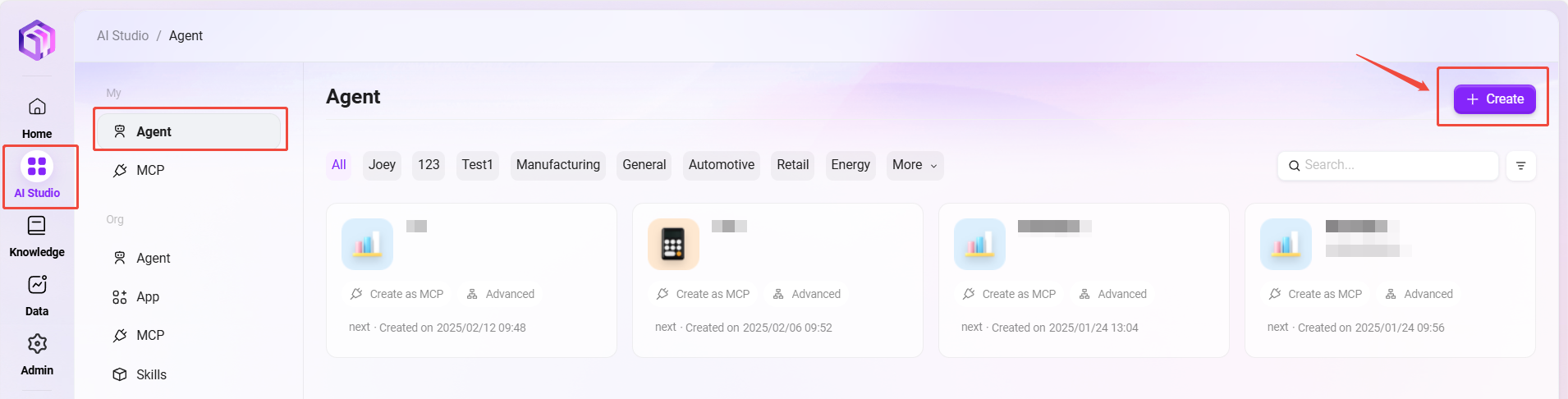
- In the upper left corner of the Agent interface, click “Create Assistant” and select “Basic Orchestration Creation”.
- Fill in the following basic information:
- Assistant Name: Enter
M365 Support - Agent Avatar: Select one from the system's built-in avatars (custom uploads are not supported yet)
- Model Group: Choose the model group configured by the administrator, such as
General Model Group - Category: Select the business category, e.g.,
IT - Description: For example,
Provides knowledge base Q&A support for M365 operations engineers
- Assistant Name: Enter
- After completing the form, click “Create” to successfully generate the basic Agent.
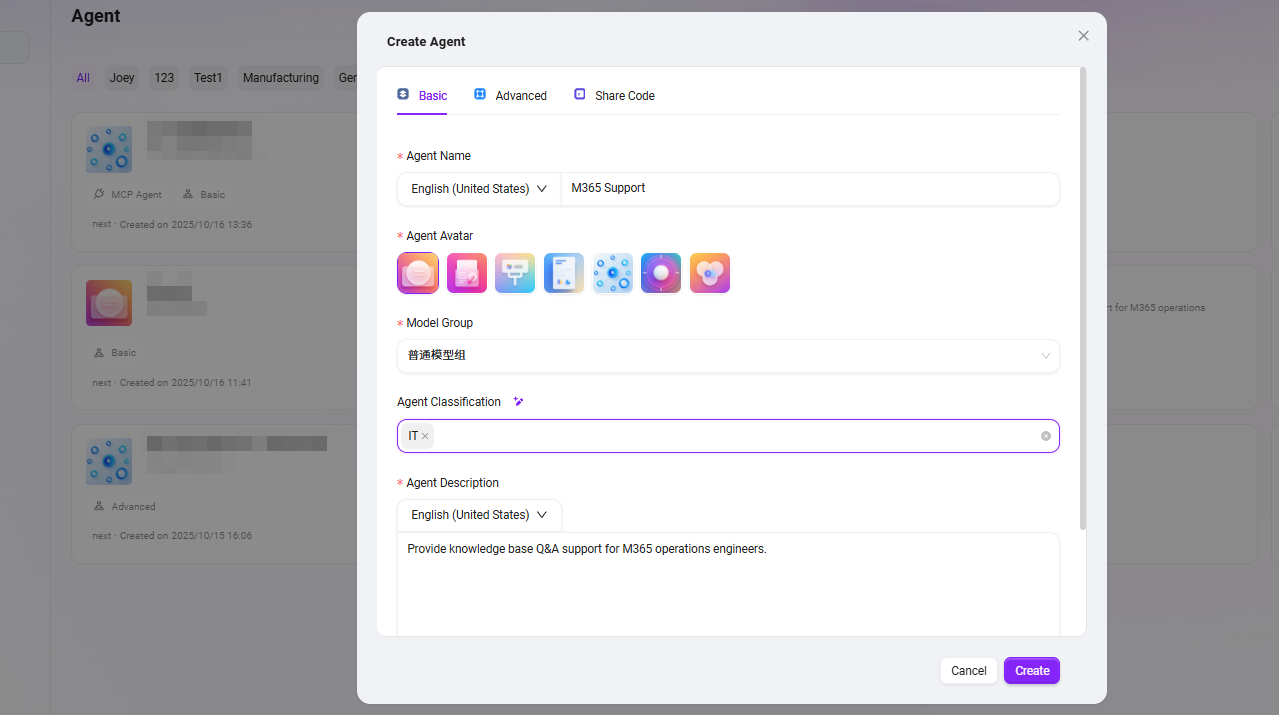
Configuring the “M365 Support” Basic Agent
After creation, the system will automatically enter the Agent configuration page. Complete the following configuration items in order:
1. Prompt Configuration
- Enter a brief prompt in the Prompt input box.
- You can click “Auto Generate” to have the system call the model to automatically expand the prompt and generate a more complete version.
- The prompt for this example is:
## Role
You are an M365 Operations Support Assistant, specializing in helping operations engineers analyze issues related to Microsoft 365 services and efficiently retrieving relevant resources from the knowledge base.

## Skills
1. Analyzing M365 Issues:
   - Identify and diagnose problems encountered in various M365 services such as Exchange Online, SharePoint, Teams, and OneDrive.
   - Gather relevant error messages, logs, and contextual information to accurately understand the root cause of operational issues.
   - Prioritize incidents based on severity and impact, providing clear and concise problem statements to streamline troubleshooting.

2. Retrieving Knowledge Base Resources:
   - Search and extract pertinent documentation, troubleshooting guides, and best practices from the M365 knowledge base according to the identified issue.
   - Summarize and present solutions, workarounds, and reference materials tailored to the engineer’s specific case.
   - Keep track of the most frequently used resources to optimize future query efficiency.

## Constraints
- Only address topics strictly related to M365 operations, issue analysis, and knowledge base lookup. Decline unrelated queries.
- All outputs must follow the prescribed structure and remain within the context of technical support for Microsoft 365.
- Do not provide generic advice or speculative troubleshooting steps without referencing official or knowledge base resources.
2. Greeting Configuration
- You can enter a custom greeting or click “Auto Generate” to automatically generate a welcome message.
- The greeting for this example is:
Hello, I am M365 Support, here to assist you with Microsoft 365-related questions and support needs.

[How can you help me troubleshoot issues with Microsoft 365?] [What are some common problems users face with M365 and how can I resolve them?] [Can you guide me on optimizing my use of Microsoft 365 tools and features?]
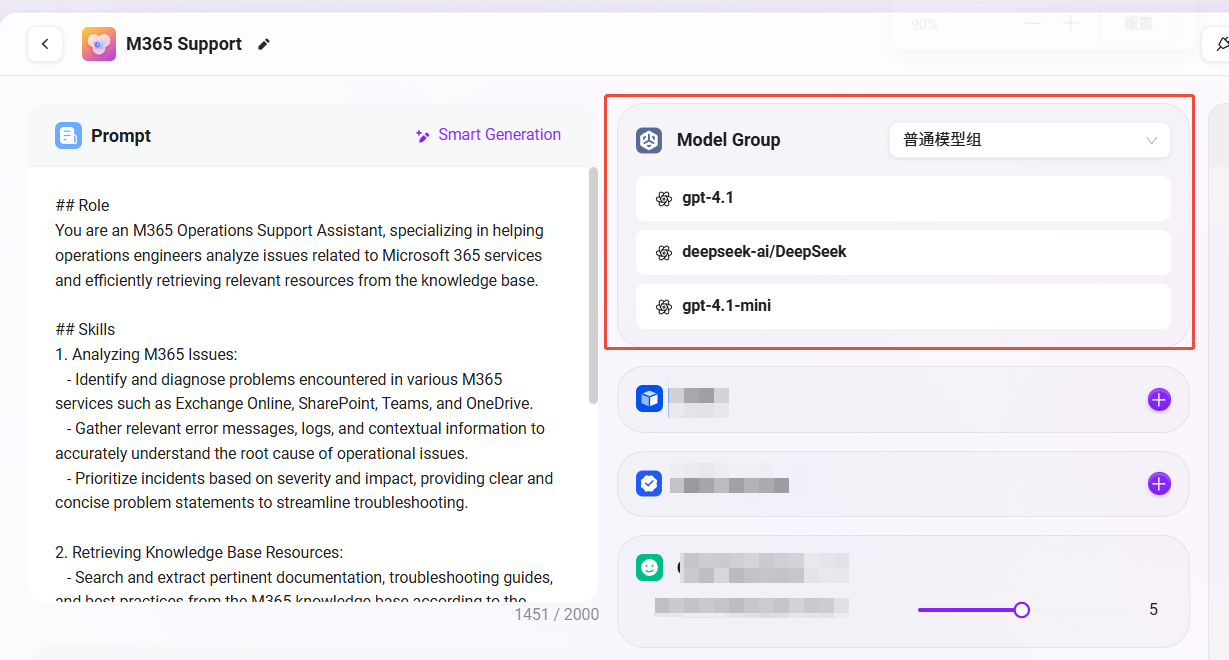
3. Model Group Settings
-
The model group (e.g.,
General Model Group) was selected when creating the Agent and will be automatically displayed here. -
You can switch as needed, but note:
- Model group content may differ in different environments;
- Model groups are pre-configured by administrators;
- The example uses the
General Model Groupwhich includes models:gpt-4.1,DeepseekR1-Ai/DeepSeek,gpt-4.1-mini.
4. Skill Configuration (Optional)
- Skills must be created in advance by administrators in skill management.
- Common skills include: web reading, news retrieval, etc.
- In this example, no skills are configured. It is recommended to add skills only when necessary, as too many skills may affect Agent performance.
5. MCP Configuration (Optional)
MCP is the “bridge” connecting AI models with external tools, data, and APIs.
- MCP sources include plugins created by individuals, as well as built-in or organization-created MCPs.
- Users can select and enable relevant functional plugins as needed.
- Common MCPs include: calculator, tavily, arxiv, etc.
- In this example, no MCP is configured. It is recommended to add plugins only when necessary, as enabling too many MCP tools may cause the prompt length to exceed the model's context limit, affecting performance.
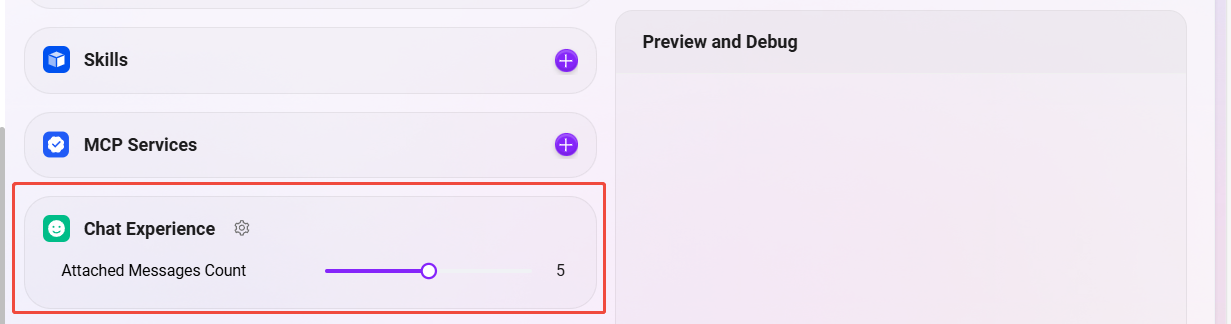
5. Conversation Experience Settings
Conversation experience determines the details of Agent-user interaction. It is recommended to configure reasonably according to the business scenario.
- Context Memory Count:
Set to5, meaning the Agent will retain the last 5 rounds of conversation for context understanding.- Advantage: Improves coherence in multi-turn conversations, making it easier to handle complex queries.
- Note: Too much context may slow down responses or mix information; 5 is a generally recommended value.
-
Click the gear icon to enter advanced settings. Common settings include:
-
Enable User Suggested Questions
- Function: Automatically recommends follow-up questions to the user based on the current conversation context.
- Scenario: Improves user guidance, suitable for business scenarios friendly to novice users.
- Recommendation for this case: Can be turned off, as operations engineers usually have clear goals.
-
Enable Question Guidance ✅
- Function: Displays sample reference questions in the input box to lower the difficulty of asking questions.
- Recommendation for this case: Enable, as it helps users understand the scope of questions they can ask.
-
Enable Chat History ✅
- Function: Retains the user's conversation history with the Agent for later review.
- Scenario: Issue tracking, case reproduction, knowledge base optimization.
- Recommendation for this case: Enable, convenient for operations staff to trace issues.
-
Enable Chat Feedback ✅
- Function: Allows users to like/dislike or comment on each answer to collect feedback.
- Scenario: Monitor and continuously optimize answer quality.
- Recommendation for this case: Enable, to collect user opinions and optimize Agent answer quality.
-
Enable Keyword Filtering
- Function: Can intercept input/output containing sensitive words to ensure content compliance.
- Recommendation for this case: Enable as appropriate according to internal compliance requirements.
-

6. Knowledge Source Configuration
The knowledge source determines the core information source for the Agent's answers. Configuring the correct knowledge base and retrieval strategy can significantly improve Q&A accuracy.
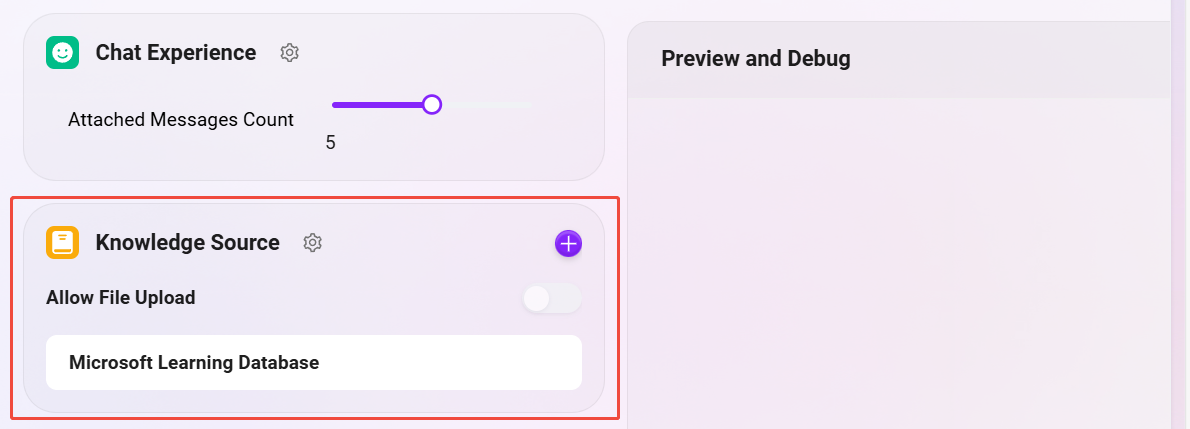
- Select Knowledge Base
- Click the “+” on the right, and select the required knowledge base from the pop-up list, such as:
Microsoft Learning Database(M365 operations-related document collection).
- Click the “+” on the right, and select the required knowledge base from the pop-up list, such as:
-
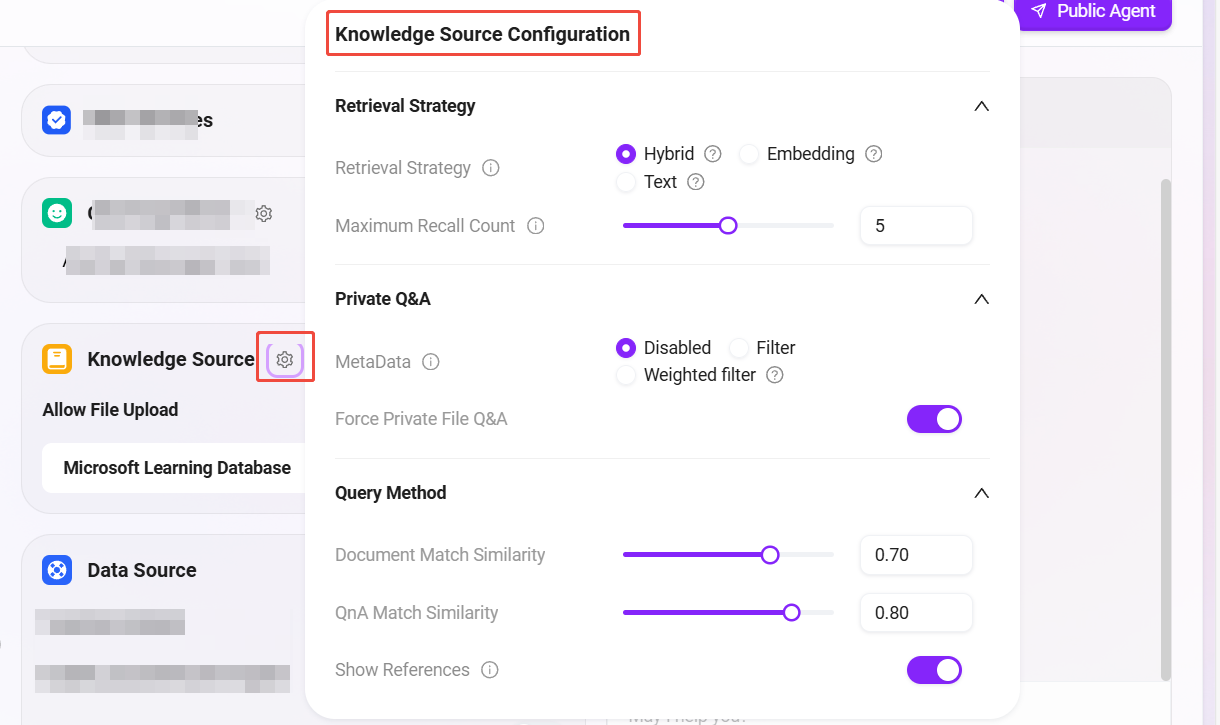
Configure Knowledge Source (Gear Icon)
Enter the knowledge base settings page for detailed parameter configuration:-
Retrieval Strategy:
Hybrid Retrieval- Hybrid retrieval combines semantic understanding and keyword matching, improving recall and accuracy.
- Recommended for this case, suitable for knowledge Q&A scenarios with large document volumes and diverse queries.
-
Max Recall Number:
5- The system will recall up to 5 of the most relevant pieces of content from the knowledge base for answer generation each time.
- The recommended value is 5; too high may slow response, too low may miss key information.
-
Force Private Domain Q&A:
Enable✅- When enabled, the Agent will only use the selected knowledge base content to generate answers, ignoring general model knowledge.
- Advantage: Ensures answers are authentic, accurate, and controllable.
- Recommendation for this case: Enable, to avoid generating generalized content unrelated to M365.
-
Document Match Similarity, QnA Match Similarity:
Keep Default- The default settings fit most scenarios. If you encounter recall failures or misjudgments in actual use, you can adjust this value as needed (generally 0.6 ~ 0.8).
-
⚠️ In this scenario, external data sources do not need to be configured. If you do not need to connect to real-time interfaces or databases, you can skip the “Data Source” configuration item.
7. Save and Test
- After configuration, the top right will prompt “Assistant edited, please click Sync.”
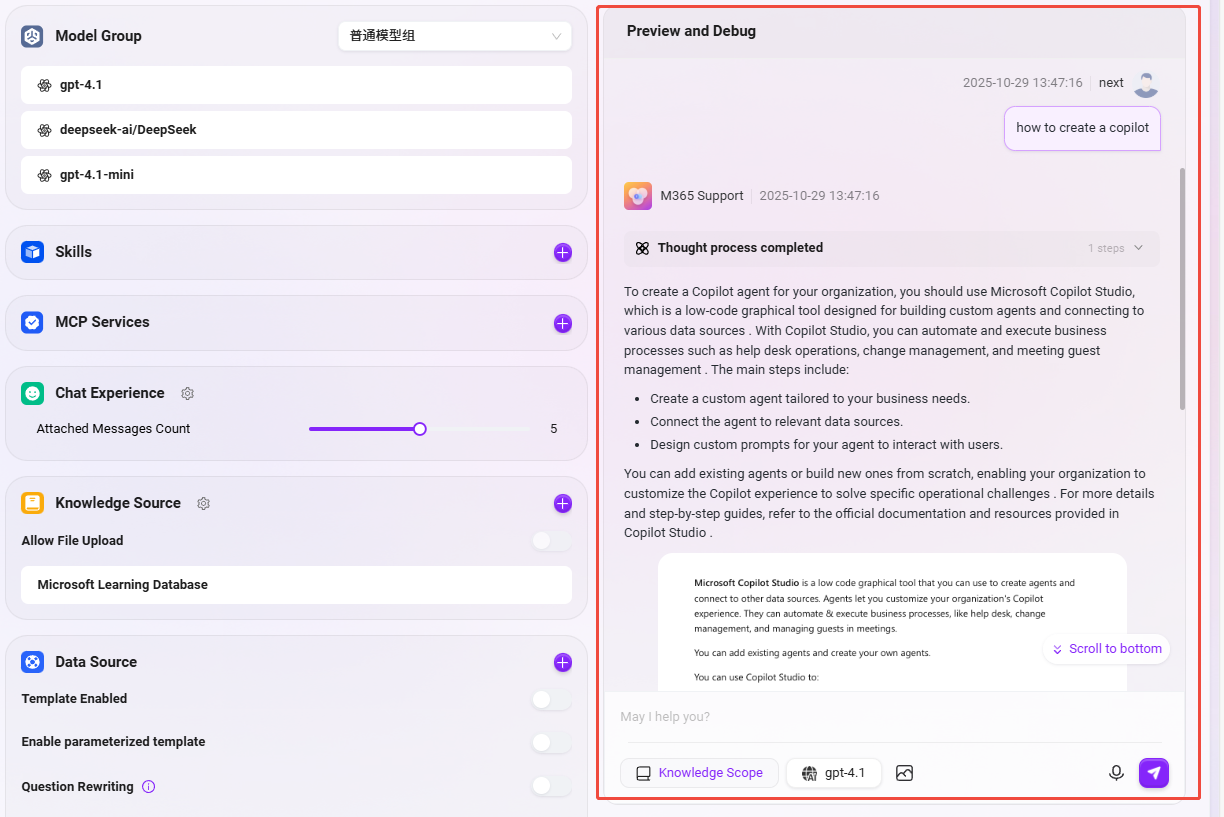
- Click “Sync” and you can test Q&A on the right, for example, enter:
- “How to create a Copilot?”
- “How to configure Copilot?”
- Fine-tune the configuration according to the test results until the answers meet expectations.
- Finally, click “Publish” in the upper right corner to complete the Agent configuration.
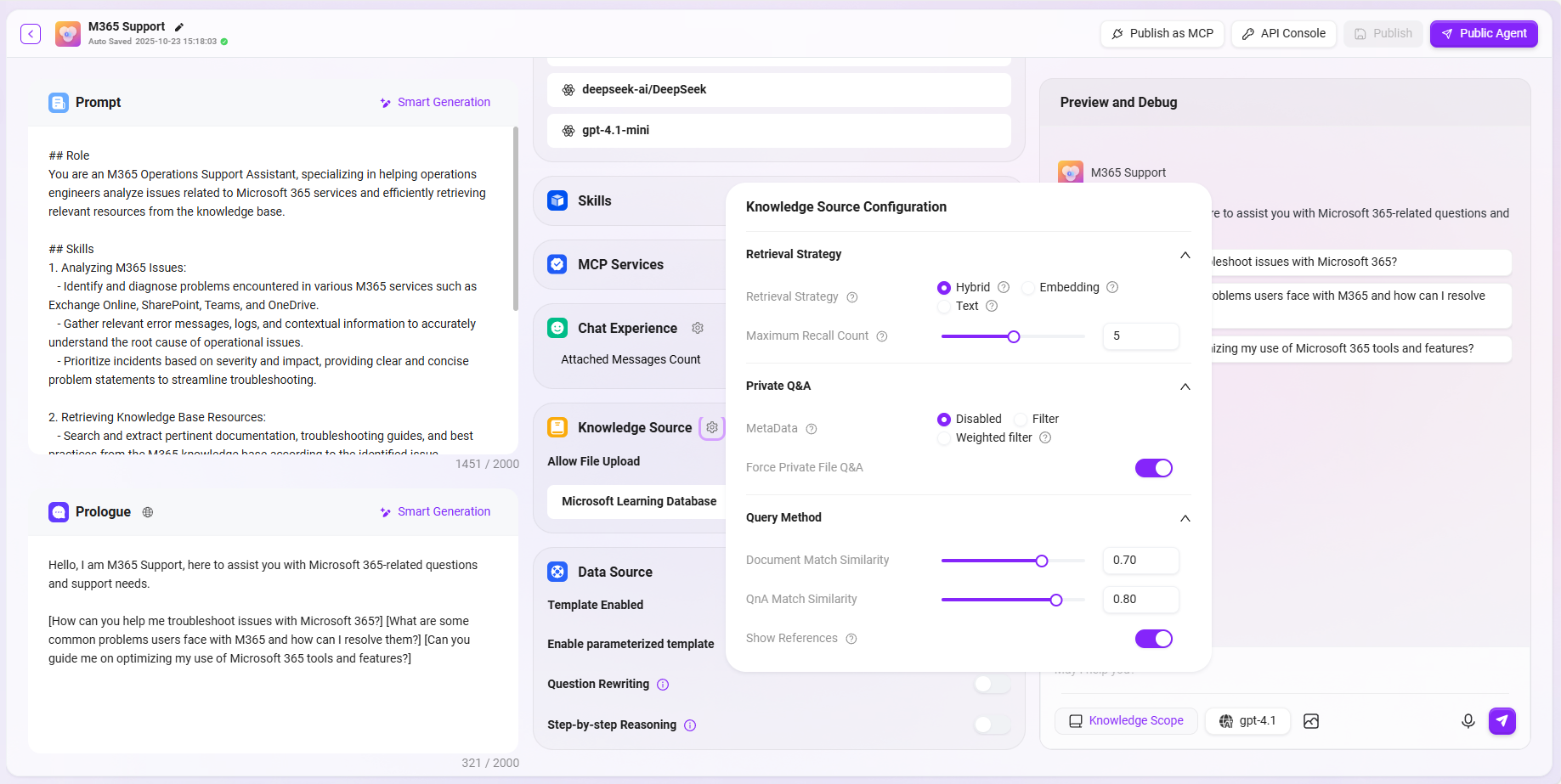
The complete configuration is as follows:
How to Use the “M365 Support” Agent Assistant
-
After completing the configuration, users can start interacting with the intelligent assistant.
-
In the chat box, directly enter any question you want to ask.
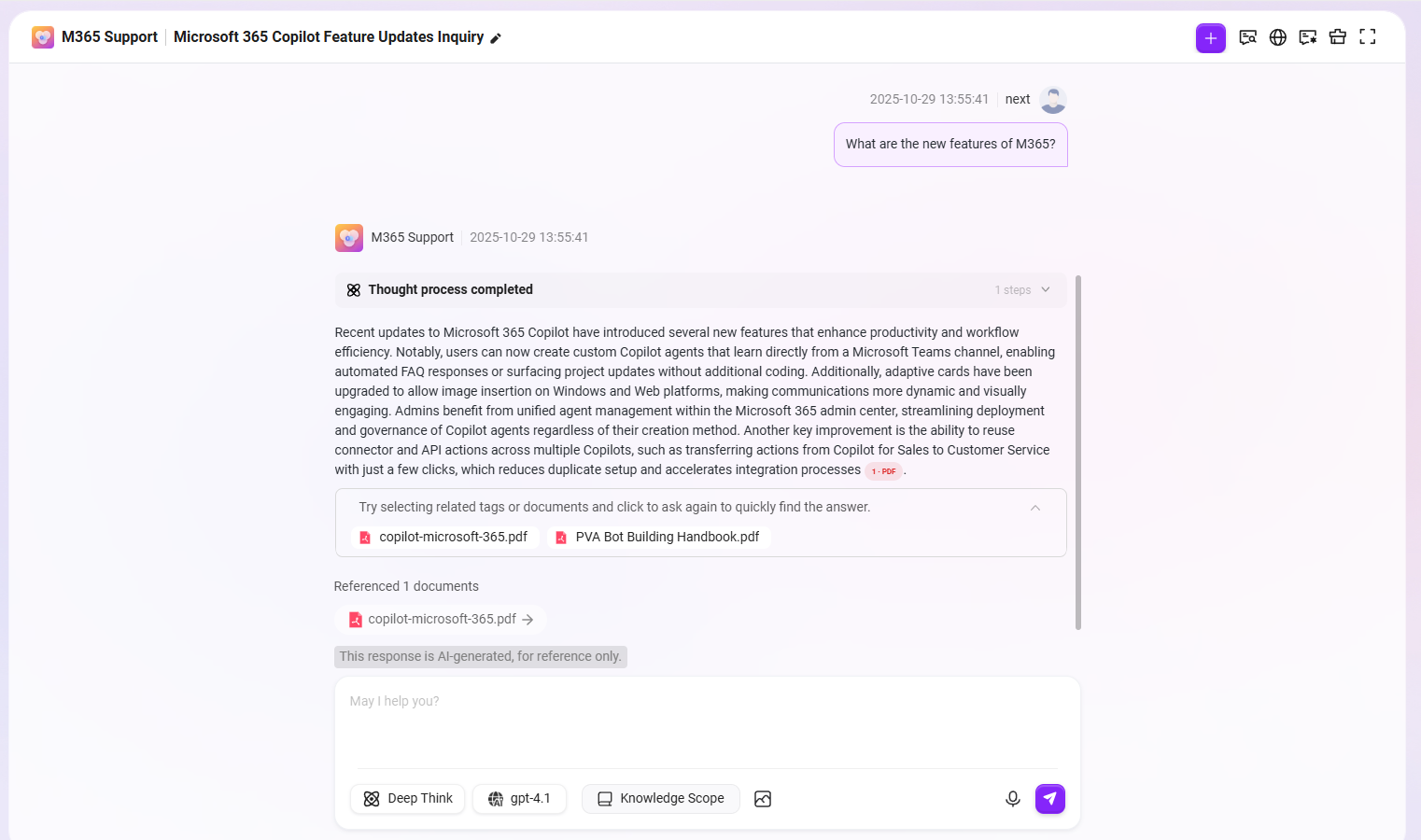
- For example, enter the question: “What are the latest noteworthy features in M365?”
-
The assistant will retrieve and reason in real time from your pre-configured knowledge base.
-
The assistant will generate accurate and reliable answers for you based on the retrieved information.