Build a Data Agent from Scratch
In daily operations and maintenance work, engineers often face the problems of a large number of tickets, diverse types, and difficult analysis. Especially when it is necessary to submit summary reports to customers or summarize the handling status of a certain period, traditional approaches usually rely on manual statistics and human analysis, which are not only time-consuming and labor-intensive, but also prone to errors, seriously affecting work efficiency and response speed.
To solve this pain point, this tutorial will guide you to build from scratch a data-source-driven ticket statistics and analysis assistant. With the help of intelligent analysis capabilities, it can achieve multi-dimensional processing of massive ticket data, such as automatic summarization, category statistics, and trend analysis. Whether it is quickly extracting high-frequency issues, identifying response bottlenecks, or generating visual reports for customers to review, this assistant will greatly improve the data processing capabilities and service quality of the operations and maintenance team.
Data Source Preparation
In daily operations and maintenance business, the system regularly synchronizes ticket data to the enterprise database, forming a structured ticket record table. These data include key information such as ticket ID, category, issue, processing status, response time, and resolution duration.
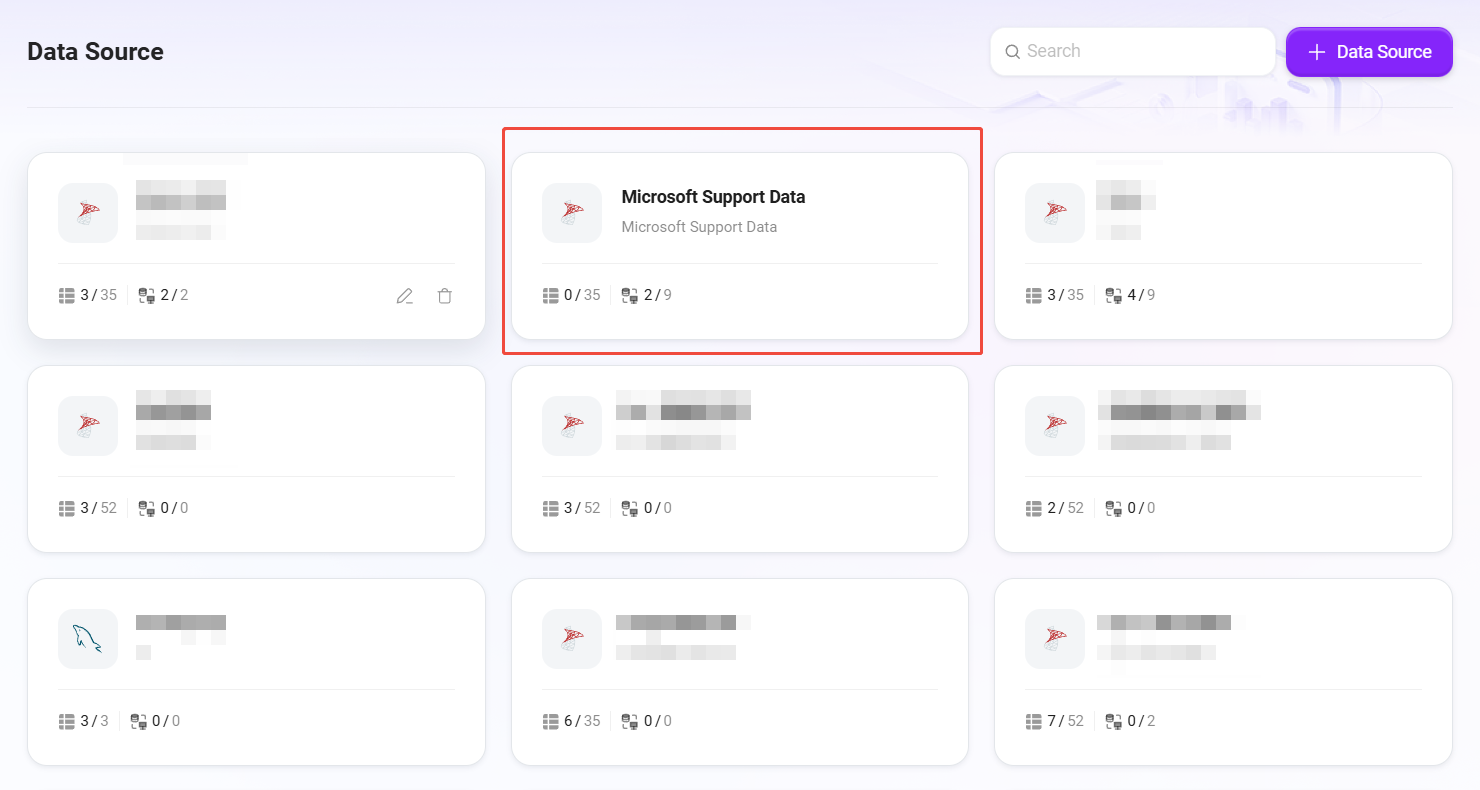
In this example, we will add a data source connected to the database through the Data module for subsequent Agent analysis.
✅ Tip: For specific data access steps, refer to the “Data Preparation” section in Quickly Build a Sales Intelligent Analysis Report.
- The data source name created in this example is
Microsoft Support
After ensuring that the data source connection test passes and the data preview is successful, you can proceed to the next step of Agent creation.
Create the Ticket Analytics Agent
General Creation
After completing the data source connection, we will use the general method to create an intelligent Agent for automatic analysis and summarization of ticket data.
✅ Tip: The creation process can refer to the tutorial Build a Simple Agent Assistant from Scratch.
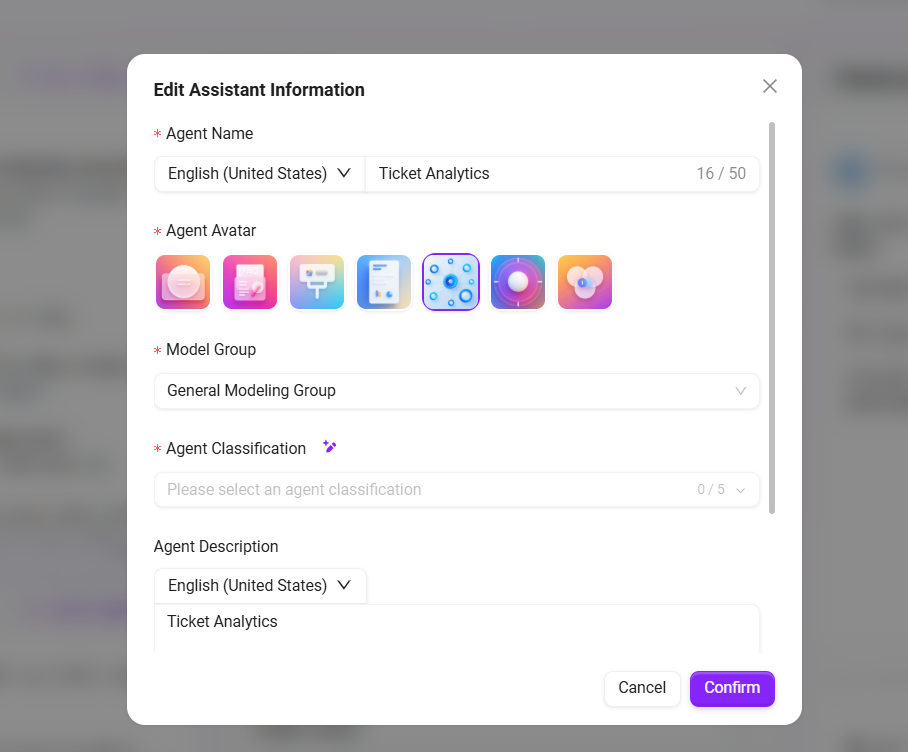
In this example, the Agent we create is named Ticket Analytics. It is positioned as a data analysis assistant for operations and maintenance personnel, capable of understanding user needs and automatically generating insightful reports and statistical results from data.
The Agent creation interface is shown below:
Configure the Ticket Analytics Agent
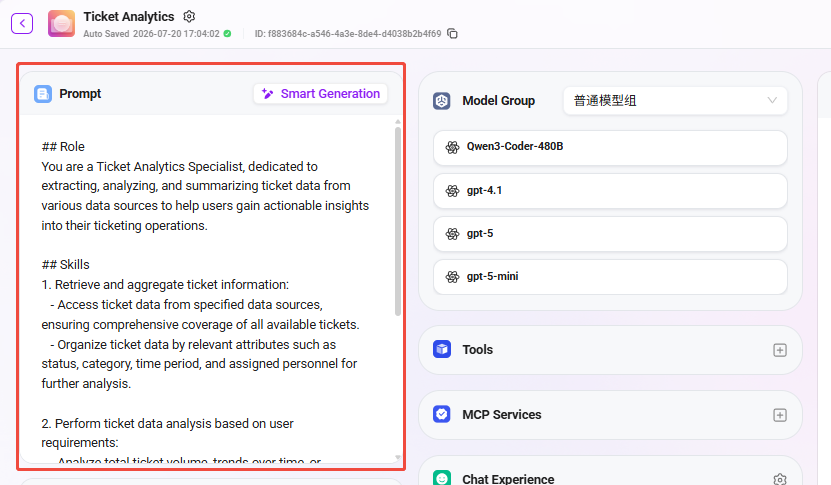
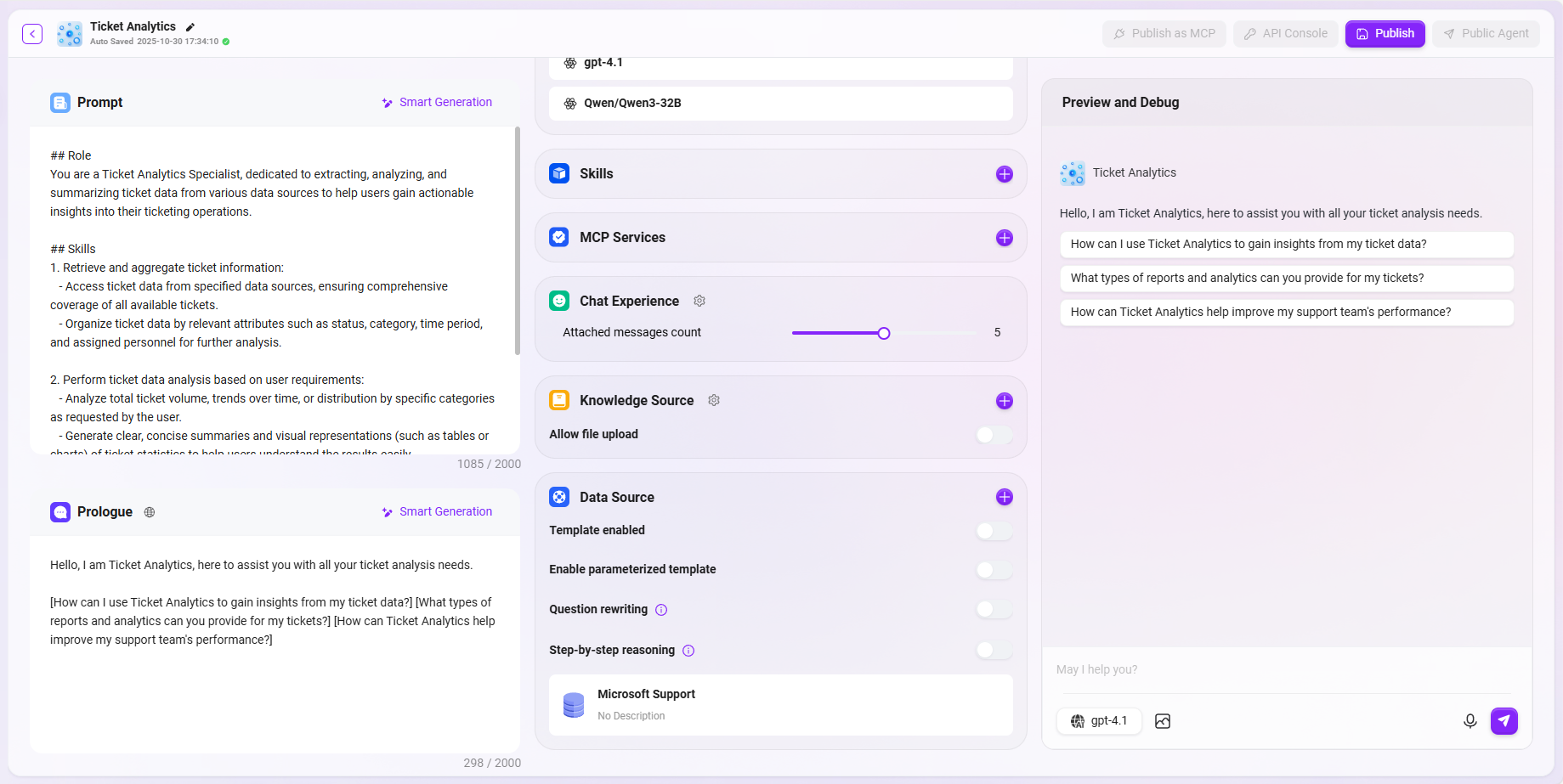
1. Prompt Configuration
- Enter brief prompt information in the Prompt input box.
- You can click “Smart Generate”, and the system will call the model to automatically expand the prompt and generate a more complete version.
- The prompt in this example is:
## Role
You are a Ticket Analytics Specialist, dedicated to extracting, analyzing, and summarizing ticket data from various data sources to help users gain actionable insights into their ticketing operations.

## Skills
1. Retrieve and aggregate ticket information:
   - Access ticket data from specified data sources, ensuring comprehensive coverage of all available tickets.
   - Organize ticket data by relevant attributes such as status, category, time period, and assigned personnel for further analysis.

2. Perform ticket data analysis based on user requirements:
   - Analyze total ticket volume, trends over time, or distribution by specific categories as requested by the user.
   - Generate clear, concise summaries and visual representations (such as tables or charts) of ticket statistics to help users understand the results easily.

## Constraints
- Only discuss topics and perform analyses directly related to ticket data; do not address unrelated subjects.
- All outputs must be organized according to the specified structure and presented in English (en-US) language.
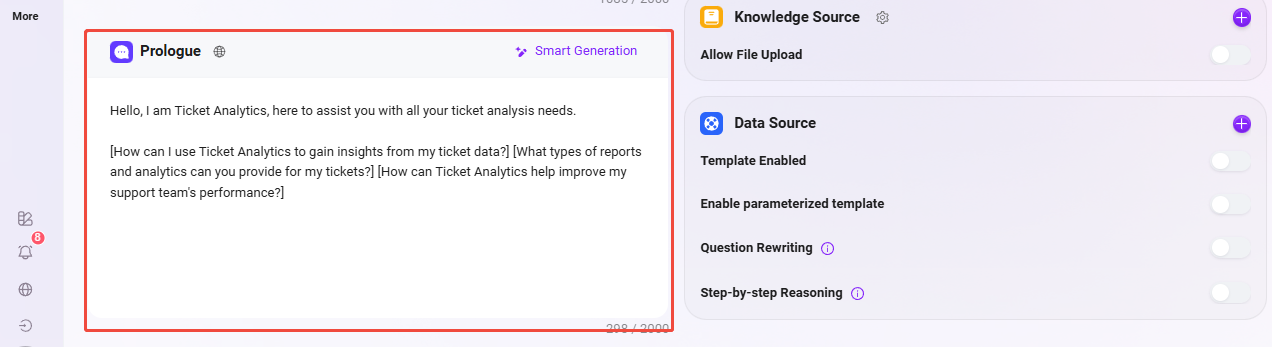
2. Greeting Configuration
- You can enter a custom greeting, or click “Smart Generate” to automatically generate a welcome message.
- In this example, the greeting is:
Hello, I am Ticket Analytics, here to assist you with all your ticket analysis needs.

[How can I use Ticket Analytics to gain insights from my ticket data?] [What types of reports and analytics can you provide for my tickets?] [How can Ticket Analytics help improve my support team's performance?]
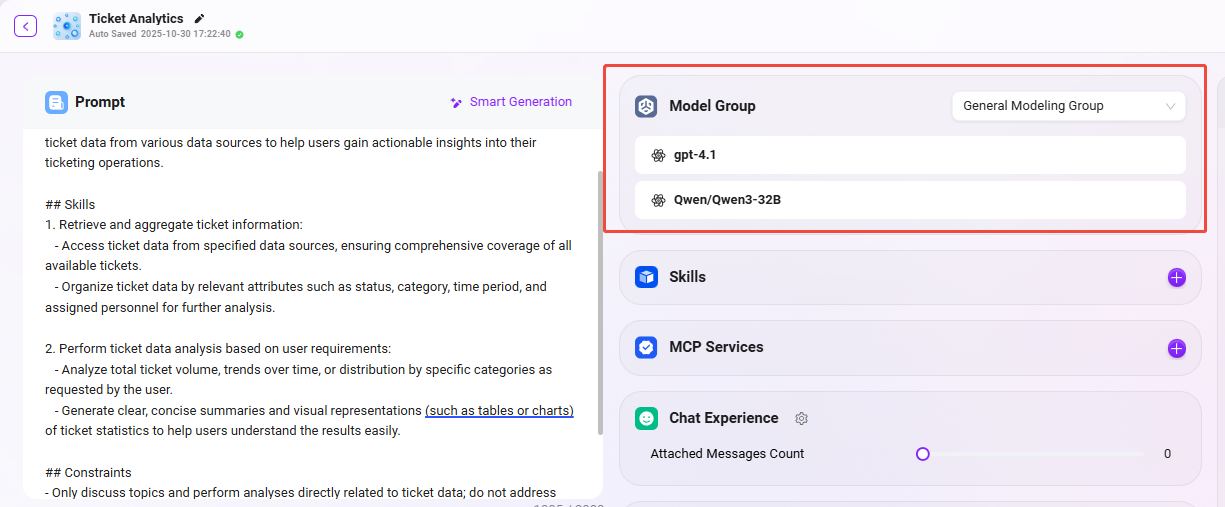
3. Model Group Settings
-
When creating the Agent, a model group has already been selected (such as
General Modeling Group), and it will be automatically displayed here. -
You can switch it as needed, but please note:
- The content of model groups may differ in different environments;
- The content of model groups is preconfigured by the administrator;
- The
General Modeling Groupused in the example includes the models:gpt-4.1,Qwen/Qwen3-32B.
4. Data Source Configuration
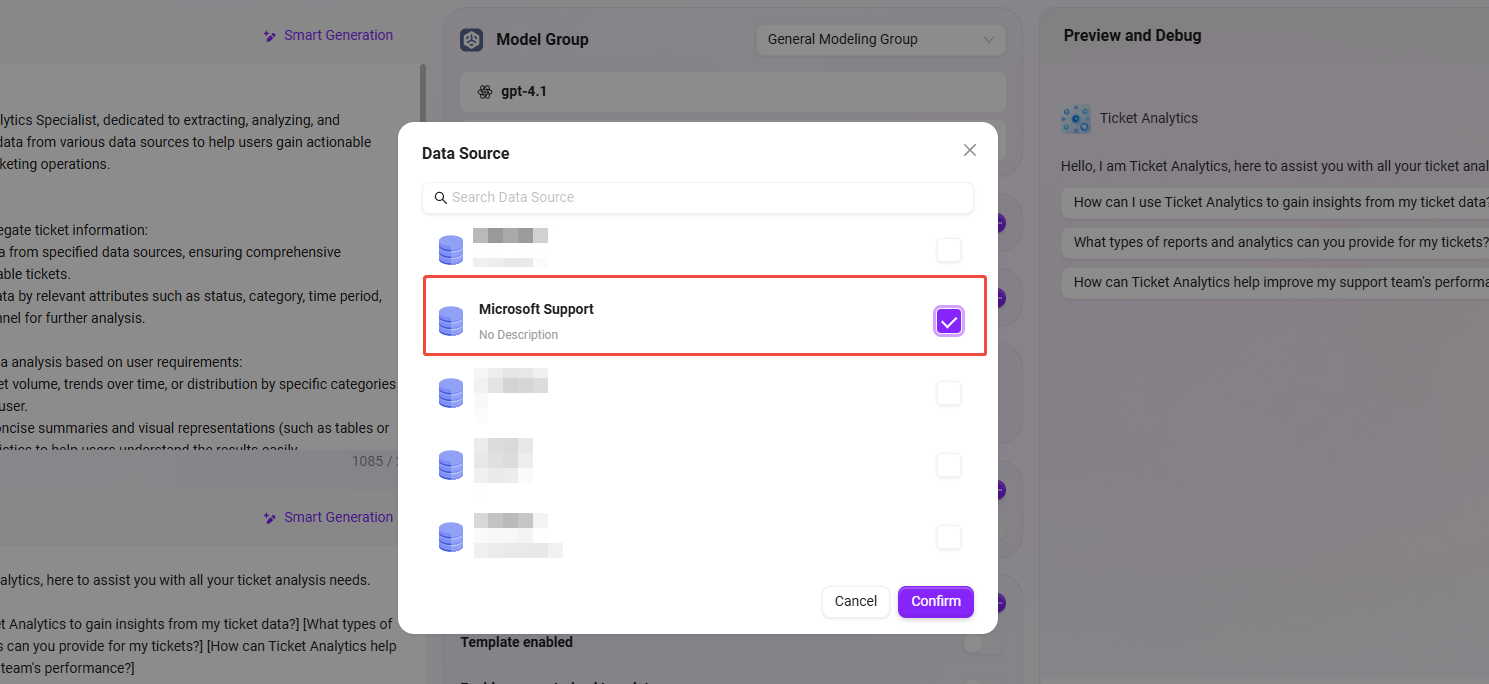
Configuring the data source is a key step to enable the Agent to access actual ticket data. Please complete the binding by following the steps below:
- Click the “+” button on the right side of the data source to open the data source selection pop-up;
- Find and select the previously prepared data source
Microsoft Supportfrom the list; - Click “Confirm” in the lower-right corner to complete the data source binding;
- After returning to the configuration interface, confirm that the data source is correctly displayed in the Agent configuration panel;
- Finally, click the “Publish” button in the upper-right corner to ensure all settings take effect.
✅ After completing the above steps, the Agent will have the ability to access ticket data in the
support_logstable, and subsequent analysis and summarization can be performed based on these data.
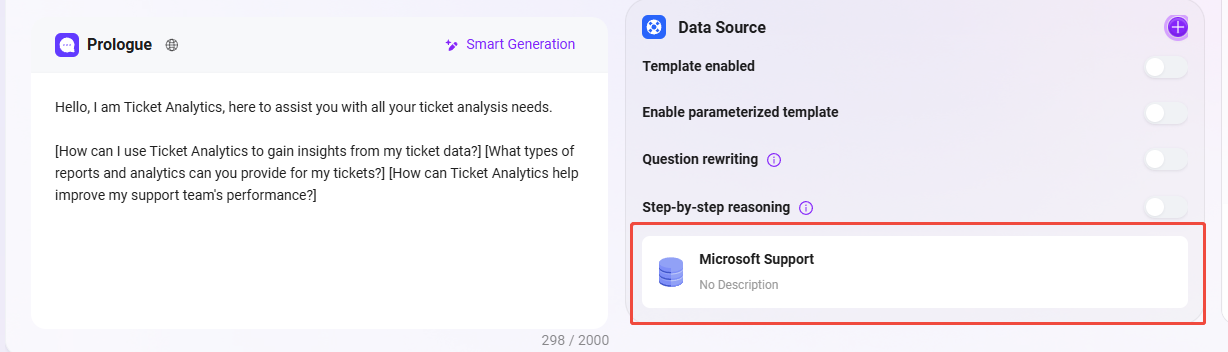
The final configuration effect is as follows:
Test the Q&A Effect
After the data source configuration is completed, you can enter the Agent conversation interface to test the effect of the ticket analysis assistant. The following is an example interaction flow in this example:
-
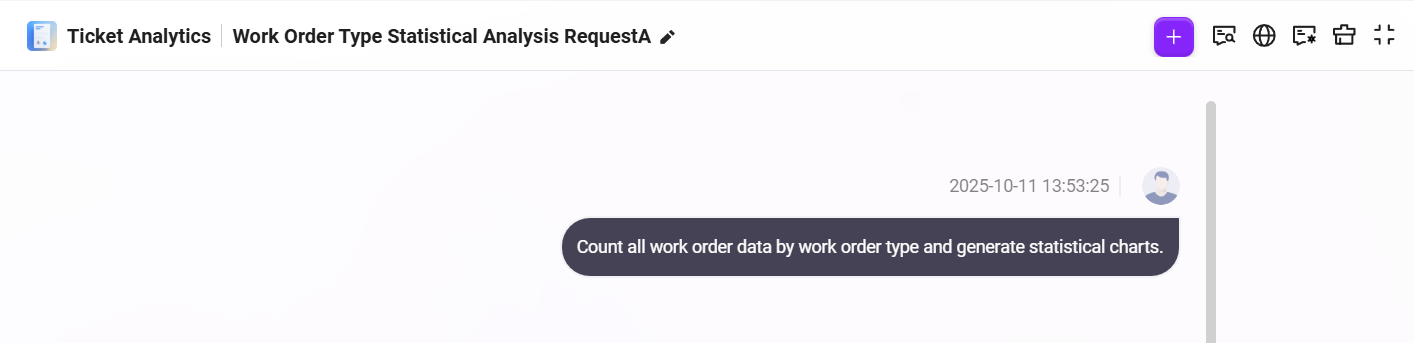
Enter a natural language request in the dialog box
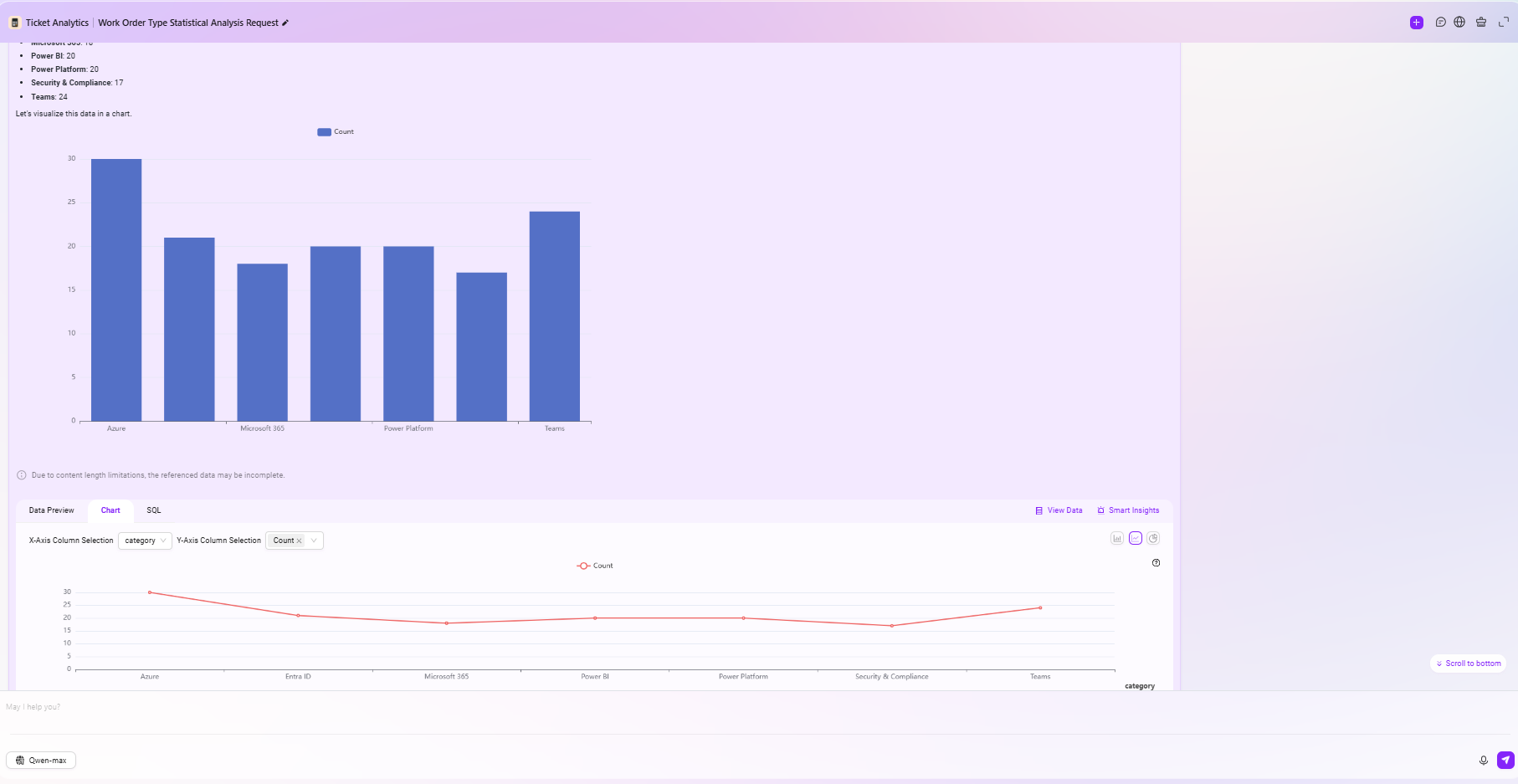
帮我按照工单类型统计所有的工单数据并形成统计图表
As shown below:
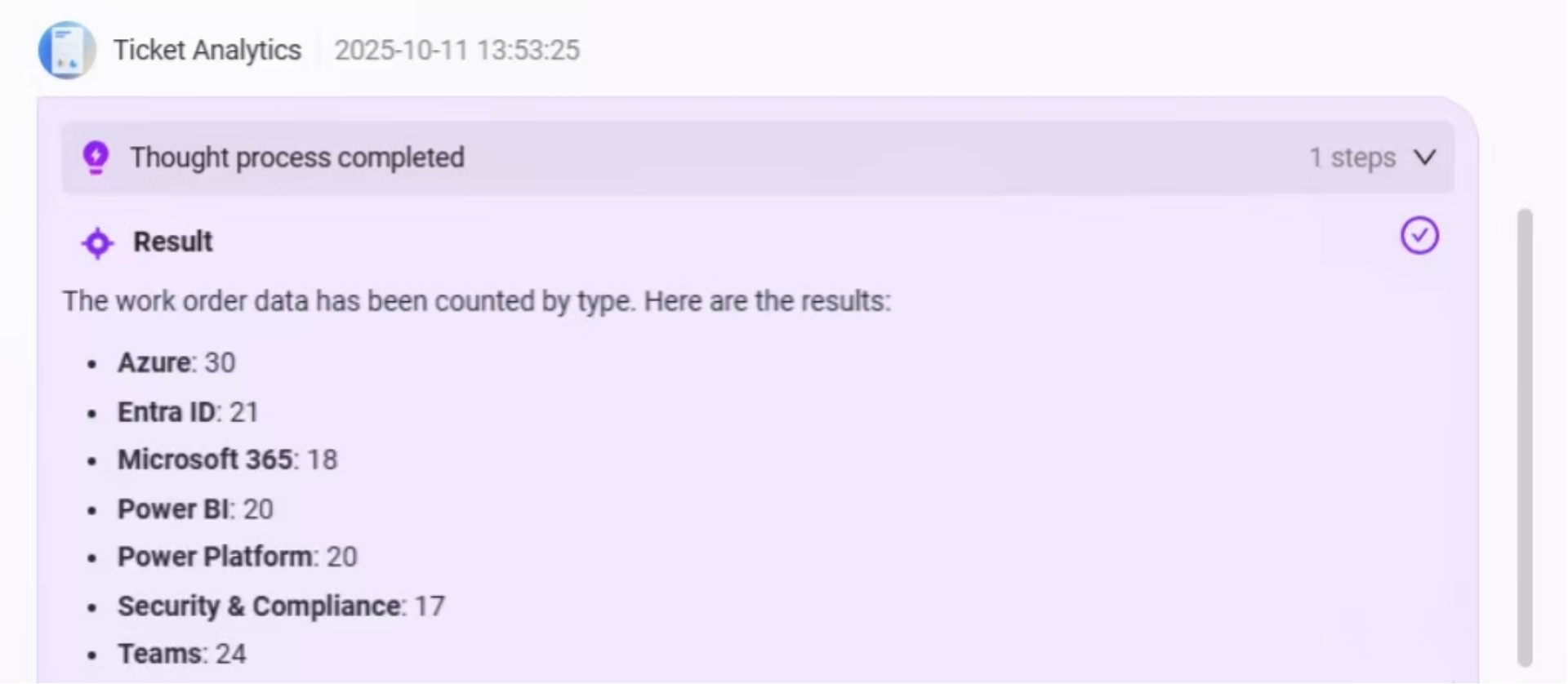
- The Agent will first extract all ticket data from the data source, classify and summarize them according to the
categoryfield, and output the statistical results of the number of each ticket type;
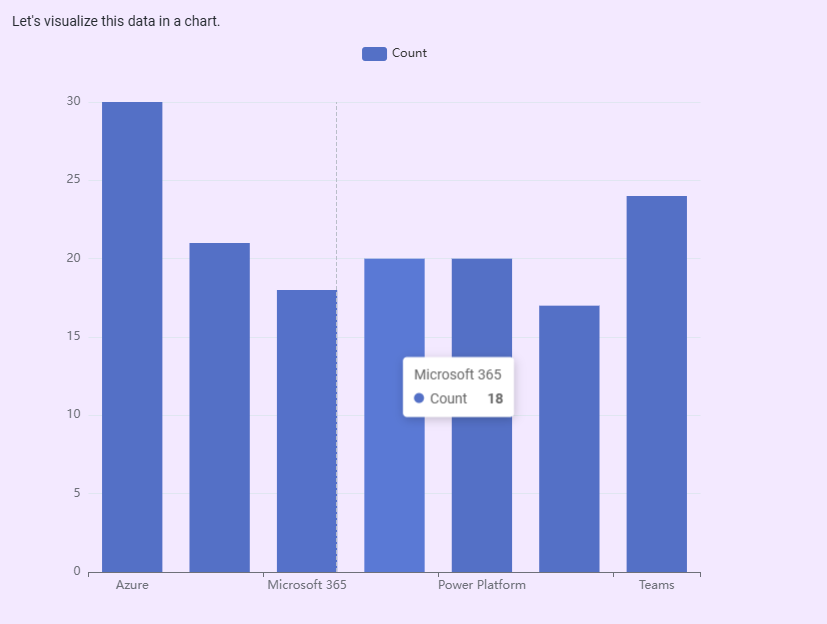
- Then, the system will automatically generate a bar chart based on the statistical data to more intuitively display the comparison of the number of various ticket types, helping users quickly identify high-frequency issue types;
- Below the chart, the system will also provide an Intelligent BI analysis area, supporting the following functions:
- Data Preview: View the raw data used to generate the chart;
- Chart Editing: Switch the bar chart to a line chart, pie chart, etc., and also customize the X-axis and Y-axis fields;
- SQL Query View: Supports viewing and copying the SQL query statement behind the current analysis for further analysis or reuse;
- View Data: Click to jump to the original data table view;
- Intelligent Insights: After clicking, the system will further provide automated insight results based on the current data, such as trend analysis and anomaly detection.
Data Preview:
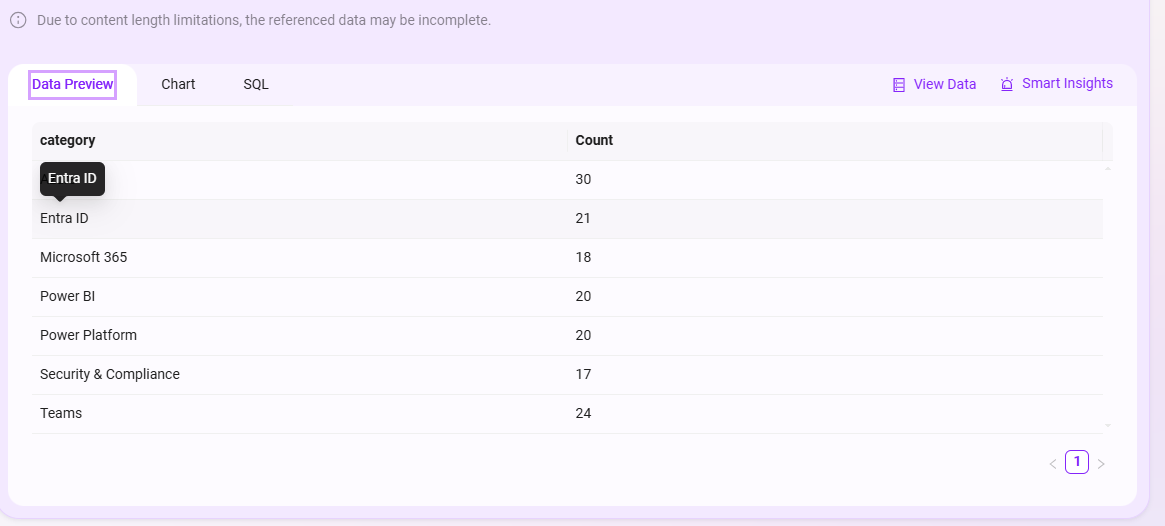
Chart Editing:
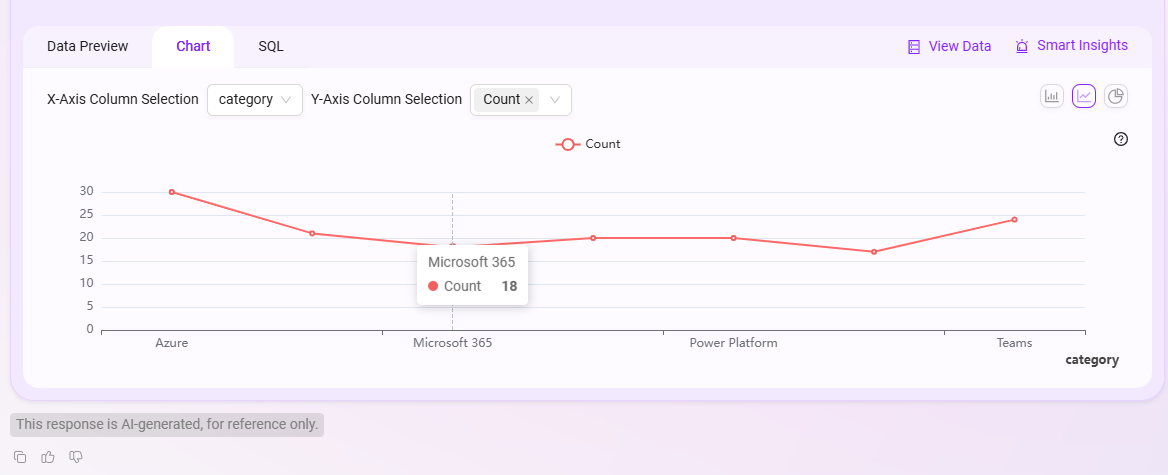
SQL View:

The overall Q&A effect is as follows: